Best PDF Editing Software in 2026: 8 Tools Compared


Professional and legal teams needing full PDF power · Starting price: $19.99 per month
How we put this together: we compare official feature and pricing pages, app store listings, privacy policies and public user reviews. Prices change, so check the provider's site before you pay.
Key takeaways
- Adobe Acrobat Pro leads for professional and legal work, while PDFelement offers strong value with a perpetual license option.
- Foxit and Nitro suit teams that want desktop power without Adobe pricing, and PDF Expert suits Mac users.
- Smallpdf and Sejda suit occasional browser-based edits, but they lack deep desktop editing.
- Check whether you need OCR, redaction, or form creation, since those features separate real editors from readers.
Quick comparison
| Name | Who it suits | Starting price | Free option | |
|---|---|---|---|---|
| Adobe Acrobat Pro | Professional and legal teams needing full PDF power | $19.99 per month | Free trial (7 days) | Visit |
 PDFelement | Budget buyers wanting desktop power plus AI | $79.99 per year | Free trial | Visit |
 Foxit PDF Editor | Professionals wanting a lighter Acrobat alternative | $10.99 per month | Free trial | Visit |
 Nitro PDF Pro | Small teams wanting editing plus collaboration | $15 per month | Free trial | Visit |
 PDF Expert | Mac and iOS users wanting fast, clean editing | $49.99 per year | Free trial | Visit |
 Smallpdf | Occasional users wanting browser-based tools | $12 per month | Yes | Visit |
 Sejda | Occasional users wanting a simple web editor | $6.99 per month | Yes | Visit |
 PDF-XChange Editor | Windows users wanting a fast perpetual editor | See website | Yes | Visit |
The best PDF editing software
We compared the options below on fit, price, and the work they actually do well. Read the best-for line first, then check the price and the honest catch before you shortlist two or three to try.
Adobe Acrobat Pro
Who it suits: Professional and legal teams needing full PDF power
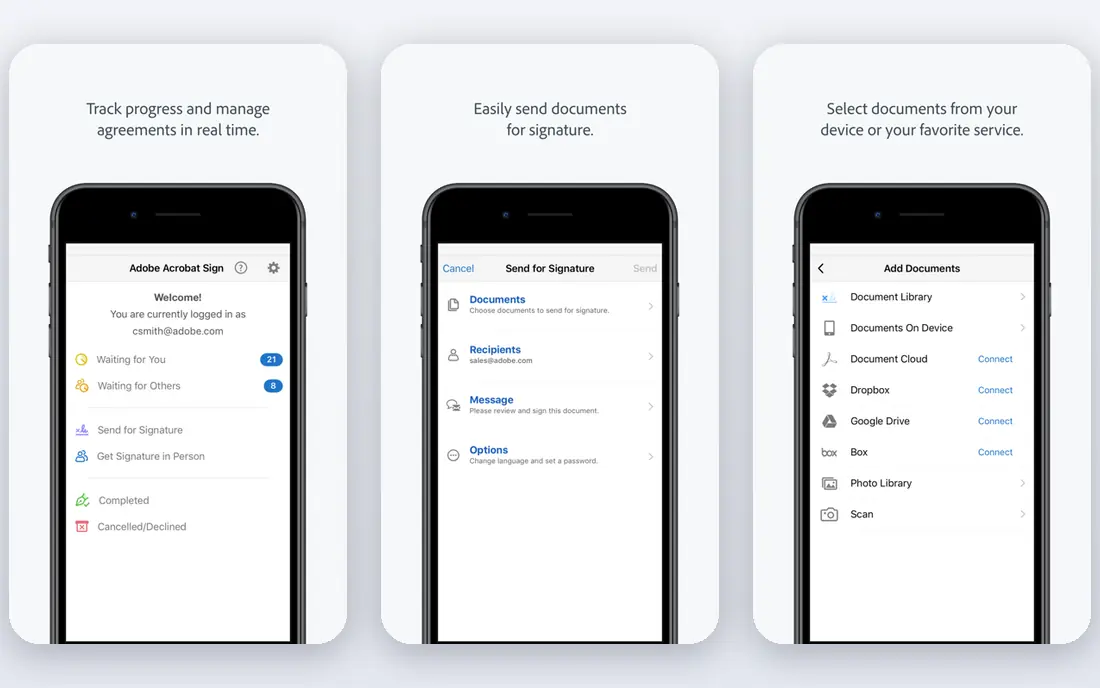
Adobe Acrobat Pro remains the reference PDF editor. Text and image editing, OCR for scanned pages, form creation, redaction, comparison, and certified signing all sit in one app, and its output is trusted in legal and professional settings. When a document must be exact, Acrobat is the safest bet.
The cost is the highest here, at about $19.99 per month on an annual plan, and annual-plan cancellation terms should be read before buying. A casual user who edits a few pages a month will not need this depth. A professional who edits, redacts, and signs PDFs daily will find the price easier to justify.
- Best OCR and editing depth
- Redaction and forms
- Strong signing and sharing
- Highest subscription cost
- Cancellation terms on annual plans need care
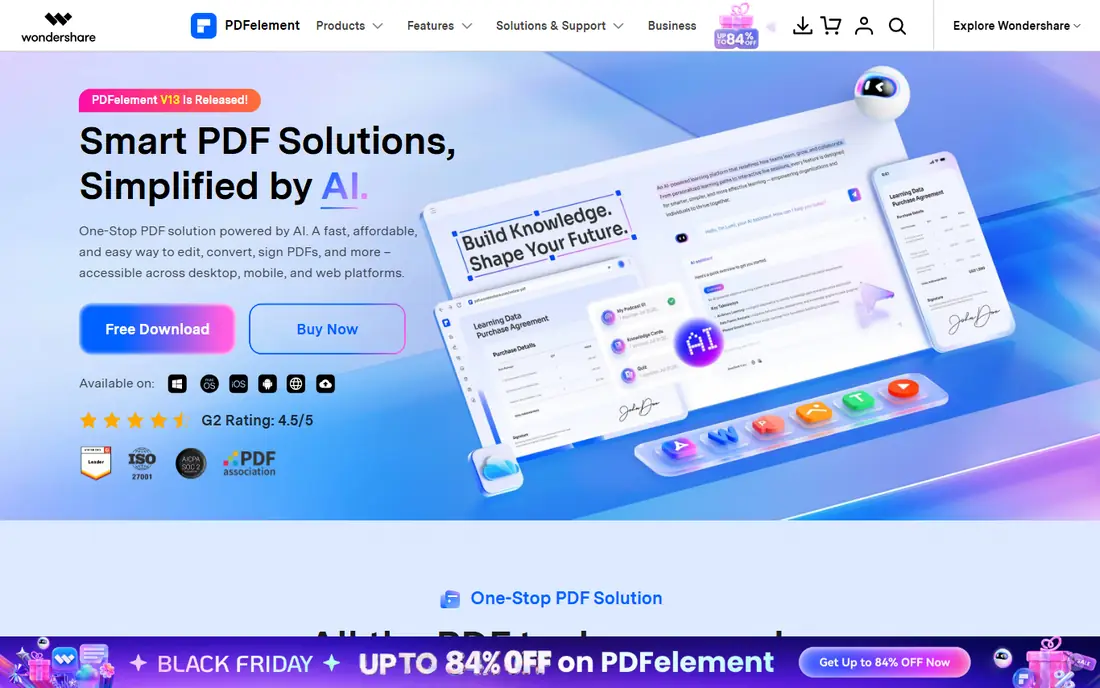
PDFelement, from Wondershare, gives desktop PDF editing at a much lower price than Acrobat. It covers text editing, OCR, forms, conversion, and signing, with apps for Windows, Mac, and mobile. Yearly plans start around $79.99, and a perpetual license option avoids an endless subscription for users who prefer to pay once.
The interface is less polished than Acrobat, and some AI features depend on the plan. Users who need the deepest redaction or enterprise controls may still prefer Acrobat or Foxit. For a freelancer or small business that edits PDFs often and wants full desktop tools at a fair price, PDFelement is excellent value.
- Low yearly cost
- Perpetual license option
- OCR and forms included
- Interface is less polished than Acrobat
- AI features vary by plan
Foxit PDF Editor
Who it suits: Professionals wanting a lighter Acrobat alternative
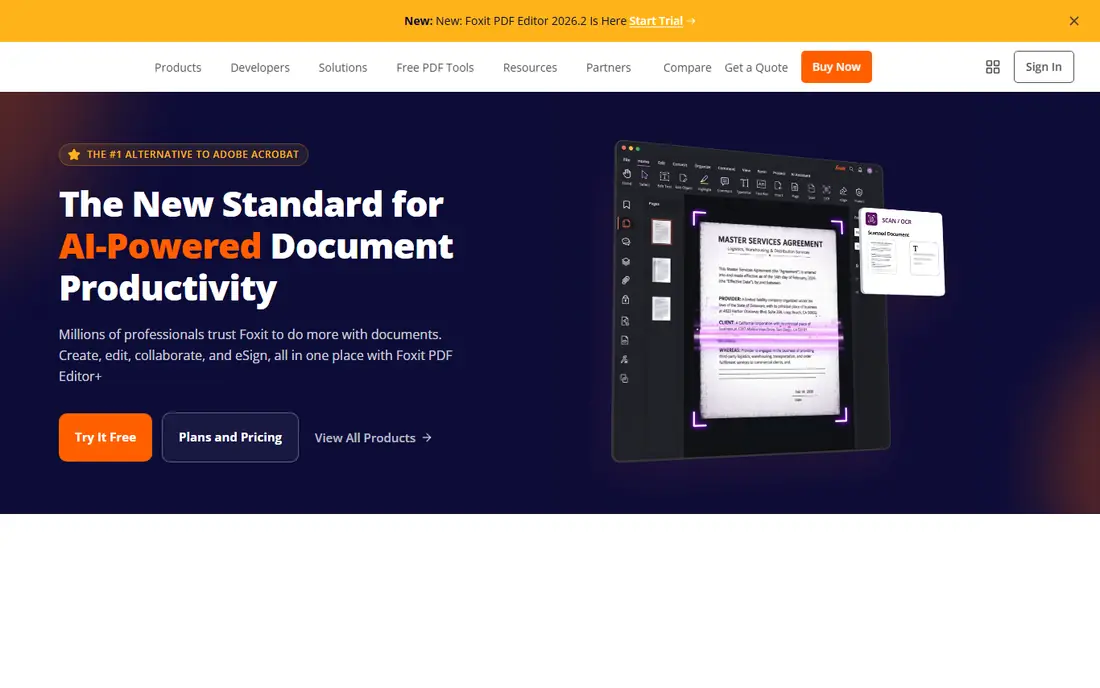
Foxit PDF Editor is a long-running Acrobat alternative that feels faster and lighter on most machines. It covers text and image editing, OCR, form creation, redaction, and signing, with collaboration tools for review and comments. Teams that want professional depth without Adobe pricing often land here.
The adjustment is modest: menus and workflows differ from Acrobat, and AI credits on the base plan are limited. Support levels also vary by plan. For a professional who edits PDFs daily and wants a perpetual license option, Foxit offers a strong balance of power, speed, and price.
- Fast and lightweight
- Full editing, OCR, and forms
- Perpetual option
- Support and AI credits vary
- Interface takes a short adjustment
Nitro PDF Pro suits small teams that edit, convert, and sign PDFs together. It covers text editing, OCR, forms, and batch conversion, with review, commenting, and e-signing tools that help a team move a document from draft to signature without extra apps. Business plans add admin controls for larger groups.
The Mac version has historically been more limited than Windows, so Mac-only teams should check feature parity before buying. Pricing is subscription-focused, with perpetual options varying by region. For a Windows-based small team that wants a capable Acrobat alternative, Nitro is a solid, workmanlike pick.
- Good editing and conversion
- Collaboration and signing
- Business controls
- Mac version is more limited than Windows
- Subscription focus
PDF Expert, from Readdle, is the best pick for people who live on Mac and iPhone or iPad. It opens large PDFs fast, edits text and images cleanly, annotates and signs with ease, and syncs through iCloud and other cloud services. The interface is calm and modern, which makes daily reading and editing pleasant.
The limit is platform: there is no Windows or Android version, and advanced form creation is lighter than Acrobat. A mixed-platform team should choose a cross-platform editor instead. For a Mac-only user who wants speed and polish over enterprise depth, PDF Expert is hard to beat.
- Fast Mac and iOS apps
- Clean editing and annotation
- Good signing
- No Windows or Android version
- Advanced forms are lighter than Acrobat
Smallpdf is a browser-based tool for people who edit PDFs rarely and do not want to install software. Merge, split, compress, convert, and sign tools run in the browser, and files can be shared by link. The free tier covers basic tasks with daily limits, which suits occasional use.
The tradeoff is depth. True text editing, OCR, and form creation are limited compared with desktop editors, and an internet connection is required. A professional who edits PDFs daily should choose Acrobat, Foxit, or PDFelement. A casual user who mainly merges and converts files will find Smallpdf quick and simple.
- No install needed
- Simple tools for merge, compress, and convert
- Easy sharing
- Editing depth is limited
- Needs internet
- OCR and forms sit on paid plans
Sejda offers web-based PDF editing with a focus on simplicity. Users can edit text, fill forms, merge, split, and sign without installing software, and the monthly price is lower than most rivals. The free tier allows a few tasks per day, which is enough to test whether the tool fits.
The limits mirror Smallpdf: free use is capped, large or complex files may need a paid plan, and desktop editors offer deeper OCR and redaction. Sejda suits a user who edits a PDF a few times a month and wants the cheapest simple web option. Heavy users should look at desktop tools.
- Simple web editing
- Merge, split, and form tools
- Low monthly cost
- Free tier has limits
- Desktop depth is limited
- Large files need paid plans
PDF-XChange Editor
Who it suits: Windows users wanting a fast perpetual editor
PDF-XChange Editor is a Windows favorite for speed. It opens large files quickly, annotates and marks up documents well, and offers a free version for reading, annotation, and basic tasks. The Pro version adds full editing, OCR, and redaction through a perpetual license, which appeals to users who dislike subscriptions.
The interface is dense, with many toolbars and options that take time to learn, and there is no Mac version. Some advanced features require Pro, so the free version is not a full editor. For a Windows user who values speed and a one-time license, PDF-XChange Editor is a strong and affordable pick.
- Very fast on Windows
- Free version for reading and annotation
- Perpetual license
- Windows only
- Interface is dense
- Some features need the Pro version
How we picked these
We compared official feature pages, pricing pages, app store listings, privacy policies, and public reviews for each product, and kept only tools that are available now and truly fit the topic. We checked the starting price and free plan on the vendor site where it was published, and wrote See website where the vendor does not publish a price. We did not claim hands-on testing we did not do, and we left out tools that had closed, changed focus, or did not match the topic.
We weighed fit for the stated use first, then day-to-day ease of use, automation or workflow depth, integrations, and total cost as a team or list grows. A strong free plan helps a small user, while clear pricing, support, and upgrade paths matter more as volume rises.
How to choose a PDF editor
Decide how you edit: browser, desktop, or both
Browser tools suit occasional merges, conversions, and signatures. Desktop editors suit daily text editing, OCR, and redaction. If you work offline or with large files, a desktop app matters. If you work across shared computers, a browser tool may be simpler. Many users pair a free reader with one paid editor.
Check OCR, forms, and redaction before you pay
Reading and highlighting are free in many readers. Paid editors earn their price when you edit scanned pages with OCR, build fillable forms, redact sensitive text, or compare versions. Test those exact tasks in a trial with your own documents, not only with sample files. Poor OCR on your scans is a deal-breaker.
Compare subscription cost over three years
A $20 monthly subscription costs about $240 a year, while a perpetual license may cost less over three years but lacks new features. Check cancellation terms on annual plans, especially with Adobe. For occasional use, a free tier or a low-cost web plan may cover every need.
Frequently asked questions
What is the best PDF editing software overall?
Adobe Acrobat Pro is the most complete editor for professional and legal work. PDFelement and Foxit offer strong value for most users, and PDF Expert leads for Mac users. The best pick depends on how often you edit and which features you need.
What is the best app for editing PDFs on a Mac?
PDF Expert is the best Mac-first pick for speed and clean editing. Adobe Acrobat Pro and PDFelement also run well on Mac and add deeper forms and redaction. Choose PDF Expert for daily reading and editing, Acrobat for enterprise depth.
What is the best free PDF editing tool?
Smallpdf and Sejda offer free tiers for basic web tasks, and PDF-XChange Editor offers a free Windows version for reading and annotation. Free tools cover merges, conversions, and signatures, but full text editing and OCR usually need a paid plan.
Is PDFelement better than Adobe Acrobat?
PDFelement is better on price and offers a perpetual license, while Acrobat is better on editing depth, redaction, and enterprise trust. A freelancer who edits often may prefer PDFelement. A legal or large corporate team usually needs Acrobat.
Do I need paid software for editing PDFs?
Not always. Reading, highlighting, filling forms, and signing are free in many readers. Paid software earns its price when you edit text and layout often, run OCR on scans, create forms, or redact sensitive content.
Sources we checked (8)

Online Jobs is an independent blog about careers, online work, learning new skills and the tools that help people earn. More about us.
Keep reading
All posts
Zoom Alternatives
Zoom alternatives compared for 2026: Google Meet, Microsoft Teams, Webex, Jitsi and more for free calls, large meetings and webinars for teams and classrooms.
Which Software Is Best for PDF Page Removal
Which software is best for PDF page removal? We compare free and paid tools for deleting pages quickly, safely, and without harming your file in this guide.
Which Software Is Best for Data Entry
Compare the best data entry software for forms, OCR scanning, and spreadsheets, with free plans, pricing, and honest limits for each tool before you commit.