Best PDF Creation Tool in 2026: 9 Tools Compared


Full desktop PDF work · Starting price: $14.99 per month
How we put this together: we compare official feature and pricing pages, app store listings, privacy policies and public user reviews. Prices change, so check the provider's site before you pay.
Key takeaways
- PDF24 Tools and LibreOffice create PDFs for free with no subscription, and they suit people who mainly need a clean file to share or print.
- Adobe Acrobat remains the fullest desktop option for editing, forms, and scanned documents, but its monthly price adds up over a year.
- Smallpdf, iLovePDF, and Sejda are best for quick browser work, such as turning a Word file or a set of images into one PDF without installing software.
- Canva is the strongest pick here for a designed PDF, such as a resume, flyer, or workbook, rather than a plain office document.
- Check file size limits and daily task limits on free plans before you rely on a web tool for a large or urgent file.
Quick comparison
| Name | Who it suits | Starting price | Free option | |
|---|---|---|---|---|
| Adobe Acrobat | Full desktop PDF work | $14.99 per month | Free trial (7 days) | Visit |
 Smallpdf Smallpdf | Quick browser conversions | See website | Yes | Visit |
 iLovePDF iLovePDF | Simple all round web tools | $9 per month | Yes | Visit |
 Sejda Sejda | Clean web editing and creation | $7.50 per month | Yes | Visit |
 PDF24 Tools PDF24 Tools | Free unlimited style web tools | Free | Yes | Visit |
 Foxit PDF Editor Foxit PDF Editor | Business desktop editing | See website | Free trial | Visit |
 Nitro PDF Nitro PDF | Office friendly desktop PDFs | See website | Free trial | Visit |
 LibreOffice LibreOffice | Free office to PDF export | Free | Yes | Visit |
 Canva Canva | Designed PDFs and layouts | Free | Yes | Visit |
The best pdf creation tool
A good PDF tool should turn your source file into a file that looks right on any device, opens fast, and prints cleanly. The tools below do that in different ways.
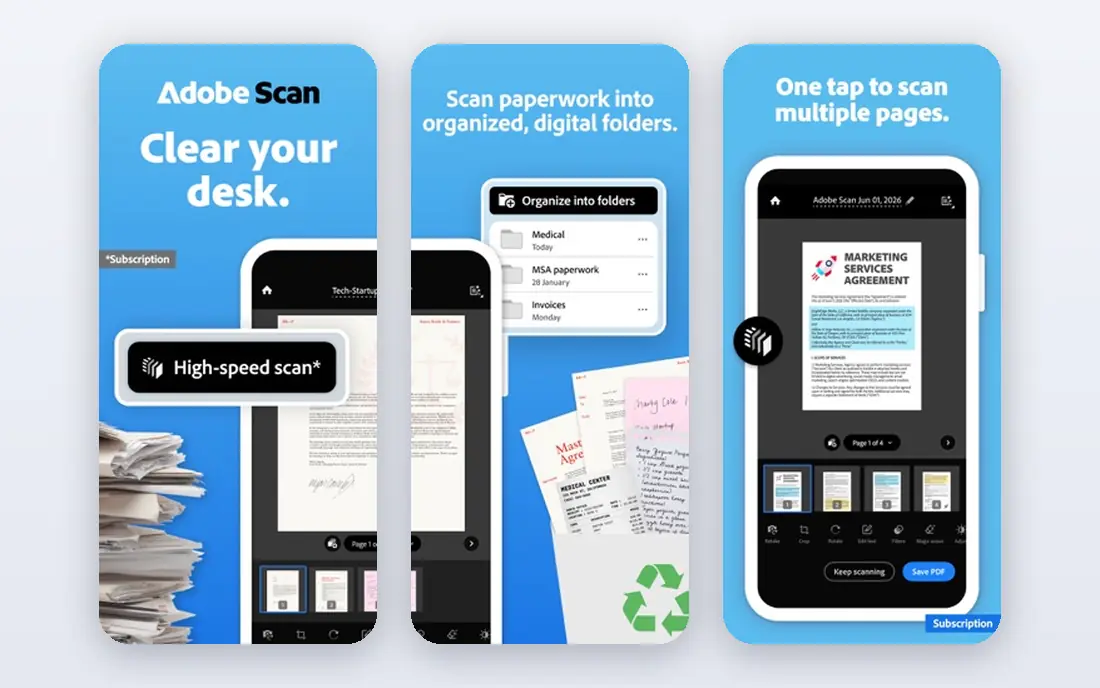
Adobe Acrobat sets the standard many other tools are measured against, because it covers creation, editing, signing, and protection in one place. Standard starts at $14.99 per month on an annual plan billed monthly, while Pro starts at $19.99 per month on the same billing basis and adds tools such as redaction, comparison, and stronger handling of scanned documents. You can create a PDF from Office files, images, web pages, and scanned paper, then edit text, rearrange pages, and add form fields.
The price is the main reason to pause. If you only turn a Word document into a PDF a few times a month, a free tool will do the same job for nothing. Acrobat earns its cost when you edit PDFs often or work with contracts and forms. Try the trial on a real project first.
- Strong editing, forms, and signing tools
- Good handling of scanned pages
- Desktop, web, and mobile access on paid plans
- Monthly subscription cost adds up
- Interface can feel busy for simple tasks
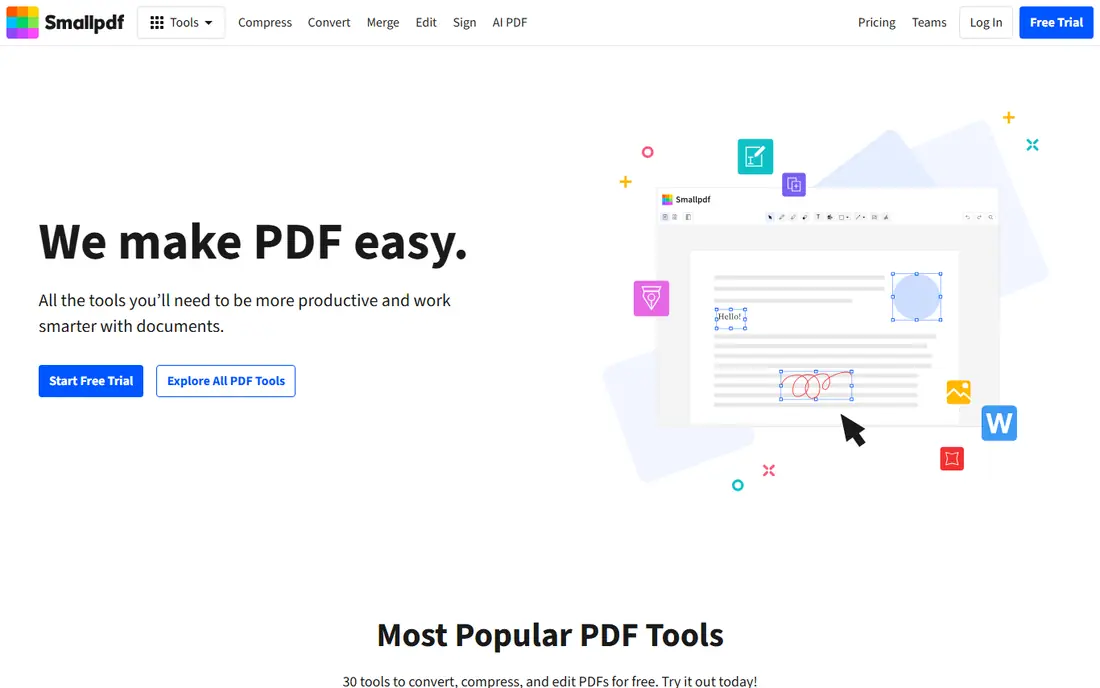
Many people open Smallpdf when they need a PDF fast and do not want to install anything. You can convert Word, Excel, PowerPoint, and image files to PDF, merge files, split pages, compress a large file, and sign a document in the browser. The layout is plain and each tool explains its next step, which helps when you are working under time pressure.
Free use is limited, with a small number of tasks per day and a file size cap, so it is not the right choice for a long batch of files. Paid plans remove those limits. Smallpdf fits best for occasional browser work.
- Wide set of browser tools in one place
- Simple upload and download flow
- Mobile app and browser access
- Free plan limits daily tasks and file size
- Paid price varies by billing term
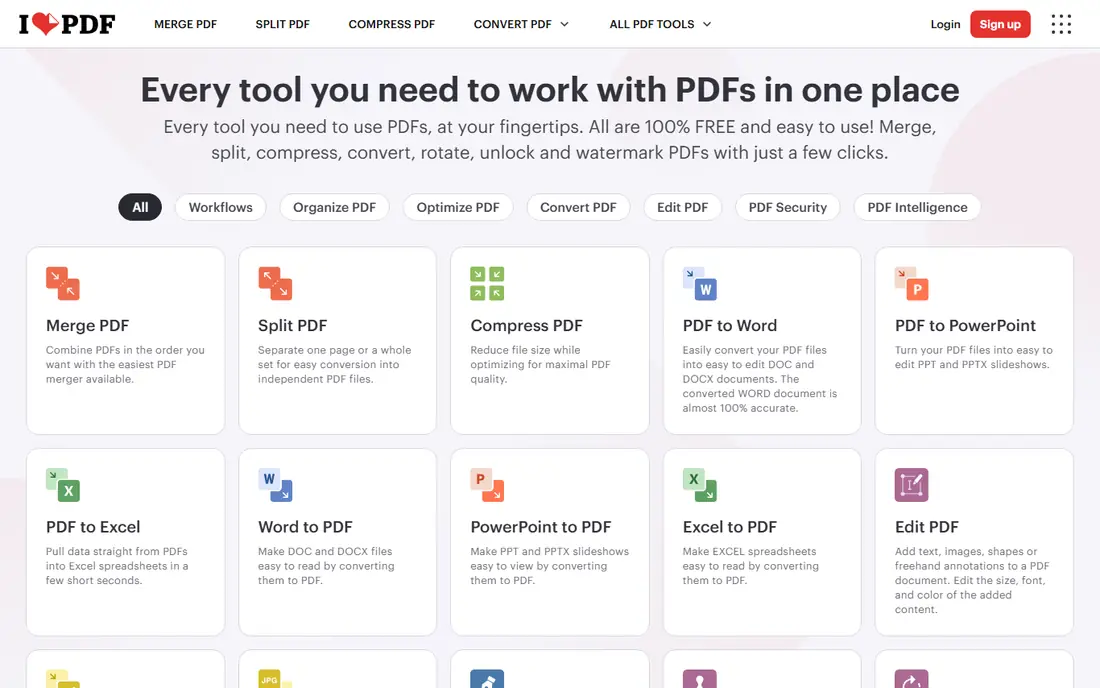
iLovePDF covers the everyday PDF jobs in a browser with very little fuss. Merge, split, compress, convert, and protect are all on the home page, and the steps for each job are short. Premium costs $9 per month on monthly billing, with a lower monthly equivalent on annual billing, and it adds unlimited processing, larger files, and priority support.
The free plan is generous for one off jobs, though file size limits and some editing limits still apply. That makes iLovePDF a good first stop for a student, a freelancer, or a small office that needs a PDF now and does not want to learn a desktop editor. If you edit the wording inside PDFs often, compare the Premium editing tools with a desktop editor before you pay.
- Large tool set with a clear layout
- Premium removes most size and task limits
- Desktop and mobile apps available
- Editing existing text is limited on the free plan
- Some advanced tools need Premium
Sejda feels calmer than many web PDF tools, because each page shows only the options for that one job. You can create a PDF from Office files and images, edit text, add annotations, merge or split pages, and fill forms. The personal plan costs $7.50 per month, and a desktop version is available for people who want to keep files on their own computer.
Free use allows a small number of tasks per hour, with limits on file size and page count. That is enough for a single document, but not for a full day of conversions. Sejda suits people who value a tidy workspace and occasional offline work, and who are happy to pay a modest monthly fee once free limits start to get in the way.
- Clear interface with little clutter
- Desktop version works offline
- Free plan covers basic creation and editing
- Free plan limits tasks per hour
- Batch work can feel slow on large files
PDF24 Tools stands out because it is free with no premium tier to sort through. The online tools cover creation, editing, merging, splitting, compression, conversion, signing, and protection, and the Windows Creator app brings many of the same tools offline. Files processed in the desktop app stay on your computer, which is a real plus for private documents.
The main limit is platform coverage. Mac users can use the online tools, but the desktop Creator is Windows only. For plain, reliable PDF creation at no cost, PDF24 Tools is hard to argue against.
- Free for personal and commercial use
- Wide tool set online and on Windows
- Desktop Creator keeps files local
- Windows only for the desktop Creator
- Interface can feel plain next to paid tools
For daily document work, Foxit PDF Editor is a desktop alternative to Acrobat that many offices choose. It creates PDFs from Office files, images, and web pages, edits text and images, adds comments, fills forms, and protects files with passwords and permissions. The layout will feel familiar if you spend most of your day in Office apps.
Pricing is shown on the Foxit website and varies by edition and billing term, so check the current page before you budget. A free trial lets you test creation and editing on your own files. Foxit fits best for a business that wants desktop power without Acrobat, and for users who prefer to keep most PDF work in one installed app.
- Strong desktop editing and form tools
- Familiar Office style layout
- Team and business options available
- Price needs a check on the vendor site
- Some features vary by edition
Office workflows are the focus for Nitro PDF, where documents move between Word, Excel, email, and PDF all day. It creates PDFs from Office files and other sources, converts PDFs back to editable formats, combines files, adds signatures, and handles batch jobs. That batch strength matters when you need to convert a folder of reports rather than a single file.
Nitro is desktop software first, so it is less handy than a browser tool when you are on a borrowed computer or a phone. Pricing is listed on the vendor site and varies by product and term, so confirm it before you buy. Choose Nitro if your PDF work is regular, office based, and tied to batch conversion or form handling.
- Strong Office integration
- Good batch conversion tools
- Signing and form features for office work
- No meaningful free online tier
- Desktop focus means less browser flexibility
You will not find a usual PDF editor label on LibreOffice, but it is one of the best free ways to create a PDF. Write a document in Writer, build a spreadsheet in Calc, or make slides in Impress, then export directly to PDF with options for quality, page range, and basic security. The file you get is clean, standard, and easy to share or print.
The limit is what happens after export. LibreOffice Draw can open and adjust some PDFs, but it is not a match for a dedicated editor when you need to rewrite text, manage forms, or handle scans. Use LibreOffice when your starting point is a document you wrote yourself, and pair it with a web tool or editor only when you need to change a PDF someone else sent you.
- Completely free office suite
- One click PDF export from Writer, Calc, and Impress
- Works offline on major desktop systems
- Not a dedicated PDF editor
- PDF editing itself is limited
Canva creates PDFs from the design side rather than the office side. Start with a template for a resume, menu, flyer, lesson sheet, or workbook, change the text and images, then download the result as a PDF. The free plan covers many templates and basic export, while paid plans add more assets, brand tools, and print ready options.
Long reports and contracts are a poor fit here, because Canva is built for pages you design, not for pages you write at length. For short, visual documents, though, it is often faster than formatting the same layout in a word processor. Check that fonts and images look right in the exported PDF before you send it, especially for print.
- Large template library for resumes, flyers, and workbooks
- Easy drag and drop layout
- PDF export in standard and print quality
- Not suited to long text documents
- Some templates and assets need a paid plan
How we picked these
We looked for tools that create a PDF from a document, image, or web page and still work in October 2026, then checked each vendor website, pricing page, and app store listing for current plans and free limits. We kept a mix of desktop editors, browser tools, a free office suite, and a design tool, because PDF creation means different things to different people. Where pricing varied by region or billing term, we used the monthly figure shown for US individual plans where we could confirm it, and we wrote "See website" where the vendor price was not clear from its own pages.
Public reviews and help pages helped us spot common limits, such as daily task caps, file size caps, and editing limits on free plans. We did not count a tool as free if its free plan only allowed viewing, and we did not count a trial as a free plan. Prices can change with promotions, so the vendor pricing page remains the final check before you buy.
How to choose the right tool for the job
Match the tool to the source file and to how often you create PDFs. A browser tool is enough for a one off conversion, while a desktop editor pays off when you create and edit PDFs every week. Also think about privacy: a browser tool uploads your file to a server, while a desktop app can keep sensitive files on your own computer. For contracts, medical forms, or financial records, that difference matters.
Check the output before you send it
Open the exported PDF on a phone as well as on a computer, and check page breaks, images, and fonts. A file that looks fine on a large screen can break on a small one, especially if it came from a designed layout. Print one page if the file is meant for paper, because screen colours and print colours do not always match. Keep the source file too, so you can fix a mistake without rebuilding the PDF from scratch.
Watch free limits and file sizes
Free plans often limit tasks per day or per hour, file size, page count, or batch processing. Those limits are easy to miss until you hit them on a deadline. If you work with large scans or many files at once, test the free plan with your largest file first. A small monthly fee can be worth it if it removes the limit that keeps slowing you down, but it is wasted if you only need the tool once a month.
Frequently asked questions
What is the best free PDF creation tool?
PDF24 Tools and LibreOffice are the strongest free options for most people. PDF24 Tools covers many browser and desktop PDF jobs at no cost, while LibreOffice exports clean PDFs from documents, spreadsheets, and slides. Choose PDF24 Tools for working with existing PDFs, and LibreOffice when you are writing the document yourself.
Can I create a PDF from images for free?
Yes, most tools on this list can turn images into a PDF. Smallpdf, iLovePDF, Sejda, and PDF24 Tools all offer image to PDF conversion in a browser, and LibreOffice can place images in a document and export it as a PDF. For a photo heavy file, check the file size and image quality settings before you export, so the result is sharp but not needlessly large.
Is Adobe Acrobat worth the monthly cost?
It depends on how often you work with PDFs. Acrobat is worth it if you edit PDFs, handle forms and signatures, or work with scanned documents on a regular basis. It is harder to justify if you only convert a Word file to PDF a few times a month, since free tools cover that job well. Use the trial on real work to see whether the extra tools save you time.
Are online PDF tools safe for private documents?
Browser tools upload your file to a server for processing, and most vendors state that files are deleted after a short period. That is fine for many everyday files, but it is a risk for highly private documents. For sensitive work, use a desktop tool such as PDF24 Creator, LibreOffice, Acrobat, Foxit, or Nitro, so the file stays on your computer during processing.
What is the difference between a PDF creator and a PDF editor?
A PDF creator turns another file, such as a Word document or an image, into a PDF. A PDF editor changes a PDF that already exists, for example by rewriting text, adding pages, or filling a form. Many tools do both, but some are stronger at one job than the other. Check which job you need most before you choose, rather than paying for a full editor when creation is all you do.
Can Canva make a print ready PDF?
Yes, Canva can export PDFs for screen use and for print, and paid plans add more print controls. For a simple flyer or handout, the free export is often enough. For professional printing, check bleed, margins, and colour settings with your printer first, and ask for a test print if the job is large or costly.
Sources we checked (9)

Online Jobs is an independent blog about careers, online work, learning new skills and the tools that help people earn. More about us.
Keep reading
All posts
Zoom Alternatives
Zoom alternatives compared for 2026: Google Meet, Microsoft Teams, Webex, Jitsi and more for free calls, large meetings and webinars for teams and classrooms.
What Is the Best Free Tool to Rotate a PDF
What is the best free tool to rotate a PDF? We compare eight free rotation tools on per-page control, limits, privacy and saved output quality in detail.
What Is the Best AI Dubbing Tool
We compared the best AI dubbing tools in 2026, from ElevenLabs and HeyGen to Rask AI, Dubverse and Veed, for videos and creators in many languages worldwide.