Best PDF Compression Services in 2026: 8 Tools Compared

How we put this together: we compare official feature and pricing pages, app store listings, privacy policies and public user reviews. Prices change, so check the provider's site before you pay.
Key takeaways
- Smallpdf and iLovePDF are the easiest online choices for occasional compression, with free tiers for light use.
- Adobe Acrobat suits people who already pay for a full PDF editor and need reliable compression inside it.
- PDFelement, Foxit, and Nitro are better for desktop batch work and larger files.
- PDF Smaller and Sejda suit quick, browser-based jobs where installing software is not worth it.
- Stronger compression always costs some image quality, so pick a level that matches the file's purpose.
Quick comparison
| Name | Who it suits | Starting price | Free option | |
|---|---|---|---|---|
 Smallpdf | Easy online compression | $9 per month | Yes | Visit |
 iLovePDF | Compression levels and batch work | See website | Yes | Visit |
 Adobe Acrobat | Full PDF editing plus compression | See website | Yes | Visit |
 PDFelement | Desktop editing and compression | $79.99 per year | Free trial | Visit |
 Foxit PDF Editor | Business PDF work | See website | Free trial | Visit |
 Nitro PDF | Acrobat alternative for teams | See website | Free trial | Visit |
 Sejda | Browser-based PDF tools | See website | Yes | Visit |
 PDF Smaller | Free in-browser compression | Free | Yes | Visit |
The best PDF compression services
A PDF that is too large will bounce from an email inbox, fail a portal upload, or eat storage for no reason. Compression shrinks the file, usually by recompressing images inside it, while keeping text selectable. The services below differ in how much control they offer, whether files are uploaded to a server, and how well they handle batches.
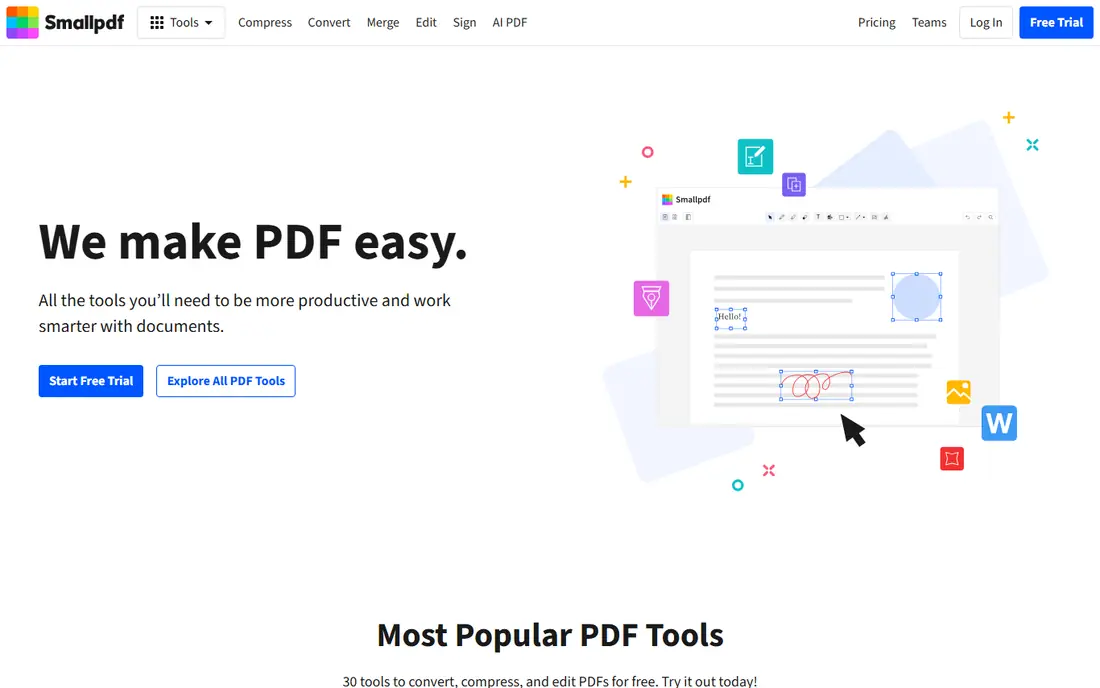
Smallpdf is the tool many people reach for first because the compressor is genuinely one click. Drop a file in, choose basic or strong compression, and download the smaller version. The free plan handles occasional jobs, while Pro at $9 per month adds unlimited tool use, strong compression, batch processing, and the full set of PDF tools.
The limit is the free tier. Daily task limits mean a heavy day of files will push you toward Pro, and the strongest compression is a paid feature. For occasional use, Smallpdf is our pick for most people. For daily batch work, a desktop editor further down this list will be cheaper over time.
- Very simple one-click tool
- Strong compression on Pro
- Desktop and mobile apps
- Free plan limits tasks per day
- Highest compression needs Pro
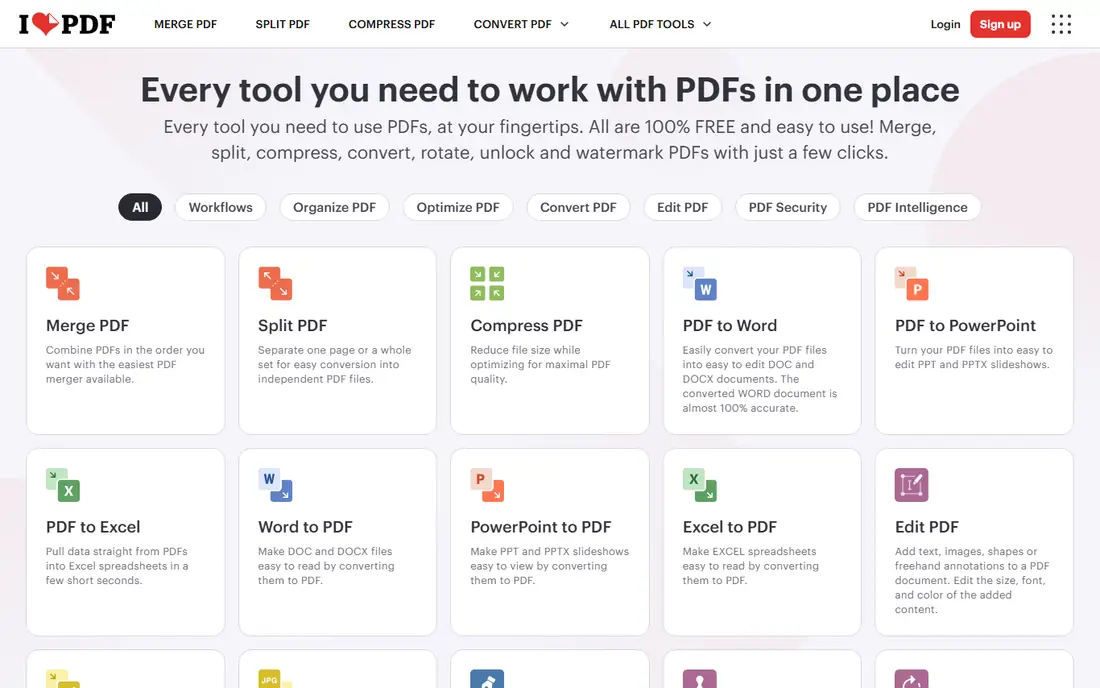
iLovePDF gives more control than Smallpdf, with Extreme, Recommended, and Less compression levels that let you trade file size against image quality. That choice matters when a document must still print well versus when it only needs to pass an email limit. Premium adds batch processing, larger file limits, and desktop and mobile apps, with pricing shown on the iLovePDF site.
The free tier is useful but bounded, with limits on tasks and file size, and free users see ads. If you compress a few files a week and want to choose the level, iLovePDF is a strong pick. If you compress dozens of files a day, check the Premium batch limits before you commit.
- Three compression levels
- Batch processing on Premium
- Wide PDF toolset and apps
- Free tier limits file size and tasks
- Ads on the free plan
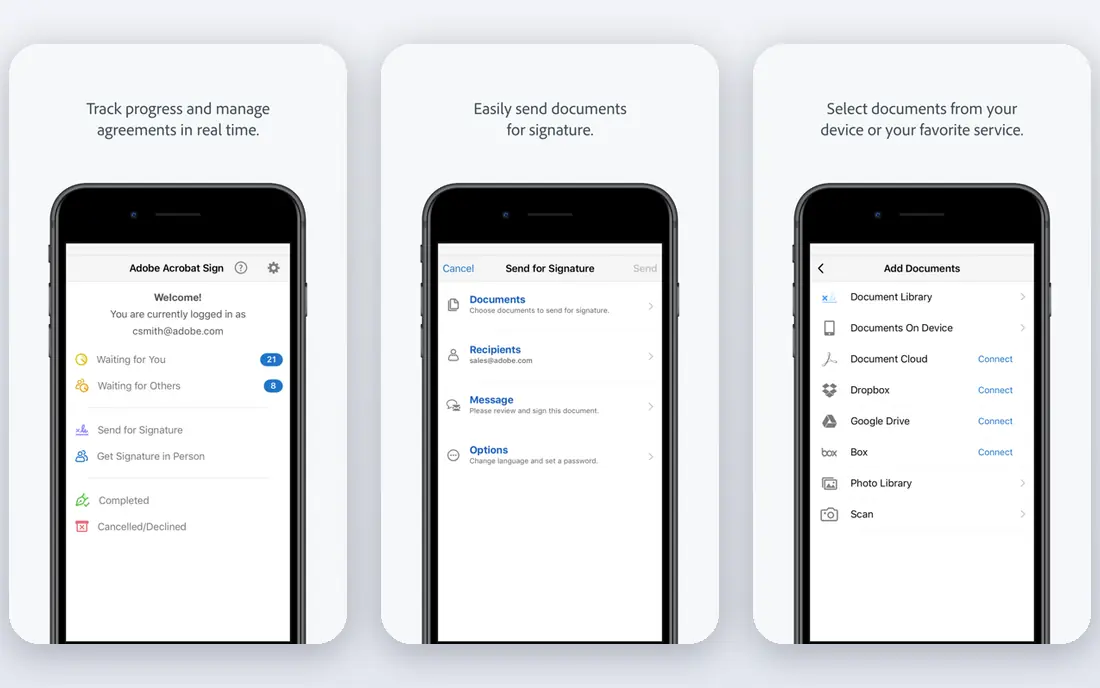
Adobe Acrobat is the standard PDF editor, and its compressor is reliable because it comes from the company behind the format. The desktop app can reduce file size with control over image quality and compatibility, and the free online tools handle single files for quick jobs. If you already use Acrobat for editing, signing, and forms, compression is simply part of the package.
Paying for Acrobat just to compress files is hard to justify when Smallpdf and iLovePDF cover that job for less. The free online tools also lack batch processing and carry restrictions on single files. Choose Acrobat when you need the full editor, not when compression alone is the job.
- Reliable compression quality
- Full editing, signing, and form tools
- Online tools for single files
- Paid plans are expensive if compression is the only need
- No batch compression in free online tools
PDFelement, from Wondershare, is a desktop PDF editor with compression built in, which suits people who prefer to process files locally rather than upload them. You can compress single files or batches, adjust quality, and then edit, convert, sign, or protect the same document without switching apps. Paid plans start at $79.99 per year in current listings.
The catch is that it is a full editor, so the interface carries more than a simple compressor needs, and full use requires payment. For a freelancer or small team that edits PDFs daily, that breadth is good value. For a one-off compression job, an online tool is faster.
- Desktop compression with quality control
- Full editing suite
- One-time purchase option in some regions
- Paid only for full use
- Interface is busier than online tools
Foxit PDF Editor is a long-standing business alternative to Acrobat, with compression, editing, conversion, and signing in a fast desktop app. It handles larger documents well, and team plans add deployment and management features that matter in an office. A free trial lets you test compression quality on your own files before paying.
The downside is scope and price variation. Foxit is priced by plan and region, so we list it as See website, and a buyer who only needs compression will pay for editing features they never use. For teams already standardizing on Foxit, compression is a solid built-in feature. For solo users, it is more tool than the job needs.
- Fast desktop performance
- Compression plus full editing
- Business and team plans
- Pricing varies by plan and region
- Overkill for simple compression
Nitro PDF pairs compression with a full editing suite in an interface that feels familiar to Microsoft Office users. It covers editing, conversion, signing, and document protection, and its team plans suit offices that need consistent PDF tools across many seats. Compression quality is strong for business documents, including scanned files that need OCR first.
Nitro is a paid product, and pricing varies by plan, so check the Nitro site for the current figure. It is best viewed as an Acrobat replacement that happens to compress well, rather than as a dedicated compressor. Teams moving off Acrobat often find Nitro the smoothest landing spot.
- Full PDF editing and compression
- Familiar Office-style interface
- Team licensing
- Paid only
- Pricing is quoted by plan in many cases
Sejda is a browser-based PDF suite with a straightforward compressor alongside merge, split, convert, and edit tools. It suits people who work on shared or locked-down computers where installing software is not an option, and the free tier covers a small number of tasks per day. Files are processed on Sejda servers, with deletion policies described on its site.
The free limits are the main catch, along with upload time for very large files. Sejda also lacks the desktop batch depth of PDFelement or Foxit. For quick, occasional jobs from any computer, it is a clean and capable choice.
- Works fully in the browser
- Compression plus many PDF tools
- No install needed
- Free tier limits tasks and file size
- Large files can be slow to upload
PDF Smaller takes a different approach from most online compressors, because compression happens entirely in your browser rather than on a remote server. That is a privacy plus for sensitive documents, since the file never leaves your device, and the tool is free with batch processing for up to 10 files. Multiple quality levels let you balance size against readability.
The trade-off is breadth. PDF Smaller is a compressor, not a full PDF suite, so editing, signing, and conversion need another tool. Its quality controls are also simpler than iLovePDF. For free, private compression of everyday files, it is our pick for privacy-conscious users.
- Compression happens in the browser, not on a server
- Free
- Batch processing for up to 10 files
- Smaller toolset than full suites
- No desktop app
- Quality levels are simpler
How we picked these
We compared official feature pages, pricing pages, and app store listings, and we kept only services that exist and work today for PDF compression. Browser-based and desktop tools were both included, since the right choice depends on file size, privacy needs, and batch volume. Prices come from vendor pages or current pricing summaries, and where pricing varies by plan or region we used See website rather than guessing.
How to get good results without ruining a file
Match the compression level to the file's purpose. A document that will only be read on screen can take stronger compression, while a file that must print cleanly needs a lighter touch. Always keep the original file until you have checked the compressed version, especially for scanned documents where image quality drops fast.
Check privacy before uploading sensitive files. Browser-based tools such as PDF Smaller keep the file on your device, while server-based tools upload it and delete it after a stated period. For contracts, medical forms, or financial documents, a desktop tool or a browser-local tool is the safer default. For batch work, test one file first, check text selection and links still work, then run the rest.
When compression will not help much
Text-heavy PDFs with few images compress only a little, because there is little image data to shrink. If a file is large because it contains embedded fonts or many pages, compression may help less than splitting the document or removing unneeded pages. A tool that also splits and optimizes, such as Acrobat or PDFelement, helps in those cases.
Frequently asked questions
What is the best PDF compression service?
Smallpdf is our pick for most people because it is simple and reliable, while iLovePDF suits users who want to choose a compression level. For private, free compression, PDF Smaller is the strongest option, and desktop users should look at PDFelement or Acrobat.
What is the best free PDF compression software?
PDF Smaller is free and processes files in the browser, while Smallpdf, iLovePDF, and Sejda all offer free tiers with daily limits. Free tiers suit occasional use, while daily batch work usually needs a paid plan.
How do I reduce PDF size without losing quality?
Choose a light or recommended compression level rather than the extreme setting, and keep image resolution high enough for the file's purpose. Text stays selectable in most compressors, since only images are recompressed, but scanned pages will lose detail at stronger settings.
Is it safe to compress PDFs online?
Most reputable services use encrypted transfer and delete files after processing, but a file is still uploaded to a server. For sensitive documents, use a desktop editor or a browser-local tool such as PDF Smaller, and check the vendor deletion policy first.
Can I compress multiple PDFs at once?
Yes, on paid plans from Smallpdf and iLovePDF, and in desktop tools such as PDFelement, Foxit, and Nitro. PDF Smaller offers free batch processing for up to 10 files, which covers many everyday jobs.
Sources we checked (8)

Online Jobs is an independent blog about careers, online work, learning new skills and the tools that help people earn. More about us.
Keep reading
All posts
Zoom Alternatives
Zoom alternatives compared for 2026: Google Meet, Microsoft Teams, Webex, Jitsi and more for free calls, large meetings and webinars for teams and classrooms.
What Is the Best Free Tool to Rotate a PDF
What is the best free tool to rotate a PDF? We compare eight free rotation tools on per-page control, limits, privacy and saved output quality in detail.
What Is the Best AI Dubbing Tool
We compared the best AI dubbing tools in 2026, from ElevenLabs and HeyGen to Rask AI, Dubverse and Veed, for videos and creators in many languages worldwide.