Best Online Tool to Protect PDF in 2026: 9 Tools Compared

How we put this together: we compare official feature and pricing pages, app store listings, privacy policies and public user reviews. Prices change, so check the provider's site before you pay.
Key takeaways
- Password protection stops casual opening, but it is not a substitute for careful sharing and strong passwords.
- Online tools suit occasional files, while sensitive or large files are safer with a desktop tool.
- Check file size limits and daily free limits before relying on a free tool for regular work.
- Always keep an unprotected backup in a safe place, because a lost PDF password is hard to recover.
Quick comparison
| Name | Who it suits | Starting price | Free option | |
|---|---|---|---|---|
 iLovePDF | Easy all round PDF protection | Free | Yes | Visit |
 Smallpdf | Simple protection with cloud tools | Free | Yes | Visit |
 Sejda | Password plus permission controls | Free | Yes | Visit |
 Adobe Acrobat | Trusted professional protection | See website | Free trial | Visit |
 Soda PDF | Protection inside a full PDF suite | See website | Yes | Visit |
 PDF2Go | No install protection | Free | Yes | Visit |
 PDF24 Tools | Free protection without an account | Free | Yes | Visit |
 PDF Candy | Quick protection with many tools | Free | Yes | Visit |
 UPDF | Desktop protection and editing | See website | Free trial | Visit |
The best online tool to protect PDF
We compared online PDF protection tools by ease of use, password and permission options, file handling, security notes and price, for occasional and regular use.
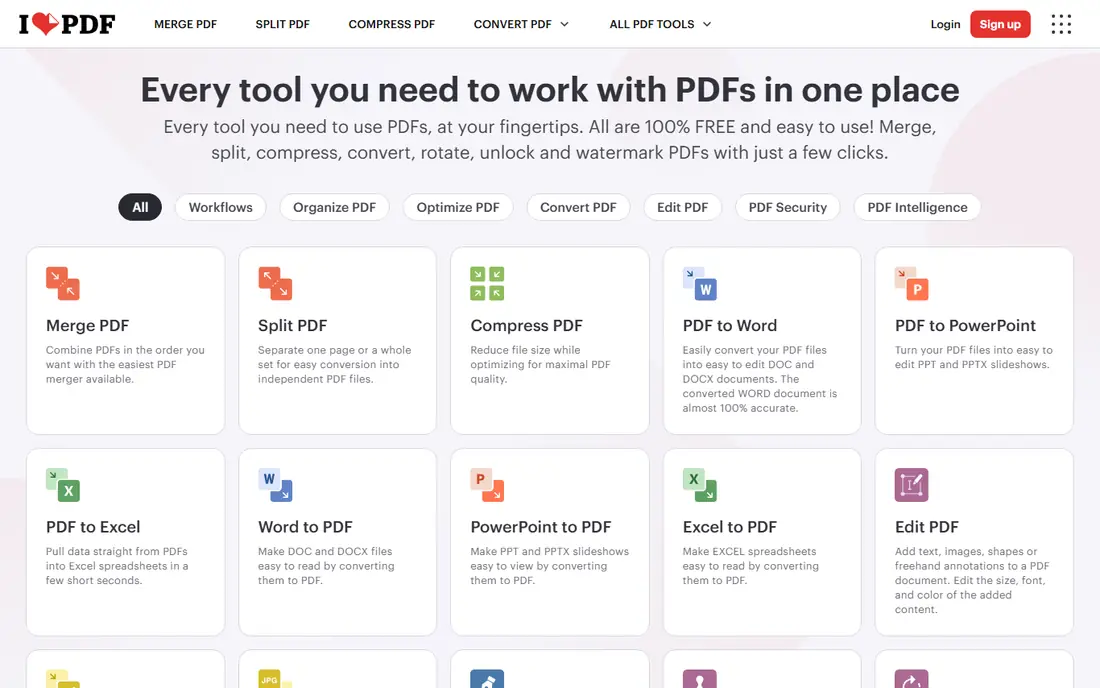
iLovePDF is our pick for most people who need to protect a PDF quickly. Upload a file, set a password, confirm it and download the protected file. The same account covers merging, splitting, compressing and converting, so a protected file can be prepared alongside other PDF tasks without learning a new tool.
The catch is free limits. Regular or high volume use will hit daily processing limits, and full use needs a premium plan. For occasional protection, the free tool is excellent. For sensitive files, consider the desktop app, which keeps files on your own computer rather than uploading them.
- Simple Protect PDF tool
- Many other PDF tools
- Desktop and mobile apps
- Free use has daily limits
- Premium needed for full use
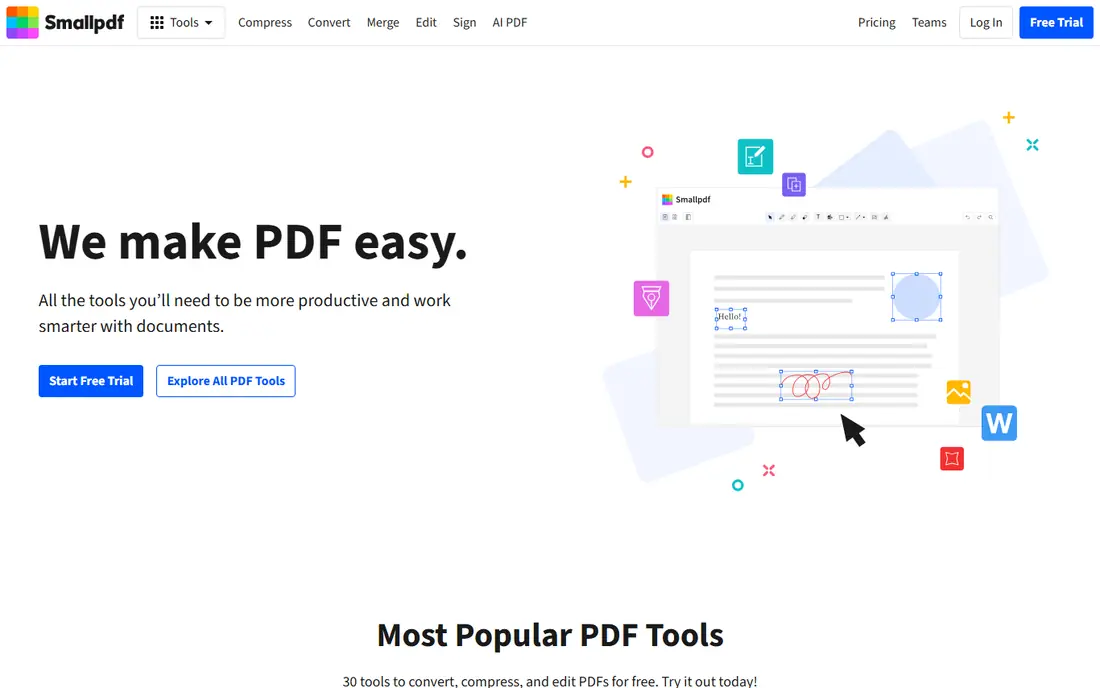
Smallpdf suits users who want a clean, fast protection flow with cloud support. Drag in a PDF, set a password and download the result, with options to save from Google Drive or Dropbox. Its wider toolset covers compression, conversion and signing, which helps when a protected file is part of a larger document task.
The catch is daily free download limits, which can interrupt regular work. Premium removes those limits and adds more tools. If you protect PDFs only now and then, Smallpdf is a smooth choice. If you protect files daily, compare premium prices before settling.
- Easy upload and protect flow
- Cloud storage links
- Mobile and desktop apps
- Free downloads limited per day
- Premium for unlimited use
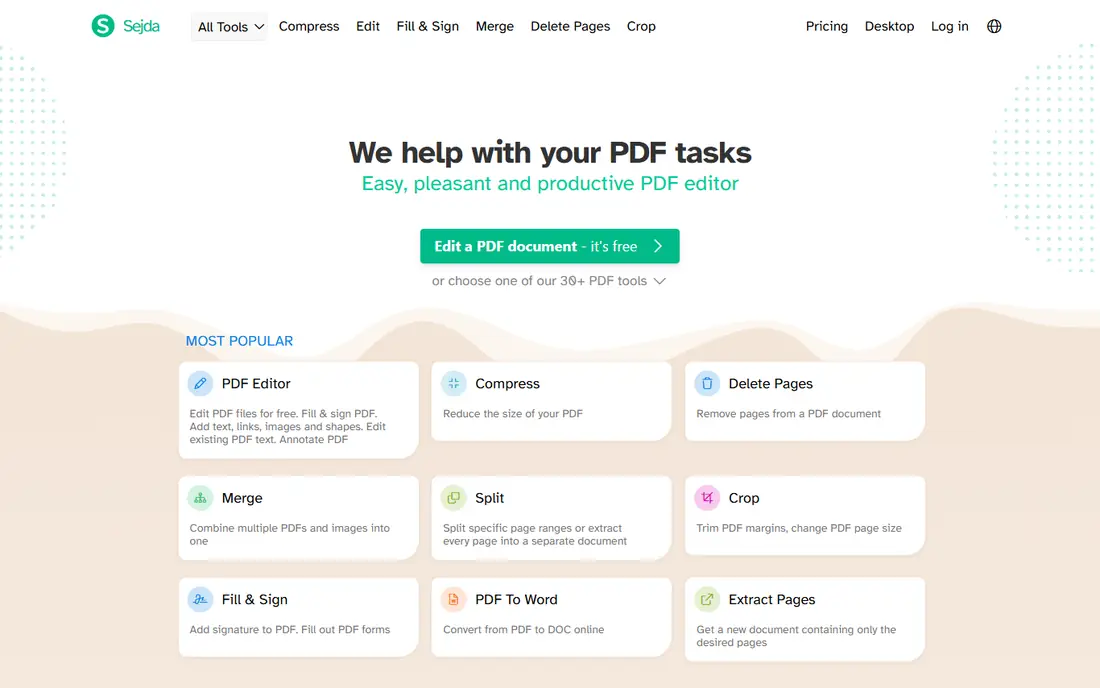
Sejda suits users who want more than a simple open password. Its Protect PDF tool allows password settings plus optional restrictions, and a desktop version lets you work offline for sensitive files. That combination is useful for contracts and reports where printing or copying also needs control.
The trade off is free limits and a plain interface. Free tasks and file sizes are limited, and the design is less polished than rivals. If you need permission controls or offline work, Sejda is a strong choice. If you only need a quick password, a simpler tool may feel faster.
- Password and permission options
- Desktop version
- Browser based editing
- Free use limited by tasks and file size
- Interface is plain
Adobe Acrobat is the professional standard for PDF protection. It offers password protection plus detailed permission controls for printing, editing and copying, with strong encryption options for business documents. If your organisation already uses Adobe tools, protection fits naturally into existing workflows.
The catch is cost and weight. A subscription is hard to justify for a single file, and the full app is heavier than a browser tool. For regular business use, legal documents or client files, Acrobat offers control and familiarity that free tools cannot match.
- Strong encryption options
- Permission controls
- Industry standard format handling
- Subscription cost
- Heavier for a one off file
Soda PDF suits users who want protection inside a broader PDF suite. Protect a file, then edit, convert or sign it without switching tools, with cloud storage links for Drive and Dropbox. That breadth helps small offices that handle PDFs daily but do not need Adobe pricing.
The catch is free limits. Full suite use needs a paid plan, and the free tier is best for occasional tasks. If you already use Soda PDF for editing, protection is a natural extra. If you only need protection, a free specialist tool may be simpler.
- Protect plus edit and convert tools
- Cloud links
- Desktop version
- Free use limited
- Premium needed for full suite
PDF2Go suits users who want to protect a PDF without installing software. Upload from your computer or cloud storage, set a password, and download the protected file from any device. The wider toolset covers merging, splitting and converting, so it works as a general online PDF workspace.
The catch is the online model itself. Files must be uploaded, and free use has limits. For non sensitive files, that is fine. For highly sensitive documents, a desktop tool that never uploads the file is a safer choice.
- Browser based
- No install needed
- Other PDF tools included
- Ads and free limits
- Upload needed for online use
PDF24 Tools suits users who want free PDF protection without creating an account for basic tasks. The Protect PDF tool is straightforward, and the wider free toolset covers conversion, merging and compression. A desktop creator is also available for offline work.
The trade off is polish and premium depth. The interface is functional rather than refined, and advanced features are thinner than in paid suites. If free, no fuss protection is the priority, PDF24 is a practical choice.
- Free tools
- No account for many tasks
- Desktop creator available
- Fewer premium features
- Interface is functional
PDF Candy suits users who want a large PDF toolbox in one browser tab. Protect a file, then convert, merge or compress it without switching sites. The protect flow itself is simple, which helps when you need to secure a file before sending it by email.
The catch is hourly free download limits, which can slow a busy day. Premium removes those limits. For occasional use, PDF Candy is convenient. For regular use, check whether the premium price fits your volume.
- Many PDF tools in one place
- Simple protect flow
- No install for web use
- Free downloads limited per hour
- Premium for unlimited use
UPDF suits users who prefer desktop software for sensitive PDFs. Protect, edit and annotate files on your own computer, without uploading them for every task. That offline control is valuable for legal, financial and personal documents where privacy matters more than browser convenience.
The catch is that UPDF is primarily a desktop editor, not a quick online tool, and full use needs a paid licence. If you already edit PDFs on desktop, protection is a natural part of the workflow. If you only need a one off online password, a browser tool will be faster.
- Desktop protection
- Editing and annotation
- Offline work
- Online protection is not its main strength
- Paid for full use
How we picked these
We checked official tool pages and pricing pages for each product, including free limits, desktop options and security notes such as file deletion and encryption in transit. We favoured tools that explain how files are handled, because that transparency matters for sensitive documents. We also weighed ease of use, since a protection tool that is hard to use will be skipped.
We did not claim hands on testing we did not do. Free limits and prices change, so confirm current limits on the vendor page before relying on a tool for regular work. For highly sensitive files, we recommend a desktop tool or your organisation approved system rather than any public online tool.
How to protect a PDF safely, step by step
Start with a strong password you can remember or store safely. Use a long phrase with mixed characters, and do not reuse a password from email or banking. Share the password through a different channel than the PDF itself, such as a phone call or a secure message, rather than in the same email.
Next, decide whether you need permission controls as well as an open password. An open password stops people opening the file, while permission controls can limit printing, copying and editing. Not every tool offers both, so check before you protect a contract or report that needs those limits.
Finally, test the protected file before sending it. Open it on another device, confirm the password works, and check that pages, images and formatting look right. Keep an unprotected copy in a safe place you control, because a lost password can lock you out of your own document.
Frequently asked questions
How do I password protect a PDF online?
Upload the PDF to a Protect PDF tool, set a password and confirm it, then download the protected file. Most tools on this list complete this in a few steps without installing software, though free limits and file sizes vary.
Is it safe to protect a PDF online?
For everyday files, reputable tools use encrypted connections and delete files after a set time. For highly sensitive documents, a desktop tool is safer because files never leave your computer. Always check a vendor file handling policy before uploading sensitive material.
What is the difference between an open password and permissions?
An open password is needed to open the file at all. Permission controls limit what can be done after opening, such as printing, copying or editing. Some tools offer both, while simpler tools offer only an open password.
Can I remove a PDF password later?
Yes, if you know the password, most PDF tools let you open the file and save a copy without protection. If you lose the password, recovery is difficult by design, which is why keeping a safe unprotected backup matters.
What if I forget my PDF password?
There is no reliable official recovery for a strong PDF password, and tools that claim to break encryption should be treated with caution. Store passwords in a password manager and keep a safe backup copy to avoid losing access.
Which free tool is best for protecting a PDF?
iLovePDF and Smallpdf are strong free choices for occasional use, while PDF24 Tools suits users who want free tools without an account. For regular use, check daily limits and consider a premium plan or a desktop tool.
Sources we checked (9)

Online Jobs is an independent blog about careers, online work, learning new skills and the tools that help people earn. More about us.
Keep reading
All posts
Zoom Alternatives
Zoom alternatives compared for 2026: Google Meet, Microsoft Teams, Webex, Jitsi and more for free calls, large meetings and webinars for teams and classrooms.
Which Software Is Best for Data Entry
Compare the best data entry software for forms, OCR scanning, and spreadsheets, with free plans, pricing, and honest limits for each tool before you commit.
What Is the Best Free Tool to Rotate a PDF
What is the best free tool to rotate a PDF? We compare eight free rotation tools on per-page control, limits, privacy and saved output quality in detail.