Best Online Tool for PDF Rotation in 2026: 8 Tools Compared

How we put this together: we compare official feature and pricing pages, app store listings, privacy policies and public user reviews. Prices change, so check the provider's site before you pay.
Key takeaways
- Smallpdf and iLovePDF are the easiest starting points for a quick rotation, with clear per-page controls and no software to install.
- PDFOtter, Slate and EveryTool process files in your browser, which is a better choice for sensitive documents you do not want to upload.
- Sejda and PDF24 suit users who also need to merge, compress or edit PDFs, since rotation is one tool in a larger set.
- A viewer rotation is not a saved rotation: check that the downloaded file opens the right way up in a second viewer before you send it.
- Free tiers often limit file size or daily tasks, so check limits before you upload a large scanned document.
Quick comparison
| Name | Who it suits | Starting price | Free option | |
|---|---|---|---|---|
 Smallpdf | Quick simple rotation | Free | Yes | Visit |
 iLovePDF | Per-page rotation | Free | Yes | Visit |
 Sejda | Rotation plus editing | Free | Yes | Visit |
 PDF24 Tools | Free tool set | Free | Yes | Visit |
 PDF Candy | Simple rotation workflow | Free | Yes | Visit |
 PDFOtter | Browser-only privacy | Free | Yes | Visit |
 Slate PDF | Browser-only rotation | Free | Yes | Visit |
 2PDF | Rotation plus OCR options | Free | Yes | Visit |
The best online tools for PDF rotation
Rotating a PDF sounds simple until a scanned contract opens sideways, or only two pages in a 40 page file are upside down. The tools below all rotate PDFs online without installing software, but they differ on per-page control, privacy, file limits and whether rotation is saved into the file. We focused on tools that are still working in 2026 and that save rotation permanently, not just rotate the view.
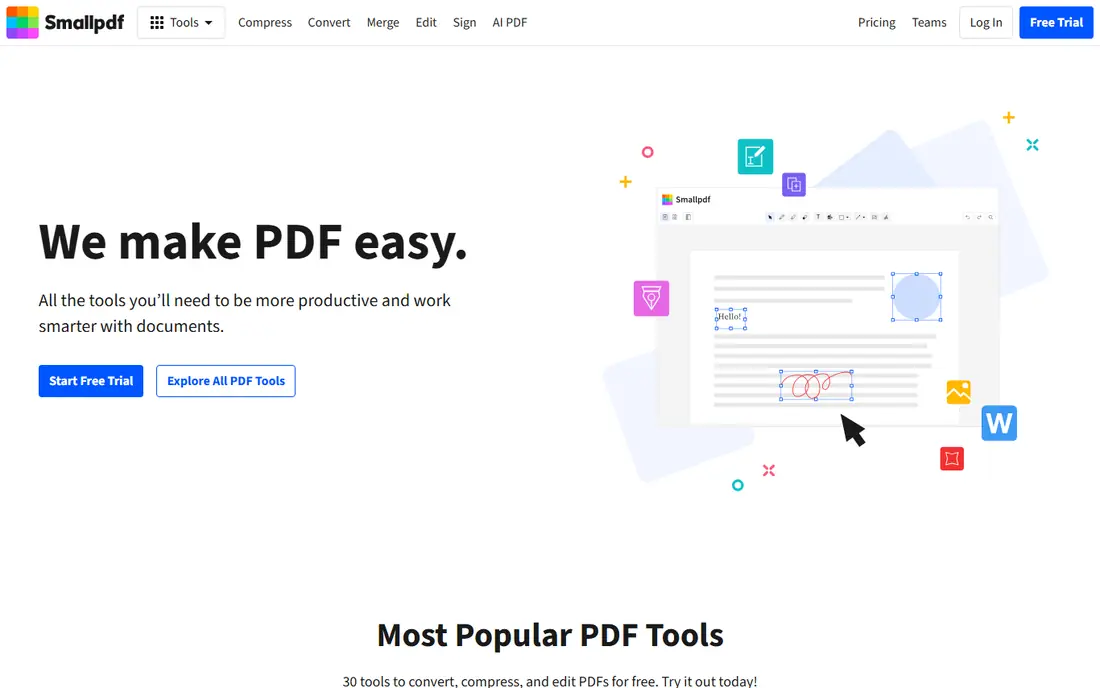
Smallpdf is the tool we suggest first when someone just wants a PDF fixed in a minute. Upload a file, click the rotate buttons on the pages that need turning, and download the corrected file. The interface shows page thumbnails clearly, so you can rotate one page, all pages or a selection without guessing which page is which. That clarity matters most when only a few pages in a long scan are wrong.
The free tier is the limit to know. Smallpdf limits free tasks per day and some features need a Pro plan, so a user fixing many files in one day may hit a wall. File size limits also apply on free use. For a single document, Smallpdf is fast and reliable, and the paid plan is worth it only if you rotate or edit PDFs often.
- Very clear rotate tool
- Per-page rotation
- Works in any browser
- Free tier limits tasks per day
- Large files may need a paid plan
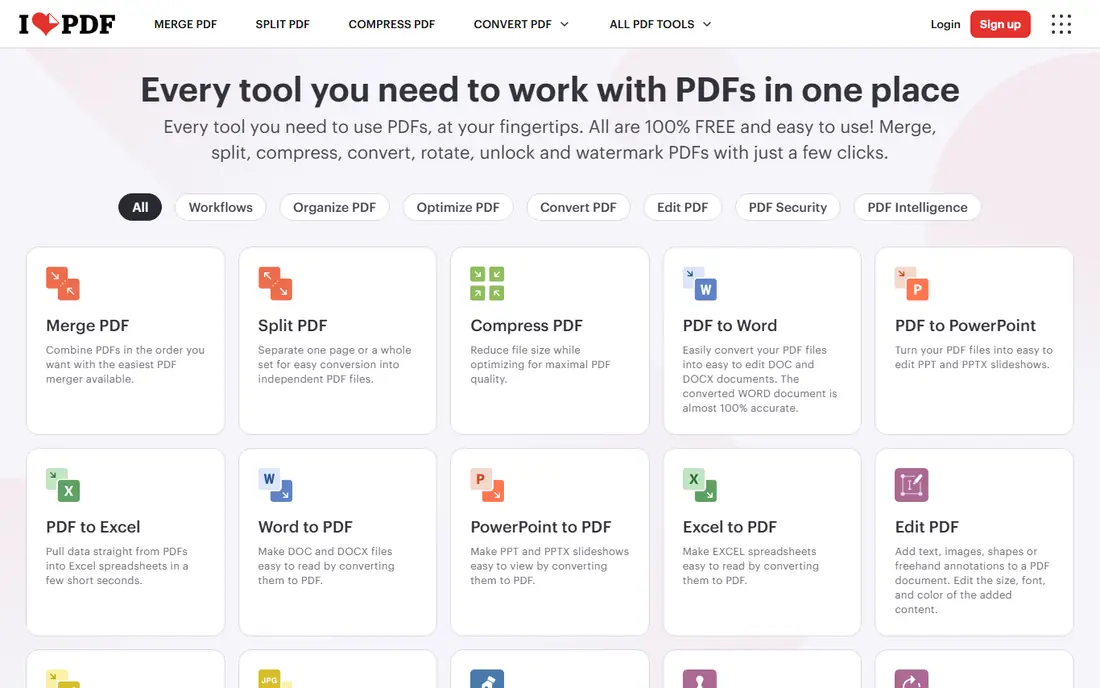
iLovePDF gives a similarly clear rotation workflow, with buttons to rotate all pages or only the pages you select. The page view makes it easy to spot a sideways scan, and the tool saves the rotation into the downloaded file so it opens correctly for the next person. Because iLovePDF also offers merge, split, compress and convert tools, it suits users who will fix a PDF and then do something else with it in the same session.
Free use has limits on tasks and file handling, and Premium removes those limits and adds more processing options. For most one off rotations, the free tier is enough. The honest catch is the same as Smallpdf: if you process PDFs daily, the free limits will push you toward a paid plan, so check the current free limits before you plan a large batch around them.
- Rotate all pages or selected pages
- Large tool set for other PDF jobs
- Clear download step
- Free tier has daily limits
- Some advanced features need Premium
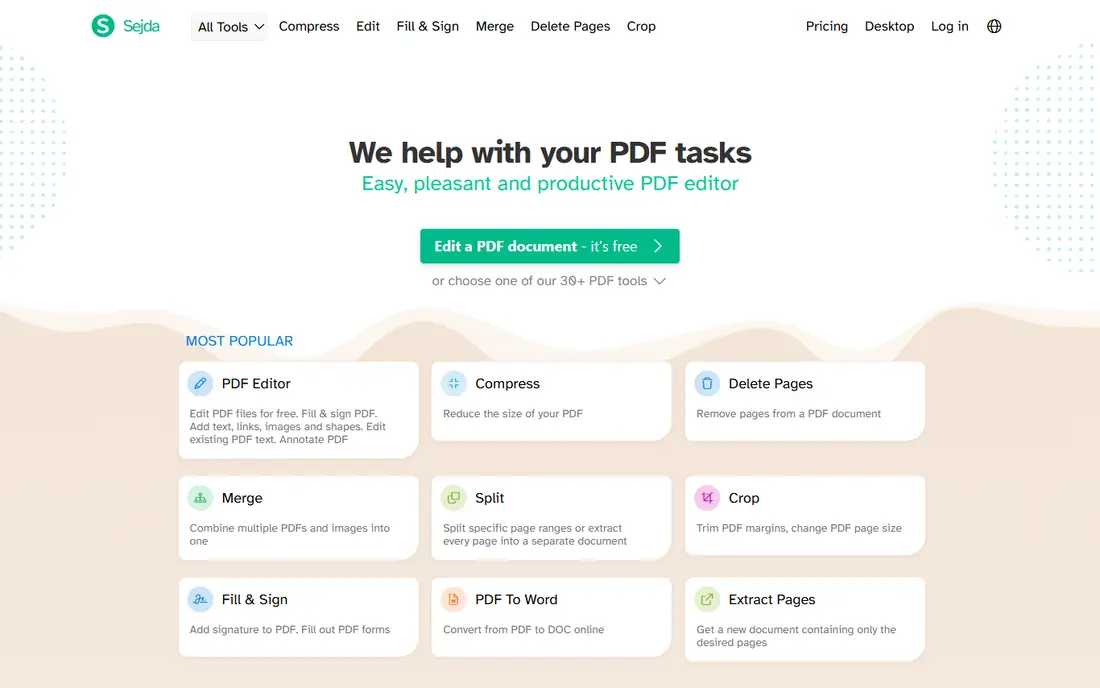
Sejda is a good pick when rotation is part of a larger edit. You can rotate pages, then edit text, add images or fill forms without switching tools, which saves time on a document that needs more than a turn. The page controls are clear, and Sejda offers a desktop version for users who prefer to work offline after trying the web tool.
The free tier limits the number of pages and tasks you can run in a given period, so a very long document may need to be split or upgraded. Files uploaded to Sejda are processed on its servers, which is normal for online tools, but it is a reason to avoid Sejda for highly sensitive documents. For everyday office PDFs, Sejda is one of the most capable free options on this list.
- Rotate pages and edit text
- Good page controls
- Desktop version available
- Free tier limits pages and tasks per hour
- Uploads go to Sejda servers for processing
PDF24 Tools offers a large set of free PDF tools, including rotation, without requiring an account for many tasks. That makes it useful for a quick fix on a shared computer or a device where you do not want to sign in. Rotation works page by page, and you can follow it with compression or merging in the same tool set, which is handy for tidying a scanned file before sharing.
The interface is plainer than Smallpdf or iLovePDF, and it does less hand holding for new users, but the core job is the same: upload, rotate, download. PDF24 states that files are processed online and deleted after a short period, yet for sensitive files a browser-only tool remains the safer choice. For general documents, PDF24 is a strong free option with no daily task pressure in most cases.
- Wide free tool set
- No account needed for many tools
- Rotation plus merge, split and compress
- Interface is plainer than rivals
- Processing happens online
PDF Candy keeps rotation to a few steps: upload, choose rotation for all pages or selected pages, and download. That simplicity suits users who do not want to learn a full PDF editor for a single fix. The wider tool set covers conversion, compression and page organisation, so a rotated file can be compressed or merged without opening another site.
Free use has limits on file size and task frequency, and larger files may need a paid plan. PDF Candy processes files online, so the same privacy note applies as with other server based tools. For a straightforward rotation on a normal sized document, PDF Candy is fast, clear and easy to recommend.
- Simple upload and rotate steps
- Many related PDF tools
- No account needed for basic use
- Free tier has limits
- Some tools need a paid plan for larger files
PDFOtter is our pick when privacy matters most. Its rotate and organise tool runs in your browser, so the file is not uploaded to a server for processing. You can rotate individual pages, delete unwanted pages and drag pages into a new order, then save a clean PDF. That combination is ideal for a scanned contract with a few sideways pages and a blank sheet to remove.
The tool set is narrower than Smallpdf or Sejda, since PDFOtter focuses on page tasks rather than full editing. Rotation also turns the whole page, so it cannot straighten a page that was scanned slightly crooked. For sensitive documents, the privacy benefit outweighs those limits, and for everyday files it is still a fast, free way to fix orientation without an account.
- Rotation and page organisation in the browser
- No sign-up
- Files stay on your device
- Smaller tool set than large suites
- Rotation turns whole pages, not skewed scans
Slate PDF offers a free rotate tool that processes files on your device rather than uploading them, which gives the same privacy benefit as PDFOtter. You choose 90, 180 or 270 degrees, and Slate saves the corrected orientation into the file, so it opens correctly in every viewer. There is no sign-up and no stated limit on the basic rotate tool, which makes it useful for a quick fix.
The basic tool rotates every page, so if only some pages are wrong, use the visual organise tool for per-page rotation instead. Slate is funded by ads rather than subscriptions, so expect a plainer experience than a paid suite. For a whole document that came out sideways from a scanner, Slate is one of the fastest free fixes available.
- Free rotation with no sign-up
- Files processed on your device
- Permanent saved rotation
- Basic rotate tool rotates all pages
- Per-page rotation needs the organise tool
2PDF combines rotation with a wider set of tools, including OCR for scanned documents and conversion to Word, Excel and text formats. That makes it useful when a scanned PDF needs rotation and then text extraction, since both jobs can happen in one suite. You can select the pages to rotate, choose direction, and download the corrected file in seconds for a normal sized document.
The interface is busier than a single purpose rotator, and files are processed online, so sensitive documents are better handled in a browser-only tool. 2PDF also offers uploads from Google Drive and Dropbox, which helps when the file is not on the device you are using. For scanned documents that need rotation plus OCR, 2PDF is a practical all in one choice.
- Rotate selected pages
- OCR and conversion tools in the same suite
- Uploads from Drive and Dropbox
- Interface is busier than single purpose tools
- Processing happens online
How we picked these
We shortlisted online tools that rotate PDFs in a browser, save the rotation into the downloaded file, and are still working in October 2026. We compared per-page control, privacy handling, free tier limits, file size handling and whether the tool also covers related jobs such as merging or organising pages. We gave weight to browser-only tools for privacy, and to large suites for users who need more than rotation.
We did not upload sensitive documents to test processing, and we did not test every file size limit, since limits change with plan and server load. Where a limit was not published clearly, we describe the tier as limited rather than inventing a number. Always test the downloaded file in a second viewer before you send it, since a viewer rotation that was not saved will look correct to you and wrong to the recipient.
How to rotate a PDF without mistakes
Start by checking whether the whole document is wrong or only some pages. A scanner that fed pages sideways often rotates every page, while a phone scan usually leaves only a few pages wrong. Rotating the whole file when only two pages need turning will create a new problem.
Rotate per page when only some pages are wrong
Use the thumbnail view to find the sideways pages, select only those pages, and rotate them 90 degrees at a time until they read correctly. Preview the result before you download, and check the first, middle and last pages of the downloaded file. That quick check catches a page you missed or a page you rotated twice.
Prefer browser-only tools for sensitive files
If a PDF contains contracts, medical details, financial data or personal information, use a tool that processes the file in your browser, such as PDFOtter or Slate, so the file never leaves your device. For general documents, a server based tool is fine, but delete the original upload from the service if that option is offered, and avoid public or shared computers for sensitive files.
Fix skewed scans separately
Rotation turns a page in 90 degree steps, so it cannot fix a page that was scanned slightly crooked. For a skewed scan, you need a deskew or straighten tool, or you need to rescan the page. Do not keep rotating a crooked page in the hope that it will look straight, since it will only turn to another wrong angle.
Check the file after download
Open the downloaded PDF in a different viewer or on a phone, and scroll through it once. Confirm that text is selectable where it was selectable before, that page order is correct, and that no blank pages were added. If the file opens sideways again, the rotation was only a viewer change, so repeat the process with a tool that saves rotation into the file.
Frequently asked questions
What is the best online tool for PDF rotation for free?
Smallpdf and iLovePDF are the easiest free starting points for a quick rotation, with clear per-page controls. PDFOtter and Slate are the best free options when privacy matters, since they process files in your browser without uploading them.
What is the best online PDF rotation tool for only one page?
Use a tool with per-page thumbnails, such as Smallpdf, iLovePDF, PDFOtter or Sejda, and select only the page that needs turning. Avoid tools that rotate the whole document by default, since they will turn every correct page as well as the wrong one.
Is rotation permanent when I download the file?
It should be, if the tool saves rotation into the PDF file. A viewer rotation, such as turning a page in a PDF reader without saving, is temporary and will not carry over to the recipient. Always open the downloaded file in a second viewer to confirm the orientation saved correctly.
Can I rotate a PDF on a phone without an app?
Yes. All tools on this list work in a mobile browser, so you can upload, rotate and download without installing an app. Browser-only tools are especially handy on a phone, since they avoid uploading a sensitive file over a mobile connection to a server.
Why does my PDF still open sideways after rotation?
The most common cause is a viewer rotation that was not saved, or a rotation applied to the wrong pages. Repeat the process with a tool that states it saves rotation into the file, check the thumbnail preview before download, and test the downloaded file in another viewer.
Are free online PDF tools safe for sensitive documents?
Server based tools are generally safe for everyday documents, but they do upload your file for processing. For sensitive documents, use a browser-only tool such as PDFOtter or Slate, where the file stays on your device, and avoid uploading contracts or personal records to any service you do not need.
Sources we checked (8)

Online Jobs is an independent blog about careers, online work, learning new skills and the tools that help people earn. More about us.
Keep reading
All posts
Zoom Alternatives
Zoom alternatives compared for 2026: Google Meet, Microsoft Teams, Webex, Jitsi and more for free calls, large meetings and webinars for teams and classrooms.
Which Software Is Best for Data Entry
Compare the best data entry software for forms, OCR scanning, and spreadsheets, with free plans, pricing, and honest limits for each tool before you commit.
What's the Best App to Read PDFs
Find what's the best app to read PDFs in 2026, from Adobe Acrobat Reader and Foxit to PDF Expert and Xodo, with free options and honest limits for every device.