Best OCR Software in 2026: 8 Products Compared


accurate desktop OCR · Starting price: See website
How we put this together: we compare official feature and pricing pages, app store listings, privacy policies and public user reviews. Prices change, so check the provider's site before you pay.
Key takeaways
- ABBYY FineReader leads for desktop OCR accuracy and language range, while Adobe Acrobat leads for OCR inside a full PDF workflow.
- Tesseract is the best free option for developers, and cloud APIs suit apps that need OCR at volume rather than one off scans.
- Readiris and PDFelement offer lower cost desktop OCR for individuals and small offices.
- Batch handling, table accuracy and export format matter more than a single accuracy claim for real document work.
- Our pick for most office users is Adobe Acrobat if PDFs are already central, or ABBYY FineReader when scan quality and language range matter most.
Quick comparison
| Name | Who it suits | Starting price | Free option | |
|---|---|---|---|---|
| ABBYY FineReader PDF | accurate desktop OCR | See website | Free trial | Visit |
 Adobe Acrobat Pro Adobe Acrobat Pro | OCR inside PDF workflows | See website | Free trial | Visit |
 Readiris PDF Readiris PDF | low cost desktop OCR | See website | Free trial | Visit |
 PDFelement PDFelement | PDF editing plus OCR | See website | Free trial | Visit |
 Tungsten OmniPage Tungsten OmniPage | high volume batch conversion | See website | Free trial | Visit |
 Tesseract OCR Tesseract OCR | free developer OCR engine | Free | Yes | Visit |
 Google Cloud Vision Google Cloud Vision | cloud OCR for apps | See website | Free tier | Visit |
 Amazon Textract Amazon Textract | AWS document extraction | See website | Free tier | Visit |
The best OCR software
These eight tools cover desktop scanning, PDF editing, batch conversion and cloud based document extraction.
ABBYY FineReader PDF is the desktop accuracy leader on this list. It converts scanned PDFs and paper documents into searchable, editable text while keeping layout, tables and formatting close to the original. Language support is broad, which helps offices that handle documents in several languages. The catch is price. FineReader costs more than budget desktop tools, and the best value comes when OCR is a daily job, not an occasional task. For contracts, reports and legacy archives where output quality matters, the extra cost is often justified by less cleanup time after conversion.
- Strong OCR accuracy
- Wide language support
- Good Word and Excel export
- Higher price than budget tools
- Full features need a paid plan
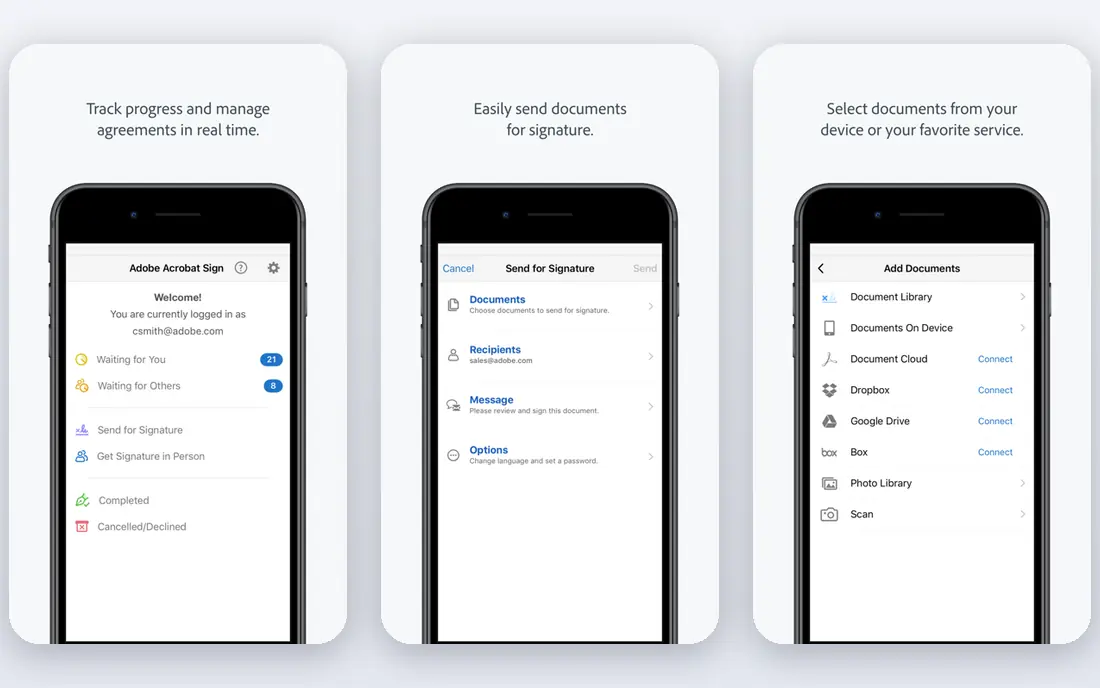
Adobe Acrobat Pro suits teams that already live in PDFs. OCR turns a scan into searchable text, and the same app handles editing, comments, signing and sharing. That single workflow avoids exporting between tools, and the PDF output works well across devices and offices. Acrobat is not the most accurate OCR tool for every document, and poor scans still need cleanup. Subscription pricing also adds up over time. If PDF work is central to the office, Acrobat is the practical pick. If OCR alone is the job, FineReader or a budget tool may give better value.
- OCR plus full PDF editing
- Comments and sharing
- Widely used format
- Subscription price
- OCR accuracy varies with scan quality
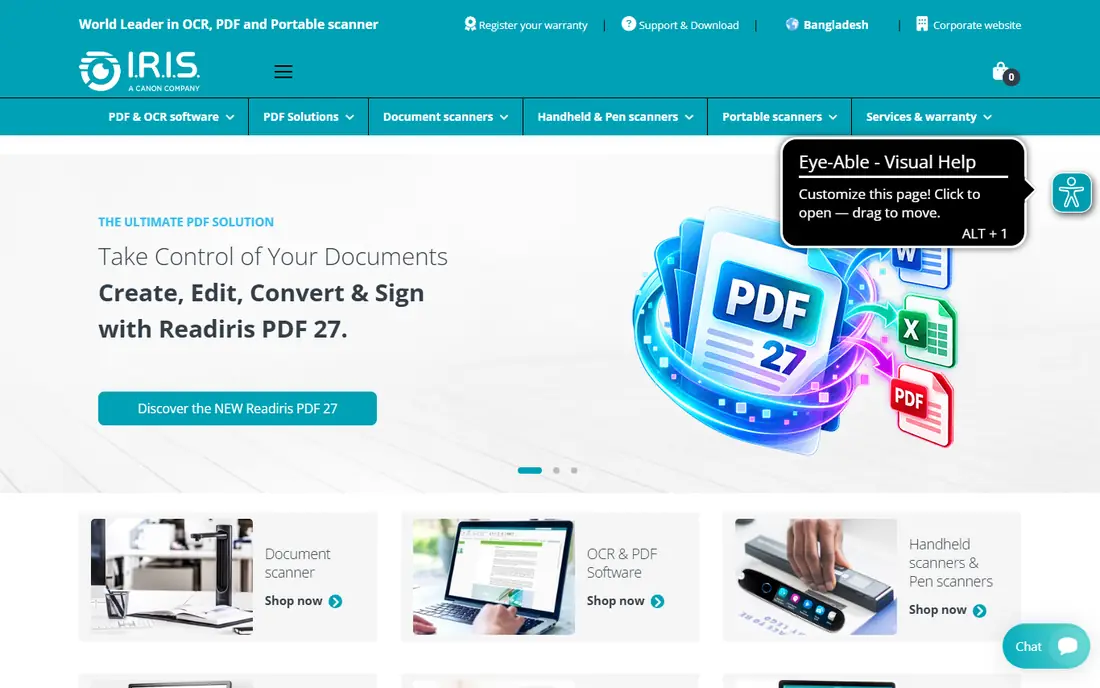
Readiris PDF appeals to individuals and small offices that want desktop OCR without a large subscription. It converts scans into searchable PDFs and editable documents, with language support that covers most common office needs. A one time purchase option, where offered, helps users who dislike ongoing fees. The trade-off is breadth. Readiris does not match Acrobat as a full PDF suite, and the interface is less polished than newer rivals. For straightforward scanning and conversion, though, it covers the job well. Check the current licence terms on the vendor site, since one time and subscription options vary by edition.
- Lower cost desktop OCR
- One time purchase options
- Audio conversion features
- Smaller feature set than Acrobat
- Interface feels dated to some users
PDFelement gives small offices a middle path: PDF editing plus OCR at a lower price than Acrobat. Users can scan, recognise text, edit PDFs, add comments and export to common formats. For a team that needs occasional OCR inside normal PDF work, that mix is practical. OCR results depend on scan quality, and complex tables or poor originals may need manual fixes. Higher plans add more features, so check the plan table before buying. PDFelement is best for offices that want a capable PDF editor with OCR included, rather than a dedicated high accuracy OCR specialist.
- PDF editing with OCR
- Lower price than Acrobat
- Windows and Mac versions
- OCR quality varies by document
- Some features need a higher plan
Tungsten OmniPage, formerly Nuance OmniPage, is built for volume. It handles batch conversion of scanned documents, keeps layout and tables in good shape, and fits into document workflows where many files need processing each day. Offices with archives, mailrooms or back office scanning will value that batch focus. For a single user with a few scans a week, OmniPage is more tool than needed, and pricing reflects its business focus. Setup for custom workflows also takes time. When volume and consistency matter, though, OmniPage remains a reliable desktop choice for high throughput conversion.
- Batch document conversion
- Strong layout handling
- Workflow options
- Enterprise pricing feel
- Setup takes time for custom workflows
Tesseract is the free engine behind many OCR projects. Developers can run it locally, script it into workflows, and process documents without a per page bill. That local control suits privacy sensitive work, where documents should not leave the office, and it suits projects with tight budgets. The catch is effort. Tesseract is a command line engine, not a polished desktop app, and accuracy depends on scan quality, language data and tuning. Users who want a simple scan button should pick a desktop app. Developers who can invest setup time will find Tesseract a powerful and cost free base.
- Free and open source
- Scriptable and local
- No per page fee
- Command line setup
- Accuracy depends on input quality and tuning
Google Cloud Vision suits developers who need OCR inside an app or service. It reads printed and handwritten text from images and PDFs, returns structured results, and scales with volume. Teams already on Google Cloud will find integration straightforward, and the free tier helps with early testing. This is not a desktop scanner for occasional office use. Setup, API keys and code are required, and costs are usage based, so a high volume app needs a budget check. For product teams building document features, Cloud Vision is a strong, well documented option.
- Cloud OCR with handwriting support
- Scales for apps
- Google Cloud links
- Needs developer setup
- Usage based pricing
Amazon Textract goes beyond simple text reading. It extracts tables, forms and key fields from business documents such as invoices and tax forms, which helps when data must flow into another system. AWS teams can link Textract to storage, workflows and databases without leaving the cloud platform. As with other cloud APIs, setup and usage pricing are the trade-offs. A single user cleaning up a few PDFs should use a desktop app instead. For AWS based document pipelines, Textract is a strong pick, especially where forms and tables matter more than plain text alone.
- Table and form extraction
- AWS workflow links
- Scales for business documents
- Needs AWS setup
- Costs vary with document volume and features
How we picked these
We compared official feature pages, pricing pages, documentation and public reviews for OCR tools that are actively maintained in 2026. We favoured tools that cover a distinct job: desktop accuracy, PDF workflow, low cost scanning, batch conversion, free developer use and cloud extraction. We also weighed language support, export formats and batch handling, since those decide whether OCR output is actually usable. We did not claim hands-on testing for every tool, and we did not rank by vendor accuracy claims alone, since accuracy depends on scan quality and document type. Instead, we looked at fit for office, developer and high volume use. Prices change, so check the vendor site before buying, and trial any paid tool with real documents from your own work.
Choosing the right OCR tool
Start with the document and the destination. A scanned contract that must become an editable Word file needs different handling from a thousand invoices that must feed a database. Naming the output first avoids buying a tool that reads text well but exports it in the wrong form.
Test with real documents
Trial any shortlisted tool with faded scans, skewed pages, tables and handwriting if those appear in real work. A tool that handles clean PDFs well may struggle with old paper, and a tool that reads tables well may be the right pick even if plain text accuracy looks similar on paper.
Check language and layout needs
Language support, table handling and layout retention vary a lot. Offices with multilingual documents should check language lists, while finance teams should test table and form extraction. A tool that keeps a table intact saves more time than a tool that reads single lines slightly faster.
Think about privacy and volume
Local desktop tools keep documents on the machine, which suits sensitive papers. Cloud APIs suit high volume apps, but documents leave the local system, so check data handling terms. For a few scans a week, a desktop app is simpler and cheaper. For thousands of pages, a cloud or batch tool will scale better.
Frequently asked questions
What is the best OCR software for scanned PDFs?
For scanned PDFs, ABBYY FineReader PDF leads on accuracy and layout, while Adobe Acrobat Pro leads for OCR inside a full PDF workflow. Readiris PDF and PDFelement offer lower cost desktop options. The best pick depends on whether OCR is a daily accuracy job or part of wider PDF work.
What is the best free OCR software?
Tesseract OCR is the best free option for developers and technical users, since it is open source and runs locally without a per page fee. For non technical users, free trials and free tiers from desktop tools or cloud services can cover occasional use, but a permanent free desktop app with full features is rare.
What is the best OCR app for PDF scanning on a phone?
Phone scanning is often handled by PDF apps and note apps with built in OCR, while desktop tools handle larger jobs. For phone use, check the app store listing for OCR, export and search features, and test with a real receipt or page. For high accuracy office work, move the scan to a desktop tool before final use.
How accurate is OCR software?
OCR accuracy depends on scan quality, font, language, layout and handwriting. Clean, high resolution scans give the best results, while faded, skewed or handwritten documents need more cleanup. Vendor accuracy claims are best treated as a guide, and a trial with real documents gives a clearer answer for a specific workflow.
Is cloud OCR safe for sensitive documents?
Cloud OCR sends documents to a provider system, so safety depends on the provider data handling, encryption and retention terms. For sensitive papers, a local desktop tool or open source engine may be safer, since documents stay on the local machine. Check the provider policy and, for regulated work, get approval before using a cloud service.
Sources we checked (8)

Online Jobs is an independent blog about careers, online work, learning new skills and the tools that help people earn. More about us.
Keep reading
All posts
Zoom Alternatives
Zoom alternatives compared for 2026: Google Meet, Microsoft Teams, Webex, Jitsi and more for free calls, large meetings and webinars for teams and classrooms.
What Is the Best Free Tool to Rotate a PDF
What is the best free tool to rotate a PDF? We compare eight free rotation tools on per-page control, limits, privacy and saved output quality in detail.
What Is the Best AI Dubbing Tool
We compared the best AI dubbing tools in 2026, from ElevenLabs and HeyGen to Rask AI, Dubverse and Veed, for videos and creators in many languages worldwide.