Best Mac Apps in 2026: 8 Apps Compared

How we put this together: we compare official feature and pricing pages, app store listings, privacy policies and public user reviews. Prices change, so check the provider's site before you pay.
Key takeaways
- Raycast and Alfred both replace slow clicking with fast keyboard control, but Raycast suits extension fans and Alfred suits one-time buyers.
- CleanShot X, Magnet, and Bartender fix three small daily annoyances: captures, window layout, and a crowded menu bar.
- Things 3 and Bear keep plans and notes simple, while Pixelmator Pro covers photo editing without a monthly bill.
- Start with the free apps here, then pay only for the one that saves you time every day.
Quick comparison
| Name | Who it suits | Starting price | Free option | |
|---|---|---|---|---|
 Raycast Raycast | keyboard-first Mac users | Free | Yes | Visit |
 Alfred Alfred | Mac users who prefer a one-time purchase | Free | Yes | Visit |
 Magnet Magnet | tidy window layouts | $7.99 one-time | No | Visit |
 CleanShot X CleanShot X | screenshots and short recordings | $35 one-time | No | Visit |
 Bartender Bartender | a clean menu bar | See website | No | Visit |
 Things 3 Things 3 | simple daily planning | $49.99 one-time | No | Visit |
 Bear Bear | clean notes and writing | Free | Yes | Visit |
 Pixelmator Pro Pixelmator Pro | photo editing without a subscription | $49.99 one-time | No | Visit |
The best mac apps
We picked apps that solve a clear job on a Mac, from launching software to editing a photo. Each one below is still sold and supported, and each fits a different kind of user.
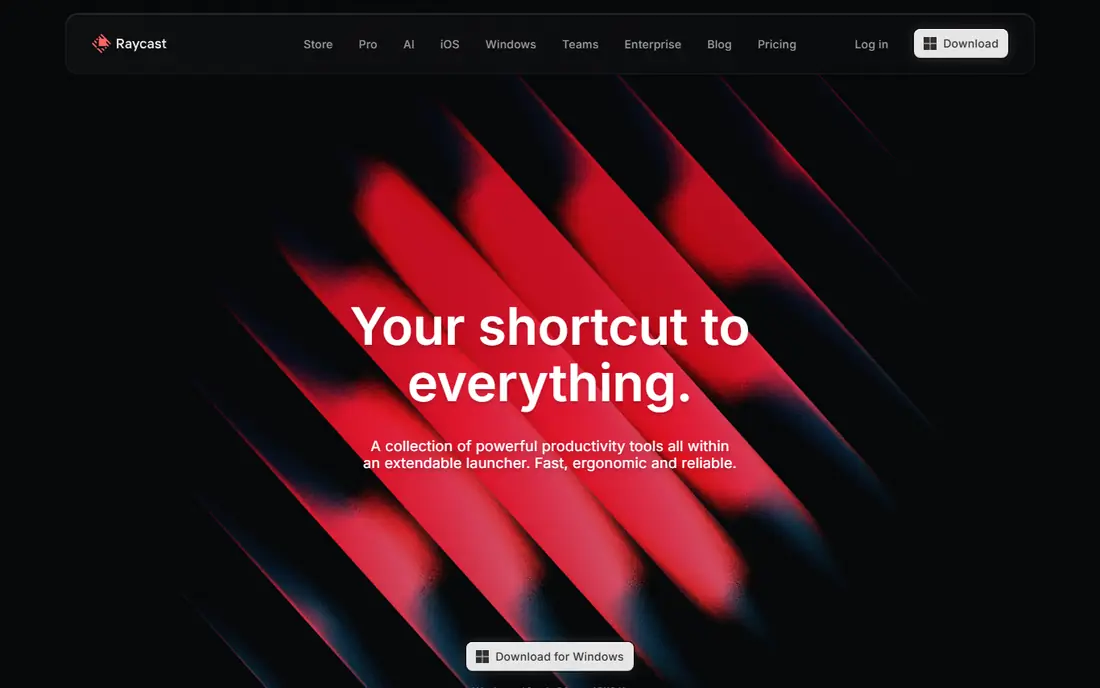
Raycast turns a keyboard shortcut into a control panel for your Mac. You can launch apps, search files, manage windows, paste from clipboard history, and run extensions for tools such as GitHub, Linear, and calendar apps. For many people, that one bar replaces several small utilities, and the free plan already covers the core tools.
The catch is the price of the full version. AI features, cloud sync, and unlimited clipboard history sit in Raycast Pro, which is a subscription. If you only need launching, snippets, and extensions, the free plan is plenty. If you want AI help inside the launcher, check the Pro price before you commit, because it adds up over a year.
- Large extension store
- Built-in window management, clipboard history, and snippets
- Fast search
- Pro features need a subscription
- Some power features take time to learn

Alfred has been a Mac favourite for years, and the reason is simple: it stays out of the way until you need it. Type a few letters, open an app or file, run a quick calculation, and get back to work. The core app is free, and it learns which results you pick most often.
The Powerpack is where Alfred earns its keep for power users. It adds clipboard history, snippets, and workflows that can string together hotkeys, keywords, and actions with no code. You pay once rather than monthly, which appeals to people who dislike subscriptions. The trade-off is a smaller ready-made extension library than Raycast, so you may build more yourself.
- Fast app and file search
- Workflows automate repeated jobs
- No subscription for the Powerpack
- Clipboard history and workflows need the paid Powerpack
- Smaller extension store than Raycast
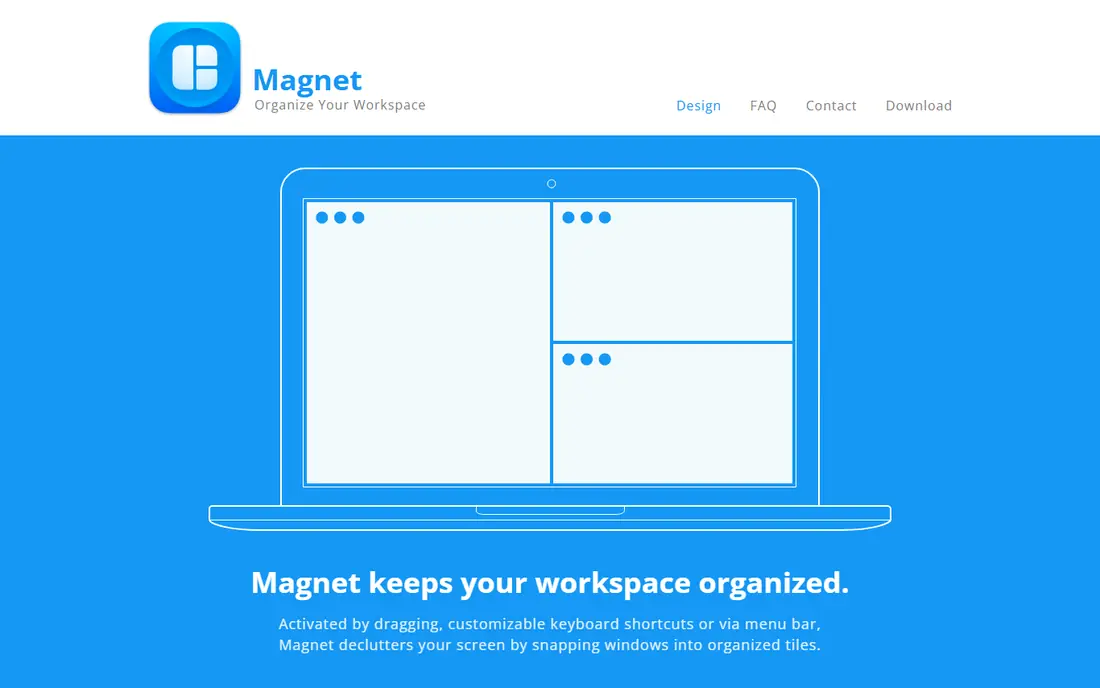
Magnet does one job well. Drag a window to an edge or use a keyboard shortcut, and it snaps into halves, thirds, or quarters of the screen. That sounds small, but it changes how you work with two documents side by side or a chat window next to a browser.
We like Magnet because it asks for almost no setup. There is no dashboard to learn and no account to create. The limit is scope: it snaps windows, and that is all. If you want saved multi-app workspaces, Raycast or a dedicated window manager may suit you better, but for daily arranging, Magnet is hard to beat at its price.
- Simple drag and keyboard window snapping
- Works with many screen sizes
- Low price
- Mac only
- No built-in window layouts beyond snapping presets
CleanShot X replaces the basic Mac screenshot tools with a faster workflow. Capture a region, annotate it, blur private details, and share a link, all from one small overlay. It also records your screen, which makes it useful for short how-to clips and bug reports.
The one-time licence covers the app with a year of updates, and the app keeps working after that period. Cloud storage and always-current updates sit on a separate plan, so check which tier matches your sharing habits. If you rarely share captures online, the basic licence is enough. If your team lives on shared links, price the cloud plan too.
- Quick capture, annotation, and scrolling capture
- Screen recording in the same app
- Optional cloud sharing
- Mac only
- Cloud features need a separate plan
- No free plan
Bartender is for Mac users whose menu bar has turned into a crowded strip of icons. It hides the icons you rarely need behind a small control, while keeping the ones you use every day visible. A quick search finds a hidden item without digging through menus.
This is a niche purchase, and we would not buy it on day one with a new Mac. It earns its place once you have several utilities, cloud tools, and audio apps all competing for menu bar space, especially on a laptop screen. If your menu bar is already tidy, skip it and spend the money elsewhere.
- Hides extra menu bar icons
- Quick search for hidden items
- Keeps the bar tidy on small screens
- Paid app with no free plan
- Mainly useful if you run many menu bar apps
Things 3 takes a different path from most task managers: it does less, on purpose. You get projects, areas, a Today list, and an upcoming view, presented in a calm layout that does not shout for attention. For personal planning, that restraint is a strength, because the app never turns into another project to manage.
The honest catch is price and platform. The Mac app is a one-time purchase, and the iPhone and iPad apps are sold separately, so the full set costs more than the Mac price alone. It also lacks the team boards and shared workspaces found in larger tools. Buy it for personal tasks, not for running a team.
- Calm design that is easy to read
- Today view and upcoming plans
- Good Apple device sync
- Mac and Apple devices only
- No free plan
- Fewer team features than larger task tools
Bear is our pick for people who want notes to feel good to write in. The editor is clean, Markdown formatting stays readable, and tags replace rigid folders, so one note can live under several topics. Search is fast, which matters once a note library grows into the hundreds.
The free plan covers writing and organising on one device type well enough to judge the app. Bear Pro adds sync across Apple devices and more export formats, at a low monthly price. The main limit is platform: if you also need Windows or Android, look at a cross-platform notes app instead, because Bear stays inside the Apple world.
- Fast and pleasant writing view
- Tags organise notes without folders
- Good export options
- Apple devices only
- Sync and extra export options need Pro
- No web version
Pixelmator Pro gives Mac users serious photo editing without a monthly fee. You can work with layers, retouch portraits, adjust colour, and use built-in tools that speed up common jobs such as removing objects or improving a dull photo. For most personal and small-business editing, it covers the ground that used to require a subscription editor.
It is not a full Photoshop replacement for every professional workflow, and it has no Lightroom-style catalog for managing a huge photo library. Treat it as an editor, and pair it with a separate organiser if you shoot in volume. For a one-time purchase on a Mac, though, it is one of the strongest values in this list.
- Layer-based editing and retouching tools
- Machine learning tools for common fixes
- One-time price
- Mac only
- Smaller plugin and tutorial library than Photoshop
- No built-in photo catalog
How we picked these
We compared official product pages, pricing pages, and app store listings for Mac apps that are still sold and supported, and we kept only apps with a clear job and a current Mac version. We favoured a mix of free and paid options, and we noted where a price was a subscription, a one-time purchase, or a separate mobile purchase. We did not claim hands-on testing, and we left out apps that were discontinued, Windows only, or too narrow for a general Mac list.
What to check before you buy a Mac app
Start with the platform question. Several apps here are Mac only, so if you switch between Mac and Windows, a cross-platform tool may save you trouble later. Next, check the pricing model in full: a low monthly price can pass a one-time purchase within a year, while a one-time purchase may charge again for major updates.
Try the free tier first
Use the free plan or trial to test the exact job you bought the app for, not just its home screen. Launch apps with Raycast or Alfred for a week, snap windows with Magnet during real work, and edit three real photos in Pixelmator Pro. If an app does not change a daily habit in that week, it probably will not later.
Watch for hidden extra costs
Some apps sell Mac, iPhone, and iPad versions separately, and some put cloud sync or sharing on a higher tier. Add those costs before you compare prices. A simple note: write down the total first-year cost for each app on your shortlist, then pick the one that fits your budget and your actual routine.
Frequently asked questions
What are the best free Mac apps?
Raycast, Alfred, and Bear all offer useful free plans, and they cover launching, searching, and notes. Start with those three before you pay for anything, then add a paid app only where a free one leaves a gap in your day.
Are Mac apps a one-time purchase or a subscription?
It varies by app. Alfred, Magnet, CleanShot X, Things 3, and Pixelmator Pro use one-time purchases, while Raycast Pro and Bear Pro use subscriptions. Always check the vendor pricing page, because plans and update terms change.
Which Mac app should I install first?
For most people, a launcher such as Raycast or Alfred gives the fastest daily benefit, because you use it dozens of times a day. After that, pick the app that fixes your biggest annoyance, whether that is window layout, screenshots, or notes.
Do these Mac apps work on Windows?
No, several picks here are Mac only, including Magnet, CleanShot X, Things 3, Bear, and Pixelmator Pro. If you need Windows too, choose cross-platform tools for notes and tasks, and keep Mac-only utilities for Mac-specific jobs.
What is the best Mac app for productivity?
There is no single winner, because productivity means different jobs. Raycast or Alfred help you move faster, Things 3 helps you plan the day, and Bear helps you capture notes. Our pick for most people is a launcher first, then a task app.
Sources we checked (8)

Online Jobs is an independent blog about careers, online work, learning new skills and the tools that help people earn. More about us.
Keep reading
All posts
Zoom Alternatives
Zoom alternatives compared for 2026: Google Meet, Microsoft Teams, Webex, Jitsi and more for free calls, large meetings and webinars for teams and classrooms.

What Is the Best Free Tool to Rotate a PDF
What is the best free tool to rotate a PDF? We compare eight free rotation tools on per-page control, limits, privacy and saved output quality in detail.

What Is the Best AI Dubbing Tool
We compared the best AI dubbing tools in 2026, from ElevenLabs and HeyGen to Rask AI, Dubverse and Veed, for videos and creators in many languages worldwide.