Best Linux Apps in 2026: 10 Tools Compared

How we put this together: we compare official feature and pricing pages, app store listings, privacy policies and public user reviews. Prices change, so check the provider's site before you pay.
Key takeaways
- LibreOffice, Firefox, and VLC cover office work, browsing, and media for most new Linux users, all free and open source.
- GIMP, Krita, and Kdenlive give Linux users strong creative tools without a subscription, though each has a learning curve.
- Visual Studio Code, Thunderbird, and Joplin suit developers, email users, and note takers who want cross platform tools.
- Most apps here are free, so the main cost is learning time, not money, and distro app stores make installation simple.
- Start with apps for tasks you do every week, and add specialist tools only when a real project needs them.
Quick comparison
| Name | Who it suits | Starting price | Free option | |
|---|---|---|---|---|
 LibreOffice | Office documents and spreadsheets | Free | Yes | Visit |
 Firefox | Private web browsing | Free | Yes | Visit |
 VLC | Media playback | Free | Yes | Visit |
 GIMP | Image editing | Free | Yes | Visit |
 Visual Studio Code | Coding and text editing | Free | Yes | Visit |
 Thunderbird | Desktop email | Free | Yes | Visit |
 OBS Studio | Recording and streaming | Free | Yes | Visit |
 Joplin | Markdown notes | Free | Yes | Visit |
 Krita | Digital painting | Free | Yes | Visit |
 Kdenlive | Video editing | Free | Yes | Visit |
The best linux apps
Linux desktops come with many tools, but a few apps make daily work much easier. The list below covers office, browsing, media, creative work, coding, and notes, with a focus on apps that work across common distributions.
LibreOffice is the default office suite on many Linux distributions, and it is the first app most new users should install if it is not already present. It includes Writer for documents, Calc for spreadsheets, Impress for presentations, and other tools for drawing and databases. All of them are free and open source, with no subscription or account required.
File support is strong for everyday work. LibreOffice opens and saves Microsoft Word, Excel, and PowerPoint formats, so sharing files with Windows or Mac users is usually simple. For most school, work, and home documents, formatting holds up well, and you can set LibreOffice to save in Microsoft formats by default if you share files often.
- Full office suite without subscription
- Good Microsoft Office file support
- Available on most distros
- Interface differs from Microsoft Office
- Complex formatting can shift between formats

Firefox is a natural browser choice on Linux, and it is included by many distributions. It offers strong privacy controls, including tracking protection and container tabs, and it supports a wide range of extensions for ad blocking, password management, and productivity. Sync lets you share bookmarks, history, and passwords across desktop and mobile.
Performance is good for everyday browsing, email, and web apps. Firefox handles modern web standards well, and its reader mode helps for long articles. For users who care about privacy, Firefox offers clearer controls than many browsers, without requiring an account to use core features.
The main drawback is site compatibility. A few sites and web apps are tested first for Chrome based browsers, and rare features may behave differently in Firefox. Most users will not notice this, but if a work web app requires Chrome, you may need a second browser for that one task. Memory use can also grow with many open tabs, so closing unused tabs helps on older hardware.
- Strong privacy controls
- Wide extension support
- Sync across devices
- Some sites optimise first for Chrome
- Memory use can grow with many tabs
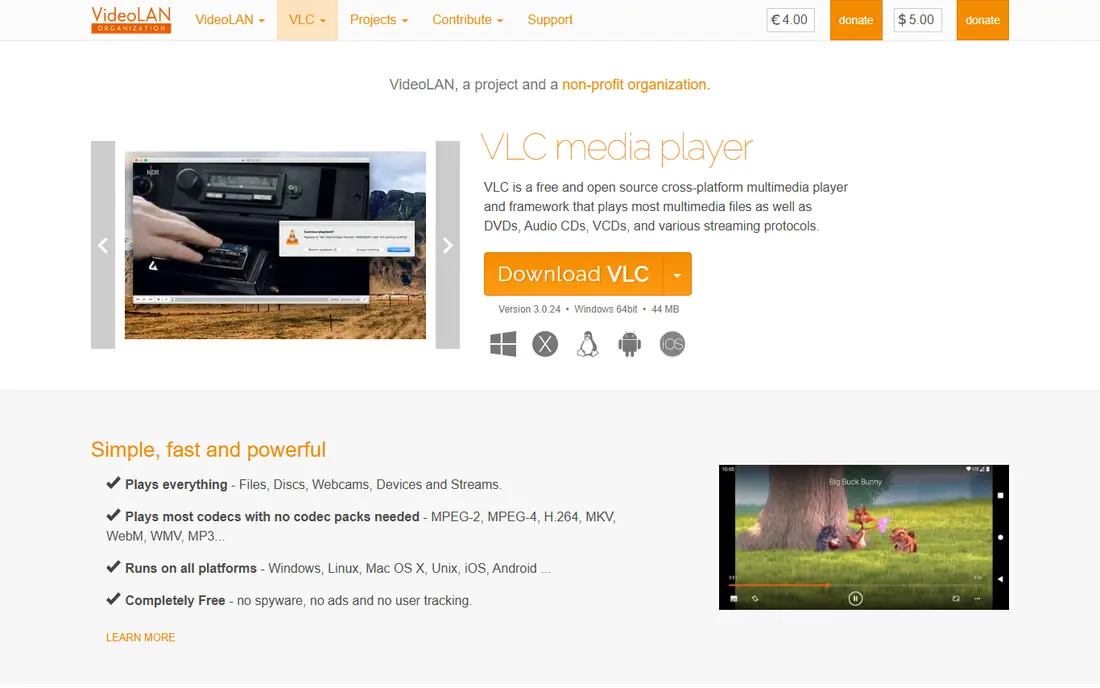
VLC is the media player we install on almost every Linux system. It plays video and audio in a wide range of formats without extra codec packs, and it handles local files, DVDs in supported regions, network streams, and web streams. That breadth saves time, because you do not need a different player for each file type.
Playback controls are practical. You can adjust subtitles, sync audio, change playback speed, and take snapshots. VLC also offers conversion and streaming features for users who need them, though most people will only use basic playback. It runs well on older hardware, which makes it a good choice for a second computer or a media centre.
The interface is plain, and library management is basic compared with music apps that focus on collections. If you want a polished music library with album art and playlists, a dedicated music app may suit you better. For playing a file quickly and reliably, VLC is hard to beat.
- Plays almost any audio and video format
- No codec packs needed
- Subtitle and playback controls
- Interface looks plain
- Library management is basic
GIMP, the GNU Image Manipulation Program, is the main free image editor on Linux. It supports layers, masks, selections, colour correction, and a wide range of filters, and it can open common image formats including PSD files with limits. For photo retouching, web graphics, and social media images, GIMP covers most needs without a subscription.
Plugins extend GIMP further, including tools for batch processing, extra filters, and specialised tasks. The community around GIMP is large, so tutorials and help are easy to find. Because GIMP is open source, it runs on Linux, Windows, and Mac, which helps if you switch systems later.
The learning curve is real. GIMP interface and workflow differ from Photoshop, and new users may need a few tutorials to feel comfortable with layers and masks. Some Photoshop features, such as certain smart objects, do not transfer perfectly. For most image editing, however, GIMP is a strong free choice once you learn the basics.
- Powerful photo and graphic editing
- Layers, masks, and filters
- Plugin support
- Learning curve for new users
- Interface differs from Photoshop
Visual Studio Code, often called VS Code, is the code editor most Linux developers reach for first. It supports many programming languages, offers a large extension library, and includes built in Git support and an integrated terminal. That combination makes it useful for web development, Python, and many other projects, without installing a separate tool for each language.
Extensions are the key strength. You can add language support, linters, themes, and tools for remote development, containers, and databases. The editor also handles large projects well, with search, debugging, and version control in one window. For students learning to code, VS Code is a good long term choice, because it grows with their skills.
For simple text editing, VS Code can feel heavy compared with a plain text editor. It also includes telemetry by default in some builds, so privacy conscious users should check settings and consider VSCodium, a community build without Microsoft telemetry, if that matters to them. For coding work, those points are minor compared with the extension ecosystem.
- Huge extension library
- Built in Git and terminal
- Works across languages
- Can feel heavy for simple text editing
- Telemetry settings need checking
Thunderbird is a desktop email client that suits users who manage several email accounts. It supports IMAP and POP, offers folders, filters, and strong search, and lets you read email offline. For people who dislike webmail or who want local copies of mail, Thunderbird is a practical, free option.
Filters and organisation tools help with busy inboxes. You can sort mail automatically, flag important messages, and search across accounts. Calendar and contacts can be added, and extensions add features such as encryption and extra views. Thunderbird is open source and runs on Linux, Windows, and Mac.
The interface feels older than modern webmail, and setup for some providers may need manual server settings, though most major providers work with automatic setup. Thunderbird also stores mail locally by default in many setups, so users should check backup settings. For desktop email users, it remains a solid, no cost choice.
- Multi account email in one place
- Filters and search
- Calendar and contacts add ons
- Interface feels older
- Setup for some providers needs manual steps
OBS Studio is the standard free tool for screen recording and live streaming on Linux. It lets you capture your screen, webcam, and audio, arrange them in scenes, and record to a file or stream to a platform. Teachers, gamers, and creators use OBS for tutorials, presentations, and live streams.
Scenes and sources give you control. You can switch between a full screen view, a webcam overlay, and a slide view, and you can add text, images, and browser sources. Plugins extend OBS for noise suppression, extra transitions, and remote control. Recording quality settings let you balance file size and clarity.
Setup takes time, and high quality streaming needs a decent CPU and internet connection. New users should start with a simple scene, test a short recording, and adjust settings before a live stream. Once set up, OBS is a powerful free tool that replaces paid recording software for most users.
- Free recording and live streaming
- Scenes and sources
- Plugin support
- Setup takes time
- Needs decent hardware for high quality streaming
Joplin suits users who want plain text notes that they control. Notes are written in Markdown, organised into notebooks, and can include images, attachments, and to do lists. Joplin runs on Linux, Windows, Mac, and mobile, so notes travel across devices.
Sync is flexible. You can sync through Joplin Cloud, Dropbox, OneDrive, Nextcloud, or a local folder, depending on your privacy and cost preferences. That choice is a strength for users who do not want to lock notes into one company cloud. Joplin also supports encryption for synced notes, which adds privacy for sensitive material.
The interface is plain compared with Notion or Evernote, and sync setup requires choosing a service and configuring it. Joplin does not offer the same web clipping or collaboration features as larger note apps. For personal notes, research notes, and daily journaling in Markdown, it is a strong, free, and private option.
- Markdown notes with notebooks
- Sync options including Nextcloud
- Open source
- Interface is plain
- Sync setup needs a service or server
Krita is built for digital painting and illustration, and it is the best free choice on Linux for artists. Its brush engine offers many customisable brushes for sketching, painting, and inking, and it supports layers, blending modes, and colour management. Tablet support with pressure sensitivity works well on Linux for most common tablets.
Animation tools let artists create frame by frame animation, and Krita supports common image formats for export. The community provides brush packs, tutorials, and templates, which help new artists get started. Krita is open source and free, with no subscription for core features.
Krita is not a photo editor, so users who need photo retouching should use GIMP instead. It can also be demanding on older hardware, especially with large canvases and many layers. For painting, comics, and concept art, Krita is the app we suggest first on Linux.
- Brush engine for painting and illustration
- Animation tools
- Tablet support
- Not a photo editor
- Can be heavy on older hardware
Kdenlive is a free, open source video editor for Linux that suits YouTube videos, school projects, and short films. It offers multi track timelines, effects, transitions, titles, and audio tools, and it supports many video formats. Proxy editing helps when working with large or high resolution files on modest hardware.
The workflow is similar to other non linear editors, so users who have edited video before will find it familiar. Effects can be keyframed, audio can be adjusted per clip, and titles can be created inside the app. Kdenlive also integrates with other KDE tools, though it runs on other desktops as well.
Video editing has a learning curve in any app, and Kdenlive is no exception. Rendering can be slow on older computers, and very large projects need careful file organisation. For most personal and school video projects, Kdenlive offers enough power without the cost of a paid editor.
- Multi track video editing
- Effects and transitions
- Proxy editing for large files
- Learning curve
- Rendering can be slow on older hardware
How we picked these
We checked official app pages, app store listings, pricing pages, and public help pages to confirm each option still operates in October 2026. We compared features, costs, and limits on the vendor own site, and we left out options that had closed or lacked clear public details.
Setting up a Linux desktop
Start with the basics, then add tools as projects arise. Install LibreOffice, Firefox, VLC, and Thunderbird if they are not already present, because those cover documents, web, media, and email. Add GIMP or Krita when you have an image or art project, and add OBS Studio or Kdenlive when you have a recording or video project. Installing everything at once clutters menus and adds updates you do not need.
Use your distro app store or package manager for installation, and keep apps updated through the same system. Most of these apps are available as native packages, Flatpaks, or AppImages, and the best format depends on your distro. If an app is not in your store, check its official download page, and avoid random download sites that may bundle unwanted software.
Back up before major changes. A tool such as Timeshift for system snapshots, plus a regular backup of your home folder, protects your work if an update or experiment goes wrong. That habit matters more than any single app, because it lets you try new tools without risking documents, photos, or notes.
Frequently asked questions
What Linux apps should I install first?
Start with LibreOffice, Firefox, VLC, and Thunderbird, because they cover documents, browsing, media, and email. Add tools for your work or hobbies next, such as GIMP for images, VS Code for coding, or Joplin for notes. Avoid installing a long list at once, and add apps when a task actually needs them.
Are Linux apps really free?
Many are free and open source, including LibreOffice, GIMP, VLC, and Kdenlive, with no subscription for core features. Some apps offer paid cloud services or optional donations, but the desktop app itself is free. Check the official project page for each app, because a third party site may charge for a free app.
Can Linux apps open Microsoft Office files?
Yes, LibreOffice opens Word, Excel, and PowerPoint files, and it can save in those formats. Most everyday formatting survives, though complex macros and unusual fonts may shift. For final sharing, send a PDF as well as the editable file, so the recipient sees the layout you intended.
Which Linux app is best for photo editing?
GIMP is the best free photo editor on Linux for retouching, layers, and graphic design. Krita is better for digital painting and illustration, while Darktable suits RAW photo workflow. Choose GIMP for general editing, Krita for painting, and Darktable if you shoot RAW photos and need a workflow tool.
Is Visual Studio Code free on Linux?
Yes, Visual Studio Code is free to download and use on Linux, with a large extension library. Some extensions are paid, but the editor itself and most common language extensions are free. Users who prefer a build without Microsoft telemetry can use VSCodium, a community build of the same editor.
Sources we checked (10)

Online Jobs is an independent blog about careers, online work, learning new skills and the tools that help people earn. More about us.
Keep reading
All posts
Zoom Alternatives
Zoom alternatives compared for 2026: Google Meet, Microsoft Teams, Webex, Jitsi and more for free calls, large meetings and webinars for teams and classrooms.

What Is the Best Free Tool to Rotate a PDF
What is the best free tool to rotate a PDF? We compare eight free rotation tools on per-page control, limits, privacy and saved output quality in detail.

What Is the Best AI Dubbing Tool
We compared the best AI dubbing tools in 2026, from ElevenLabs and HeyGen to Rask AI, Dubverse and Veed, for videos and creators in many languages worldwide.