Best Image Editing Software in 2026: 8 Tools Compared


Professional compositing and retouching · Starting price: See website
How we put this together: we compare official feature and pricing pages, app store listings, privacy policies and public user reviews. Prices change, so check the provider's site before you pay.
Key takeaways
- Adobe Photoshop remains the most powerful image editing software for compositing, retouching, and design work.
- Affinity, now free as a core app under Canva, is the best value alternative for layer-based editing without a subscription.
- GIMP is the best free and open source image editor for advanced users on Windows, Mac, and Linux.
- Adobe Lightroom is the best pick for photographers who need catalog, batch editing, and cloud workflows.
- Capture One suits studio and tethered photographers who prioritize color and RAW quality.
Quick comparison
| Name | Who it suits | Starting price | Free option | |
|---|---|---|---|---|
| Adobe Photoshop | Professional compositing and retouching | See website | Free trial | Visit |
 Affinity | Free layer-based editing | Free | Yes | Visit |
 GIMP | Free open source editing | Free | Yes | Visit |
 Adobe Lightroom | Photo catalog and batch editing | See website | Free trial | Visit |
 Capture One | Studio and tethered photography | See website | Free trial | Visit |
 Luminar Neo | Fast AI-assisted editing | See website | Free trial | Visit |
 Corel PaintShop Pro | Windows photo editing | See website | Free trial | Visit |
 Photopea | Browser-based Photoshop-style editing | Free | Yes | Visit |
The best image editing software
Image editing software splits into two broad types: pixel editors for retouching and compositing, and photo workflow tools for RAW processing and catalogs. The best software for image editing depends on which type you need, your budget, and whether you prefer a subscription, a one-time purchase, or a free tool. We compared official pricing and feature pages, plus public reviews, for editors available today, and we favored tools with layer support, RAW handling, and full-resolution export where relevant.
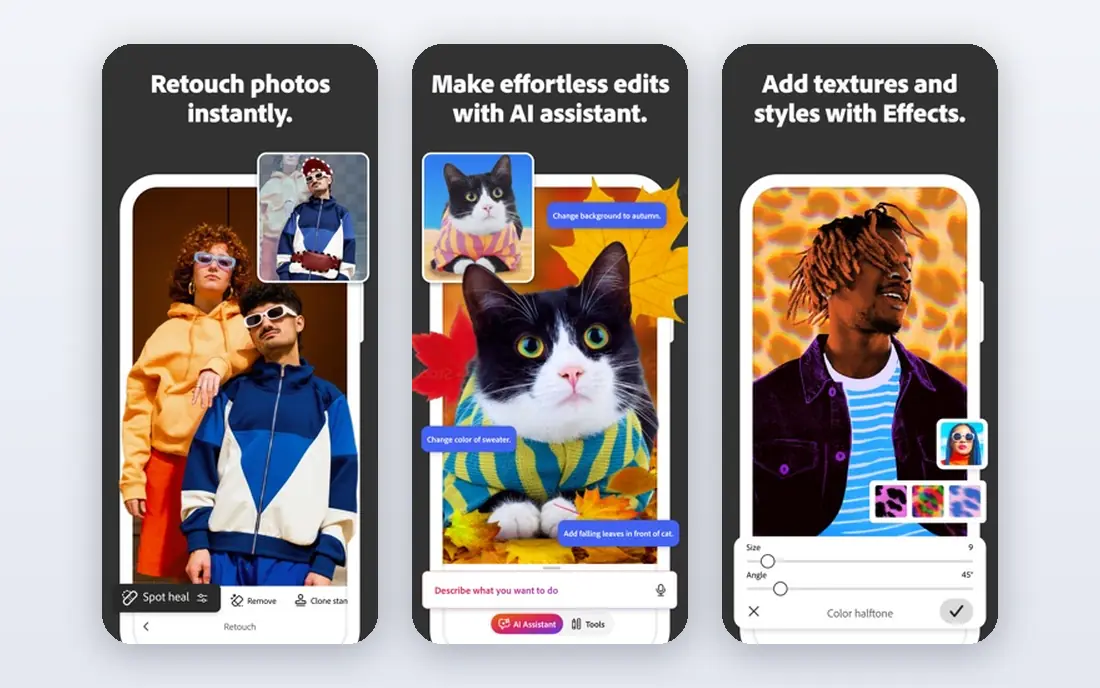
Adobe Photoshop is still the benchmark for pixel editing. Layers, masks, selections, and retouching tools cover almost any compositing job, from product photos to complex illustrations, and generative fill features speed up object removal and expansion. The tutorial and plugin ecosystem is unmatched, which helps when you hit a difficult edit.
The cost is a subscription, with pricing on the Adobe site, and the interface can overwhelm beginners. Casual photographers who only need exposure and color adjustments will find Lightroom or Affinity simpler and cheaper. For professional retouching, design, and compositing, however, Photoshop remains the tool other editors are measured against.
- Deepest layer and masking tools
- Generative fill features
- Huge plugin and tutorial ecosystem
- Subscription only
- Steep learning curve
- Heavy on older machines
Affinity, formerly Affinity Photo, is now the best value image editor for most people. It offers layer-based editing, masks, live filters, and RAW development in a fast, modern interface, and recent Canva announcements made the core app free, with optional Canva AI extras on paid plans. That change removes the main barrier that once kept budget users away.
The plugin ecosystem is smaller than Photoshop, and some newer AI features sit in Canva plans rather than the core app. For most retouching, compositing, and design work, though, Affinity covers the essentials well. If you want Photoshop-style editing without a subscription, start here before paying for anything else.
- Photoshop-style layers and tools
- Fast performance
- Now free as a core app under Canva
- Smaller plugin ecosystem than Photoshop
- Some advanced AI features need Canva plans
GIMP is the best free image editing software for advanced users who want full control without paying. It supports layers, masks, selections, and a wide range of filters, and a large plugin community extends it for RAW files, animation, and specialized tasks. It runs on Windows, Mac, and Linux, which makes it the most cross-platform free editor here.
The interface feels dated next to Affinity or Photoshop, and RAW handling usually needs a plugin or a separate RAW processor. Beginners may need tutorials to get comfortable, but the payoff is a free tool with no subscription, no ads, and no export limits. For budget users on Linux especially, GIMP is the clear first choice.
- Free and open source
- Layer editing
- Runs on Windows, Mac, and Linux
- Interface feels dated
- RAW workflow needs plugins
- Learning curve for beginners
Adobe Lightroom is the best image editing tool for photographers who process many photos. The catalog organizes thousands of images, presets and batch edits speed up consistent work, and cloud sync keeps edits available on phone, tablet, and desktop. AI masking, denoise, and generative remove features handle common photo problems quickly.
Lightroom is not a compositing tool. For heavy retouching, layered design, or text work, you will still need Photoshop, Affinity, or GIMP. It is also subscription only, with pricing on the Adobe site. Photographers who shoot in volume and value workflow over pixel-level compositing will get the most from Lightroom, especially paired with Photoshop in a Photography Plan.
- Strong catalog and batch workflow
- Cloud sync
- AI masking and denoise
- Subscription only
- Less compositing power than Photoshop
Capture One is the studio photographer's choice for RAW quality and tethered shooting. Color rendering, detail, and lens profiles are strong, and tethered capture lets photographers review shots on a large screen during a shoot. Session workflows suit commercial and fashion work, where speed and color accuracy matter.
Pricing is higher than Lightroom or Affinity, with subscription and perpetual options listed on the vendor site, and the interface takes time to learn if you are coming from Lightroom. Casual photographers will not need its studio depth, but professionals who shoot tethered or prioritize color will find Capture One worth the trial and the cost.
- Excellent RAW color and detail
- Tethered shooting
- Strong session workflow
- Higher price than rivals
- Learning curve for Lightroom users
Luminar Neo suits photographers who want fast, good-looking results without deep manual editing. AI tools can enhance an outdoor scene, replace a sky, or improve a portrait in a few clicks, and the interface is friendlier than Photoshop for beginners. It works as a standalone app and as a plugin for other editors, which adds flexibility.
Precision is the trade-off. Luminar Neo offers less manual control than Photoshop or Affinity for complex compositing, and some features sit behind subscriptions or extensions. Pricing is on the vendor site, with a trial available. For enthusiasts and social creators who want speed over pixel-perfect control, Luminar Neo is a fun and effective choice.
- One-click AI enhancements
- Sky replacement
- Easy portrait tools
- Less precise control than Photoshop
- Some features need a subscription or extensions
Corel PaintShop Pro is a solid Windows-only alternative for photo editing and light design work. It covers layers, masks, RAW editing, and AI tools such as style transfer and focus stacking, in an interface that Windows users find familiar. One-time purchase options have been listed alongside subscriptions, which appeals to users who dislike renting software.
It is Windows only, and its plugin and tutorial ecosystem is smaller than Adobe or Affinity. Mac and Linux users should ignore this pick. For Windows hobbyists who want a capable editor without a subscription, PaintShop Pro deserves a trial, but Affinity free is now a strong competitor on the same platform.
- Layer editing on Windows
- AI tools
- One-time purchase options in listings
- Windows only
- Smaller ecosystem than Adobe or Affinity
Photopea is the best browser-based image editor for quick, Photoshop-style work. It runs in any modern browser with no install, supports layers, masks, and PSD and XCF files, and covers most everyday retouching and design tasks. For students, Chromebook users, or anyone on a borrowed computer, that no-install access is a major advantage.
The free version includes ads, and AI features are less deep than Photoshop or Luminar Neo. A paid plan removes ads and adds more features, with pricing on the vendor site. Photopea will not replace Photoshop for heavy professional work, but for quick edits, file conversion, and learning layer editing, it is remarkably capable for a free web app.
- Runs in a browser with no install
- Photoshop-style layers
- Opens PSD and XCF files
- Free version includes ads
- Less AI depth than paid editors
- Needs internet
How we picked these
We compared official pricing and feature pages, plus public reviews, for image editors available today on desktop, mobile, or web. We kept tools with a clear editing strength, full-resolution export, and a distinct price model, from free open source to subscription to one-time purchase. Prices change often, so we used See website where vendor pricing was not confirmed on the day of writing, and Free where a core app or tier is free. We did not claim hands-on testing of every RAW file type, and we focused on published features and limits.
How to choose image editing software
Start with your main job: catalog and batch photo work, pixel retouching, or quick social edits. That choice narrows the list fast.
Pixel editor or photo workflow tool
If you retouch, composite, or design with layers and text, choose a pixel editor like Photoshop, Affinity, GIMP, or Photopea. If you process many RAW photos, organize a catalog, and apply consistent looks, choose Lightroom, Capture One, or Luminar Neo. Many photographers use both types: a workflow tool for most photos, and a pixel editor for hero images that need detailed work.
Subscription, one-time purchase, or free
Subscriptions give continuous updates but never stop costing money. One-time purchases cost more upfront but can be cheaper over several years, though major upgrades may cost extra. Free tools like Affinity core, GIMP, and Photopea remove the price question entirely if they cover your needs. Work out a three-year cost, not just a monthly rate, before deciding.
Trial on your own photos
Download a trial and edit your own photos, not sample images, including a difficult RAW file, a portrait needing retouching, and a photo needing a composite or text. Check export quality, speed on your computer, and whether the interface feels natural after a few sessions. An editor that looks powerful in a demo but slows your workflow is not the right pick, however popular it is.
Frequently asked questions
What is the best image editing software?
Adobe Photoshop is the most powerful overall, Affinity is the best free layer-based alternative, GIMP is the best free open source editor, and Adobe Lightroom is the best for photo catalogs and batch work. Capture One suits studio photographers, while Photopea suits browser-based editing. The right pick depends on your main editing job and budget.
What is the best free image editing software?
Affinity core is now free and offers Photoshop-style layer editing, while GIMP is free and open source for advanced users on Windows, Mac, and Linux. Photopea is free in a browser with ads, and Lightroom Mobile free covers basic photo edits. For full desktop editing without payment, start with Affinity or GIMP.
Is Photoshop better than Affinity?
Photoshop is better for the deepest compositing, generative features, and plugin ecosystem, while Affinity is better for value, speed, and avoiding a subscription. Most everyday retouching and design work is possible in both, so Affinity is enough for many users. Professionals who rely on Photoshop-specific plugins or workflows may still need Photoshop.
What is the best software for editing RAW photos?
Adobe Lightroom and Capture One are the strongest RAW workflow tools, with catalogs, batch editing, and color controls built for photographers. Affinity and GIMP also handle RAW files, but their catalog and batch workflows are lighter. If you shoot many RAW photos, a workflow tool will save more time than a pixel editor alone.
Can I edit photos for free without installing software?
Yes. Photopea runs in a browser with no install and covers layer editing, PSD files, and common retouching tasks, with ads on the free version. Pixlr also offers browser editing for quick jobs. For heavier work or offline editing, a desktop app like Affinity or GIMP is more reliable.
Do I need Photoshop for social media photos?
No, for most social photos. Snapseed or Lightroom Mobile handle phone photos well, Canva handles social templates, and Affinity or Photopea cover desktop edits without a Photoshop subscription. Photoshop is worth it only if you regularly do complex compositing, advanced retouching, or design work that simpler tools cannot handle.
Sources we checked (7)

Online Jobs is an independent blog about careers, online work, learning new skills and the tools that help people earn. More about us.
Keep reading
All posts
Best Tools to Unblur Photos for Free
We compared the best tool to unblur photos for free, covering face repair, web tools, desktop apps, free limits, watermarks, and what blur cannot fix.
Best Photo Editor App
Best photo editor app guide: we compare 8 photo editors on editing control, presets, free plans, and pricing so you can pick the right app for photos.
Best Photo Editing Software for Beginners
The best photo editing software for beginners in 2026, compared on price, ease of use, and free plans, so you can start editing without confusion from day one.