Best Homelab Platforms in 2026: 8 Platforms Compared


Virtual machines and containers on one server · Starting price: Free
How we put this together: we compare official feature and pricing pages, app store listings, privacy policies and public user reviews. Prices change, so check the provider's site before you pay.
Key takeaways
- Proxmox VE is our pick for most people who want virtual machines and containers on one box, because the core software is free and the web interface covers backups, clustering, and storage.
- TrueNAS Community Edition is the strongest choice when data safety comes first, thanks to its file system design and built-in sharing, snapshots, and app support.
- Unraid suits mixed drives and beginners who want a simple dashboard, but its paid license and device limits need a check before you buy.
- Ubuntu Server and OpenMediaVault cost nothing and stay flexible, yet they ask for more command-line comfort than a guided NAS interface does.
- The right platform depends less on brand loyalty and more on whether your main job is storage, virtual machines, containers, or a mix of all three.
Quick comparison
| Name | Who it suits | Starting price | Free option | |
|---|---|---|---|---|
| Proxmox VE | Virtual machines and containers on one server | Free | Yes | Visit |
 TrueNAS Community Edition | Safe storage with snapshots and sharing | Free | Yes | Visit |
 Unraid | Mixed drives and one-click apps | $49 one-time | Free trial | Visit |
 Ubuntu Server | Flexible Docker and self-hosted services | Free | Yes | Visit |
 OpenMediaVault | Lightweight NAS on modest hardware | Free | Yes | Visit |
 CasaOS | Simple app dashboard for beginners | Free | Yes | Visit |
 HexOS | Guided TrueNAS setup for beginners | See website | No | Visit |
 XCP-ng | Advanced virtualization and multi-host labs | Free | Yes | Visit |
The best homelab platforms
A homelab can be a retired office PC, a small mini PC, or a rack of used server hardware. These eight platforms cover that whole range, and each one makes a different trade between simplicity, control, and cost.
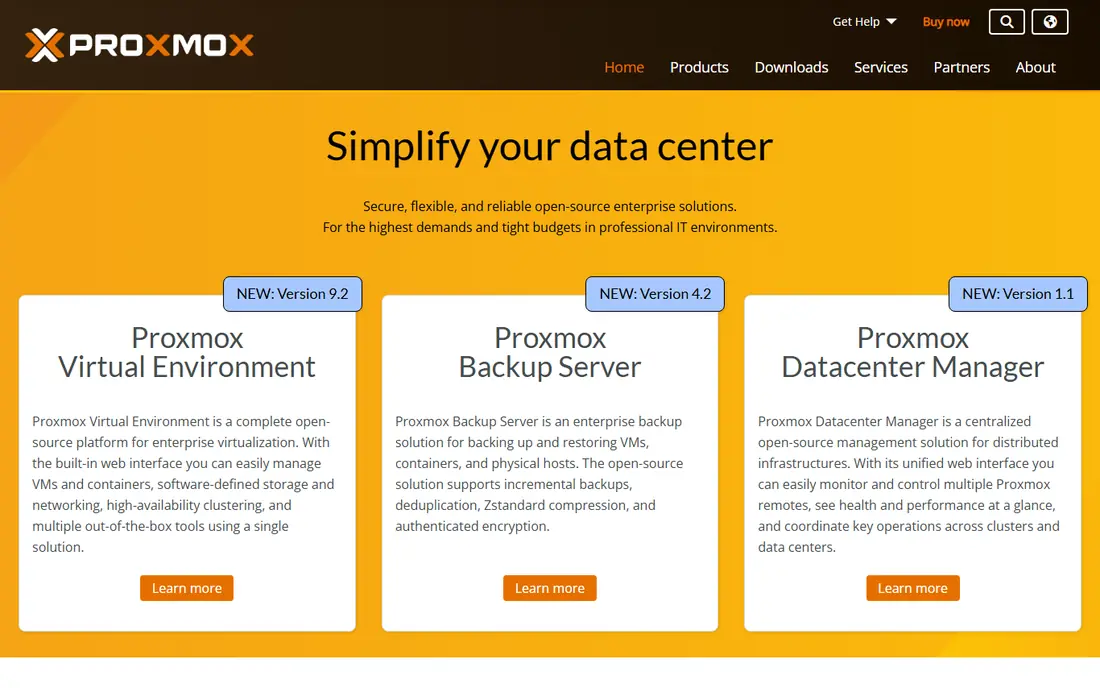
Proxmox VE is a Debian-based platform that runs both full virtual machines and lightweight Linux containers. That mix matters in a homelab, because you can keep a Windows test machine separate from a small container running a media server, a home automation tool, or a file sync service. The web interface handles storage, networking, backups, and snapshots without forcing you to learn a separate tool for each job. For many readers, this is the most capable free starting point, and it scales well if you later add a second node.
The honest catch is that Proxmox expects you to understand basic server ideas, such as storage pools, networks, and resource limits. It does not hold your hand the way a consumer NAS interface does, and some tasks still work best from the command line. Hardware passthrough for graphics cards or storage controllers also needs care and compatible hardware. If you enjoy learning those details, Proxmox rewards the effort. If you want a box that just serves files with almost no setup, a storage-first platform below may fit better.
- Full virtualization and containers in one interface
- Built-in backups and clustering
- Large community and documentation
- Learning curve is steeper than a NAS dashboard
- Paid support and enterprise update access cost extra
TrueNAS Community Edition
Who it suits: Safe storage with snapshots and sharing
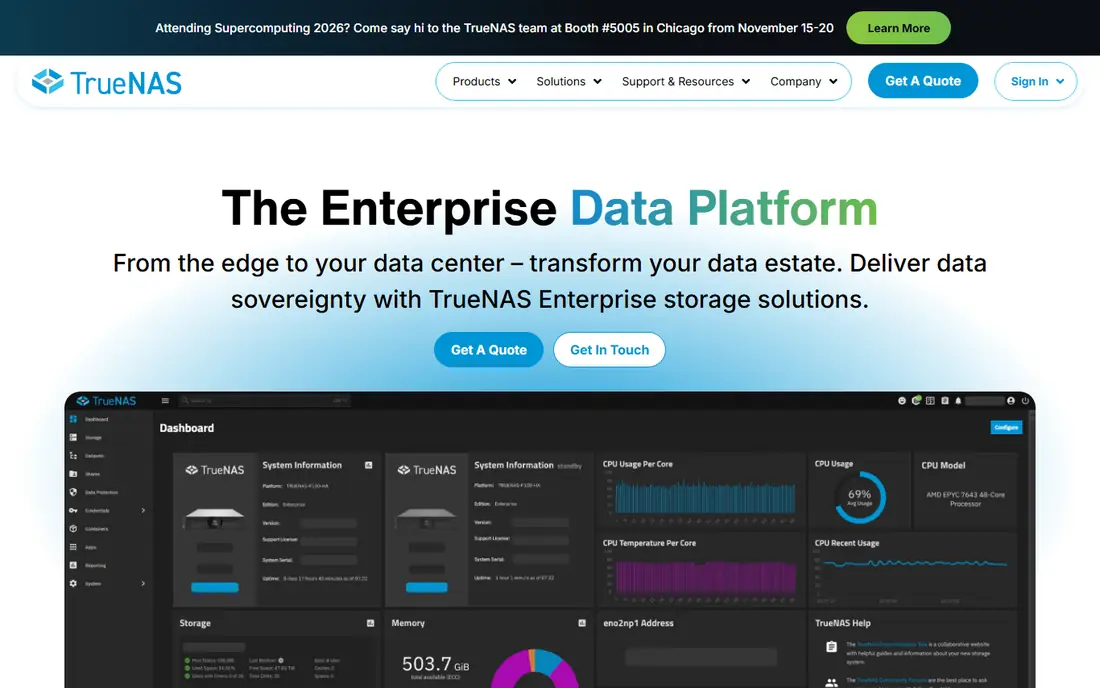
TrueNAS Community Edition is built around storage first and apps second. Its file system can detect and repair silent data damage, and snapshots let you roll back a folder or a whole dataset after a mistake or a bad update. Sharing over common home network protocols is central to the design, so phones, laptops, and media players can all reach the same files. Recent versions also support container apps, which means a single TrueNAS box can run services such as media servers alongside its storage duties.
That strength comes with hardware expectations. TrueNAS performs best with multiple drives, enough memory, and a proper storage controller, and a single-drive mini PC does not show off what it does best. Beginners may also find the settings for pools, datasets, and permissions more detailed than they expected. Still, for irreplaceable photos, documents, and family media, the extra setup pays off in protection that simpler systems do not offer. Plan the drives first, then install.
- Strong data protection features
- File sharing for home and small office use
- App support for common services
- Works best with several drives
- Needs more memory than a basic NAS setup
- Interface can feel dense at first
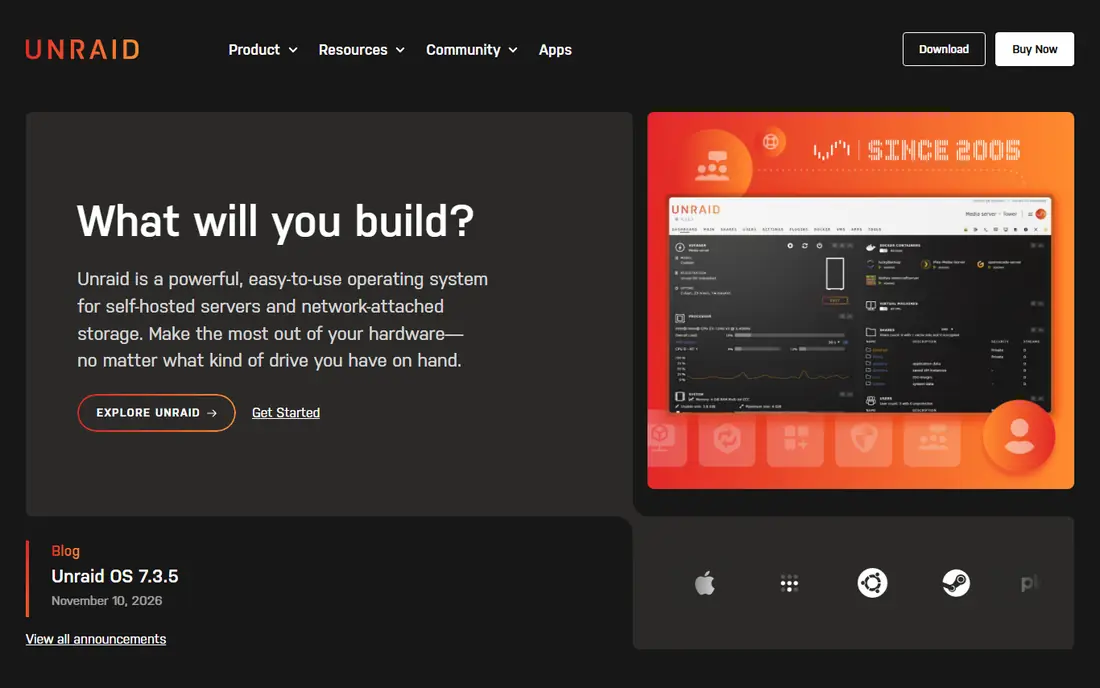
Unraid has a loyal following for a simple reason: it lets you add drives of different sizes over time, which is how most home labs actually grow. You do not need to buy a matched set of drives at once. The dashboard makes Docker apps easy to install, and virtual machines sit alongside storage in the same interface. For a first server built from spare drives, that flexibility is hard to beat, and the community app catalog covers media, backups, home automation, and much more.
The price needs a careful read. The entry license covers a limited number of attached storage devices, and higher tiers remove that limit, so count cache drives as well as array drives before you choose. Lower tiers include a limited period of updates, with optional renewal after that, while the lifetime tier covers updates for life. Unraid also writes to its parity array more slowly than some other storage designs by default, though cache drives help a lot for day-to-day use. If you value easy growth over raw speed, it remains a strong pick.
- Mix drive sizes in one array
- Large community app catalog
- Clear dashboard for Docker and virtual machines
- Paid license with device limits on lower tiers
- Parity write speed can be slower than other arrays
- Update access varies by tier
Ubuntu Server is less a finished homelab product and more a solid base to build on. If your main goal is running containers, such as a media server, a note app, or a home automation hub, Ubuntu Server with Docker gives you a clean and well-documented path. Almost every self-hosted project publishes instructions for Ubuntu first, which cuts down on troubleshooting time. It also runs well on modest hardware, including mini PCs and older desktops.
The trade is that nothing is prebuilt for you. There is no NAS dashboard, no one-click app store, and no guided storage setup unless you add those tools yourself. You will edit configuration files, manage updates, and decide how backups work. That freedom suits people who already like the command line or want to learn it properly. If you would rather click through a setup wizard and be done, OpenMediaVault or CasaOS below will feel friendlier, though they give up some of Ubuntu's raw flexibility.
- Huge documentation and community
- Runs Docker and most self-hosted software
- Long support releases available
- No built-in NAS dashboard
- Setup is mostly command-line work
- You choose and maintain every service yourself
OpenMediaVault turns a small PC or a single-board computer into a network storage box without demanding much hardware. It covers file sharing, user permissions, scheduled tasks, and drive health monitoring in a web interface, and plugins extend it into Docker hosting and other services. For a quiet box that mainly serves files and runs a few containers, it is efficient and easy to keep running.
The experience is practical rather than pretty, and some useful features live in plugins that you must find and install yourself. That can make the first setup feel scattered, especially if a plugin guide is out of date. OpenMediaVault also lacks the deep data protection features of TrueNAS, so it suits replaceable media and backups more than a single copy of priceless files. Used with a good backup plan, it is one of the best free options for a low-power home server.
- Free and open source
- Modest hardware needs
- Plugin system adds Docker, sharing, and monitoring
- Interface is functional rather than polished
- Some features need plugins
- Documentation varies by plugin
CasaOS focuses on making self-hosted apps feel approachable. Its dashboard presents installed apps as simple cards, and installing a new service takes a few clicks rather than a page of configuration. That makes it a good fit for a first homelab on a mini PC, where the goal is a media server, a photo app, or a file browser rather than a full storage array. It can run on top of a standard Linux install, so you are not locked into a single operating system choice.
The simplicity has limits. CasaOS does not replace a dedicated storage platform if you need advanced pools, snapshots, or multi-drive parity. Its app catalog is useful but smaller than the communities around Unraid or TrueNAS, and power users may outgrow the dashboard and want direct Docker control. Think of CasaOS as a friendly front door to self-hosting, not as a complete storage system. Paired with external backups, it is a low-stress way to start.
- Clean and friendly dashboard
- Easy app installs
- Runs on common Linux systems and small devices
- Lighter on advanced storage controls
- Smaller ecosystem than larger platforms
- Best for apps rather than complex storage
HexOS aims to take the storage strength of TrueNAS and wrap it in a simpler experience. Instead of working through every dataset and permission setting on day one, you get a guided setup and a cleaner dashboard for common tasks. That matters for people who want TrueNAS data protection but do not want to study storage design first.
Because HexOS is a paid product built around a free platform, you should check current pricing and exactly what the license covers before you commit. The project is also newer than TrueNAS itself, so some advanced controls may be simpler or still developing compared with the full TrueNAS interface. For a household that wants strong storage without a steep learning curve, that trade can be worth it. For a tinkerer who wants every setting exposed, plain TrueNAS Community Edition remains the fuller choice.
- Simplifies TrueNAS setup and management
- Friendly interface over a proven storage base
- Good for users who find TrueNAS dense
- Paid product on top of a free base
- Feature set is still growing
- Check hardware compatibility before buying
XCP-ng is a virtualization platform built on the Xen hypervisor, and it suits labs that want serious multi-host features without enterprise license costs. You can pool hosts, move virtual machines between them, and manage storage and networking from a central interface. For readers who want to learn enterprise-style virtualization at home, or who already know Xen from work, XCP-ng gives a capable and genuinely free base. It also handles a mix of Linux and Windows guests well.
The home community is smaller than the one around Proxmox, so guides and forum answers can take longer to find. Full web management through Xen Orchestra has free options, but some convenience features sit in paid tiers, so read the current offering before you plan around a specific feature. Setup also rewards planning around storage and networking, especially if you want pooling or migration. If you want the largest community and the simplest single-host path, Proxmox is easier. If you want Xen-based virtualization, XCP-ng is the natural pick.
- Free and open source virtualization
- Live migration and pooling features
- Web management through Xen Orchestra
- Smaller home community than Proxmox
- Some advanced management features are paid
- Setup takes more planning
How we picked these
We compared official feature pages, pricing pages, and app and platform documentation for each system, and we checked public community guides for how each platform behaves on real home hardware. We favored platforms that are actively maintained, that run on hardware ordinary readers can buy or reuse, and that clearly fit storage, virtualization, or container hosting rather than general desktop use. We left out abandoned projects and narrow tools that only manage one app, because a homelab platform should support several services over time.
We also weighed total cost, not just the headline price. A free platform that needs more memory or more drives can cost more in hardware than a paid license, and a paid license with device limits can force an upgrade later. That is why the write-ups above call out drive counts, memory needs, and update terms where they change the real cost. Prices and tiers change, so check the vendor page linked for each product before you buy hardware or a license.
What to decide before you install
Start with your main job, not with a favorite brand. A storage-first home needs drive planning, snapshots, and a backup copy elsewhere. A virtualization lab needs enough memory and CPU headroom for several guests at once. A container-only setup needs far less, and a mini PC may be plenty. Writing down that main job first stops you from buying a large server for a small media app, or from putting precious files on a single drive with no backup.
Next, count drives, memory, and network ports honestly. TrueNAS and similar storage systems want several drives and more memory. Unraid wants a clear drive count for its license tier. Proxmox and XCP-ng want memory for every virtual machine you plan to run at the same time. A wired network connection also matters more than most beginners expect, especially for media streaming and backups. A slow wireless link will make even a fast server feel slow.
Finally, plan backups before you move important files. A single server, however good its file system, is not a backup. Keep at least one copy on separate hardware, and test restoring a file before you trust the setup. That habit matters more than any platform choice, and it protects you if a drive fails, a setting breaks, or an update goes wrong. Start small, get one service stable, then add the next.
Frequently asked questions
What are the best homelab apps to run first?
Start with one useful service, such as a media server, a photo backup tool, or a home automation hub, and get it stable before adding more. A file sync service and a backup tool are also strong early picks, because they make the server useful every day. Avoid installing ten apps on day one, since that makes it hard to tell which one caused a problem.
Is Proxmox VE really free for home use?
Yes, the core Proxmox VE software is free and open source, and home users can use the community update repository without a subscription. Paid options buy enterprise update access and support, which most home labs do not need. Check the current Proxmox pricing page if you want support or enterprise updates for a business setup.
Should I choose TrueNAS or Unraid for storage?
Choose TrueNAS if data protection and snapshots matter most and you can use several matched drives with enough memory. Choose Unraid if you want to mix drive sizes, grow slowly, and use a simple app dashboard. Both can serve files and run apps, so the deciding factor is usually drive flexibility against data protection depth.
Can I run a homelab on a mini PC?
Yes, many readers run containers and light virtual machines on a mini PC with 16 GB of memory or more. Storage-heavy platforms benefit from more drive bays and memory, so a mini PC suits app hosting better than a large multi-drive array. Keep the machine wired to your network and watch CPU and memory use as you add services.
Do I need a paid license to start a homelab?
No, Proxmox VE, TrueNAS Community Edition, Ubuntu Server, OpenMediaVault, CasaOS, and XCP-ng all offer free core software. Unraid offers a trial, and HexOS is a paid product, so check their current terms before you rely on them. Free software still needs hardware, electricity, and backups, so budget for those costs too.
Sources we checked (8)

Online Jobs is an independent blog about careers, online work, learning new skills and the tools that help people earn. More about us.
Keep reading
All posts
iPhone Alternatives
Looking for iPhone alternatives in 2026? Compare 9 Android phones from Samsung, Google, OnePlus, and more, with cameras, battery life, and honest trade-offs.

Who Has the Best Home Internet Service
Find who has the best home internet service for your address, with fiber, cable, 5G, and satellite providers compared on price, speed, and coverage here.

Best Robotics Companies
Compare the best robotics companies in 2026, from humanoids to factory robots, with focus areas, deployments, and honest limits for buyers and pilots.