Best Graphic Design Software in 2026: 9 Tools Compared


Professional vector design · Starting price: $22.99 per month
How we put this together: we compare official feature and pricing pages, app store listings, privacy policies and public user reviews. Prices change, so check the provider's site before you pay.
Key takeaways
- Adobe Illustrator remains the standard for print-ready vector work, while Affinity now offers serious vector tools at no cost.
- Canva is the fastest route for non-designers making social posts, presentations and marketing graphics.
- Figma leads for interface design and team collaboration, and Photoshop leads for photo editing and raster work.
- Inkscape and GIMP give capable free options for vector and photo work, with a steeper learning curve.
- Beginners should start with a free tool, then pay only when a client file or print job demands a pro format.
Quick comparison
| Name | Who it suits | Starting price | Free option | |
|---|---|---|---|---|
| Adobe Illustrator | Professional vector design | $22.99 per month | Free trial | Visit |
 Canva Canva | Fast marketing graphics | Free | Yes | Visit |
 Affinity Affinity | Free pro vector design | Free | Yes | Visit |
 Adobe Photoshop Adobe Photoshop | Photo editing | $22.99 per month | Free trial | Visit |
 Figma Figma | Interface design teams | Free | Yes | Visit |
 CorelDRAW Graphics Suite CorelDRAW Graphics Suite | Print and sign work | See website | Free trial | Visit |
 Inkscape Inkscape | Free vector editing | Free | Yes | Visit |
 GIMP GIMP | Free photo editing | Free | Yes | Visit |
 Procreate Procreate | Hand-drawn iPad art | See website | No | Visit |
The best graphic design software
We compared official feature pages, pricing pages, app store listings and public reviews, and we favoured tools that are still sold and supported in 2026 for real design jobs.
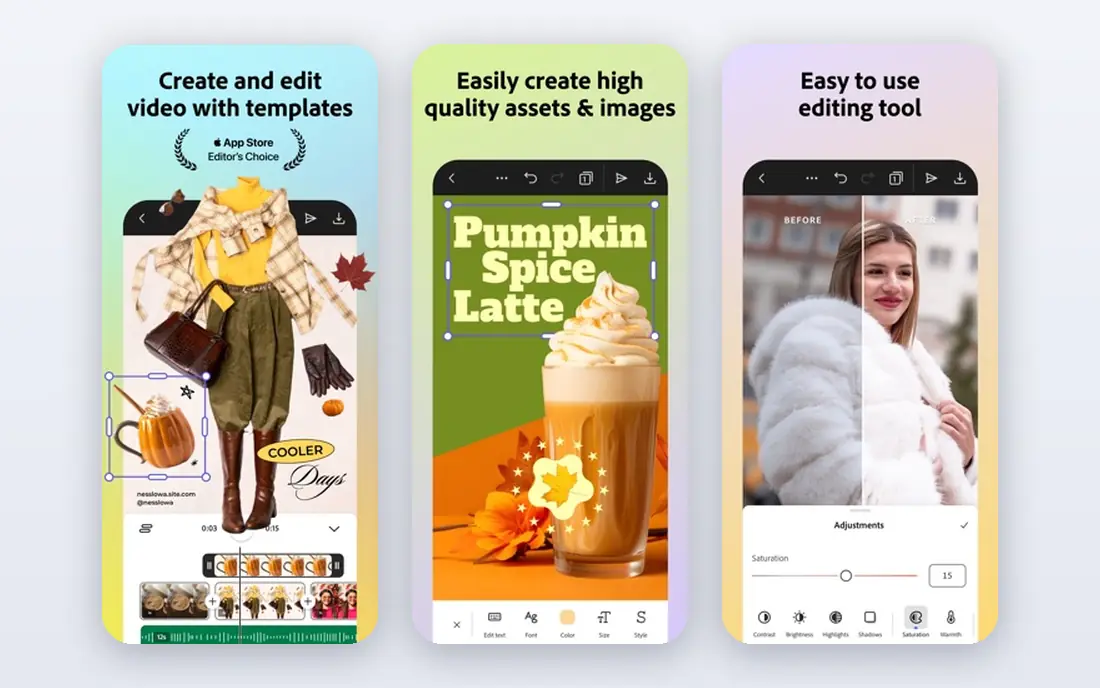
Illustrator is the tool most print shops, brand designers and agencies expect when a logo or packaging file changes hands. Vector paths stay sharp at any size, typography controls are deep, and export options cover print, web and cutting machines. If a client asks for an editable logo file, Illustrator is the safest answer in most professional settings.
The catch is cost and complexity. A monthly subscription is a real commitment for a freelancer who only designs occasionally, and the interface assumes you already know vector basics. Beginners can still learn it, but they should expect weeks of practice before work feels fast. For paid brand and print work, the price is usually justified.
- Industry-standard vector tools
- Strong typography and print output
- Wide file compatibility
- Subscription cost adds up
- Learning curve is steep for beginners
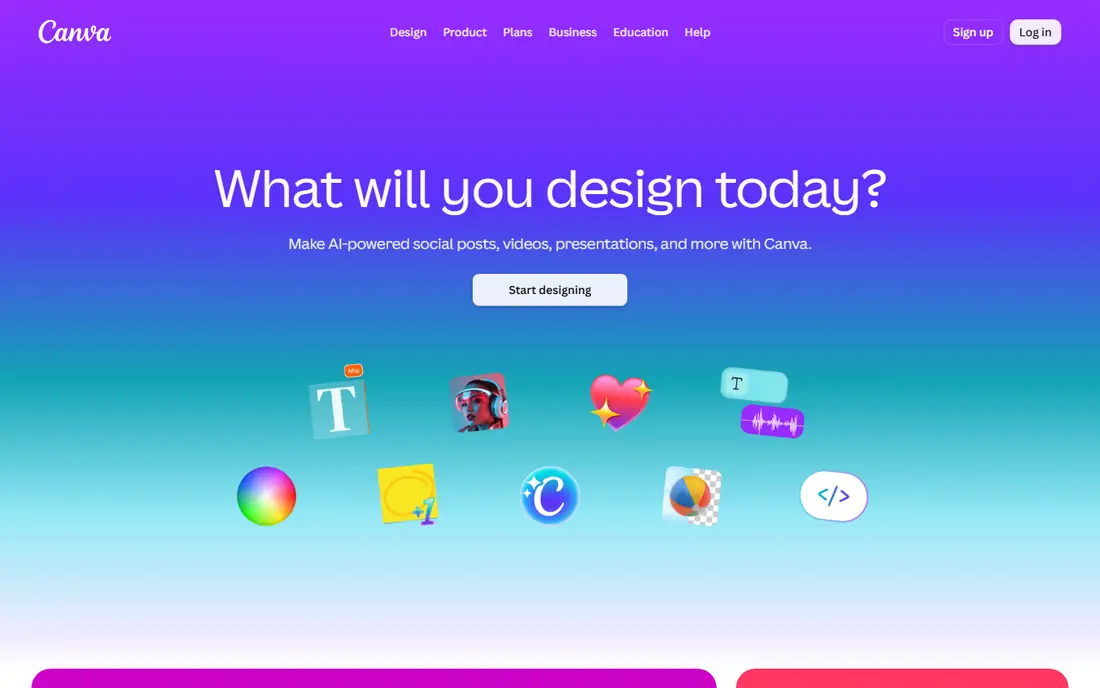
Canva is the best design software for a small business owner who needs a social post, flyer or presentation today, not next week. Templates, stock photos, fonts and brand kits sit in one browser window, and most designs take minutes rather than hours. The free plan handles a surprising amount, while the paid plan adds background removal, premium assets and brand controls.
The catch is precision. Canva is not a true vector editor, so logo work that needs exact paths and print-ready colour control still belongs in Illustrator or Affinity. For marketing graphics, social content and internal documents, that limit rarely matters. Canva wins on speed, not on craft depth.
- Huge template library
- Easy drag-and-drop editing
- Free plan covers many tasks
- Limited vector control
- Print work needs care with colour and bleed
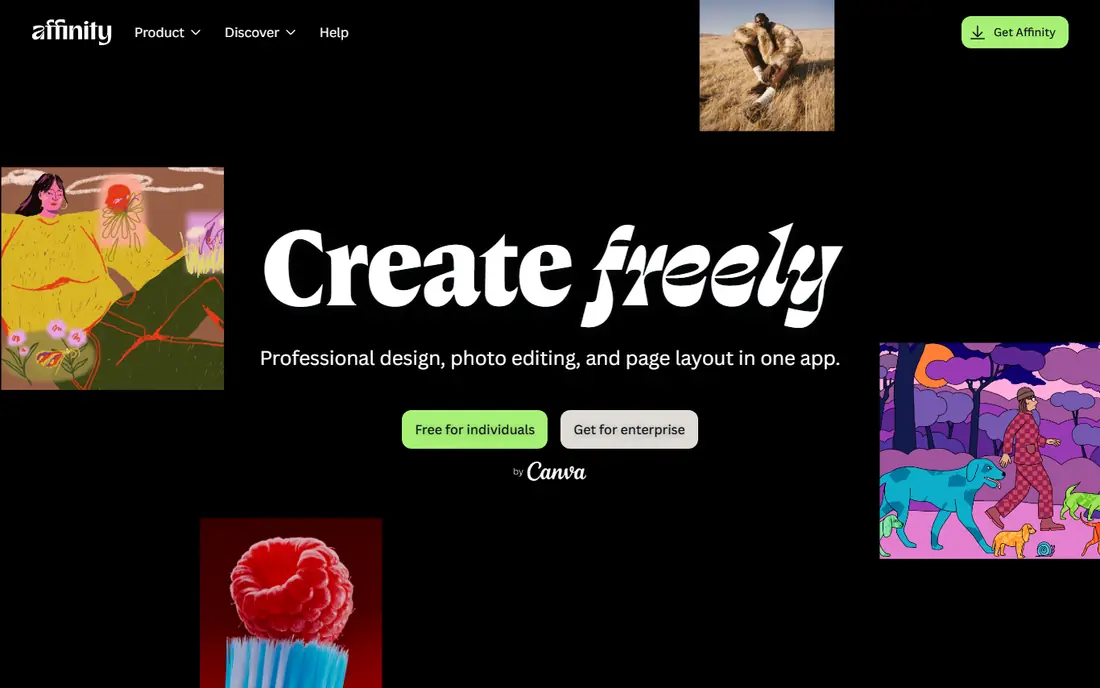
Affinity changed this comparison in 2026 by offering its professional design suite free after Canva acquired it. The vector tools handle logos, illustration and layout work with a polish that rivals paid rivals, and the photo and publishing tools sit in the same family. For a designer who refuses subscriptions, Affinity is now the obvious first try.
The catch is the ecosystem. Fewer plugins, templates and third-party courses exist than for Adobe, and a complex Illustrator file may not convert perfectly. Most everyday brand work transfers cleanly, but print shops should test a file before promising a client an exact Adobe match. At no cost, the trade is easy to accept.
- Professional vector, photo and layout tools
- No subscription
- Fast performance
- Smaller template and plugin ecosystem
- Some Adobe file features translate imperfectly
Photoshop remains the standard for photo work that goes beyond filters. Retouching, compositing, masking and colour correction are all deeper here than in any browser editor, and the file format is expected by photographers, agencies and print shops. If your design work starts with a photograph, Photoshop is the tool that finishes it properly.
The catch is that Photoshop is a photo editor first, not a layout or vector tool. Simple social posts are faster in Canva, and logos are better built in Illustrator or Affinity. Buy Photoshop when photo quality is the job, not when you only need a quick graphic.
- Deepest photo editing and retouching tools
- Strong selection and masking
- Industry file standard
- Subscription pricing
- Overkill for simple social graphics
Figma fits product teams designing apps and websites together. Multiple people can edit the same file, leave comments and build shared components, which cuts the back-and-forth of emailed mockups. Prototyping lets a team test a flow before any code is written, and developer handoff tools make the jump to build smoother.
The catch is focus. Figma is built for screens, not for print, so packaging, large-format print and complex vector illustration still belong elsewhere. It also works best online, which matters for designers with unreliable connections. For interface work, though, it is the team standard.
- Real-time collaboration
- Strong components and prototyping
- Generous free starter plan
- Needs an internet connection for full use
- Print design is not its strength
CorelDRAW suits print shops, sign makers and Windows-based design teams that want to own software rather than rent it forever. The suite covers vector illustration, page layout and photo editing in one package, with tools shaped around print production and large-format output. A perpetual licence option remains a real draw for shops that dislike subscriptions.
The catch is community size. Fewer tutorials, templates and freelancers use CorelDRAW than Illustrator, so hiring help or finding a niche plugin can take longer. Mac users also get a thinner experience than Windows users. For print production on Windows, it remains a capable and durable choice.
- Strong print, sign and layout tools
- Perpetual licence option
- Good Windows support
- Smaller community than Adobe
- Mac support is thinner
Inkscape is the best free design software for a beginner who wants real vector skills without paying. You can draw logos, icons and illustrations with bezier paths, layers and text tools, and export to common formats for web and print. Because it is open source, it runs on almost any desktop and costs nothing to keep.
The catch is polish. The interface looks older than Affinity or Illustrator, and very complex files can slow down. Learning resources are plentiful but less uniform than Adobe courses. For a student, hobbyist or freelancer on a tight budget, Inkscape teaches transferable vector skills for free.
- Free and open source
- True vector editing
- Works on Windows, Mac and Linux
- Interface feels dated
- Performance lags on very complex files
GIMP is the free answer to Photoshop for photo editing, retouching and web graphics. Layers, masks, filters and colour tools cover most editing jobs, and a large plugin range extends it further. It runs on Windows, Mac and Linux, and it costs nothing, which makes it a good companion to Inkscape for a free design setup.
The catch is print workflow. GIMP lacks native CMYK support, so print shops that need CMYK files will still need another tool for final output. The interface also takes a few days to learn. For web graphics, social images and photo edits, GIMP is more than capable.
- Free and open source
- Deep photo editing tools
- Large plugin range
- Interface takes learning
- No native CMYK support for print shops
Procreate fits illustrators who draw by hand and want a tablet to feel like paper. Brushes, textures and layer tools are tuned for drawing and painting, and a one-time purchase covers the app with no subscription. Many illustrators sketch in Procreate, then finish a design in a vector tool for print.
The catch is scope. Procreate is raster-only and iPad-only, so logos need a vector tool for final delivery, and desktop-only designers cannot use it at all. Think of it as a drawing studio, not a complete design suite. For hand-drawn art, few tools feel as good.
- Natural brush feel on iPad
- One-time purchase
- Huge brush and texture range
- IPad only
- Not a vector or layout tool
How we picked these
We compared official feature pages, pricing pages, app store listings and public reviews, and we checked that each tool is sold or maintained in 2026. We favoured tools with a clear use case, published pricing or a genuine free plan, and file formats that working designers actually exchange. Where pricing could not be verified from the vendor page during this check, we wrote "See website".
Which tool fits which job
The right tool depends on the output, not on a general ranking, so match the job first.
Logos and brand work
Use Illustrator or Affinity for logos, since vector files scale cleanly and print shops accept them. Canva can mock up a logo idea, but a final brand mark deserves a vector original. Keep the source file, not just a PNG export.
Social and marketing graphics
Use Canva for speed, especially when one person makes many posts a week. Templates, brand kits and scheduling help keep a consistent look without design training. Move to a pro tool only when a campaign needs custom illustration or print output.
Interface and product design
Use Figma when a team designs screens together, since shared components and comments keep a product consistent. Add Illustrator or Affinity for custom icons and illustrations that Figma then uses. Avoid building a full product in a print tool, since handoff to developers will suffer.
Frequently asked questions
What is the best software for graphic design for beginners?
Canva is the easiest start for marketing graphics, while Affinity and Inkscape are the best free routes into real vector design. Beginners who want a job skill should learn vector basics in Affinity or Inkscape, then add Photoshop or Illustrator only when paid work demands those file formats. Starting free also avoids paying for tools you may not yet need.
What is the best free design software?
Affinity now leads free professional design, with vector, photo and layout tools at no cost. Inkscape and GIMP remain strong free choices for vector and photo work, especially on Linux or older computers. Canva free covers templates and social graphics, but it is not a substitute for a vector editor on logo work.
What are the best graphic design apps for social media?
Canva is the strongest app for social posts, thanks to templates, sizing presets and brand kits. Adobe Express is a close alternative for users already in the Adobe family. For custom illustration on a tablet, Procreate pairs well with Canva, since artwork drawn in Procreate can be placed into a Canva layout.
Is Affinity really free now?
Affinity became free after Canva acquired it, with the core professional suite available at no cost and a Canva account. Some advanced artificial intelligence features sit behind a paid Canva plan, but the main vector, photo and layout tools are free. Check the Affinity site for current terms before relying on a specific feature.
What is the best tool for graphic design for print?
Illustrator leads for print-ready vector work, with CorelDRAW a strong Windows alternative for print shops and sign makers. Affinity also handles print layouts well, but always check colour mode, bleed and file format with your printer. A design that looks right on screen can still fail in print if those settings are wrong.
Should I learn Figma or Illustrator first?
Learn Illustrator or Affinity first if you want brand, logo and print work, and learn Figma first if you want app and website design jobs. Many designers eventually learn both, since product teams use Figma for screens and Illustrator for brand assets. Your first job goal should decide the order.
Sources we checked (9)

Online Jobs is an independent blog about careers, online work, learning new skills and the tools that help people earn. More about us.
Keep reading
All posts
Best Free Alternatives to Photoshop
Compare the best free alternatives to photoshop in 2026, from full desktop editors to browser tools, painting apps and free design platforms for US users.
Surfshark Alternatives
Looking for Surfshark alternatives? We compare 8 VPN services on price, privacy, streaming, and device limits to help you find a VPN that fits your needs.
Spotify Alternatives
Looking for Spotify alternatives? We compare 8 music services on price, sound quality, free tiers, and catalogs to help you find a good alternative to Spotify.