8 Best GIF Apps in 2026: 8 Apps Compared

How we put this together: we compare official feature and pricing pages, app store listings, privacy policies and public user reviews. Prices change, so check the provider's site before you pay.
Key takeaways
- GIPHY and Tenor are best for finding and sharing ready-made GIFs fast.
- Canva, Kapwing, and Adobe Express suit people who want to make GIFs from photos or video.
- Ezgif is a useful free web tool for trimming, resizing, and converting video to GIF.
- Most tools on this list offer a free tier, but exports, watermarks, and file size limits vary.
- Pick a finder app for chats and a maker tool for custom GIFs, since few apps do both well.
Quick comparison
| Name | Who it suits | Starting price | Free option | |
|---|---|---|---|---|
 GIPHY | Finding and sharing GIFs | Free | Yes | Visit |
 Tenor | GIF search in chats | Free | Yes | Visit |
 Canva | Making GIFs from designs | Free | Yes | Visit |
 Kapwing | Making GIFs from video | Free | Yes | Visit |
 Ezgif | Converting and editing GIFs | Free | Yes | Visit |
 Adobe Express | Quick branded GIFs | Free | Yes | Visit |
 VEED | Turning clips into GIFs | Free | Yes | Visit |
 Clipchamp | Simple video to GIF edits | Free | Yes | Visit |
The best GIF apps
A good GIF app does one of two jobs well: it finds the right reaction in seconds, or it turns your own photos and clips into a looping GIF. Some tools try to do both, but most people end up with one finder for chats and one maker for custom work. These eight cover both jobs.
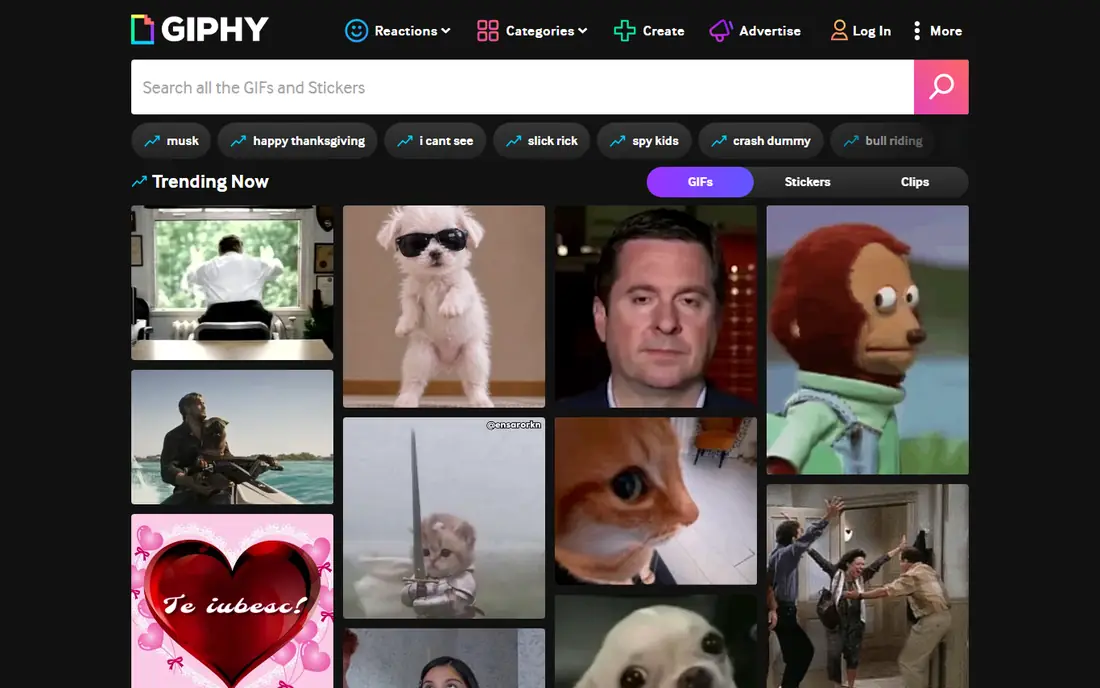
GIPHY is our pick for most people who mainly want to find GIFs. Search is fast, categories cover common reactions, and sharing to messaging apps takes only a few taps. The library includes clips from shows, films, and creators, so you can often find an exact reaction rather than settling for a close match.
GIPHY also lets you make basic GIFs from video or images, but it is not a full editing suite. If you need precise trimming, text placement, or branding, pair it with a maker tool below. For everyday chats, though, its speed and range are hard to beat.
- Very large GIF library
- Search by mood, show, or reaction
- Easy sharing to chats and social apps
- Quality varies across uploads
- Making GIFs is simpler than in a full editor
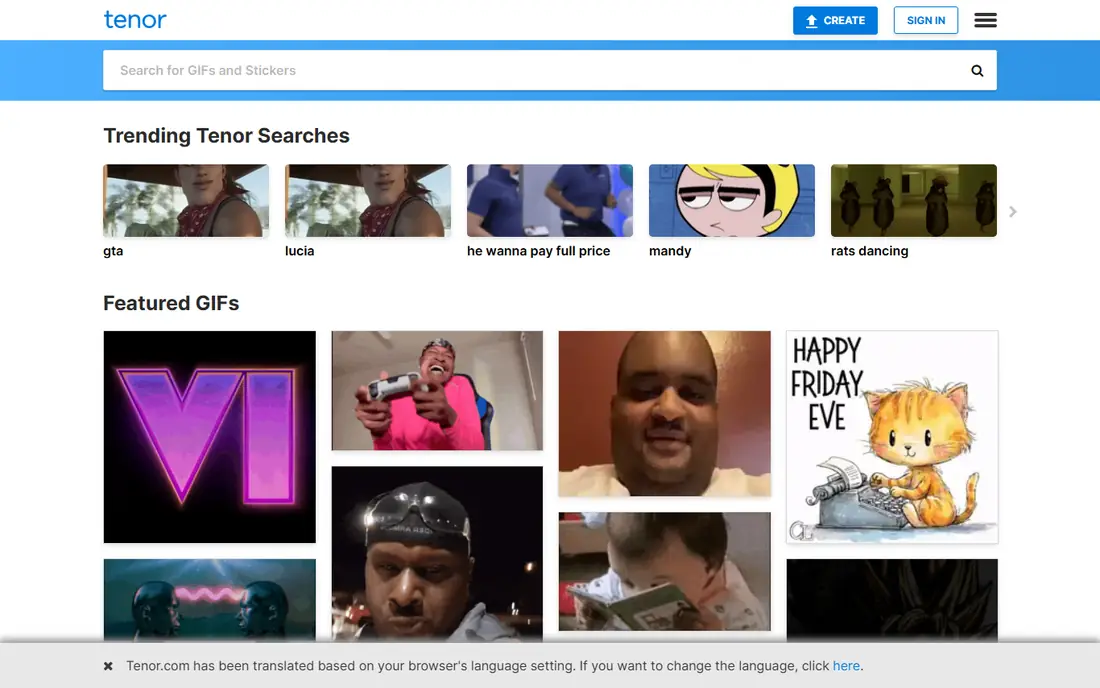
Tenor is best known as the GIF search inside keyboards and messaging apps. That placement is its strength: you can search and send a GIF without leaving a conversation. Results lean toward reactions and everyday moments, which suits group chats and quick replies.
Tenor is less useful as a standalone maker. You can upload and share GIFs, but detailed editing belongs in another tool. If your main need is finding GIFs inside chats, Tenor is a strong, low-friction choice.
- Built into many keyboards and chat apps
- Fast search
- GIFs tuned for reactions
- Smaller creation tools than dedicated makers
- Results can repeat across searches
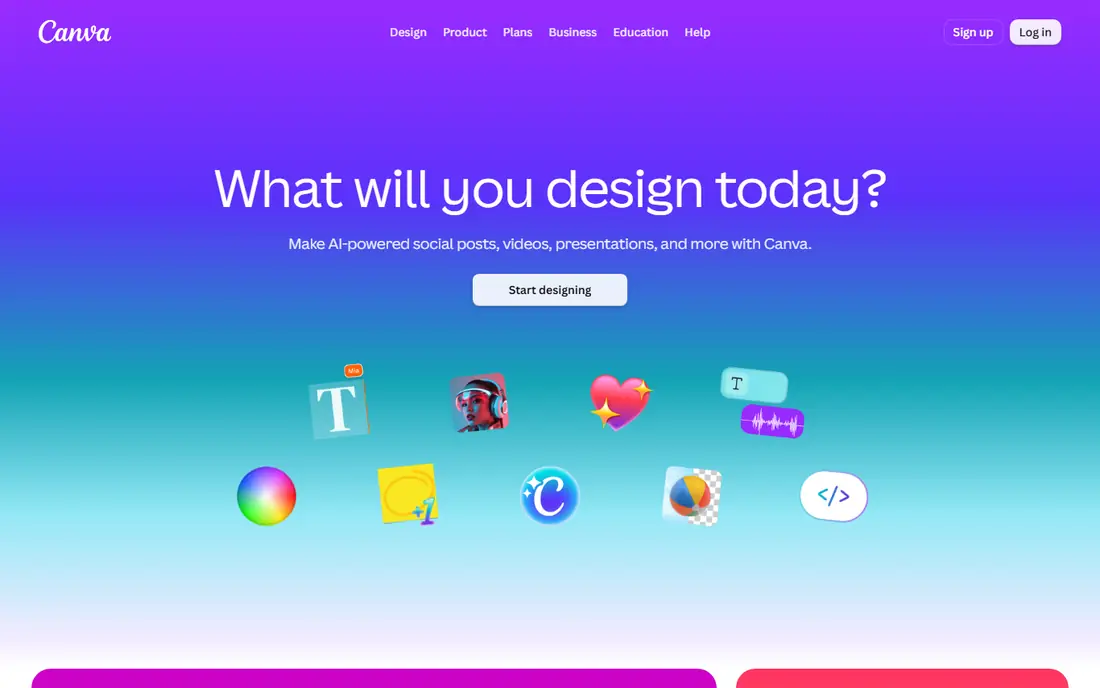
Canva suits people who want a polished GIF without learning video software. Start with a template, add text or images, set simple animations, and export as a GIF. It works well for social posts, announcements, and small business graphics.
The trade-off is control. Canva handles simple motion well, but frame-by-frame animation is easier elsewhere. For most social and marketing GIFs, however, its templates save time and keep results looking clean.
- Templates for social posts and ads
- Easy text and animation tools
- Exports as GIF
- Free exports may have limits
- Complex animation needs a dedicated video editor
Kapwing is a good browser option for turning a video clip into a GIF. Upload a clip, trim it to the best few seconds, add captions if you want them, resize for the platform, and export. Working in a browser means no install, which helps on shared or work computers.
Check the free tier limits before a large project, since exports and watermarks depend on the current plan. For short clips and social posts, the free tools cover most needs. For long or frequent work, a paid plan may be worth it.
- Browser-based video editing
- Trimming, captions, and resizing in one place
- GIF export
- Free tier may add a watermark or limit exports
- Large files can take time to process
Ezgif is a practical tool for fixing GIFs rather than designing them. It converts video to GIF, trims length, resizes files, crops frames, and optimises file size. That makes it useful when a GIF is too large for a chat app or a website.
The site is plain and tool-focused, so do not expect templates or a polished design canvas. Use Ezgif after you make a GIF elsewhere, or when you need a quick conversion. For those jobs, it is fast and free.
- Free conversion, trimming, resizing, and cropping
- No account needed for basic tools
- Supports video to GIF
- Web interface looks dated
- No template library or design tools
Adobe Express suits people who want GIFs that match a brand or a consistent style. Templates, fonts, and colour tools help keep posts looking related, and simple animations turn a static design into a looping GIF. It works in a browser and on mobile.
Free users get a solid set of tools, but premium templates and features sit behind a paid plan. If you already use Adobe tools, the shared assets are a bonus. If you only need a quick reaction GIF, a finder app will be faster.
- Templates and brand tools
- Simple animation options
- Ties into Adobe stock and fonts
- Some features need a paid plan
- Best results need a little design time
VEED is another browser editor that turns short clips into GIFs with little fuss. Trim a video, add text or captions, adjust size, and export as a GIF for social or chat use. The interface is clear, which helps people who do not edit video often.
As with other browser editors, check current free export terms before you rely on it for client work. For personal clips and social posts, the free tier is usually enough. For frequent, watermark-free exports, compare paid plans across Kapwing, VEED, and Canva.
- Browser video editor with GIF export
- Captions and trimming
- Simple sharing options
- Free exports may carry a watermark
- Advanced editing suits a paid plan
Clipchamp, from Microsoft, suits Windows users and anyone who wants a simple timeline editor. Cut a clip, add text, and export a short GIF for social posts or messages. Templates help when you need a quick format for a platform.
It is not the best choice for complex animation or frame-level GIF work. For short, simple conversions, though, it is approachable and well integrated with Microsoft accounts. Pair it with Ezgif if you need to shrink the final file.
- Simple timeline editing
- Templates for social video
- GIF export from short clips
- Feature set varies by plan
- Best suited to short, simple projects
How we picked these
We compared official feature pages, pricing pages, and app store listings for tools that find, make, convert, or export GIFs, and we favoured tools still active and available in the United States. We checked free tier terms, export options, and whether a tool works in a browser, on mobile, or both. We did not claim hands-on testing, and we used vendor pages as the source for current plans and limits.
How to choose the right GIF tool
Start with your main job. If you send GIFs in chats, GIPHY or Tenor will cover most days. If you make GIFs for social posts, Canva or Adobe Express gives you templates and text tools. If you turn video into GIFs, Kapwing, VEED, or Clipchamp gives you trimming and export in one place.
Next, check file size and length. Chat apps and social platforms cap GIF size, so a long, high-resolution clip may fail to send. Ezgif can trim and shrink a file after you make it, which solves many sharing problems. Keep GIFs short, usually a few seconds, and test them in the app where you plan to share them.
Finally, check rights before reusing clips. A GIF made from your own video is simple to share, but a GIF built from a show, film, or another creator's work may have limits for business use. For client or ad work, use your own footage, licensed stock, or templates that allow commercial use, and read the licence terms.
Frequently asked questions
What is the best app for GIFs?
The best app for GIFs depends on the job. GIPHY is our pick for finding GIFs, Tenor is best inside chat keyboards, and Canva is best for making designed GIFs. For video to GIF work, Kapwing and VEED are strong browser choices.
What is the best tool for GIFs on a computer?
Kapwing, VEED, Clipchamp, and Ezgif all work in a browser, so they suit computer users without an install. Canva and Adobe Express also work in a browser and add design templates. Pick Kapwing or VEED for video clips, and Ezgif for quick conversion and resizing.
Are there best GIF apps that are free?
Yes, every tool on this list offers a free tier for core features. Free tiers may limit exports, add watermarks, or cap file size, so check the current plan page before a large project. For casual use, the free tiers are usually enough.
How do I make a GIF from a video?
Upload a short clip to Kapwing, VEED, or Clipchamp, trim it to the best few seconds, add text if you want it, and export as a GIF. Keep the clip short to control file size, then use Ezgif to trim or shrink it further if a chat app rejects it.
Can I use GIFs for business posts?
You can use GIFs you make from your own footage or licensed material for business posts, but check licence terms for clips from shows or other creators. Canva and Adobe Express templates often suit business use, though terms vary by asset. When in doubt, use original footage or licensed stock.
Sources we checked (8)

Online Jobs is an independent blog about careers, online work, learning new skills and the tools that help people earn. More about us.
Keep reading
All posts
Zoom Alternatives
Zoom alternatives compared for 2026: Google Meet, Microsoft Teams, Webex, Jitsi and more for free calls, large meetings and webinars for teams and classrooms.
Which Software Is Best for PDF Page Removal
Which software is best for PDF page removal? We compare free and paid tools for deleting pages quickly, safely, and without harming your file in this guide.
Which Software Is Best for Data Entry
Compare the best data entry software for forms, OCR scanning, and spreadsheets, with free plans, pricing, and honest limits for each tool before you commit.