Best Game Clipping Software in 2026: 8 Tools Compared

How we put this together: we compare official feature and pricing pages, app store listings, privacy policies and public user reviews. Prices change, so check the provider's site before you pay.
Key takeaways
- Medal is the best all-round clipper for PC players who want automatic highlights and share links.
- NVIDIA App and Xbox Game Bar suit players who already own the hardware or Windows and want instant replay with little setup.
- OBS Studio gives full control for recording and streaming, but you set up the replay buffer yourself.
- Outplayed and SteelSeries Moments suit competitive players who want event-based auto clips in supported games.
Quick comparison
| Name | Who it suits | Starting price | Free option | |
|---|---|---|---|---|
 Medal | All-round game clipping | Free | Yes | Visit |
 OBS Studio | Full-control recording | Free | Yes | Visit |
 NVIDIA App | Instant replay on NVIDIA cards | Free | Yes | Visit |
 Xbox Game Bar | Zero install clipping on Windows | Free | Yes | Visit |
 SteelSeries Moments | Clipping inside SteelSeries GG | Free | Yes | Visit |
 Outplayed | Automatic highlights per game | Free | Yes | Visit |
 Eklipse | Clips from stream recordings | Free | Yes | Visit |
 Gazoom | Lightweight automatic clips | Free | Yes | Visit |
The best game clipping software
Clipping software saves the moment after it happens, so you do not need to record a full session. The tools below differ in auto detection, editing, sharing, and performance cost, and the best pick depends on your games and your PC.
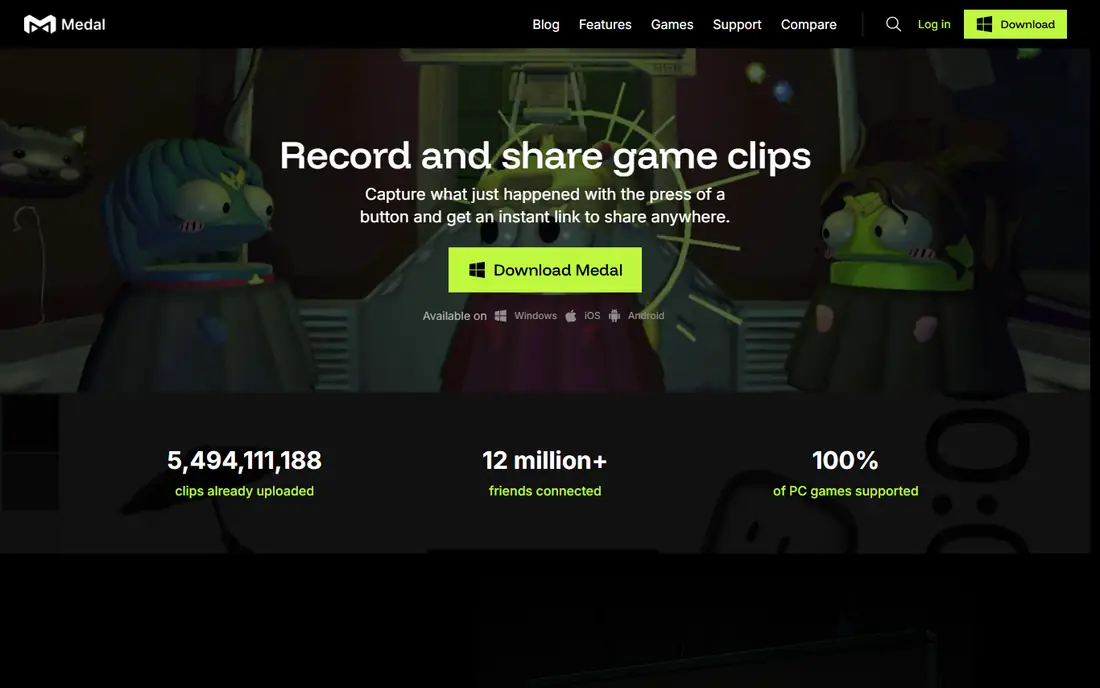
Medal is the easiest all-round choice for PC players. In supported games such as Valorant, Fortnite, CS2, and League of Legends, it saves kills, wins, and big rounds on its own. In other games, a hotkey saves the last moments of play, and the built-in editor lets you trim before you share.
Sharing is where Medal pulls ahead. Each clip gets a link that plays inside Discord, so friends can watch without downloading a file. The catch is link life: free quick-share links last a limited time, and longer hosting needs Premium. If you save clips locally as well, that limit matters less.
- Automatic highlights in supported games
- Instant replay from 15 seconds to 10 minutes
- Built-in editor and share links
- No Mac app
- Quick-share links expire without Premium
- Some users report frame drops
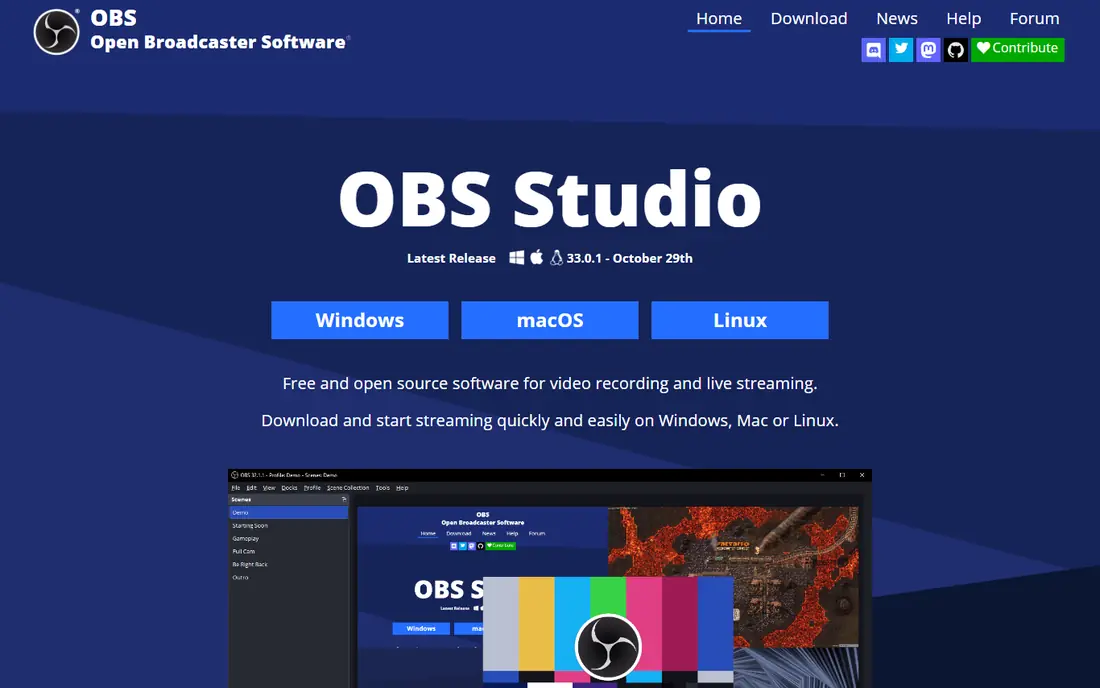
OBS Studio is the control pick, not the quick clip pick. You can capture games, webcam, and audio sources, switch scenes, and stream to Twitch or YouTube, all for free. For long sessions and multi-source recordings, no other free tool matches its flexibility.
For clipping, you need to set up the replay buffer yourself, choosing length, quality, and hotkey. There is no auto detection for kills or wins. Pick OBS if you stream or record full sessions, and pair it with Medal or another clipper if auto highlights matter more.
- Free and open source
- Full scene, audio, and source control
- Strong for streaming and long recordings
- Replay buffer needs manual setup
- No automatic highlight detection
The NVIDIA App, which includes ShadowPlay, gives NVIDIA owners instant replay with very low frame cost. Turn on instant replay, set a length, and press a hotkey to save the last moments. In supported games, Highlights can auto-save key moments without a hotkey.
The limit is hardware. You need an NVIDIA card, and clips save as files you upload yourself, rather than share links that play inline. If you already own NVIDIA hardware, it is a strong, free starting point before you add a dedicated clipper.
- Instant replay with low performance cost
- Highlights auto-save in supported games
- Already installed on many NVIDIA PCs
- NVIDIA graphics card required
- Sharing needs manual upload
Xbox Game Bar is already on Windows, so it is the fastest way to clip a moment. Press the capture shortcut, save the last 30 seconds with background recording on, and find the clip in your captures folder. Widgets for audio, performance, and friends sit in the same overlay.
Quality and editing are basic compared with Medal or OBS. Background recording can also use disk space if left on, so check settings and storage. For casual clips and for players who do not want another app, Game Bar is enough. Serious creators will outgrow it fast.
- Built into Windows
- No install needed
- Simple capture and widgets
- Basic editing
- Background recording settings need care
- Quality options are limited
SteelSeries Moments lives inside SteelSeries GG, the app many SteelSeries headset and keyboard owners already run. It captures clips with a hotkey, auto-clips in a list of supported games, and lets you trim in the app. Performance cost is low, which suits competitive play.
Outside that ecosystem, Moments is less compelling. There is no built-in sharing hub, so you manage uploads and files yourself. If you already run GG daily, Moments is a natural add-on. If you do not, Medal or NVIDIA App will feel more complete.
- Lightweight capture inside SteelSeries GG
- Auto clips in supported games
- In-app trimming
- Best if you already use SteelSeries GG
- No built-in clip sharing
- Fewer recent major updates
Outplayed, built on Overwolf, focuses on automatic highlights. In games with event detection, it saves kills, deaths, and match events without a hotkey, and it can capture full matches for review. That event focus suits competitive players who review play as well as share highlights.
Overwolf is the trade-off. You run the Overwolf platform to use Outplayed, and free hosted clips have storage limits. Check that your games are supported before you commit, since event detection is the main reason to pick Outplayed over a plain replay buffer.
- Event detection for supported games
- Automatic full match capture options
- Overwolf app ecosystem
- Needs Overwolf platform
- Free hosted clips have time limits
- Game support varies
Eklipse works differently from the other tools here. Instead of capturing on your PC during play, it takes a stream recording you already made and finds highlights in it. That suits streamers who already record to Twitch or YouTube and want clips without rewatching a full broadcast.
It is not a live PC clipper, so players who do not stream will get less from it. Free tier limits also apply to processing and storage. Pick Eklipse as a second tool for stream clips, alongside a live clipper such as Medal or OBS.
- Creates clips from stream recordings
- AI highlight detection for streams
- Share and editing tools
- Works from recordings, not live PC capture
- Free tier limits apply
Gazoom aims for light, automatic clipping without a heavy app. It captures highlights in supported games, keeps the interface simple, and lets you share clips without a complex setup. That lightness suits players on modest PCs or players who dislike background apps.
The smaller ecosystem is the catch. Game support, editing depth, and community features are narrower than Medal, so check your main games first. If Gazoom covers them and runs well on your PC, its simplicity is a plus.
- Lightweight capture
- Automatic clips in supported games
- Simple sharing
- Smaller ecosystem than Medal
- Game support and features vary
How we picked these
We compared official product pages, feature docs, and public reviews for PC clipping tools that are still available in October 2026. We kept tools that save recent gameplay, support instant replay or auto highlights, and run on current Windows PCs. We left out pure video editors, screen recorders with no game focus, and tools that had no clear current release.
How to pick a clipper for your PC
Start with your graphics card and your games. NVIDIA owners can start with the NVIDIA App for free, while AMD owners should check AMD Software for a similar replay feature. Then check game support: auto highlights only help if your main games are on the supported list.
Watch performance and storage
Clipping apps run in the background, so test frame rates in your main game with the app on and off. Also check where clips save, how much space they use, and how long hosted links last. A clipper that drops frames or fills a drive will hurt more than it helps, no matter how good its editor is.
Decide how you share
If you share in Discord, Medal links that play inline save time. If you edit for YouTube or TikTok, an editor and local files matter more than a share link. Pick the tool whose sharing path matches where your clips actually go, and save important clips locally as a backup.
Frequently asked questions
What is the best clipping software for PC?
Medal is the best all-round pick for most PC players, thanks to auto highlights, instant replay, and Discord-friendly links. NVIDIA App suits NVIDIA owners who want low-cost replay, while OBS suits streamers who want full control.
What is the best free clipping software?
Medal, OBS Studio, NVIDIA App, and Xbox Game Bar are all free for core clipping. Medal leads for auto highlights, OBS leads for control, NVIDIA App leads for low performance cost, and Game Bar leads for zero installs.
How do I clip the last 30 seconds on PC?
In Medal, press the clip hotkey to save a set replay length. In Xbox Game Bar, turn on background recording and use the capture shortcut. In NVIDIA App, turn on instant replay and press its save hotkey. Check each app settings page for the exact keys.
Which clipping software has auto clipping?
Medal, Outplayed, SteelSeries Moments, and Gazoom offer auto clips in supported games, while NVIDIA Highlights covers supported titles on NVIDIA cards. Check the supported game list for your main titles, since coverage varies.
Is Medal better than OBS for clipping?
Yes for quick clips, since Medal auto-detects highlights and shares links easily. OBS is better for streaming, long recordings, and multi-source setups. Many players use both: OBS for streams, Medal for clips.
Does clipping software lower FPS?
Any background capture can cost some performance, but NVIDIA App and SteelSeries Moments are known for low impact. Test with your game and settings, lower capture resolution if needed, and close other background apps during competitive play.
Sources we checked (8)

Online Jobs is an independent blog about careers, online work, learning new skills and the tools that help people earn. More about us.
Keep reading
All posts
Zoom Alternatives
Zoom alternatives compared for 2026: Google Meet, Microsoft Teams, Webex, Jitsi and more for free calls, large meetings and webinars for teams and classrooms.
Which Software Is Best for Data Entry
Compare the best data entry software for forms, OCR scanning, and spreadsheets, with free plans, pricing, and honest limits for each tool before you commit.
What's the Best App to Read PDFs
Find what's the best app to read PDFs in 2026, from Adobe Acrobat Reader and Foxit to PDF Expert and Xodo, with free options and honest limits for every device.