Best Free Video Editing Software No Watermark in 2026: 9 Compared

How we put this together: we compare official feature and pricing pages, app store listings, privacy policies and public user reviews. Prices change, so check the provider's site before you pay.
Key takeaways
- DaVinci Resolve is the most capable free editor in this list, with professional editing, colour and audio tools and no watermark on exports.
- CapCut and Clipchamp are the fastest routes for beginners and social video, with templates, captions and clean exports.
- Shotcut, OpenShot and Kdenlive are fully free and open source, so they will never add a watermark or a paywall to core exports.
- Lightworks exports without a watermark on its free tier, but free exports are capped at 720p, so check resolution before a deadline.
- VSDC is the only free Windows editor here that exports 4K without a watermark, although its interface takes patience to learn.
Quick comparison
| Name | Who it suits | Starting price | Free option | |
|---|---|---|---|---|
 DaVinci Resolve | Professional editing, free | Free | Yes | Visit |
 CapCut | Fast social and short-form video | Free | Yes | Visit |
 Clipchamp | Browser and Windows editing | Free | Yes | Visit |
 Shotcut | Open source desktop editing | Free | Yes | Visit |
 OpenShot | Simplest open source editor | Free | Yes | Visit |
 Kdenlive | Open source with pro features | Free | Yes | Visit |
 VSDC Free Video Editor | 4K export on Windows, free | Free | Yes | Visit |
 Lightworks | Pro editor with free 720p tier | Free | Yes | Visit |
 iMovie | Simple editing on Apple devices | Free | Yes | Visit |
The best free video editing software no watermark
We compared editors that export clean video on a free plan in October 2026, without a watermark, trial expiry or forced upgrade for basic exports. We kept only tools that are maintained and available for download or use today.
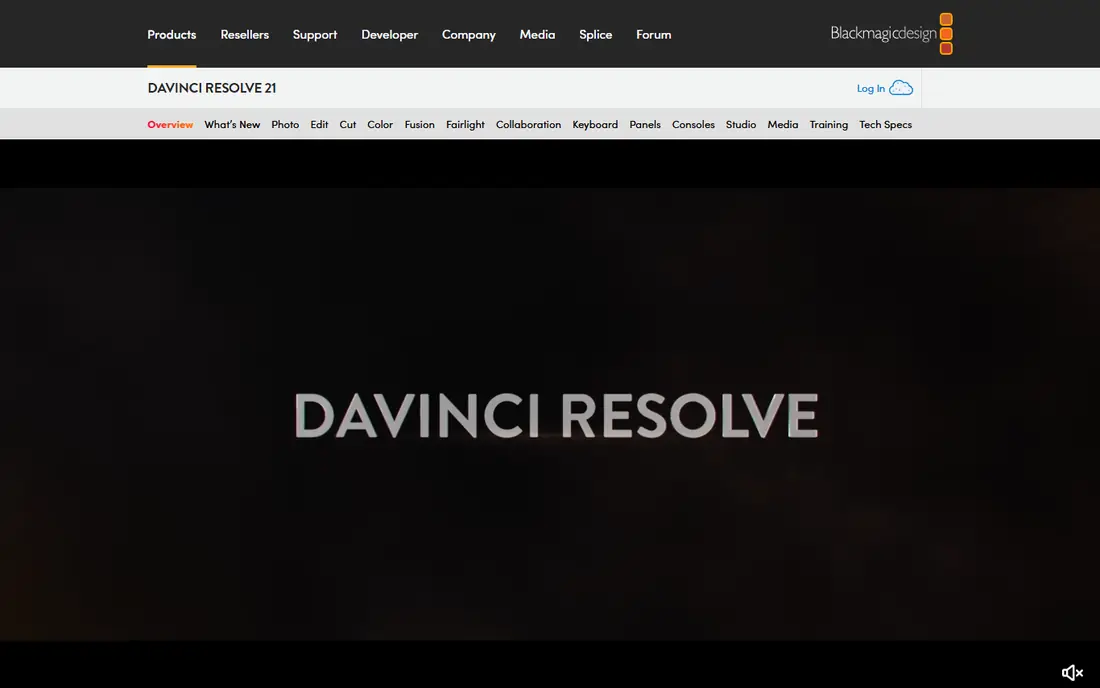
DaVinci Resolve is the free editor that professionals actually use, with a full timeline, colour page, Fusion effects and Fairlight audio in one program. The free version covers most creator needs, from YouTube videos to short films, and exports carry no watermark at any resolution the free version supports. Blackmagic Design funds the free version through hardware sales, which explains why it is unusually complete.
The catch is hardware and learning time. Resolve benefits from a discrete graphics card, at least 16GB of memory and fast storage, especially for effects and noise reduction. Beginners should start with a short project, learn trimming, titles and audio levels first, and use proxy media if playback stutters. If you want to learn professional editing without paying, Resolve is the clear first pick.
- Professional editing, colour grading, effects and audio
- No watermark
- No export count limit on the free version
- Needs a capable computer
- Learning curve is steep for beginners
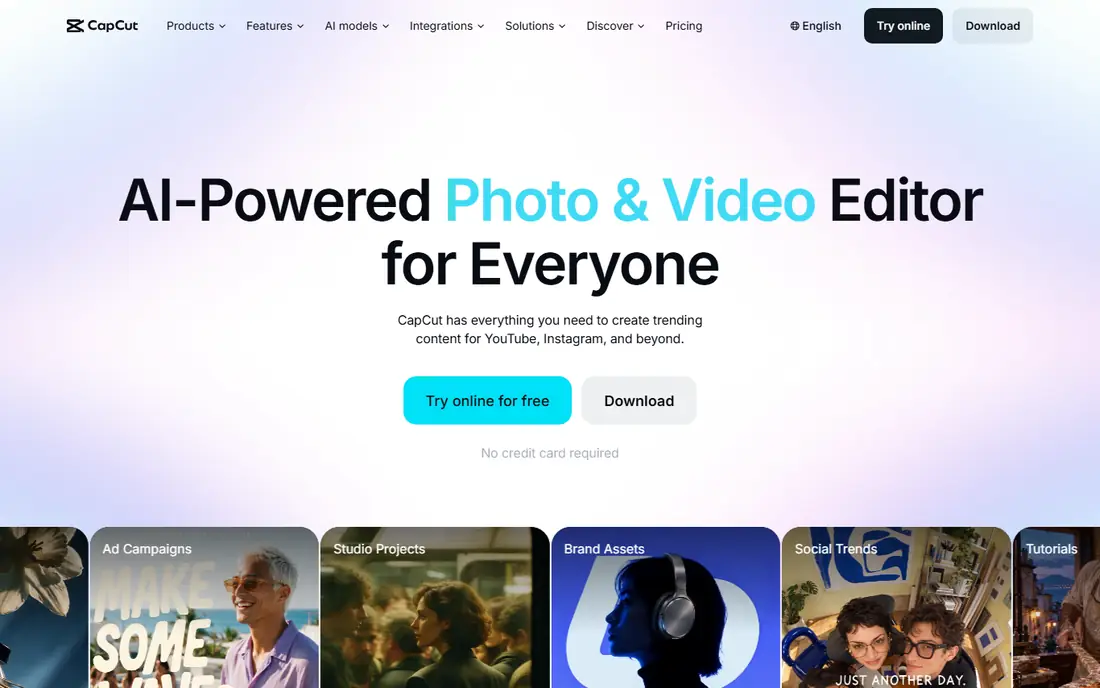
CapCut is built for speed, with templates, auto captions, trending effects and a mobile editor that suits short-form video. A creator can cut, caption and export a vertical video in minutes, which is why it remains popular for TikTok, Reels and Shorts. Core editing and HD exports on the free plan do not add a watermark, provided you avoid premium assets that are marked as Pro.
The limit is that premium templates, effects and cloud features sit behind CapCut Pro, and pricing changes from time to time, so check capcut.com for current plans. CapCut also works best for short projects, not long documentaries. For quick social video where speed matters more than deep colour control, CapCut is the fastest free choice.
- Templates and auto captions
- Fast mobile and desktop editing
- Clean exports on the free plan for core projects
- Some effects, templates and cloud features need CapCut Pro
- Free plan limits vary by feature
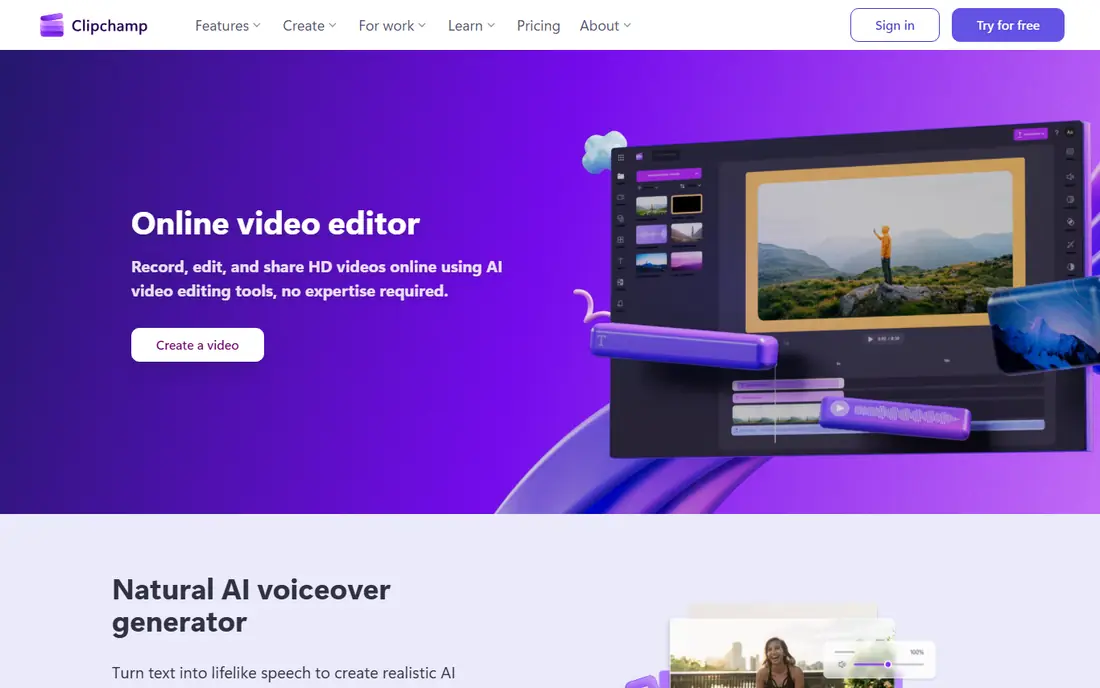
Clipchamp, owned by Microsoft, runs in a browser and on Windows, with a timeline, templates, auto captions and a stock library. Beginners like its guided workflow: import clips, trim on the timeline, add text and music, then export. Free exports are clean and in HD, which suits most social, school and small business videos without extra software.
The free tier caps exports at 1080p, so 4K creators should look at Resolve, Shotcut or Kdenlive instead. Premium stock and some filters also need payment. Clipchamp fits Windows users who want a friendly, no-install start, and who are happy with HD exports for everyday projects.
- Built into Windows
- Browser editing
- Templates, captions and stock media
- Free exports are HD 1080p, not 4K
- Some premium assets need a paid plan
Shotcut is a free, open source editor for Windows, Mac and Linux, with a multi-track timeline, filters, transitions and wide format support. It handles 4K editing and export without a watermark, and its open licence means core features will never move behind a paywall. Proxy workflows help on mid-range computers, and the filter set covers colour, audio and text basics well.
The interface is practical rather than pretty, and beginners may need a tutorial or two before the timeline feels natural. There are no built-in social templates, so social creators must build their own styles. Shotcut suits users who want a dependable, fully free desktop editor and who value format freedom over templates.
- Fully free and open source
- Wide format support
- 4K editing and export
- Interface is functional rather than polished
- Fewer templates than CapCut or Clipchamp
OpenShot is the gentlest open source editor in this list, with a drag and drop timeline, simple trimming, titles and transitions that beginners can learn in an afternoon. It runs on Windows, Mac and Linux, exports without a watermark, and costs nothing at any stage. For school projects, family videos and simple YouTube edits, that simplicity is a real strength.
Large or complex projects can feel slower, and OpenShot lacks the deep colour and audio tools found in Resolve or Kdenlive. It also has fewer effects than CapCut. OpenShot fits first-time editors, younger creators with supervision, and anyone who wants to finish a short video without learning a professional interface.
- Gentlest open source learning curve
- Drag and drop timeline
- No watermark
- Slower on large projects
- Fewer advanced colour and audio tools
Kdenlive is an open source editor with a multi-track timeline, effects, transitions, titling and audio tools that go well beyond basic trimming. It supports 4K editing and export, proxy workflows for smoother playback, and a customisable interface that power users can shape to their workflow. Like Shotcut, it will never add a watermark, because its open licence keeps core exports free.
Kdenlive is strongest on Linux and Windows, with a Mac version that is usable but less polished. Beginners may find the interface busy at first, although tutorials help. Kdenlive suits creators who have outgrown OpenShot, want pro features without paying, and are comfortable with open source software.
- Multi-track editing with pro features
- Proxy workflows for 4K
- Fully free and open source
- Best on Linux and Windows
- Mac version is less polished
- Learning curve above OpenShot
VSDC Free Video Editor is a Windows only editor that stands out for free 4K exports without a watermark, a feature many free editors restrict. It runs well on older or lower specification computers, offers a wide range of effects, transitions, colour tools and audio editing, and includes screen recording and slideshow tools. For Windows users with modest hardware who still want 4K output, VSDC is hard to beat on price.
The interface is the catch. It is dense, with menus and settings that take time to learn, and some advanced features, such as hardware acceleration extras, sit in the paid Pro version. VSDC suits patient Windows editors who want 4K exports for free and who are willing to learn an unusual interface to get them.
- Free 4K export without a watermark
- Runs on older Windows computers
- Many effects and tools
- Windows only
- Interface takes patience
- Some advanced tools need the Pro version
Lightworks is a professional editor with a long film history, offering precise trimming, a flexible timeline and a fast workflow for editors who cut a lot of footage. Free exports carry no watermark, which makes it a genuine free option for drafts, social clips and learning professional habits. The trimming tools in particular feel faster once you learn the keyboard workflow.
Free exports are capped at 720p, so Lightworks is not the right free choice for HD or 4K delivery without paying. Higher resolutions, extra effects and some export formats need a subscription. Lightworks fits editors who want to learn a pro timeline for free, and who can accept 720p for practice or social drafts.
- Professional timeline used in film editing
- Watermark-free exports
- Fast trimming tools
- Free exports capped at 720p
- Pro features and higher resolutions need a paid plan
iMovie comes free with Apple devices and remains the simplest polished editor for Mac, iPhone and iPad users. Clips, titles, transitions, music and trailers are easy to add, and exports are clean, with no watermark and no subscription. Sharing to social platforms and to Apple devices is built in, which suits family videos, school work and quick YouTube edits.
The limit is depth. iMovie offers far less control over colour, audio mixing and multi-track editing than Resolve or Kdenlive, and it runs only on Apple hardware. For Apple users who want a fast, reliable start and who do not need pro tools yet, iMovie is the obvious free pick, with Resolve as the next step when projects grow.
- Free on Mac, iPhone and iPad
- Polished and simple
- No watermark on exports
- Apple devices only
- Limited advanced colour, audio and multi-track control
How we picked these
We checked vendor pricing pages, product documentation and recent free editor guides in October 2026, and we kept only editors with a free plan that exports without a watermark for core projects. We excluded HitFilm, which was discontinued in early 2025, and we excluded editors that watermark free exports until you pay. We weighted export cleanliness, resolution limits, platform support, learning curve and maintenance status, because a free editor that stops working or adds a watermark later is a poor recommendation.
We did not claim hands-on testing of every export, and we used See website or vendor pages for paid upgrade pricing where it varies. Always test one export before a deadline, especially with CapCut and Clipchamp, where premium assets can change the export terms for a specific project.
How to choose a free video editor without a watermark
Start with your device, your project length and the resolution you must deliver, then match the editor to those limits.
Match the editor to your computer
DaVinci Resolve and Lightworks need more power and patience, while VSDC, Shotcut and OpenShot run better on modest hardware. If your computer stutters, use proxy media, close other apps, and keep timelines short until you know the editor can cope. A browser editor like Clipchamp can also help on a low power laptop, provided your internet connection is stable.
Check resolution, formats and premium assets
Confirm the free export resolution before you start: Lightworks caps free exports at 720p, Clipchamp caps free exports at 1080p, and Resolve, Shotcut, Kdenlive and VSDC export 4K free. Check that your camera formats import cleanly, and avoid premium templates, music or effects that may add a watermark or require payment on export. Test a short clip first, then commit to the full edit.
Plan for learning time and file storage
Professional editors repay learning time, but they also need organised files. Keep footage, audio, graphics and exports in one project folder, use clear file names, and back up the project before major changes. Beginners should start with a two minute project, learn trimming, titles and audio levels, and only move to colour and effects when the basics feel comfortable.
Frequently asked questions
What is the best free video editing software no watermark?
DaVinci Resolve is the most capable free editor overall, with professional tools and no watermark. For beginners, CapCut and Clipchamp are faster to learn, while Shotcut and OpenShot are the simplest fully free desktop options. The best choice depends on your computer, your project length and your export resolution.
What is the best free video editing software for beginners no watermark?
OpenShot and iMovie are the gentlest desktop and Apple starting points, while CapCut and Clipchamp are the gentlest choices for social video. Start with a short project, learn trimming and titles first, and move to a deeper editor only when a project needs more control.
What is the best free editing software no watermark for mobile?
CapCut is the strongest free mobile option for short social videos, with templates, captions and effects built for phones. iMovie is the best simple mobile choice on Apple devices. For mobile editing, check export resolution and whether premium templates are needed for the style you want.
Does CapCut add a watermark on free exports?
Core CapCut exports on the free plan do not add a watermark, but premium templates, effects and cloud features may require CapCut Pro. Avoid premium assets marked as Pro if you need a guaranteed clean export, and test one export before a deadline.
Can free editors handle 4K video?
Yes. DaVinci Resolve, Shotcut, Kdenlive and VSDC support 4K editing and export for free, although playback speed depends on your computer. Clipchamp exports HD free, and Lightworks free exports are capped at 720p. Use proxy files on mid-range machines for smoother 4K work.
Is DaVinci Resolve really free?
Yes. Blackmagic Design offers DaVinci Resolve free with no watermark, including professional editing, colour grading, effects and audio tools. A paid Studio version adds AI features and collaboration tools for professional facilities, but most creators never need it.
Sources we checked (9)

Online Jobs is an independent blog about careers, online work, learning new skills and the tools that help people earn. More about us.
Keep reading
All posts
Zoom Alternatives
Zoom alternatives compared for 2026: Google Meet, Microsoft Teams, Webex, Jitsi and more for free calls, large meetings and webinars for teams and classrooms.
Which Software Is Best for Data Entry
Compare the best data entry software for forms, OCR scanning, and spreadsheets, with free plans, pricing, and honest limits for each tool before you commit.

What's the Best App to Read PDFs
Find what's the best app to read PDFs in 2026, from Adobe Acrobat Reader and Foxit to PDF Expert and Xodo, with free options and honest limits for every device.