Best Free Video Editing Software for PC in 2026: 8 Tools Compared


Professional editing and colour · Starting price: Free
How we put this together: we compare official feature and pricing pages, app store listings, privacy policies and public user reviews. Prices change, so check the provider's site before you pay.
Key takeaways
- DaVinci Resolve is the best free video editor for PC if you want professional tools, colour grading, and audio work without a subscription.
- Shotcut, Kdenlive, and OpenShot are fully free and open source, with no watermark and no paid tier hiding core features.
- CapCut and Clipchamp are easier for quick social videos, but some templates, effects, and 4K exports sit behind paid plans.
- Free does not mean light: DaVinci Resolve needs a capable PC, while Shotcut and OpenShot run better on modest hardware.
Quick comparison
| Name | Who it suits | Starting price | Free option | |
|---|---|---|---|---|
| DaVinci Resolve | Professional editing and colour | Free | Yes | Visit |
 Shotcut | Zero-budget editing, no watermark | Free | Yes | Visit |
 OpenShot | Simple editing for beginners | Free | Yes | Visit |
 Kdenlive | Multi-track editing on PC | Free | Yes | Visit |
 CapCut | Quick social videos | Free | Yes | Visit |
 Clipchamp | Quick edits on Windows | Free | Yes | Visit |
 VSDC | Windows editing with many formats | Free | Yes | Visit |
 Lightworks | Professional-style editing, free tier | Free | Yes | Visit |
The best free video editing software for PC
Free video editing on PC falls into three groups: free versions of paid products, fully open source editors, and free apps with in-app purchases. All eight tools below let you edit and export video on a Windows PC without paying, but their limits differ, especially on watermarks, export resolution, and hardware needs. We compared official feature pages, download pages, and pricing pages for tools available in 2026.
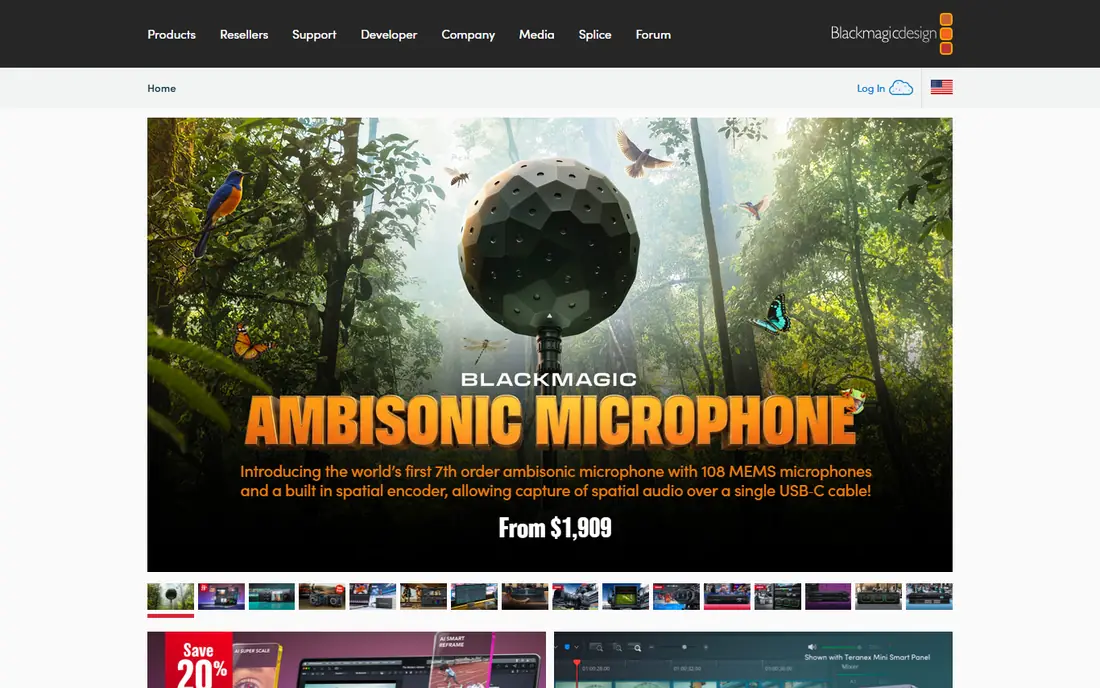
DaVinci Resolve is the strongest free editor on PC if your computer can run it well. The free version includes editing, colour grading, visual effects, and Fairlight audio tools that are used in professional work, with no watermark on exports. For a creator who wants to learn real post-production skills, it is the best free starting point.
The catch is hardware and learning. Resolve needs solid RAM and graphics performance, and its interface has several pages for editing, colour, effects, and audio, which can overwhelm a beginner. The paid Studio version, listed at $295, adds some AI tools, higher-end effects, and 10-bit workflows. Start with the free version, and upgrade only when a Studio feature blocks a real project.
- Professional editing, colour, and audio tools
- Free version is very capable
- No watermark on free exports
- Needs a capable PC with good RAM and graphics
- Learning curve is steep
- Studio features need a $295 licence
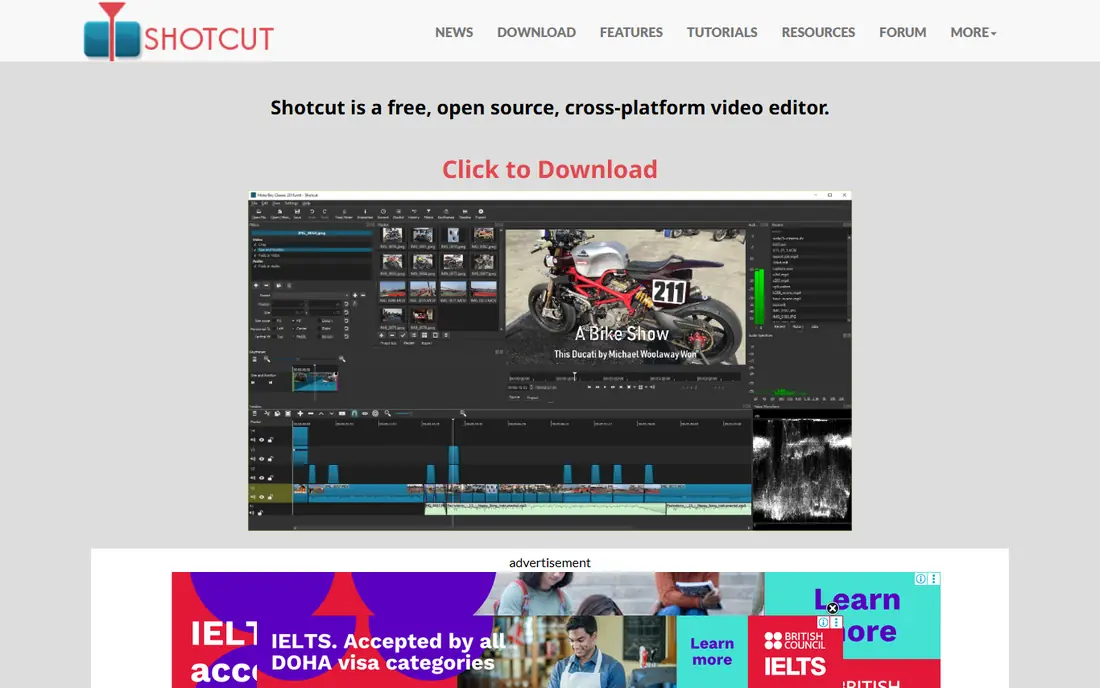
Shotcut is a free, open source, cross-platform editor that runs on Windows, Mac, and Linux. It supports a wide range of video formats, offers multi-track editing, filters, and transitions, and exports without a watermark. There is no paid tier, so every feature in the download is yours to use.
The interface is functional rather than polished, and beginners may need tutorials to learn filters and export settings. Heavy projects can also feel slow without proxy editing, which creates lower-resolution copies for smooth playback. If you want a completely free editor with no upsell, Shotcut is the most honest choice in this list.
- Free and open source
- Wide format support
- No watermark and no paid tier
- Interface feels technical
- Effects workflow takes learning
- Heavy projects need proxy editing
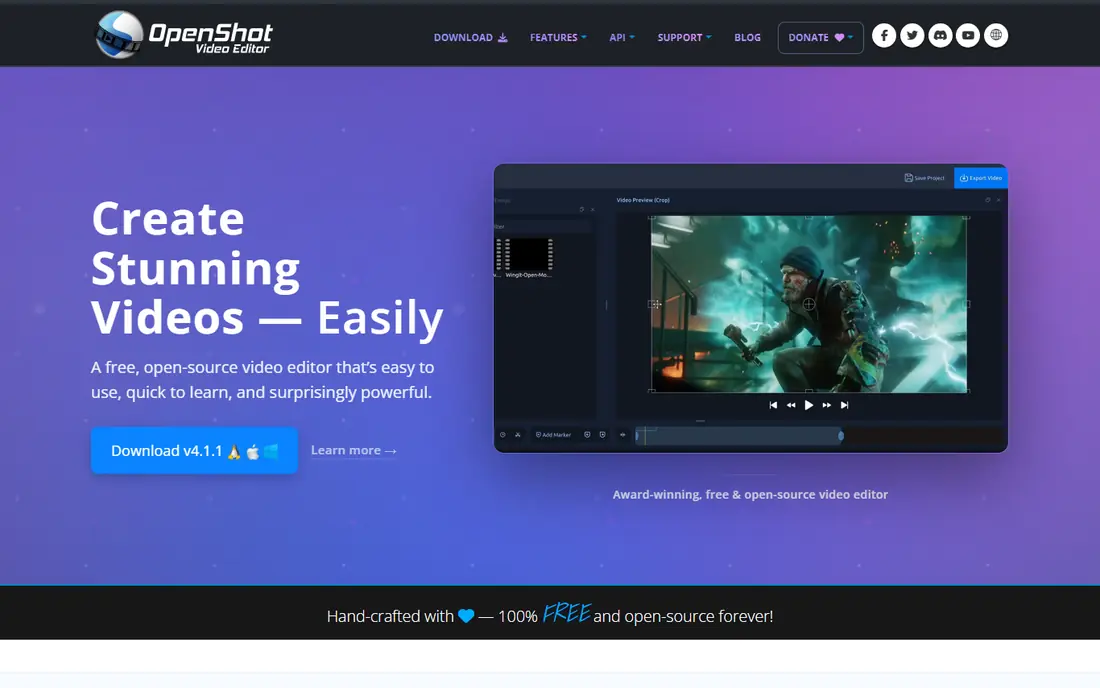
OpenShot suits a beginner who wants to cut clips, add titles and transitions, and export a finished video without learning a professional interface. Its drag-and-drop timeline, unlimited tracks, and simple keyframe animation cover most basic projects, from family videos to short YouTube clips.
The trade-off is depth. OpenShot has fewer advanced colour, audio, and effects tools than DaVinci Resolve or Kdenlive, and large projects can feel slower. Use it for simple edits and learning the basics, and move to Shotcut or Kdenlive when you need more tracks, effects, or control.
- Free and open source
- Very simple drag-and-drop timeline
- Unlimited tracks
- Fewer advanced tools than Resolve or Kdenlive
- Performance can vary on large projects
- Effects library is basic
Kdenlive is a free, open source editor with multi-track editing, custom layouts, proxy editing for smooth playback, and a large effects library. It handles more complex timelines than OpenShot, with better project management for longer videos. It runs on Windows, Mac, and Linux, although it started life on Linux.
The learning curve is steeper than OpenShot, and the Windows experience can feel less polished than the Linux version. There are also no cloud AI tools or stock libraries built in. For a PC user who wants a free editor that grows with longer, multi-track projects, Kdenlive is a strong step up from OpenShot.
- Free and open source
- Multi-track editing and proxy workflows
- Large effects library
- Interface takes learning
- Windows version can feel less polished
- No cloud or AI extras
CapCut is the easiest editor in this list for quick social videos. It offers templates, auto captions, transitions, and effects that help a short video look polished in minutes, on desktop or mobile. For TikTok, Reels, and Shorts, that speed matters more than professional colour tools.
The catch is the Pro layer. Some templates, effects, and stock assets need a paid plan, and free use of some premium assets can add a watermark. CapCut also needs an account for full use. Use the free tier for quick social edits, and use Resolve or Shotcut when you need a clean, watermark-free export for a longer project.
- Very easy for short social videos
- Templates, captions, and effects
- Desktop and mobile versions
- Some templates and effects need Pro
- Free exports can include watermarks on some assets
- Needs an account
Clipchamp is Microsoft video editor, built into Windows and available in a browser. Its free plan covers basic editing, templates, and 1080p exports, which is enough for school projects, work videos, and short social clips. Sharing to OneDrive and other Microsoft services is straightforward for Windows users.
The free limit is resolution and stock. 4K exports and premium stock and features need a Microsoft 365 plan or Clipchamp Premium, so a creator who needs 4K should look elsewhere. For a Windows user who wants a quick, simple editor without installing new software, Clipchamp is a convenient first choice.
- Free plan included with Windows
- Simple timeline and templates
- Easy sharing to OneDrive
- Free exports limited to 1080p
- 4K and premium stock need Microsoft 365 or Premium
- Browser-based workflow
VSDC Free Video Editor is a Windows-only editor with a free version that covers cutting, transitions, colour correction, and audio waveform editing. It supports many video formats and offers a non-linear timeline that goes beyond the simplest beginner editors. For a Windows user who wants more control than Clipchamp without learning Resolve, it is a useful middle ground.
The interface feels dated, and some advanced effects, such as advanced chroma key options, sit in the Pro version. It also does not run on Mac or Linux. Use VSDC when you work only on Windows and want a free editor with more format and colour control than a basic template tool.
- Free version for Windows
- Wide format support
- Colour correction and audio waveform tools
- Windows only
- Interface feels dated
- Advanced effects need Pro version
Lightworks has a long history in professional editing, and its free version gives PC users a professional-style timeline, trimming tools, and multi-track editing without a subscription. That heritage shows in its editing workflow, which suits creators who want to learn professional trimming and timeline habits.
The free version has export and feature limits, and the full Pro feature set needs a paid plan. The interface also takes time to learn, especially for beginners coming from a template app. Use Lightworks if you want a professional editing feel for free and are willing to learn its workflow, and use Resolve if you want the widest free feature set.
- Professional editing heritage
- Free version for basic projects
- Multi-track timeline
- Free export limits apply
- Learning curve
- Pro features need a paid plan
How we picked these
We compared official download pages, feature pages, and pricing pages for video editors that offer a real free option on Windows PC in 2026. We kept a mix of open source editors, free versions of paid products, and free apps with paid extras, and we noted where watermarks, resolution limits, or Pro features apply. We did not claim hands-on testing, and we did not invent prices. Where a paid upgrade price varies, we gave the widely listed figure as a guide to check on the vendor site.
How to choose a free video editor for PC
Start with your PC and your video type. A strong PC and a longer project point to DaVinci Resolve. A modest PC and a simple project point to Shotcut or OpenShot. A short social video points to CapCut or Clipchamp. Matching the editor to hardware and video length avoids frustration later.
Test export before you invest hours
Edit a short test clip first, export it at your target resolution, and check quality, audio, and any watermark. That test catches resolution limits, codec problems, and hardware slowness before you spend hours on a full project. It also shows whether the free tier really covers your needs.
Keep your project files organised
Free editors do not always manage media as smoothly as paid suites. Keep original clips, project files, and exports in one folder, and back that folder up before a big edit. That habit saves a project when an editor crashes or a drive fills up mid-export.
Frequently asked questions
What is the best free video editing software for PC?
DaVinci Resolve is the best free video editor for PC for most creators who want professional tools, while Shotcut is best for a completely free, open source editor with no watermark. OpenShot is best for beginners, and CapCut is best for quick social videos.
Is DaVinci Resolve really free?
Yes. DaVinci Resolve has a free version with professional editing, colour, and audio tools and no watermark. DaVinci Resolve Studio is a paid upgrade, listed at $295, that adds some AI tools, effects, and advanced workflows.
Which free video editor is best for beginners on PC?
OpenShot is best for beginners because of its simple drag-and-drop timeline, while Clipchamp is easiest for Windows users who want templates and quick edits. Shotcut is a good next step once you want more control without paying.
Do free video editors add a watermark?
Some do, and some do not. Shotcut, OpenShot, Kdenlive, and DaVinci Resolve free exports do not add a watermark. CapCut free use of some premium templates or assets can add a watermark, so check the export preview before you publish.
Can a free editor handle 4K video on PC?
Yes, but hardware matters. DaVinci Resolve, Shotcut, and Kdenlive can handle 4K on a capable PC, especially with proxy editing for smooth playback. Clipchamp free exports are limited to 1080p, so it is not the right pick for 4K delivery.
Sources we checked (8)

Online Jobs is an independent blog about careers, online work, learning new skills and the tools that help people earn. More about us.
Keep reading
All posts
n8n Alternatives
n8n alternatives compared for 2026, with Zapier, Make, Activepieces, and more, covering visual builders, code steps, self-hosting, and pricing models.
ZoomInfo Alternatives
The best ZoomInfo alternatives in 2026, compared on price, free plans, data coverage, and which tool fits small teams or large sales teams best in detail.
Zoom Alternatives for Webinars
Compare Zoom alternatives for webinars in 2026, from browser-based rooms to enterprise events, with prices, attendee limits, features and honest trade-offs.