Best Free Tool to View PDFs in 2026: 8 Tools Compared


General PDF viewing · Starting price: Free
How we put this together: we compare official feature and pricing pages, app store listings, privacy policies and public user reviews. Prices change, so check the provider's site before you pay.
Key takeaways
- Adobe Acrobat Reader and Foxit PDF Reader suit most users, with strong compatibility for forms and official documents.
- SumatraPDF and Okular suit users who want speed and simplicity, especially on older machines or Linux systems.
- PDF-XChange Editor and PDFgear suit readers who also want annotation and light editing without paying.
- Xodo suits cross-device reading, while Evince suits Linux users who want a clean, built-in style reader.
Quick comparison
| Name | Who it suits | Starting price | Free option | |
|---|---|---|---|---|
| Adobe Acrobat Reader | General PDF viewing | Free | Yes | Visit |
 Foxit PDF Reader | Business and office reading | Free | Yes | Visit |
 SumatraPDF | Fast lightweight reading | Free | Yes | Visit |
 PDF-XChange Editor | Annotation-heavy reading | Free | Yes | Visit |
 Okular | Open source annotation | Free | Yes | Visit |
 Evince | Simple Linux reading | Free | Yes | Visit |
 Xodo | Cross-device reading | Free | Yes | Visit |
 PDFgear | Free reading plus editing | Free | Yes | Visit |
The best free tool to view pdfs
Viewing a PDF sounds simple until a form will not fill, a large file crawls, or annotations will not save. We picked free readers that open PDFs reliably, handle common tasks like search, bookmarks, and forms, and run on the systems most people actually use.
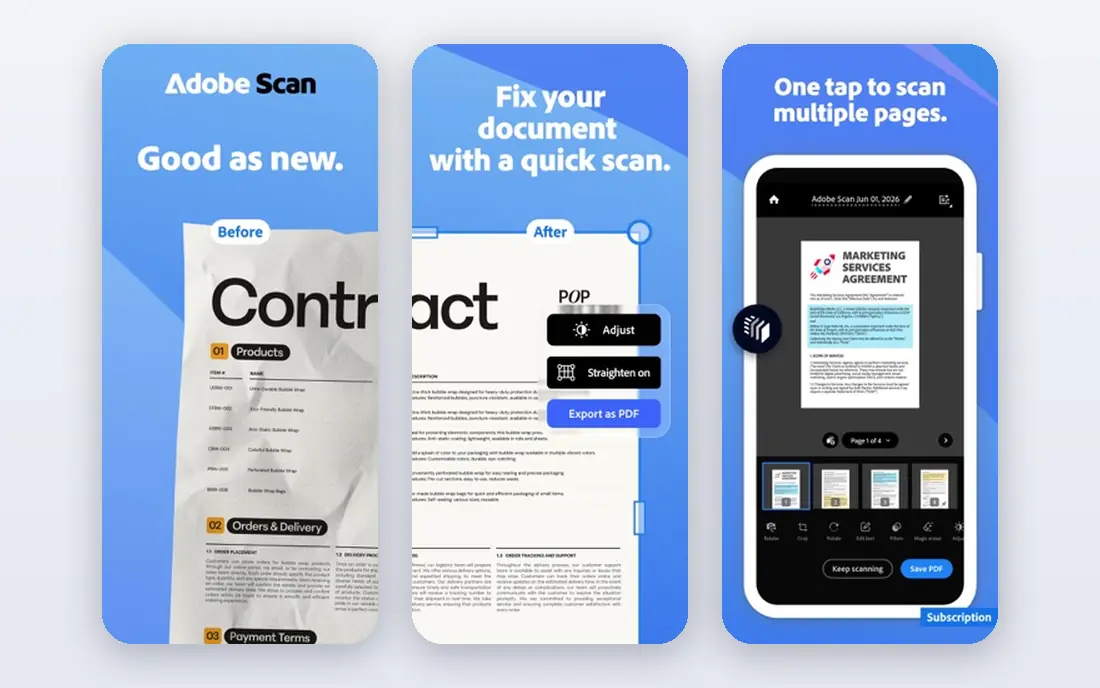
Adobe Acrobat Reader is the safest default for most people. Because Adobe created the PDF format, Reader handles complex layouts, embedded fonts, and official forms with fewer surprises than smaller readers. It also fills and signs common forms, which matters for contracts, applications, and government documents that must look right when printed or submitted. The trade is weight and upselling. Reader is larger than SumatraPDF, and it regularly highlights paid Acrobat tools for editing and conversion. If you only read short documents, a lighter reader may feel faster. If you deal with official forms, long reports, or files that must display exactly as intended, Acrobat Reader remains the compatibility pick.
- Best compatibility for complex PDFs and forms
- Widely supported on desktop and mobile
- Fill and sign features for common forms
- App promotes paid Acrobat features
- Heavier than lightweight readers on older machines
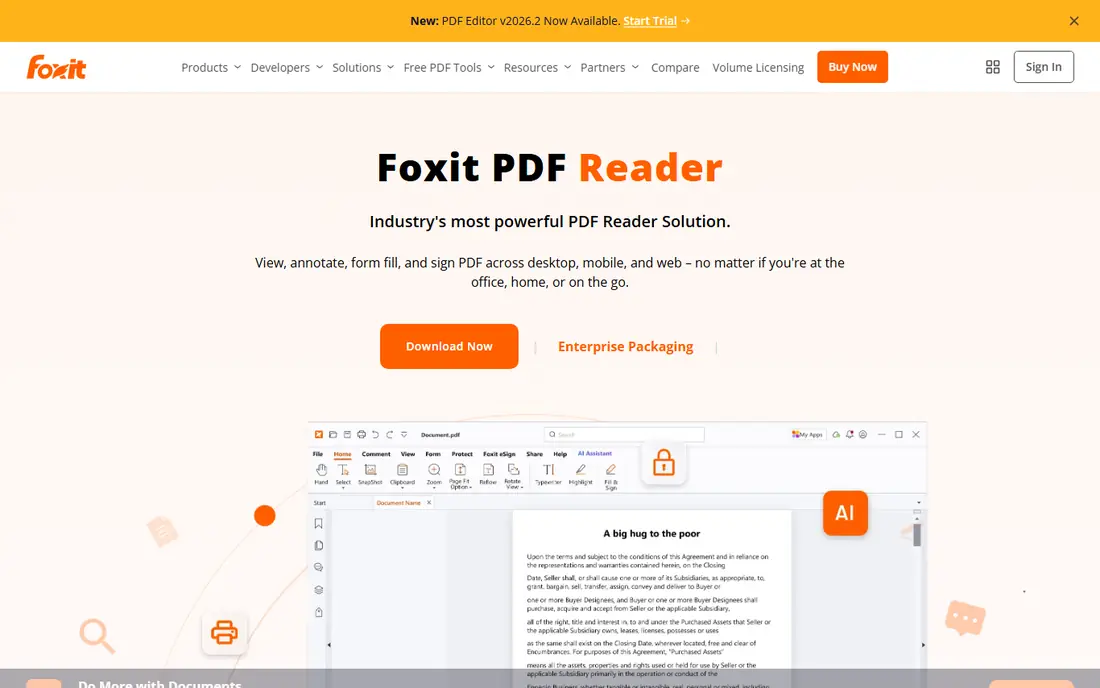
Foxit PDF Reader is a strong alternative for office and business use. It opens files quickly, supports annotations, highlights, and comments, and fills forms reliably for everyday work. Collaboration features, such as shared comments, help teams reviewing a document together, while mobile apps keep the same file readable on a phone or tablet. Paid features sit behind some tools, and upgrade prompts appear in the free version, but core reading remains free and capable. Foxit suits users who want more than bare reading, such as reviewers and office workers, without paying for a full editor. If you only need to read and print, a simpler reader may suffice, but Foxit adds useful depth without a steep learning curve.
- Fast opening and good annotation tools
- Form filling and commenting
- Works on Windows, Mac, and mobile
- Some advanced tools need a paid plan
- Interface includes upgrade prompts
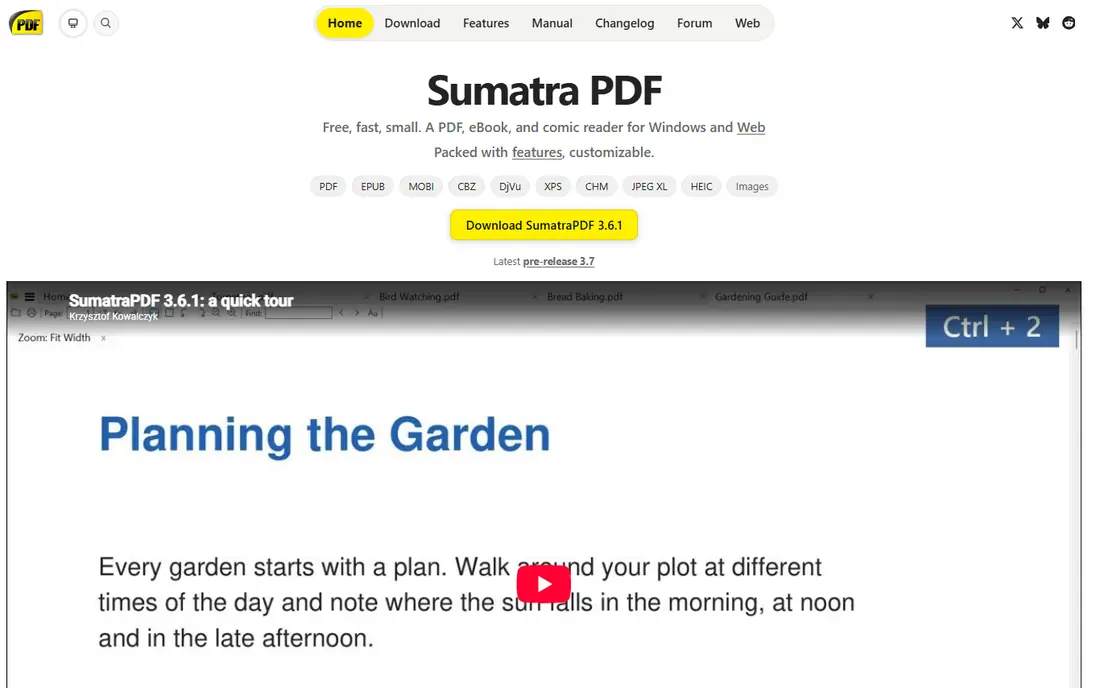
SumatraPDF is the speed pick. It launches fast, opens large PDFs without fuss, and stays out of the way with a clean, minimal interface. It also reads EPUB, MOBI, and comic formats, which makes it handy for readers who mix documents and books. A portable version runs from a USB drive, which suits shared computers and quick jobs. What you gain in speed, you lose in markup. SumatraPDF offers little for annotation, form filling beyond basics, or editing, so reviewers who highlight and comment heavily will need another tool. For pure reading, especially on an older Windows machine, SumatraPDF is hard to beat, and many users keep it alongside a fuller reader for annotation tasks.
- Opens very quickly, even on older hardware
- Small and portable
- Supports PDF plus e-book and comic formats
- Windows only
- Annotation and editing tools are minimal
PDF-XChange Editor gives Windows reviewers a lot for free. Highlights, sticky notes, stamps, and measurement tools support detailed review work, while tabbed viewing, bookmarks, and advanced search help with long reports and manuals. That depth makes it popular with researchers, engineers, and anyone who marks up documents daily. The free version draws a line at editing: some editing actions add watermarks unless you buy a licence, which is fair but worth knowing before you edit a file for sharing. For reading and annotation, though, the free version is generous. If you work on Windows and review PDFs often, PDF-XChange Editor is one of the most capable free readers available.
- Rich annotation, search, and bookmark tools in the free version
- Tabbed viewing
- Strong for reviewers on Windows
- Windows only for the full app
- Some editing tools add watermarks unless paid
Okular is the open source reader many Linux users know first, and it also runs on Windows and Mac. It supports annotations, highlights, bookmarks, and text selection, with a clean interface that focuses on reading rather than selling upgrades. Support for other document types, such as EPUB, adds value for readers who handle mixed formats. On Linux, Okular feels at home. On Windows and Mac, it works well but can feel less native than a platform-specific reader, and a few features depend on system libraries. For users who value open source software and annotation without ads or upsells, Okular is a strong, honest pick, especially as a daily reader on Linux.
- Free and open source
- Annotations, bookmarks, and text selection
- Works on Linux, Windows, and Mac
- Feel is less native on Windows and Mac than on Linux
- Some PDF features vary by system
Evince, also known as GNOME Document Viewer, is the quiet reader of this list. It opens PDFs quickly, offers search, thumbnails, and printing, and stays simple enough that new Linux users can use it without a guide. Its lack of clutter suits people who just want to read a manual, a paper, or a bill and move on. Annotation support is basic compared with Okular or PDF-XChange Editor, so heavy reviewers will want more. Evince also centres on Linux, so Windows and Mac users should pick another reader here. For Linux users who want a clean default reader, Evince is a dependable choice that does the core job well and asks for nothing in return.
- Simple, fast reader for GNOME and Linux systems
- Search, bookmarks, and printing
- No clutter or upsells
- Annotation tools are basic
- Mainly a Linux app, with limited presence elsewhere
Xodo suits readers who move between devices. You can open a PDF on a laptop, annotate it on a tablet, and pick it up again on a phone, with cloud options to keep work in sync. Annotation, highlighting, and form filling cover common review tasks, and the web version means you can read without installing an app on a borrowed computer. Free limits vary, and some advanced features need a paid plan or an account, so check the current terms for your device before relying on Xodo for a large project. For students and professionals who read across devices, though, Xodo offers a flexibility that desktop-only readers cannot match. Keep a local copy of important files as well, so cloud sync never becomes a single point of failure.
- Works on web, desktop, and mobile
- Annotation and form tools
- Cloud sync for reading across devices
- Some features need an account or paid plan
- Free limits can vary by platform
PDFgear stands out by offering editing alongside free reading, without the usual paywall for basic changes. You can view, annotate, fill forms, convert files, and make simple edits, which suits users who often need to fix a PDF rather than just read it. Mobile apps extend that workflow beyond the desktop, and the interface stays approachable for non-experts. PDFgear is newer than Adobe and Foxit, so users who need a decades-old track record may prefer an established reader for official documents. For everyday reading plus light editing, though, PDFgear gives a lot for free, and its feature set has grown steadily. Try it on a copy of a real document first, check that forms and fonts display correctly, and keep Acrobat Reader as a backup for complex official files.
- Free reading plus editing, conversion, and AI chat features in some versions
- Works on Windows, Mac, and mobile
- Newer brand than Adobe or Foxit, so long-term support needs watching
- Some AI features need an account or plan
How we picked these
We compared official feature pages, download listings, and documentation for free PDF readers that are still maintained and widely used. We favoured readers that open PDFs reliably, support search and forms, and offer a genuinely free reading experience rather than a short trial. Where a reader offers paid upgrades, we noted that, but we listed the core reader as free where the vendor offers it that way. We did not claim hands-on testing, and we spread the list across Windows, Mac, Linux, mobile, and web use.
How to choose the right option
Match the reader to the document
Official forms and complex layouts favour Acrobat Reader or Foxit, while plain reading favours SumatraPDF or Evince. Long review work favours PDF-XChange Editor, Okular, or Xodo, depending on your system. One reader rarely fits every job, so it is fine to keep two: a fast reader for daily use and a full reader for forms and reviews.
Check forms before you trust a reader
If you fill forms, test your actual form in the reader before a deadline. Check that fields save, signatures appear, and printing matches the screen. A reader that looks fine on a simple PDF can still struggle with a complex official form, and discovering that on submission day is avoidable with a five-minute test.
Keep your annotations portable
Annotations saved in one app may not appear the same way in another. If you share marked-up PDFs, test the file in the recipient reader, or flatten comments when the workflow allows it. Keeping an unmarked original alongside the annotated copy also helps if a review round needs to restart.
Frequently asked questions
What is the best free tool to view pdfs overall?
Adobe Acrobat Reader is the safest overall pick for compatibility, especially for forms and official documents. Foxit PDF Reader is a close alternative for office work. For pure speed on Windows, SumatraPDF wins, while Okular and Evince suit Linux users best.
Is Adobe Acrobat Reader really free?
Yes, Acrobat Reader is free to download and use for viewing, printing, and filling many forms. Paid Acrobat plans add editing, conversion, and advanced signing features, and Reader promotes those upgrades, but basic reading does not require payment.
Which free PDF reader is best for annotating?
PDF-XChange Editor offers the richest free annotation set on Windows, while Okular and Xodo cover annotation across systems and devices. SumatraPDF and Evince are weaker for annotation, so pick a reviewer-focused reader if highlighting and comments are daily tasks.
Can I view PDFs without installing software?
Yes. Xodo offers a web reader, and most modern browsers include a built-in PDF viewer for basic reading. Browser viewers suit quick checks, but a dedicated reader handles large files, forms, and annotations more reliably for regular work.
Why does a PDF look different in different readers?
PDFs can use embedded fonts, complex layouts, and interactive form fields that readers render differently. Acrobat Reader usually matches the intended display most closely, because Adobe defines the format. If a file looks wrong, try it in Acrobat Reader or Foxit before assuming the file itself is broken.
Sources we checked (8)

Online Jobs is an independent blog about careers, online work, learning new skills and the tools that help people earn. More about us.
Keep reading
All posts
Best platform for PDF insertion
Find the best platform for PDF insertion in 2026, with tools to add pages, insert files, and place blank pages exactly where you need them in a file now.
Best online service to insert PDFs
Compare the best online service to insert PDFs in 2026, with browser tools to add pages to a PDF online, no install needed, for quick web based jobs now.
Best Online Tool to Reduce PDFs
We compared the best online tool to reduce pdfs, from free browser compressors to full suites, to help you shrink files without ruining quality or readability.