Best Free Tool to Invert Image Color in 2026: 8 Tools Compared

How we put this together: we compare official feature and pricing pages, app store listings, privacy policies and public user reviews. Prices change, so check the provider's site before you pay.
Key takeaways
- PineTools and LunaPic give the fastest one-click inversion for a single image.
- Photopea and GIMP give the most control, including partial inversion and channel edits.
- Pixlr and Canva suit users who want inversion inside a larger design workflow.
- Paint.NET suits Windows users who want a free desktop editor without a subscription.
- Fotor suits quick photo edits with filters beside inversion, but check export limits on the free tier.
Quick comparison
| Name | Who it suits | Starting price | Free option | |
|---|---|---|---|---|
 PineTools | Fastest one-click inversion | Free | Yes | Visit |
 Photopea | Full editor with inversion | Free | Yes | Visit |
 GIMP | Advanced free desktop editing | Free | Yes | Visit |
 LunaPic | One-click negative effect | Free | Yes | Visit |
 Pixlr | Web editor with quick edits | Free | Yes | Visit |
 Paint.NET | Free Windows desktop editor | Free | Yes | Visit |
 Canva | Inversion inside design projects | Free | Yes | Visit |
 Fotor | Quick photo edits and filters | Free | Yes | Visit |
The best free tool to invert image color
Inverting an image means turning each colour into its opposite, so dark areas become light and light areas become dark, like a film negative. The best free tool depends on whether you need a one-second flip or a controlled edit inside a larger project. The list below covers both jobs.
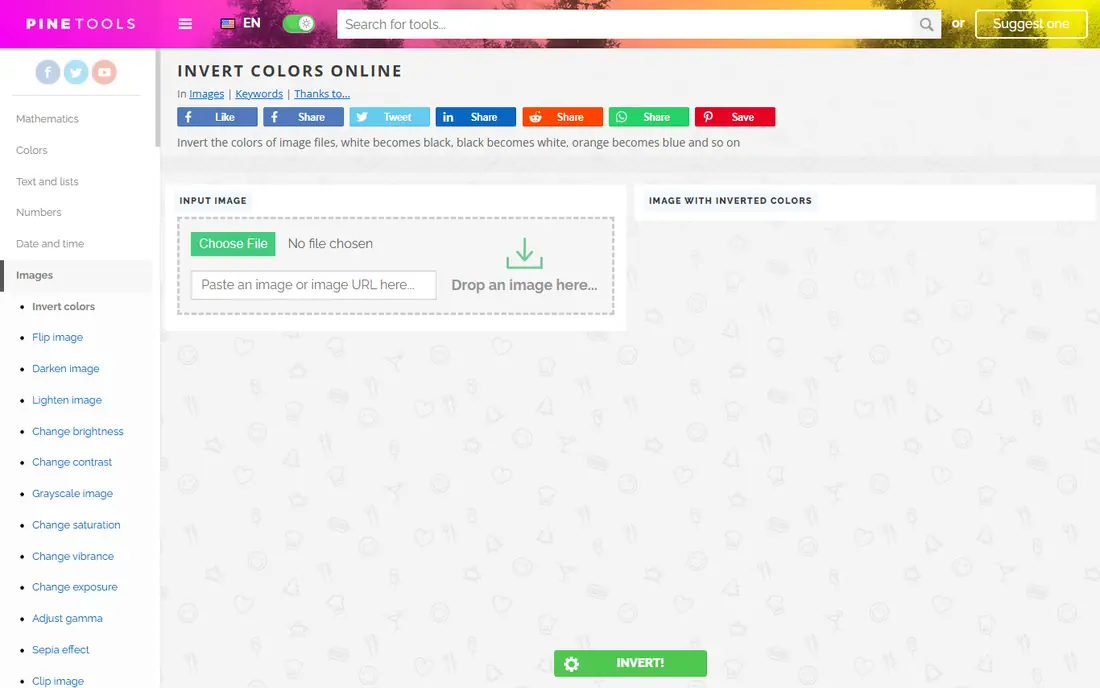
PineTools is our pick when speed matters most. Open the invert tool, upload an image, and download the inverted version without learning an editor or creating an account for basic use. That simplicity suits students, teachers and anyone who needs a negative image for a worksheet, slide or quick design test. The limit is scope. PineTools will not replace a photo editor for retouching, layers or complex selections. Use it when inversion is the whole job, and move to Photopea or GIMP when the inverted image needs further editing, cropping or colour correction.
- No account needed for basic use
- Upload, invert and download in seconds
- Simple controls for a full inversion
- No full photo editing suite
- Batch and advanced options are limited compared with editors
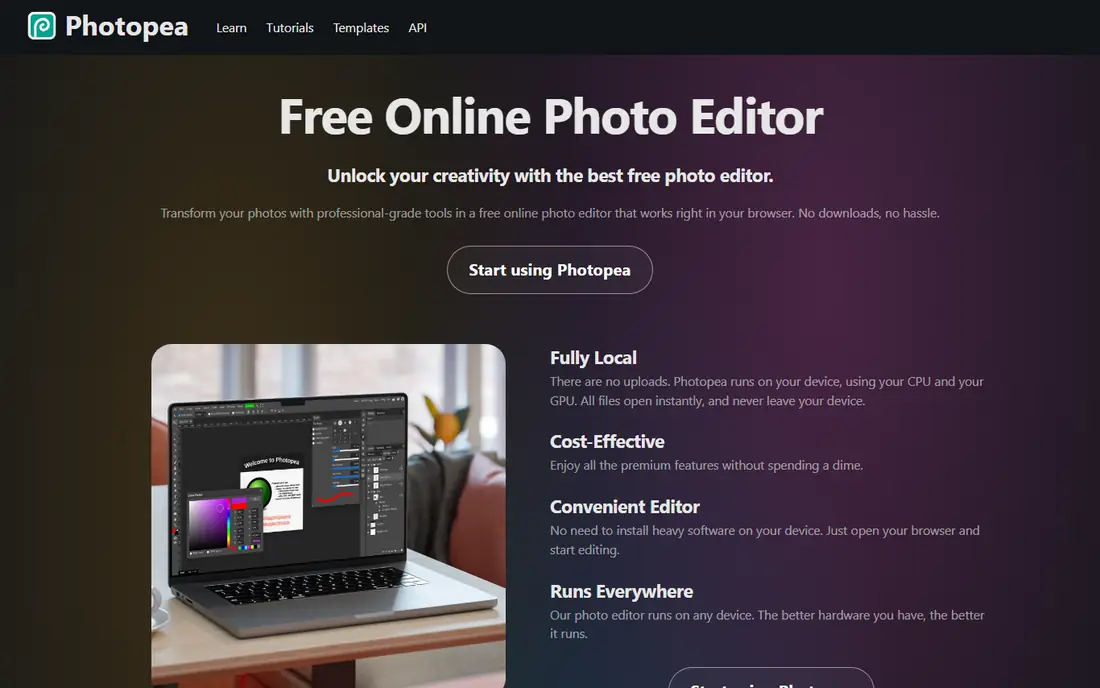
Photopea is the best free choice when inversion is part of a larger edit. Open a file in the browser, apply the invert adjustment, then use layers, masks and curves to refine only part of the image or to combine inversion with other adjustments. That control is close to a paid desktop editor, without installation. First-time users should allow a few minutes to find the adjustment menu. Once you know where invert sits, the workflow is fast, and the ability to export in many formats makes Photopea useful for web, print and design work. Keep a copy of the original file, since saving over it loses the pre-inversion version.
- Browser-based editor with layers and masks
- Invert adjustment under image adjustments
- Supports PSD, PNG, JPG and many formats
- Dense interface can feel crowded for a first-time user
- Ads appear on the free version
GIMP suits users who invert images often and want precise control. Invert the whole image from the colours menu, or select only a subject, a background or a single channel before inverting. That selection control matters for product photos, diagrams and artwork where only part of the image should flip. The trade is learning time. GIMP is a full image editor, not a one-click tool, so a casual user who needs one negative image will be faster on PineTools. For a designer, photographer or student who already uses GIMP, inversion is a simple step inside a much larger toolkit.
- Free and open source
- Invert by full image, selection or channel
- Scripting, batch work and plugins for larger jobs
- Needs installation and a learning curve
- Interface feels technical for casual users
LunaPic has offered a simple negative effect for years, and that longevity is part of its appeal. Upload a photo, apply the negative tool, and adjust brightness, contrast or saturation beside it if the inverted result needs a small fix. The workflow suits meme makers, students and social posts that need a quick flipped look. Do not expect a modern editor layout or deep layer controls. LunaPic is a fast web tool for a single effect, not a design platform. For a quick inversion with a couple of extra filters, it remains one of the easiest free options.
- Dedicated negative effect with one click
- Many other filters beside inversion
- Works in a browser without installation
- Interface looks dated
- Some advanced editing options are limited compared with Photopea
Pixlr sits between a one-click inverter and a full editor. Open Pixlr E or Pixlr Express in a browser, apply an invert or negative adjustment, and continue with cropping, filters or text if the image needs more work. That middle ground suits social media makers and small business owners who edit images weekly. Check export options on the free tier before a large project, since some formats and features need a paid plan. For a single inverted image for a post or slide, the free tools cover the job well, and the browser workflow avoids any download.
- Web editor with adjustment tools including invert
- Templates and AI tools beside basic edits
- Works without installation
- Some features and exports sit behind a paid plan
- Free version includes ads and limits on some tools
Paint.NET is a practical free desktop editor for Windows users who invert images regularly. Open an image, apply the invert adjustment, and save, with layers and plugins available if the edit grows. The interface is clearer than GIMP for beginners, and the programme runs well on modest hardware. Mac and Linux users should skip it and use Photopea or GIMP instead, since Paint.NET does not run natively on those systems. For a Windows user who wants a free, installed editor without a subscription, Paint.NET is a solid, low-friction choice.
- Free for Windows users
- Simple invert command
- Layers, plugins and a clear interface for regular editing
- Windows only, so Mac and Linux users need another tool
- Less depth than GIMP for advanced colour work
Canva suits users who need an inverted image inside a finished design, such as a social post, a slide or a flyer. Apply a negative or invert effect to an image, place it in a template, add text, and export the whole design in one step. That combined workflow saves time compared with inverting in one tool and designing in another. The photo editing depth is lower than Photopea or GIMP, and some premium effects need a paid plan. If inversion is the only job, a dedicated inverter is faster. If the inverted image is one element in a larger design, Canva keeps the whole project together.
- Invert or negative effects inside a design project
- Templates for posts, slides and print
- Easy sharing and export
- Inversion is part of a design tool, not a dedicated photo editor
- Some effects and exports need a paid plan
Fotor suits quick photo edits where inversion sits beside cropping, filters and touch-ups. Upload a photo, apply a negative effect, adjust brightness or colour, and export for social or print. The template library also helps users who need a finished post, not just an inverted file. Check the free export terms before a client project, since some free exports carry limits or watermarks depending on the tool used. For personal, school or social use, Fotor covers inversion well. For a paid design job, export a test file first and confirm it meets the brief.
- Quick photo editor with negative and filter options
- Batch tools on some plans
- Templates for social and print
- Free tier includes limits and watermarks on some exports
- Advanced tools sit behind a paid plan
How we picked these
We compared official feature pages, pricing pages, app store listings, privacy policies and public reviews for free image tools live in October 2026. We favoured tools where inversion is actually available on a free tier, not only on a paid plan, and we checked whether the tool works in a browser or needs installation. We did not run hands-on image quality tests for every format. Free tiers change often, so check the vendor page before a large project. Some tools show ads on free plans, and some limit export size, format or batch work. The starting prices here are free for all eight tools, with paid plans available for extra features.
How to invert an image well
Keep the original safe
Always work on a copy, not the only original. Inversion is easy to reverse, but saving over the original loses the first version and any edits made before inversion. Keep a folder for originals and a folder for inverted exports.
Check transparency and format
PNG files with transparency can behave differently from JPG files when inverted. Test the export on the exact format you need, and check whether transparent areas stay transparent or turn solid. For logos and diagrams, that check matters more than for photos.
Adjust after inversion
An inverted photo often needs a small brightness or contrast fix, since mid-tones can look flat after flipping. Adjust exposure in small steps and compare with the original on the same screen. A tiny correction usually beats a second inversion.
Use selection for partial inversion
If only a subject or background should flip, use a selection tool in Photopea, GIMP or Paint.NET before inverting. A full inversion on a mixed image can make text unreadable or a face look unnatural, while a partial inversion keeps the rest of the image intact.
Watch colour and print results
Screen inversion and print inversion can differ, especially for saturated colours. Export a test print or a test post before a full run, and check skin tones, brand colours and text contrast. What looks striking on screen may print too dark or too light.
Frequently asked questions
What is the best free tool to invert image color?
PineTools is the fastest free tool for a single inversion, while Photopea is the best free editor when inversion is part of a larger edit. Pick PineTools for speed and Photopea for control, layers and format options. Both work in a browser without a paid plan for basic use.
How do I invert image colors in Photopea?
Open the image in Photopea, go to Image, then Adjustments, then Invert, and export the result in your chosen format. For a partial inversion, select the area first with a selection tool, then apply the same adjustment. Keep a copy of the original before you export.
How do I invert image colors in GIMP?
Open the image in GIMP, go to Colors, then Invert, and export the result. To invert only part of the image, make a selection first, then use the same menu. GIMP also allows channel-specific inversion through the channels panel for advanced colour work.
Does inverting an image lose quality?
A single inversion does not need to lose quality if you export in a lossless format such as PNG. Repeated saves in JPG can degrade quality over time, so work from the original and export once. Check export size and format before sharing a final file.
Can I invert image colors on a phone?
Yes, through a browser tool such as PineTools, LunaPic, Pixlr or Photopea on a mobile browser, or through a photo editor app with a negative filter. Upload, invert and download from the browser, then check the result on the phone screen before posting.
Is invert the same as negative?
Yes, for most image tools the terms mean the same operation: each colour value is replaced by its opposite, so black becomes white and red becomes cyan. Film negatives use the same idea, which is why many tools label the effect as negative. Some tools add smart options that preserve skin tones, which differ from a full invert.
Sources we checked (8)

Online Jobs is an independent blog about careers, online work, learning new skills and the tools that help people earn. More about us.
Keep reading
All posts
Zoom Alternatives
Zoom alternatives compared for 2026: Google Meet, Microsoft Teams, Webex, Jitsi and more for free calls, large meetings and webinars for teams and classrooms.
What Is the Best Free Tool to Rotate a PDF
What is the best free tool to rotate a PDF? We compare eight free rotation tools on per-page control, limits, privacy and saved output quality in detail.

What Is the Best AI Dubbing Tool
We compared the best AI dubbing tools in 2026, from ElevenLabs and HeyGen to Rask AI, Dubverse and Veed, for videos and creators in many languages worldwide.