Best Free PDF Extract Tool in 2026: 9 Tools Compared

How we put this together: we compare official feature and pricing pages, app store listings, privacy policies and public user reviews. Prices change, so check the provider's site before you pay.
Key takeaways
- iLovePDF is the best all-round free PDF extract tool, converting PDFs to plain text in seconds with files deleted after processing.
- PDF24 is the best offline option, with a desktop creator for Windows that keeps private files off third-party servers.
- Google Docs is the best free OCR option for scanned PDFs you already store in Drive, reading text even from scanned pages.
- pdftotext.cc is the best no-signup option, processing files in memory with a 20 MB limit and never storing them.
- For tables and structured data, dedicated extraction tools like Lido beat plain text converters, which flatten tables into one long line of text.
Quick comparison
| Name | Who it suits | Starting price | Free option | |
|---|---|---|---|---|
 iLovePDF iLovePDF | All-round PDF to text | Free | Yes | Visit |
 PDF24 Tools PDF24 Tools | Offline desktop extraction | Free | Yes | Visit |
 Smallpdf Smallpdf | Quick one-off extractions | Free | Yes | Visit |
 Sejda Sejda | Editing plus extraction | Free | Yes | Visit |
 PDF2Go PDF2Go | No-registration conversion | Free | Yes | Visit |
 Google Docs Google Docs | OCR for scanned PDFs | Free | Yes | Visit |
 pdftotext.cc pdftotext.cc | No-signup private extraction | Free | Yes | Visit |
 NexaTools PDF OCR NexaTools PDF OCR | Browser-based scanned OCR | Free | Yes | Visit |
 Lido Lido | Tables and structured data | Free | Yes | Visit |
The best free PDF extract tools
Extracting text from a PDF sounds simple until you try it: digital PDFs copy cleanly, scanned PDFs contain only pictures of text, and tables collapse into one long line when pasted. We compared nine free tools on what they actually extract, whether they handle scans, and how they treat your files, using vendor and guide pages checked in October 2026.
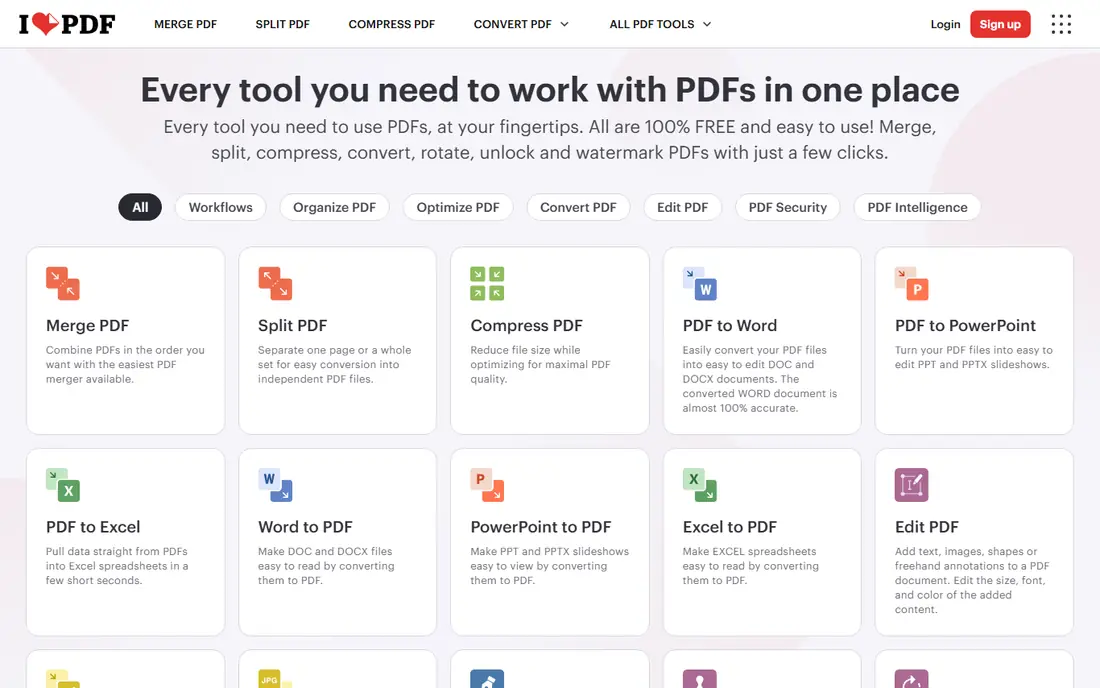
iLovePDF is the best all-round free PDF extract tool. Upload a PDF, choose PDF to Text, and download a plain TXT file you can edit in Notepad, Word or any text editor. It works in every modern browser and on mobile, with no installation and no account for basic use.
Files are encrypted during processing and automatically deleted after conversion. The limitation is inherent to plain text: tables, colors and graphics do not survive, and scanned PDFs may need OCR for accurate results. For quick, everyday text extraction, iLovePDF is the fastest option.
- Converts PDF to plain text in seconds with no software to install
- Files encrypted and automatically deleted after conversion
- Works on all browsers and mobile devices
- Plain text output loses tables, images and formatting
- Scanned PDFs need OCR for accurate results
- Free tier has usage limits for heavy users
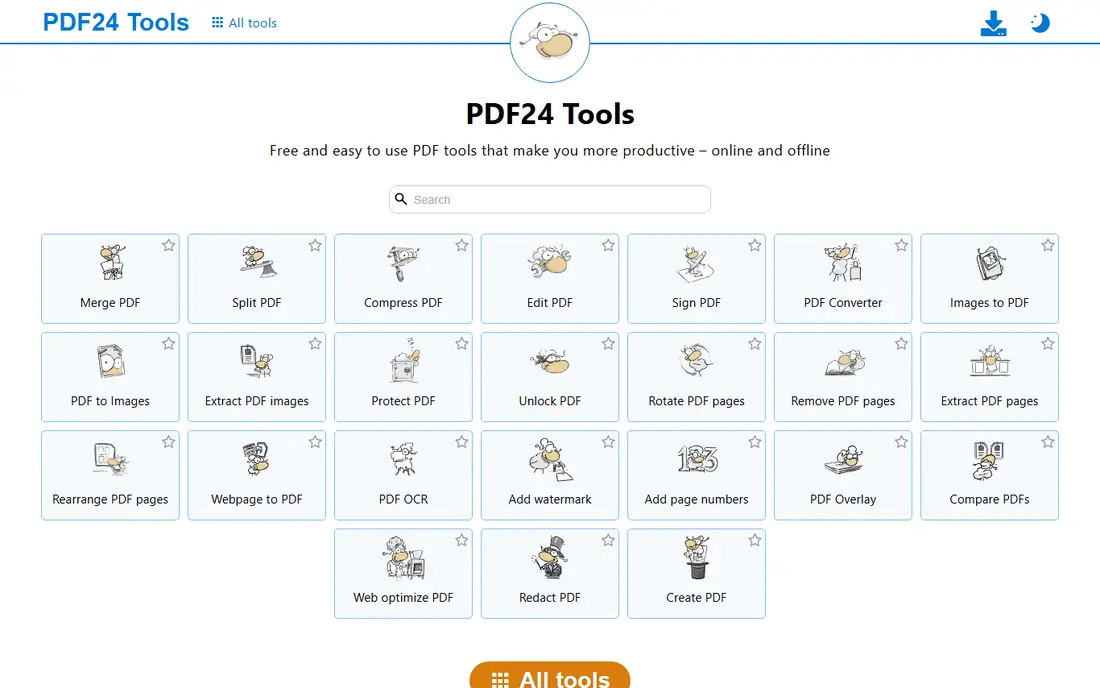
PDF24 is the best option for private or sensitive files. Its online tools cover PDF to text conversion for free, and its PDF24 Creator desktop app for Windows processes files entirely offline, so bank statements, contracts and ID documents never leave your computer. It also handles merge, split, compress and convert tasks.
The desktop app runs only on Windows, and the online tools do upload files, like every browser tool. For regular extraction work on private documents, the offline Creator makes PDF24 the safest free choice.
- Free online tools plus a desktop Creator for Windows
- Offline processing keeps private files off servers
- Covers merge, split, compress and convert
- Desktop Creator is Windows only
- Online tools upload files to servers
- Interface is functional rather than polished
Smallpdf is the best tool for a quick one-off extraction. Its clean interface takes a PDF and returns text or a converted Word or Excel file in a few clicks, and its OCR handles scanned PDFs better than most free tools. For a single file you need once, Smallpdf is hard to beat.
The free tier limits daily tasks, and your document is uploaded to a third-party server, so it is not ideal for sensitive or regular work. For occasional, non-sensitive extraction, Smallpdf is excellent.
- Simple drag-and-drop interface
- OCR for scanned PDFs
- Good layout handling for Word and Excel conversion
- No registration for basic tasks
- Free tier limits the number of tasks per day
- Files are uploaded to third-party servers
- Advanced features need a paid plan
Sejda is the best free tool when extraction is only the first step. Its online editor lets you extract text and then edit it in place, fixing layout problems that plain converters leave behind. It handles merge, split, compress and convert alongside text extraction.
The free tier limits file size and the number of tasks per day, and OCR for scanned PDFs sits behind paid plans in some cases. For users who need to edit as well as extract, Sejda is the most capable free editor.
- Online editor lets you edit extracted text in place
- Good for fixing layout after conversion
- Free tier covers several tasks a day
- Free tier limits file size and daily tasks
- Uploads files to servers
- OCR is a paid feature on some plans
PDF2Go is a solid no-registration option for quick PDF to text conversion. Upload a file, choose your output format, and download the result without creating an account. It converts to text, Word and Excel, and it works well on mobile browsers.
Free file size limits apply, and scanned PDFs may not extract cleanly without OCR. For a fast, no-signup extraction of a digital PDF, PDF2Go is a reliable choice.
- No registration needed for basic conversion
- Simple interface
- Converts PDF to text, Word and Excel
- Works on mobile
- Free tier limits file size
- Uploads files to servers
- OCR for scans is limited on free
Google Docs is the best free OCR option for scanned PDFs you already store in Drive. Upload the PDF to Drive, right-click, choose Open with, then Google Docs, and Google reads the text for you, even on scanned pages. No new tool is needed, and the result is an editable document.
Complex layouts and tables often come out messy, and the method requires a Google account. For a scanned document you need as editable text, and for files already in Drive, Google Docs is the easiest free OCR path.
- Free with a Google account
- Reads text from scanned PDFs using Google's OCR
- No new tool to learn
- Files already in Drive convert in two clicks
- Complex layouts and tables often come out messy
- Requires a Google account
- Uploads files to Google servers
pdftotext.cc is the best no-signup private extraction tool. Drag and drop a PDF, get clean extracted text in seconds, with no account, no email and no watermarks. Files are processed in memory and discarded as soon as you have your text, so nothing hits a database.
The limit is 20 MB per file, and it handles text-based PDFs only: scanned PDFs return empty results because OCR lives in the paid Docule pipeline. For a digital PDF you want extracted privately and quickly, pdftotext.cc is the best option.
- No signup, no watermarks, no account
- Files processed in memory and never stored
- Handles complex layouts and multi-column reports
- 20 MB file size limit
- Handles text-based PDFs only, so scans return empty results
- No OCR on the free tool
NexaTools PDF OCR is the best free tool for scanned PDFs when privacy matters. It renders each page as an image and runs optical character recognition directly in your browser, so your file never uploads to a server. It is free with unlimited use and no account, with a 50 MB file limit.
OCR accuracy depends on scan quality, and large PDFs take longer since processing happens on your device. For scanned documents you do not want to upload anywhere, NexaTools is the strongest free choice.
- Runs entirely inside your browser, so files never leave your device
- Free with unlimited use and no account
- Handles scanned and image-based PDFs
- 50 MB file limit
- Large PDFs take longer to process
- Accuracy varies with blurry scans, handwriting or unusual fonts
Lido is the best tool when you need tables, not just text. Plain converters flatten tables into one long line, but Lido extracts them as structured rows and columns you can export to Excel, adjusting column widths and formatting dates and numbers along the way. It works on digital and scanned PDFs.
The free tier covers 50 pages with no credit card required, and heavier use needs a paid plan. For invoices, reports and statements where the table structure matters, Lido beats every plain text converter on this list.
- Extracts tables as structured data for Excel, not flattened text
- 50 free pages with no credit card
- Works on digital and scanned PDFs
- Free tier limited to 50 pages
- Built for data extraction, not simple text copying
- More setup than a one-click converter
How we picked these
We compared vendor pages and October 2026 guides, favoring tools with a genuinely usable free tier, no credit card requirement for basic use, and clear privacy behavior. We included online, offline and browser-based options because the right tool depends on whether your PDF is digital or scanned, and whether it contains private data.
Digital vs scanned: know your PDF first
Before choosing a tool, check whether your PDF has real text. Open it and try to select a sentence: if you can highlight it, it is a digital PDF and any tool here works. If you cannot select text, it is a scanned image and you need OCR, which means Google Docs, Smallpdf, NexaTools or Lido. For private scanned documents, NexaTools is the only free option that never uploads your file.
Frequently asked questions
What is the best free PDF extract tool?
iLovePDF is the best all-round free PDF extract tool for digital PDFs, converting to plain text in seconds. PDF24 is best for offline private work, Google Docs is best for scanned PDFs in Drive, and pdftotext.cc is best for no-signup private extraction.
Can I extract text from a scanned PDF for free?
Yes. Google Docs reads scanned PDFs with OCR for free, Smallpdf offers OCR on its free tier, and NexaTools runs OCR entirely in your browser for free with no account. Scanned PDFs contain only pictures of text, so a plain text converter without OCR will return nothing.
How do I extract tables from a PDF?
Use a dedicated extraction tool like Lido, which exports tables as structured rows and columns to Excel. Plain text converters flatten tables into one long line, and copy and paste breaks tables the same way. Google Docs and Smallpdf convert to Word or Excel but often mangle complex tables.
Is it safe to upload PDFs to free online tools?
It depends on the document. Reputable tools encrypt files and delete them after processing, but your file still passes through a third-party server. For bank statements, contracts or ID documents, use an offline tool like PDF24 Creator or a browser-based tool like NexaTools that never uploads your file.
Can I extract text from a PDF without installing software?
Yes. iLovePDF, Smallpdf, PDF2Go, pdftotext.cc and NexaTools all work entirely in your browser with no installation. PDF24 also offers a desktop Creator for Windows if you prefer offline processing.
Why does my extracted text look messy?
Messy output usually means the PDF has a complex layout, multiple columns or tables, which plain text cannot preserve. Try a structured tool like Lido for tables, or convert to Word through Smallpdf or iLovePDF for better layout. Scanned PDFs with poor image quality also produce messy OCR results.
Sources we checked (9)

Online Jobs is an independent blog about careers, online work, learning new skills and the tools that help people earn. More about us.
Keep reading
All posts
Zoom Alternatives
Zoom alternatives compared for 2026: Google Meet, Microsoft Teams, Webex, Jitsi and more for free calls, large meetings and webinars for teams and classrooms.
What Is the Best Free Tool to Rotate a PDF
What is the best free tool to rotate a PDF? We compare eight free rotation tools on per-page control, limits, privacy and saved output quality in detail.
What Is the Best AI Dubbing Tool
We compared the best AI dubbing tools in 2026, from ElevenLabs and HeyGen to Rask AI, Dubverse and Veed, for videos and creators in many languages worldwide.