Best Free Drawing Software in 2026: 9 Apps Compared

How we put this together: we compare official feature and pricing pages, app store listings, privacy policies and public user reviews. Prices change, so check the provider's site before you pay.
Key takeaways
- Krita is the best free drawing software for most illustrators, with strong brushes, layers and animation tools.
- MediBang Paint and FireAlpaca suit comic and manga artists who want panels, tones and cloud sharing for free.
- GIMP is powerful for photo-based editing and painting, but its interface is less focused on drawing than Krita.
- Inkscape is the free pick for vector drawing, where clean lines and scalable logos matter more than painterly brushes.
- For children, a simple app with big brushes and no account or payment steps beats a professional tool every time.
Quick comparison
| Name | Who it suits | Starting price | Free option | |
|---|---|---|---|---|
 Krita Krita | Illustration and painting | Free | Yes | Visit |
 MediBang Paint MediBang Paint | Comics and manga | Free | Yes | Visit |
 FireAlpaca FireAlpaca | Lightweight comic drawing | Free | Yes | Visit |
 GIMP GIMP | Painting plus photo editing | Free | Yes | Visit |
 Inkscape Inkscape | Vector drawing | Free | Yes | Visit |
 Sketchbook Sketchbook | Simple sketching | Free | Yes | Visit |
 Ibis Paint Ibis Paint | Mobile drawing | Free | Yes | Visit |
 Kleki Kleki | Browser sketching | Free | Yes | Visit |
 Tux Paint Tux Paint | Drawing for young children | Free | Yes | Visit |
The best free drawing software
We compared official feature pages, app store listings and public reviews, and we separated raster painting, vector drawing and comic tools, since a great painting app can be a poor choice for a logo. All nine apps below are free to download and use for core drawing, though some offer optional paid extras.
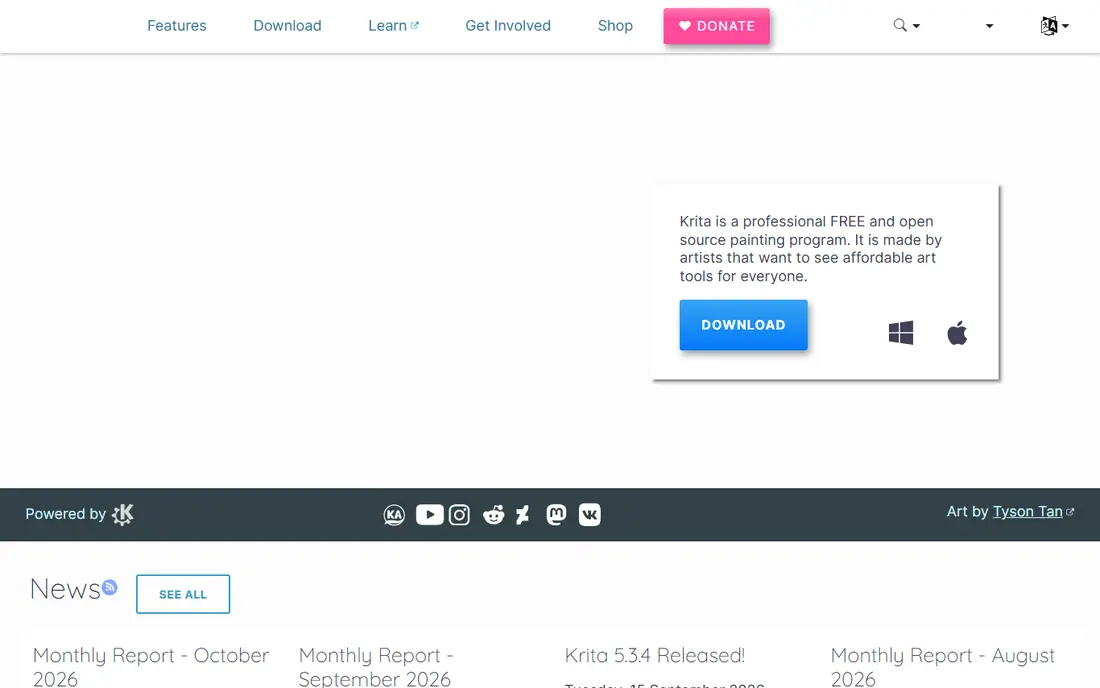
Krita is the free drawing app most illustrators should try first. Its brush engines cover painting, inking, sketching and texturing, with stabilisers that smooth shaky lines, and its layers, masks, blending modes and colour management suit serious illustration work. Animation tools, including onion skinning and a timeline, let an artist move from a still image to a short animation without switching apps.
The interface is deep, so a first open can feel busy, especially for a child or a casual doodler. Krita also runs best on a desktop with a drawing tablet, though mouse drawing works for sketching. If you want a professional painting tool without a subscription, Krita is the clear starting point, and its community tutorials help close the learning gap.
- Strong brush engines and stabilisers
- Layers, masks and animation tools
- Runs on Windows, Mac and Linux
- Interface can overwhelm beginners
- Animation tools need study
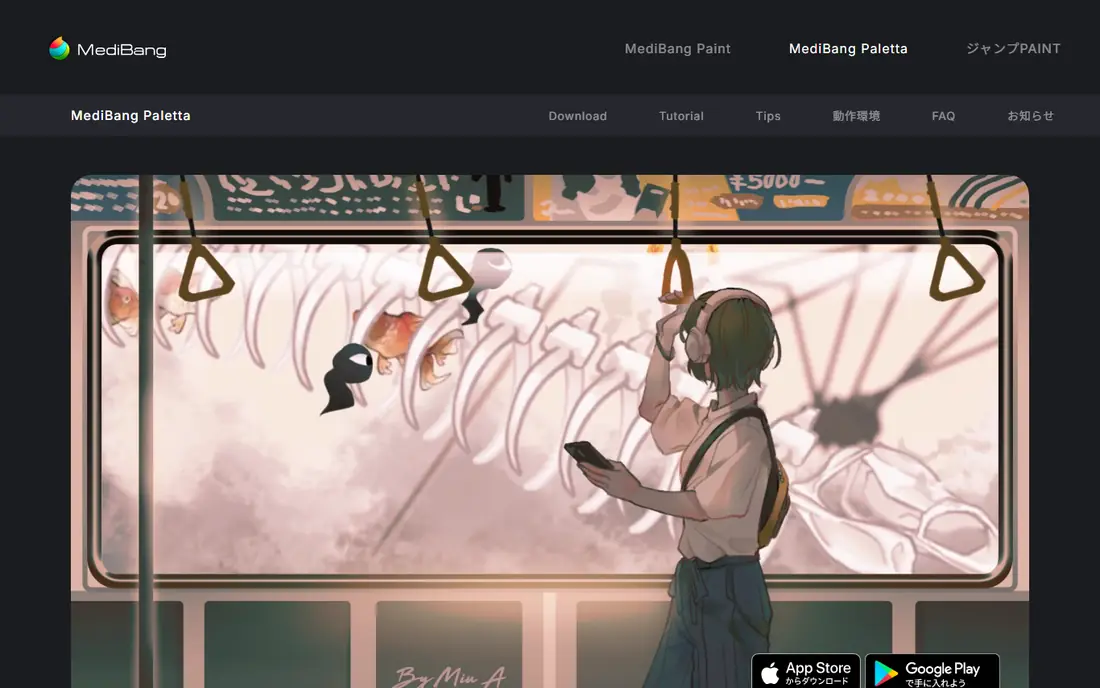
MediBang Paint is built for comic and manga creation. Panel tools, screentones, speech bubbles and fonts are built in, and cloud saving lets a page started on a tablet continue on a desktop. The brush and material library is large for a free app, and community features let artists share work and follow others.
Cloud features need an account, and the interface promotes paid materials alongside free ones, so a young artist may need help telling them apart. For a comic artist who wants panels and tones without paying for Clip Studio Paint, MediBang is the most complete free alternative, and its cross-device sync is genuinely useful for a multi-device workflow.
- Comic panels, tones and fonts built in
- Cloud saving across devices
- Large brush and material library
- Account needed for cloud features
- Interface includes promotions for paid extras

FireAlpaca suits artists on older computers or those who want a simple comic tool. It is light, fast and easy to learn, with comic templates, perspective guides and onion skinning for simple animation-style work, though full animation is not its focus. The interface stays out of the way, which helps a beginner finish a page rather than study menus.
Painting depth is thinner than Krita, with fewer brush engines and less colour management, so a painter who wants textured brushes will outgrow FireAlpaca quickly. For manga pages, webcomics and clean line work on a modest laptop, though, its speed and simplicity are real advantages, and it pairs well with MediBang for cloud sharing.
- Light and fast on older computers
- Comic templates and perspective tools
- Simple interface
- Fewer painting brushes than Krita
- No animation tools
GIMP is included here because many artists already use it for photo work and want to paint in the same app. Its layers, masks, brushes and scripting cover illustration basics, and its plugin library extends it further, from extra brushes to animation helpers. For an artist who edits photos and paints, using one free app for both jobs saves learning time.
Drawing feel is the compromise. GIMP brush engines and stabilisers are less refined than Krita, and its interface is organised around image editing rather than painting, so finding drawing tools takes more clicks. If painting is your main job, start with Krita, but if you already know GIMP and you draw occasionally, it is capable enough for finished work.
- Free and open source
- Layers, brushes and scripting
- Runs on Windows, Mac and Linux
- Interface is built for editing, not drawing
- Brush feel lags dedicated painting apps
Inkscape is the free pick when lines must stay clean at any size. As a vector editor, it draws with paths, shapes and text that scale without pixelation, which suits logos, icons, posters and print work. Its node editing, path effects and boolean operations give precise control, and files export to common formats for web and print.
It is not a painting app. Brush-like strokes in Inkscape are vector paths, not textured paint, so an illustrator who wants watercolour or pencil texture should use Krita instead. Learning bezier paths also takes practice, but for a designer who needs scalable art for free, Inkscape is the standard open-source choice.
- Free vector editing with paths, shapes and text
- Scalable art for logos and print
- Runs on Windows, Mac and Linux
- Not suited to painterly illustration
- Learning curve for bezier paths
Sketchbook, formerly Autodesk Sketchbook, is now free and remains one of the simplest sketching apps. Its interface hides almost everything until you need it, leaving a clean canvas for drawing, and its brushes feel natural for sketching, inking and quick colour work. It runs on desktop and mobile, which suits an artist who sketches on a tablet and finishes on a computer.
Advanced illustration tools are thinner than Krita, with fewer layer effects, no full animation suite and simpler colour management. That simplicity is the point for sketching, but a finished illustration with complex layers may need another app. If you want to draw without studying a manual, Sketchbook is a calm place to start.
- Clean, minimal interface
- Good brushes for sketching
- Works on desktop and mobile
- Fewer advanced illustration tools
- Layer and animation options are limited
Ibis Paint is the most popular free mobile drawing app for a reason. Its brush library is very large, with thousands of brushes, and it offers layers, stabilisers, filters and a recording feature that turns a drawing into a shareable video. For a phone or tablet artist, especially a manga or anime artist, Ibis Paint covers most needs without a desktop.
Ads support the free version, and some brushes and features need a paid Prime membership, so the free experience includes prompts to upgrade. Desktop use is limited compared with Krita, so Ibis Paint is best as a mobile primary tool, not a desktop replacement. For drawing on the go, it is hard to beat for free.
- Huge brush library on mobile
- Layers and stabilisers
- Recording and sharing features
- Ads in the free version
- Best on a phone or tablet, not desktop
Kleki suits quick sketching on a borrowed or school computer. It runs entirely in a browser, with layers, brushes, stabilisers and export options, and there is nothing to install or sign up for. That makes it ideal for a classroom, a library computer or a first try at digital drawing before committing to a larger app.
Tool depth is limited next to Krita or MediBang, with fewer brushes, no comic panels and no animation timeline. A slow connection can also slow the canvas, and large files are better handled on desktop. Use Kleki for sketches, doodles and learning, and move to Krita when a project needs more layers, brushes or print-quality output.
- Runs in a browser with no install
- Layers and basic brushes
- Quick sharing and export
- Limited tools compared with desktop apps
- Needs an internet connection
Tux Paint is designed for young children, and it shows in every choice. Big buttons, simple brushes, stamps, shapes and playful sounds let a child draw without reading menus or creating an account, and there are no ads or payment prompts. Parents and teachers can use it on classroom computers without worrying about sign-ups or in-app purchases.
Older children will outgrow it quickly, since layers, precise brushes and realistic colour tools are limited, and the art style is intentionally childlike. That is not a flaw, it is the design, and it makes Tux Paint the safest first drawing app for a young child. When a child starts asking for layers and better brushes, move them to Kleki or Sketchbook.
- Very simple interface for young children
- Fun stamps, shapes and sounds
- No account or payment steps
- Not suited to older children or serious art
- Limited layers and brush control
How we picked these
We compared official feature pages, app store listings and public reviews, and we checked that each app is genuinely free for core drawing, not just a trial with a watermark. We included raster painting, vector drawing, comic tools, mobile apps, a browser app and a child-friendly app, so different ages and goals are covered.
We did not run hands-on drawing tests for this guide. Our comparisons rest on vendor documentation and published reviews, not on our own artwork or tablet testing. Where a price could not be verified on the vendor site at the time of writing, we wrote See website, though all nine apps here are free for core use. For safety, check age settings, sharing and account requirements before giving a drawing app to a child, and keep copies of finished work outside any single app.
How to choose the right drawing app
Match the app to the art, not to the longest brush list. A painter needs Krita, a comic artist needs MediBang or FireAlpaca, a logo designer needs Inkscape, and a child needs Tux Paint. A drawing tablet helps every desktop app here, but it is not required to start, and a mouse or finger is enough for sketching.
Start simple, then upgrade tools
Begin with one app, learn its layers, brushes and export options, and finish three pictures before trying another tool. Switching apps every week slows learning more than any missing feature, and a finished picture in a simple app teaches more than an unfinished one in a complex app.
Save in layers, export in flat formats
Keep a layered working file in the app native format, and export a flat PNG or JPEG for sharing and printing. That habit preserves your ability to edit later, while the flat export works everywhere. Back up finished work outside the app, especially for school or portfolio pieces.
Frequently asked questions
What is the best free drawing software overall?
Krita is the best free drawing software for most illustrators, with strong brushes, layers and animation tools. MediBang Paint is best for comics, Inkscape is best for vector art, and Sketchbook is best for simple sketching.
What is the best free drawing app for kids?
Tux Paint is best for young children, with a simple interface, stamps and no account or payment steps. Older children who want more control should try Kleki in a browser or Sketchbook on a tablet.
Is Krita really free?
Yes. Krita is free and open source, with no subscription, no watermark and no paid tier for core features. It is funded by donations, grants and a paid version in some app stores that supports development, but the desktop download is free.
What free drawing app is best for anime and manga?
MediBang Paint and FireAlpaca are best for manga, with panels, tones and comic templates, while Ibis Paint is best on mobile with a large brush library. Krita also suits anime-style illustration with its painting and inking brushes.
Can I draw professionally with free software?
Yes. Krita, Inkscape and GIMP are used for professional illustration, design and editing, and many artists publish paid work made entirely in free tools. A paid app may save time on specific tasks, but free tools do not limit the quality of finished art on their own.
Do I need a drawing tablet for free drawing software?
No, though a tablet helps. Mouse and touch drawing work for sketching and simple illustration, while pressure sensitivity from a tablet gives better line control for inking and painting. Start without one, and buy a basic tablet only if you draw regularly.
Sources we checked (9)

Online Jobs is an independent blog about careers, online work, learning new skills and the tools that help people earn. More about us.
Keep reading
All posts
Best Writing Software
Looking for the best writing software in 2026? We compared 9 writing apps for books, articles and screenplays on price, features and fit. All verified.
Best Weather Apps
Searching for the best weather app? We compared eight top weather apps for accurate forecasts, radar, severe alerts, and daily planning near you today.
Best Video Editing Software
We compared the best video editing software for beginners and pros, checking official pricing, free plans and honest limits before ranking all nine editors.