Best Free Disk Cloning Software in 2026: 8 Tools Compared

How we put this together: we compare official feature and pricing pages, app store listings, privacy policies and public user reviews. Prices change, so check the provider's site before you pay.
Key takeaways
- Bootable tools such as Clonezilla and Rescuezilla clone a full system drive without Windows getting in the way.
- Windows apps such as AOMEI Backupper and EaseUS Todo Backup are easier for data drives, but system cloning often needs a paid edition.
- Cloning overwrites the target drive, so back up anything on that drive before you start.
- Check whether the tool can clone to a smaller drive, align partitions for an SSD, and handle your disk type before you begin.
Quick comparison
| Name | Who it suits | Starting price | Free option | |
|---|---|---|---|---|
 Clonezilla | Full free system cloning | Free | Yes | Visit |
 Rescuezilla | Easy bootable cloning | Free | Yes | Visit |
 AOMEI Backupper | Windows data drive cloning | Free | Yes | Visit |
 EaseUS Todo Backup | Windows backup plus cloning | Free | Yes | Visit |
 Macrium Reflect | Image-based Windows backup | See website | Free trial | Visit |
 MiniTool ShadowMaker | Windows backup and cloning | Free | Yes | Visit |
 DiskGenius | Partition and disk tools | Free | Yes | Visit |
 HDClone | Simple free disk copying | Free | Yes | Visit |
The best free disk cloning software
Free cloning tools fall into two groups: bootable tools that run outside Windows, and Windows apps that run inside it. The eight options below cover both groups, so you can pick by whether you are moving a system drive or a data drive.
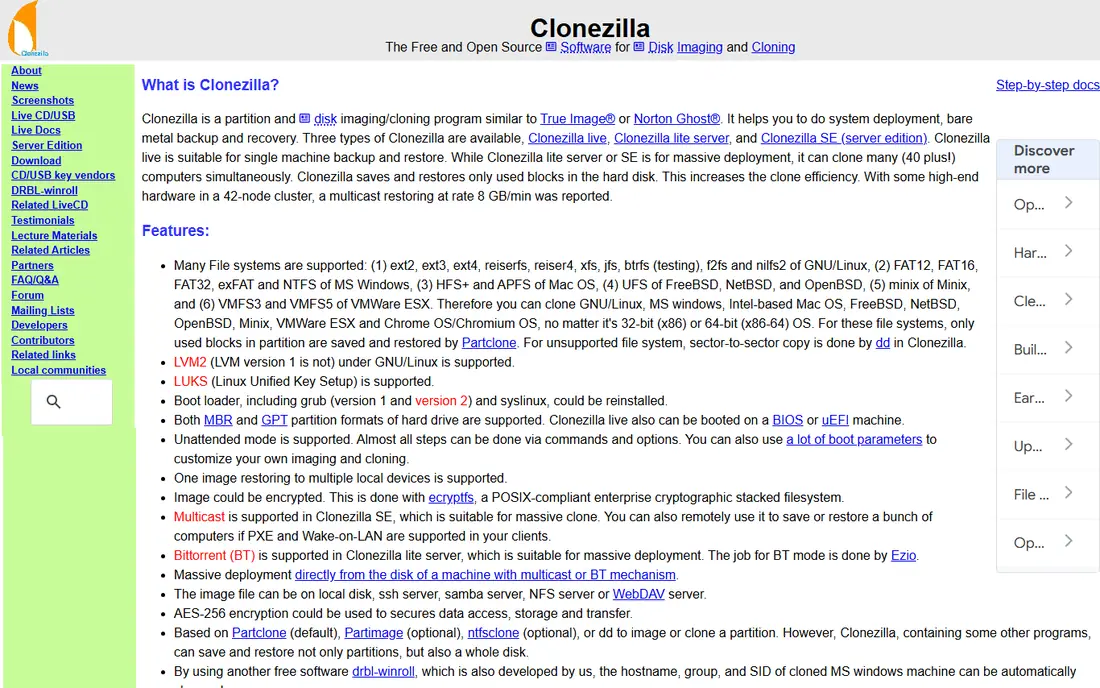
Clonezilla is the free standard for full disk cloning. You boot from a USB drive, choose a source and target, and copy a whole disk or selected partitions. It works with Windows, Linux, and other systems, and it can save disk images for later restore as well as clone directly to another drive.
The learning curve is real. Menus are text-based, and a wrong source or target choice can overwrite data, so read each screen carefully. If you want a graphical version of the same engine, Rescuezilla below is the easier path to the same result.
- Free and open source
- Clones whole disks and partitions
- Copies only used sectors by default in many modes
- Text-based menus take learning
- No Windows scheduling in the bootable tool
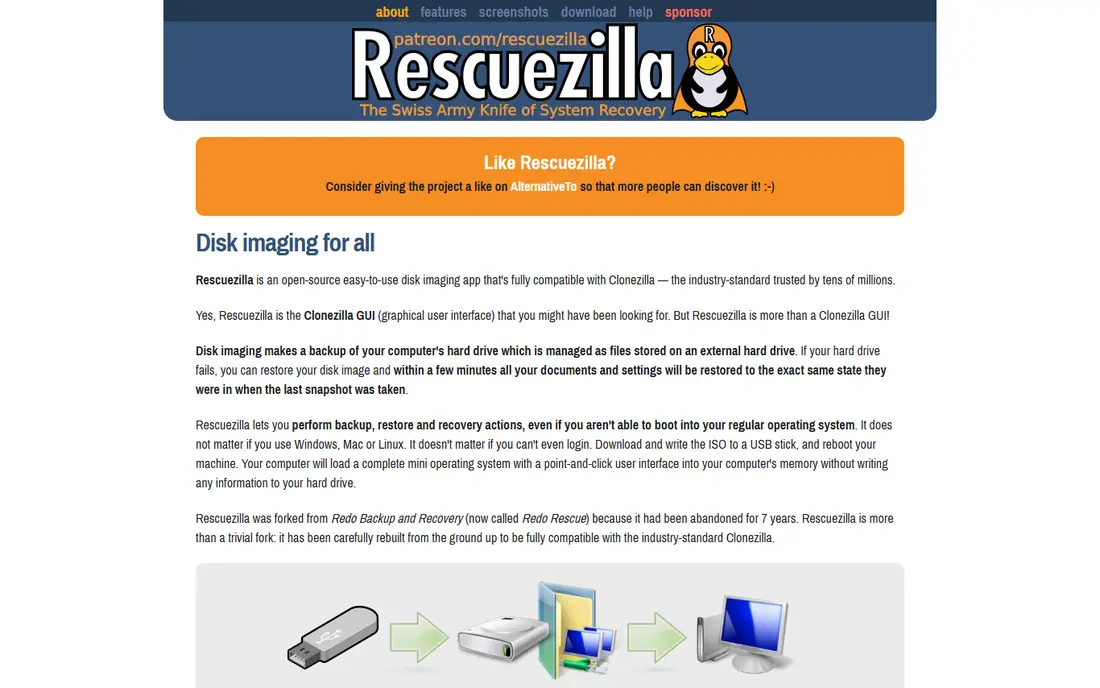
Rescuezilla wraps the Clonezilla engine in a point-and-click interface. You boot from USB, follow a wizard, and clone a disk or restore an image without typing commands. Images made with Clonezilla can be used here, and vice versa, which helps if you already have an older backup.
It still needs a reboot and a bootable USB, so it is not a quick Windows task. Cloning to a smaller drive also needs care, because partitions may need manual resizing. For home users who want free, full cloning with a clearer interface, it is the best starting point.
- Graphical wizard
- Compatible with Clonezilla images
- Includes rescue tools
- Still needs a bootable USB and a reboot
- Resizing to a smaller drive is manual
AOMEI Backupper is the easiest Windows option for cloning a data drive. You install it in Windows, pick Disk Clone or Partition Clone, and copy to a new drive, with an SSD alignment option for SSD targets. The interface is clear, and the steps are easy to follow for a first-time user.
Read the free limits before you plan a system move. The free Standard edition supports data disk and partition clones, while system cloning is a paid feature. For a data drive move, the free edition fits well. For a Windows system drive, check the paid edition or use a bootable tool.
- Clear Windows interface
- Disk and partition cloning
- SSD alignment option
- Free edition limits system cloning
- Some partition tools need the paid edition
EaseUS Todo Backup combines backup and cloning, which suits users who want one app for both jobs. You can schedule backups, create disk images, and clone drives from the same interface. That combination helps if you want a regular backup routine as well as a one-off drive move.
The free edition does not include every feature, and the exact cloning limits depend on the edition you install. Check the edition comparison on the vendor site before you start a system clone, and keep a separate backup of important files in case the clone fails.
- Backup and cloning in one app
- Clear scheduling
- Useful for regular backups
- Free edition has limits
- Cloning features vary by edition
Macrium Reflect is known for disk imaging and system backup on Windows. You can create a full image of a system drive, store it on another drive, and restore it later, which is a safe way to move to a new drive when done carefully. The interface is clear, and restore media can be created for recovery.
Free availability has changed over time, so do not assume a free edition is still offered in the same form. Check the current Macrium site for the edition, trial, and price that apply now, and test a restore plan before you wipe an old drive.
- Strong disk imaging
- Clear restore options
- Useful for system backups
- Free options have changed over time
- Check the current edition before you rely on it
MiniTool ShadowMaker suits Windows users who want backup and cloning together. It can back up files, partitions, and systems, sync folders, and clone disks, with scheduling for regular backups. The interface is straightforward, and the main jobs are easy to find.
As with other Windows tools, the free edition has limits, and system cloning may need a paid edition depending on the current offer. For data drives and regular backups, the free edition is useful. For a full system move, confirm the edition limits first.
- Backup, sync, and cloning in one app
- Clear interface
- Useful scheduling
- Free edition limits some features
- System clone limits vary by edition
DiskGenius combines partition management, data recovery tools, and disk cloning. That mix helps when a drive move also needs partition resizing, checking, or repair. Disk views are clear, and the cloning options sit beside the partition tools you may already need.
The breadth can overwhelm a first-time user, because the app offers many tools beyond cloning. Free edition limits also apply to some functions, so check the current free and paid comparison. If you only need a simple clone, a simpler tool may be faster.
- Partition management plus cloning
- Useful disk tools in one app
- Clear disk views
- Interface packs in many tools
- Free edition limits some functions
HDClone focuses on copying disks and partitions, with a free edition for basic jobs. It suits users who want a simple clone without a full backup suite, and paid editions add speed and features for larger or more frequent jobs. The basic flow is easy to follow once you have chosen source and target correctly.
The free edition has limits on speed and features, so a large drive clone can take longer than with other tools. Check those limits against your drive size before you start, and keep a backup of important data on both drives until the new drive boots and checks out.
- Simple disk copying
- Free edition for basic clones
- Works outside Windows in some editions
- Free edition speed and feature limits
- Advanced options need paid editions
How we picked these
We checked official feature pages, pricing pages, and app store listings, and we compared cloning types, bootable options, SSD handling, system clone limits, and free edition limits. We also read public reviews and vendor notes for reports on free edition changes, and we kept only tools that are current and clearly offer a free cloning path. Where a free edition had changed or was unclear, we wrote See website or Free trial rather than assuming a free tier.
How to clone a drive safely
Start by backing up anything you cannot replace, on both the source and the target drive. Cloning overwrites the target, and a mistake in source and target order cannot be undone by the cloning tool. Label your drives, check sizes and serial numbers in the tool, and stop if the source and target do not match what you expect.
Next, pick the right tool for the job. Use a bootable tool for a system drive, because Windows files in use can cause problems for a live clone. Use a Windows app for a data drive, where the files are not in use by the system. If the target is smaller, confirm that used space fits, and check whether the tool can resize partitions.
Finally, test the new drive before you wipe the old one. Boot from it, open key files and apps, and check that partitions show the expected sizes. Keep the old drive untouched for at least a week, so you have a fallback if a problem appears later.
Frequently asked questions
What is the best disk cloning software for a hard drive move?
Clonezilla and Rescuezilla suit full system moves for free, while AOMEI Backupper suits data drive moves inside Windows. The best choice depends on whether the drive holds Windows, and whether you need a bootable tool.
What is the best software to clone a hard drive to an SSD?
Use a tool with SSD alignment and partition resizing, such as AOMEI Backupper, Rescuezilla, or Clonezilla, and check that used space fits the SSD. After cloning, boot from the SSD and confirm that files, apps, and drive size look correct.
Is there a best free disk cloning software with no limits?
No free tool is unlimited in every way. Bootable open source tools are the closest to unlimited for basic cloning, while Windows apps often limit system cloning or advanced features to paid editions. Read the free edition limits before you start.
Can I clone a drive to a smaller drive?
Yes, if the used space fits the smaller target and the tool supports resizing or used-sector copying. Bootable tools may need manual partition resizing, while some Windows apps handle resizing more easily. Back up first, because a failed resize can damage data.
Do I need to clone or just copy files?
Copy files if you only need documents, photos, and media on a data drive. Clone if you need the full system, apps, and settings to move to a new drive and boot from it. A file copy will not make a Windows drive bootable on its own.
What should I do after cloning a drive?
Boot from the new drive, check files and apps, and confirm drive size and partition layout. Keep the old drive as a backup until you are sure the new drive works, and then wipe or store the old drive according to your needs.
Sources we checked (8)

Online Jobs is an independent blog about careers, online work, learning new skills and the tools that help people earn. More about us.
Keep reading
All posts
Eventbrite Alternatives
Compare the best Eventbrite alternatives for ticketing fees, free events and event pages, with honest notes on cost, discovery and fit for organisers.
Chrome Alternatives
Chrome alternatives compared: Brave, Firefox, Vivaldi, Edge and more for privacy, speed and tab organisation, with free plans, pros and cons to compare.
Buffer Alternatives
Compare the best Buffer alternatives for scheduling, analytics and team approvals, with pricing notes and honest trade-offs for creators, teams and agencies.