Best File Sharing Apps for Laptops in 2026: 9 Apps Compared

How we put this together: we compare official feature and pricing pages, app store listings, privacy policies and public user reviews. Prices change, so check the provider's site before you pay.
Key takeaways
- Google Drive is the best free starting point for most laptop users, with 15 GB free and strong collaboration, while Dropbox offers the most reliable sync.
- OneDrive is the natural choice for Windows and Microsoft 365 users, because it is built into Windows and includes Office apps on paid plans.
- WeTransfer and Send Anywhere are best for one-off large sends without a shared folder, while Sync, pCloud, Box and MEGA suit privacy or business sharing.
- Check link expiry, password protection, file size limits and whether the recipient needs an account, because those details matter more than storage size alone.
Quick comparison
| Name | Who it suits | Starting price | Free option | |
|---|---|---|---|---|
 Dropbox | Reliable sync and sharing | Free | Yes | Visit |
 Google Drive | Free storage and collaboration | Free | Yes | Visit |
 Microsoft OneDrive | Windows and Office users | Free | Yes | Visit |
 WeTransfer | One-off large file sends | Free | Yes | Visit |
 Send Anywhere | Direct device-to-device sends | Free | Yes | Visit |
 Sync.com | Private client sharing | Free | Yes | Visit |
 pCloud | Lifetime storage option | Free | Yes | Visit |
 Box | Business sharing and controls | Free | Yes | Visit |
 MEGA | Large free encrypted storage | Free | Yes | Visit |
The best file sharing apps for laptops
File sharing on a laptop usually means one of two jobs: keeping files in sync across devices, or sending a large file to someone else once. Some apps do both, some do one job very well, and the best choice depends on which job you do most. We compared official pricing pages, feature pages and app listings, and we focused on free storage, sync reliability, link controls, file size limits and whether recipients need an account.
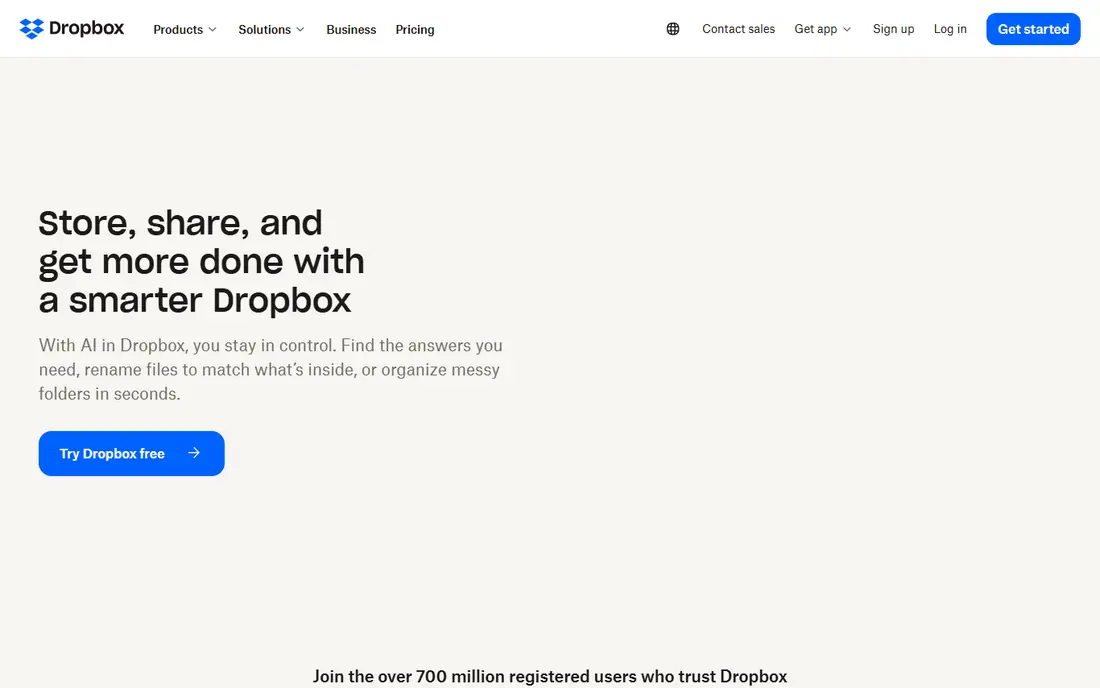
Dropbox remains the benchmark for sync. Files uploaded on a laptop appear quickly on another device, shared folders stay in step, and link sharing is simple enough for a client who has never used the service. The desktop app integrates with Finder and File Explorer, so sharing feels like part of the operating system rather than a separate website.
The free plan is small at 2 GB, which fills quickly with photos or video, so most regular users will need a paid plan. Paid plans start with 2 TB and add features such as link passwords, expiry dates and larger transfer limits. If sync reliability and ease of sharing matter more than the lowest price per GB, Dropbox is still our first pick for laptop users.
- Fast, reliable sync across laptops and phones
- Simple link sharing with passwords and expiry on paid plans
- Wide app integrations
- Free plan is only 2 GB
- Paid plans cost more per GB than some rivals
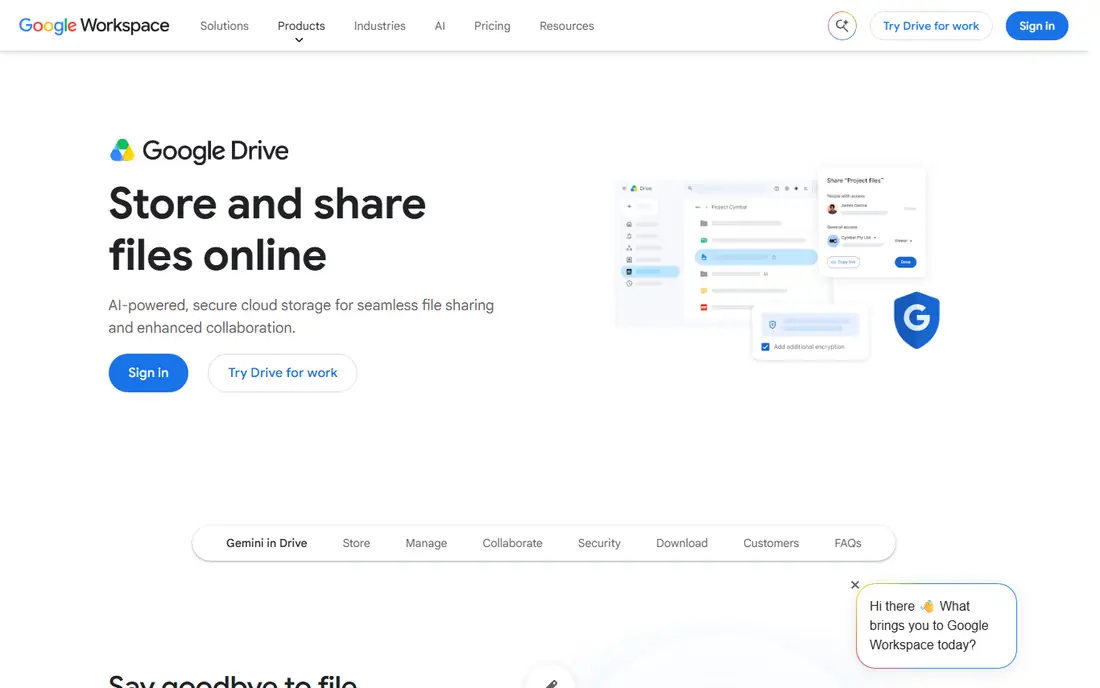
Google Drive is the best free starting point for most laptop users. You get 15 GB free, shared across Drive, Gmail and Google Photos, and you can share files and folders with a link or with specific Google accounts. Docs, Sheets and Slides let several people edit the same file at once, which is ideal for team work, school projects and small businesses.
The shared storage limit is the catch: a full Gmail inbox or a large Photos library eats into Drive space. Paid Google One plans add storage from 100 GB upward, with family sharing on some plans. If you already use Gmail or Google Workspace, Drive is the obvious choice, because sharing and collaboration are built into tools you already open every day.
- 15 GB free shared across Google services
- Strong Docs, Sheets and Slides collaboration
- Easy sharing with Google accounts
- Free storage is shared with Gmail and Photos
- Privacy controls are less strict than encrypted rivals
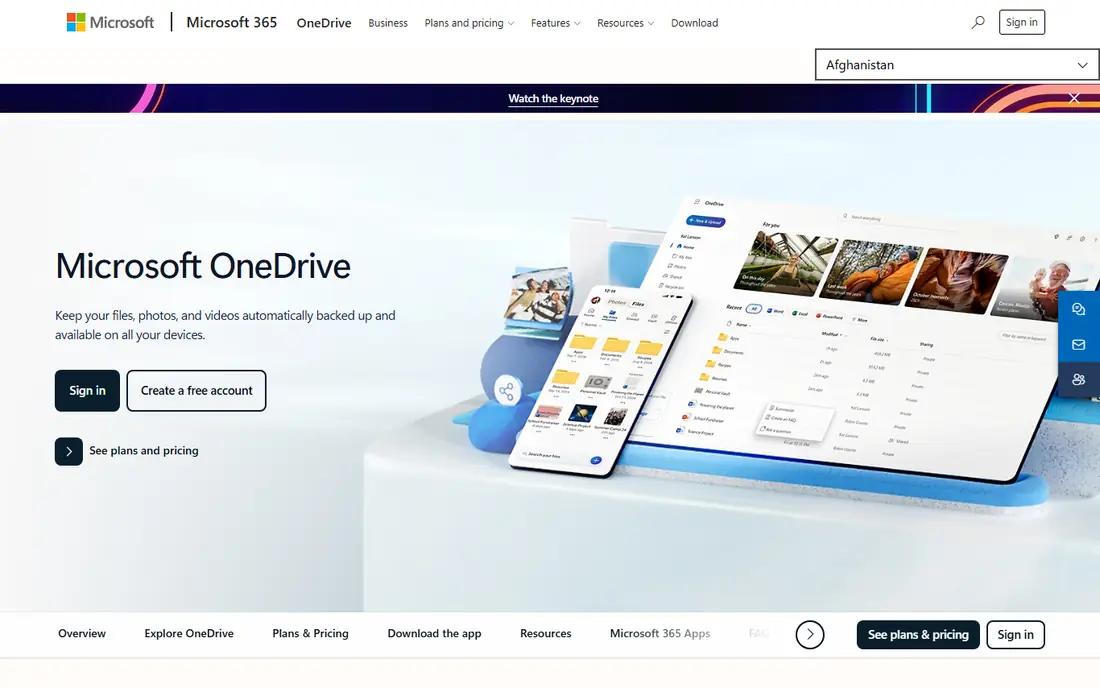
OneDrive is the natural file sharing app for Windows laptop users. It is built into Windows, syncs Desktop, Documents and Pictures folders, and shares files with a link or with specific people. Paid Microsoft 365 Personal plans include 1 TB of storage plus Word, Excel, PowerPoint and Outlook desktop apps, which makes the subscription good value for Office users.
The free plan is only 5 GB, so it fills fast if you sync photos or large projects. Mac users can use OneDrive, but they get less of the deep Windows integration that makes it so convenient on a PC. If you use Windows and Office daily, OneDrive is the simplest, most integrated choice. If you do not, Google Drive or Dropbox may fit better.
- Built into Windows and Microsoft 365
- 1 TB plus Office apps on paid Personal plans
- Personal Vault for sensitive files
- Free plan is only 5 GB
- Mac and non-Microsoft users get less benefit
WeTransfer is for sending, not storing. You upload files, enter a recipient email or copy a link, and the recipient downloads them, with no account needed for basic sends. That simplicity makes it ideal for sending video, design files or a large folder to a client once, without setting up a shared folder or asking the client to install an app.
Free sends have a file size limit and links expire after a set period, so WeTransfer is not a replacement for Dropbox or Drive for ongoing work. Paid plans raise size limits, add longer storage, passwords and custom branding. For one-off laptop sends, especially to people outside your organisation, WeTransfer is the fastest option on this list.
- Very simple send flow with no account needed for basic sends
- Good for large files
- Link or email delivery
- Not a sync or long-term storage tool
- Free sends have size and expiry limits
Send Anywhere takes a direct approach: generate a six-digit code or a link on one laptop, enter it on another device, and the file transfers directly. That avoids uploading to a cloud folder first, and it works across Windows, Mac, Android, iOS and the web. It is useful for moving files between your own laptops, or sending a file to a colleague in the same office or call.
It is not a storage service, so files are not kept in the cloud for later access unless you use a link with a time limit. Large transfers also depend on a stable connection on both ends. For quick, direct laptop-to-laptop or laptop-to-phone transfers without an account, Send Anywhere is simple and effective.
- Sends files directly between devices with a code or link
- No account needed for basic sends
- Works across Windows, Mac, phones and web
- Not a cloud storage or sync service
- Large sends depend on connection and device availability
Sync.com is built for privacy-first sharing, with end-to-end encryption as standard. That means files are encrypted before they leave your laptop, and Sync cannot read their contents, which suits lawyers, accountants, health professionals and anyone sharing sensitive client files. You can share folders and links with passwords, expiry dates and download limits on paid plans.
The free plan offers 5 GB, which is enough to test the service and share small client files, but regular users will need a paid plan for larger storage. Integrations are fewer than Dropbox or Google Drive, so check whether Sync works with the apps your team uses. If privacy is the priority, Sync is one of the best laptop sharing options available.
- End-to-end encryption by default, including file and folder names on some plans
- Client sharing with passwords and expiry
- Good for professional services
- Free plan is 5 GB
- Fewer third-party integrations than Dropbox or Drive
pCloud suits laptop users who dislike monthly subscriptions. It offers a free plan up to 10 GB, with part of that made available by completing setup steps, and paid plans include annual options plus lifetime plans for 500 GB or 2 TB. That one-off payment can save money over several years compared with a monthly plan, especially for personal storage and media.
The catch is that its strongest encryption feature, pCloud Crypto, is a paid add-on rather than included by default, unlike Sync or MEGA. Media playback, file versioning and link sharing are solid, and the desktop app works well on Windows and Mac. If you want storage you pay for once and keep, pCloud is the best option on this list.
- Free plan up to 10 GB with tasks completed
- Lifetime plans avoid a monthly subscription
- Media playback and sharing tools
- Some features, such as client-side encryption, are a paid add-on
- Free storage requires completing steps to reach the full amount
Box is designed for business sharing, with granular permissions, admin controls, activity logs and compliance features that larger teams need. It integrates with Microsoft Office, Google Workspace, Slack and many other business apps, so files can be edited and discussed without leaving the workflow. A free personal plan offers 10 GB, which is useful for testing.
The free plan limits single-file size, so large video files may need a paid plan, and some business tiers require a minimum number of users. For a small team that needs control over who can view, edit or download a file, Box offers more governance than a consumer storage app. For personal use, Google Drive or Dropbox are simpler and cheaper.
- Strong business controls, permissions and compliance options
- Good integrations with Office, Google and Slack
- Free 10 GB plan
- Single-file size limit on the free plan
- Business plans need a minimum number of users on some tiers
MEGA offers the largest free tier on this list at 20 GB, with end-to-end encryption by default. That combination makes it attractive for personal laptop users who want generous free storage and privacy without paying. Sharing works through encrypted links, with passwords and expiry options on paid plans, and the desktop app syncs folders across Windows, Mac and Linux.
Free accounts can hit transfer limits if you move very large amounts of data, so heavy users may need a paid plan. Business controls are also thinner than Box or Dropbox, so MEGA suits personal use and small teams better than large enterprises. If free space and encryption matter most, MEGA is a strong starting point.
- 20 GB free storage, larger than most rivals
- End-to-end encryption by default
- Good for large personal files and sharing
- Transfer limits can apply on free accounts
- Business features are thinner than Box or Dropbox
How we picked these
We compared official pricing pages, feature pages and app listings, and we checked that each homepage loads and belongs to the product named. We favoured apps with a usable free tier, a laptop desktop app, clear link controls and a real sharing use case, whether that is sync, one-off sends, private client sharing or business governance. We also noted storage limits and file size limits, because those decide whether an app works for your actual files.
How to choose a file sharing app for a laptop
Start with your main job. If you sync files across laptops every day, pick Dropbox, Google Drive or OneDrive, depending on your operating system and office apps. If you send large files once in a while, WeTransfer or Send Anywhere will be faster and simpler. If you share sensitive client files, pick an encrypted option such as Sync or MEGA, and check its link controls.
Next, check the details that cause problems later: free storage size, single-file size limits, link expiry, password protection, whether recipients need an account and whether the desktop app works well on your laptop. Test with a real file, not just a small text document, and check upload speed on your connection. Finally, keep a backup outside any single sharing app, because a sharing service is not a backup, and a deleted shared folder can affect every collaborator.
A note on sharing safely
Use link passwords and expiry dates for sensitive files, share with specific people rather than anyone with the link when you can, and remove access when a project ends. Check shared folder permissions before you upload a file, because a folder shared for editing lets collaborators change or delete files. For very sensitive material, use an encrypted service and confirm the recipient through a separate channel.
Frequently asked questions
What is the best file sharing app for laptops?
Dropbox is the best all-round file sharing app for laptops for sync reliability, Google Drive is best for free storage and collaboration, and OneDrive is best for Windows and Office users. WeTransfer is best for one-off large sends, while Sync and MEGA are best for private sharing. The right choice depends on your operating system, office apps and whether you sync daily or send occasionally.
What is the best free file sharing app for a laptop?
Google Drive offers the best free balance, with 15 GB free and strong collaboration, while MEGA offers 20 GB free with encryption. Dropbox free is only 2 GB, and OneDrive free is 5 GB, so they fill faster. For one-off sends, WeTransfer and Send Anywhere are free without needing a storage plan.
Can I share large files from a laptop for free?
Yes, for one-off sends, WeTransfer free and Send Anywhere free handle large files without a storage subscription, subject to size and expiry limits. For ongoing large files, a paid storage plan is usually better, because free storage fills quickly and transfer limits can apply. Check the current size limit before a large send, because limits change.
Is Dropbox or Google Drive better for laptops?
Dropbox offers more reliable sync and a simpler sharing flow, while Google Drive offers more free storage and better document collaboration. If you use Google Docs and Gmail, Drive fits better. If you share folders with clients who use many different apps, Dropbox often feels smoother. Both offer desktop apps for Windows and Mac.
How do I share files securely from a laptop?
Use a service with link passwords and expiry dates, share with named people where possible, and avoid public links for sensitive files. Encrypted services such as Sync and MEGA add protection, and you should still confirm the recipient separately and remove access when a project ends. Keep a backup copy outside the sharing service.
Do recipients need an account to download a shared file?
It depends on the app and the link settings. WeTransfer and Send Anywhere allow downloads without an account for basic sends, and Dropbox, Drive, OneDrive and others allow anyone-with-the-link downloads if you choose that setting. Sharing with specific people usually requires the recipient to sign in, which gives better control and an audit trail.
Sources we checked (9)

Online Jobs is an independent blog about careers, online work, learning new skills and the tools that help people earn. More about us.
Keep reading
All posts
Zoom Alternatives
Zoom alternatives compared for 2026: Google Meet, Microsoft Teams, Webex, Jitsi and more for free calls, large meetings and webinars for teams and classrooms.

What Is the Best Free Tool to Rotate a PDF
What is the best free tool to rotate a PDF? We compare eight free rotation tools on per-page control, limits, privacy and saved output quality in detail.

What Is the Best AI Dubbing Tool
We compared the best AI dubbing tools in 2026, from ElevenLabs and HeyGen to Rask AI, Dubverse and Veed, for videos and creators in many languages worldwide.