Best File Recovery Software in 2026: 8 Tools Compared


Beginners who want a clean scan and preview · Starting price: $89
How we put this together: we compare official feature and pricing pages, app store listings, privacy policies and public user reviews. Prices change, so check the provider's site before you pay.
Key takeaways
- Stop using the drive as soon as you notice files are missing, because new writes can overwrite the data you want back.
- Recuva and PhotoRec are the strongest free starting points, while Disk Drill and EaseUS suit people who want a guided scan and preview.
- Most paid tools let you scan and preview before you pay, so only buy after you see your files in the results.
- R-Studio and DMDE are better for damaged partitions and RAID volumes, but they expect more technical confidence.
- No software can recover files from a physically dead drive, so use a specialist lab for clicking, grinding, or undetected drives.
Quick comparison
| Name | Who it suits | Starting price | Free option | |
|---|---|---|---|---|
| Disk Drill | Beginners who want a clean scan and preview | $89 | Yes | Visit |
 EaseUS Data Recovery Wizard | Guided recovery with a large free tier | $69.95 per month | Yes | Visit |
 Recuva | Quick free recovery on Windows | Free | Yes | Visit |
 Stellar Data Recovery | Photo and video recovery with repair tools | $59.99 per year | Yes | Visit |
 Wondershare Recoverit | Corrupted video and camera media | $59.95 per year | Free trial | Visit |
 R-Studio | Technicians, RAID, and damaged volumes | $79.99 | Free trial | Visit |
 PhotoRec | Free recovery with no paid tier | Free | Yes | Visit |
 DMDE | Budget professional-grade recovery | $20 | Yes | Visit |
The best file recovery software
Losing files is stressful, and the first hour matters more than the brand you pick. These eight tools cover simple deletions, formatted drives, and harder partition problems, with a mix of free and paid options.
Disk Drill is our pick for most people who just want to get files back without learning file system theory. You pick a drive, run a scan, preview what it found, and recover only the files you need. That preview step matters, because it stops you paying for a tool that found nothing useful.
The extra value is disk imaging. If a drive is failing, you can make a byte-to-byte copy first and scan the copy instead of stressing the original. The catch is price and free limits. The free tier is best treated as a way to test the scan, and large drives need patience during a deep scan.
- Clear interface
- Preview before recovery
- Disk imaging for failing drives
- Free recovery is limited on Windows
- Deep scans can take a long time
EaseUS Data Recovery Wizard
Who it suits: Guided recovery with a large free tier
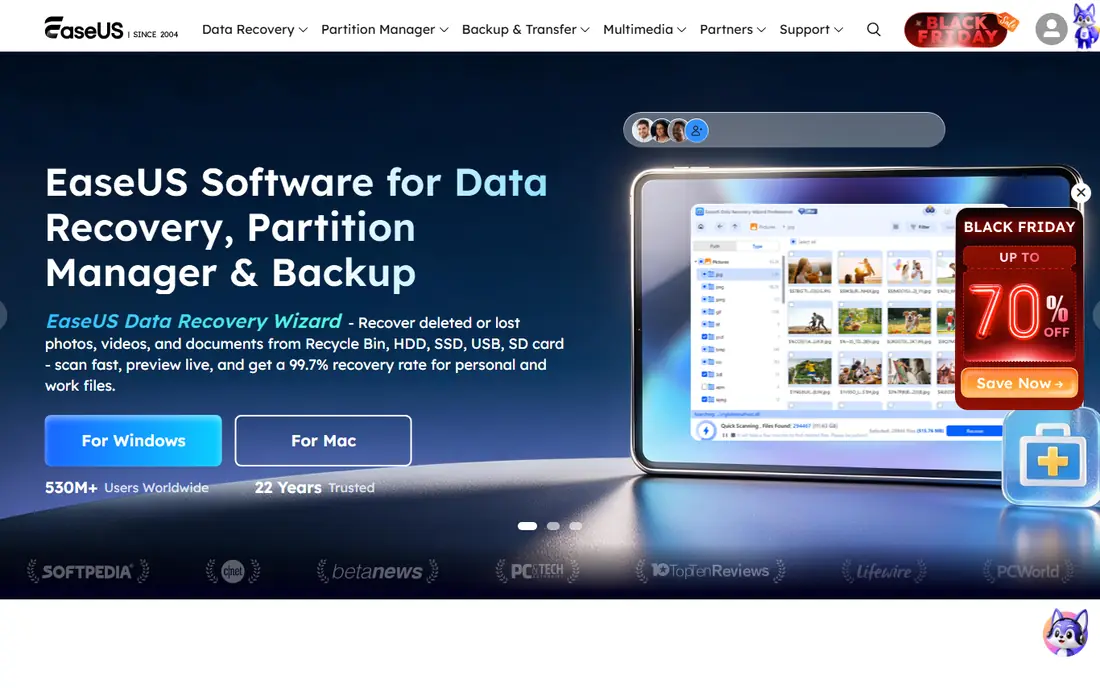
EaseUS walks you through location, scan, and recovery in plain language, which helps when you are already worried about a lost folder. Its free tier, up to 2 GB, is large enough for many document sets and photo batches, so a lot of people will finish without paying at all.
The pricing needs a careful read before checkout. The monthly plan costs more than it first appears if you only need the tool once, so compare the yearly price and check whether your files fall inside the free tier first. It is less suited to RAID work or Linux, where the specialist tools below do better.
- Simple three-step workflow
- Up to 2 GB free recovery
- Works on Windows and Mac
- Monthly pricing is poor value for one job
- Advanced features sit in higher tiers
Recuva is the tool to try first when a file was deleted recently on a Windows PC. The wizard asks where the file was and what type it was, then scans and lists what it can restore. For everyday mistakes, such as an emptied Recycle Bin, that is often all you need.
The limits are clear. It is Windows only, and it is not the right choice for a failing drive or a complex RAID setup. The Pro version adds automatic updates and support, but the free version handles the core job for most home users, which keeps it high on this list.
- Free version covers most simple deletions
- Wizard is easy to follow
- Deep scan mode included
- Windows only
- Weaker on badly damaged drives
- Interface feels dated
Stellar Data Recovery
Who it suits: Photo and video recovery with repair tools
Stellar earns its place for people whose lost files are mainly photos and videos. It recovers from internal drives, external drives, and memory cards, and higher tiers add repair for damaged photos and videos. That combination is useful for camera cards that come back with files that will not open.
Start with the free tier to confirm your files appear in the scan. Check the edition carefully, because repair tools and RAID support are not in every tier. If your problem is documents only, a cheaper or free tool may do the same job.
- 1 GB free recovery
- Photo and video repair in higher tiers
- Clear preview
- Best repair features cost more
- Mac and Windows editions differ in detail
Recoverit is aimed at people who work with a lot of media, from phone videos to camera cards. It scans for more than a thousand file types, previews results, and includes tools to repair corrupted video files. That focus makes it a sensible pick when the files matter more than the drive itself.
The downside is the same as most subscription recovery tools. The free scan shows what is there, but full recovery needs a paid plan, and a yearly plan is a lot for a single incident. Use the preview to judge whether the files you need are actually recoverable before you pay.
- Wide file type support
- Video repair features
- Guided workflow
- Free recovery is limited
- Yearly cost adds up for one-off use
R-Studio is the technician pick in this list. It handles RAID reconstruction, network recovery, and damaged partitions that simpler tools give up on, and it runs on all three major desktop systems. If you manage other people's machines, or you have a multi-disk setup, this is where the extra control pays off.
It is not a beginner tool. The interface shows file system detail that can confuse a first-time user, and the demo limits recovery to small files, so you cannot fully test a large recovery for free. For a single deleted document, start elsewhere. For a damaged array, start here.
- Strong RAID and network recovery
- Works on Windows, Mac, and Linux
- Disk imaging included
- Interface assumes technical knowledge
- Demo only recovers small files
PhotoRec is the honest free option when budget is zero and patience is available. It is open source, it costs nothing, and it can pull files from drives that other tools struggle to read. It works by file signature, which means it can find photos and documents even when the file system is badly damaged.
The trade-off is usability. There is no polished preview window, and recovered files often arrive with generic names, so sorting a large recovery takes time. If you are comfortable following written steps, it is excellent. If you want a guided, visual experience, pay for one of the tools above instead.
- Completely free
- Works on Windows, Mac, and Linux
- Handles many file types
- Command-line style interface
- Recovered files get generic names
- No file preview in the usual sense
DMDE is the quiet value pick for users who want professional features without a professional price. The free edition recovers a limited number of files per folder, and the paid edition is inexpensive compared with most rivals. It includes a disk editor, partition tools, and imaging, which puts it closer to R-Studio than to a simple undelete app.
The interface is the barrier. It presents raw disk detail and expects you to know what you are doing, so beginners should try Recuva or Disk Drill first. For a second opinion on a damaged drive, or for a low-cost technician toolkit, DMDE is hard to beat.
- Low starting price
- Disk editor and imaging tools
- Broad file system support
- Interface is technical
- Free edition limits files per folder
How we picked these
We compared official feature pages, pricing pages, and app store listings for tools that are still maintained and widely used in 2026. We favoured tools that let you scan and preview before paying, that support the drives and file systems most readers actually use, and that are honest about free limits. We did not claim hands-on testing, and we left out tools with dead websites, unclear pricing, or a scope that did not match file recovery.
What to do before you scan
Stop writing to the affected drive right away. Do not install the recovery tool on that same drive, and do not recover files back onto it, because either step can overwrite the data you are trying to save. Install the tool on a different drive, recover to a different drive, and keep the original untouched until you have checked the recovered files.
If the drive makes clicking or grinding noises, or if no computer detects it at all, stop and contact a recovery lab. Software cannot fix mechanical failure, and repeated power cycles can make a lab recovery harder and more expensive. For a healthy drive with deleted files, start with a free scan, check the preview, and only then decide whether a paid tier is worth it.
Check the file system and operating system support before you buy. Windows-only tools will not help a Mac user, and some tools handle camera cards better than internal SSDs, where trimmed data may already be gone. A quick scan tells you more than any feature list, so treat the preview as the real test.
Frequently asked questions
What is the best file recovery app for beginners?
Disk Drill and EaseUS Data Recovery Wizard are the easiest starting points, because both guide you through scan and preview in plain steps. Recuva is simpler still on Windows, and it is free for most basic deletions.
Is there a truly free file recovery tool?
Yes. PhotoRec is free and open source, with no paid tier, and Recuva offers a free version for Windows. Both have limits, since PhotoRec is harder to use and Recuva is Windows only, but neither requires payment for basic recovery.
Can I recover files from a formatted drive?
Often yes, if nothing has overwritten the old data since formatting. Scan the drive, preview the results, and recover to a different drive. If the format was followed by heavy new use, some or all files may be gone for good.
Why do some files recover but not open?
A file can be found by name or signature while part of its data has already been overwritten. That is why preview and video repair tools matter, and why recovering to a different drive, without further writes, gives the best chance of intact files.
Should I pay before I know the files are there?
No. Use a free scan and preview first, and only pay when the files you need appear in the results. If a tool will not show you a preview, treat that as a reason to try a different tool.
Does recovery software work on SSDs?
It can, but SSDs are harder, because trim commands may clear deleted data quickly. Act fast, stop using the drive, and scan as soon as possible. If the scan finds nothing, a backup or a lab is the next step, not repeated scans.
Sources we checked (8)

Online Jobs is an independent blog about careers, online work, learning new skills and the tools that help people earn. More about us.
Keep reading
All posts
Zoom Alternatives
Zoom alternatives compared for 2026: Google Meet, Microsoft Teams, Webex, Jitsi and more for free calls, large meetings and webinars for teams and classrooms.
Which Software Is Best for PDF Page Removal
Which software is best for PDF page removal? We compare free and paid tools for deleting pages quickly, safely, and without harming your file in this guide.

Which Software Is Best for Data Entry
Compare the best data entry software for forms, OCR scanning, and spreadsheets, with free plans, pricing, and honest limits for each tool before you commit.