Best Drawing Software for PC in 2026: 9 Tools Compared

How we put this together: we compare official feature and pricing pages, app store listings, privacy policies and public user reviews. Prices change, so check the provider's site before you pay.
Key takeaways
- Krita is the strongest free starting point for painting on PC, with brush tools, layers, and animation at no cost.
- Clip Studio Paint is the clearest pick for comics and manga, because panels, inking, and page tools are built in.
- Photoshop suits artists who also edit photos and work with print or studio files, while a vector tool suits logos and scalable art.
- A tablet matters as much as the software, so check pen pressure, tilt, and driver support before buying a paid app.
- Free tools can carry a freelance workflow, so pay for a subscription only when a specific feature or file format is needed.
Quick comparison
| Name | Who it suits | Starting price | Free option | |
|---|---|---|---|---|
 Krita | Free digital painting and animation | Free | Yes | Visit |
 Clip Studio Paint | Comics, manga, and illustration | See website | Free trial | Visit |
 Adobe Photoshop | Photo editing plus illustration | See website | Free trial | Visit |
 Corel Painter | Traditional media painting | See website | Free trial | Visit |
 Affinity | Vector and raster design without a subscription | See website | Yes | Visit |
 Inkscape | Free vector illustration | Free | Yes | Visit |
 GIMP | Free photo editing that doubles as painting | Free | Yes | Visit |
 MediBang Paint | Free comics with cloud sync | Free | Yes | Visit |
 FireAlpaca | Beginners and clean line art | Free | Yes | Visit |
The best drawing software for PC
We looked for PC apps that handle pen input well, support layers, and export files a client or printer can use. The nine below cover painting, comics, vector work, and photo editing, so the right pick depends on whether you paint, ink, design logos, or do a mix of all three.
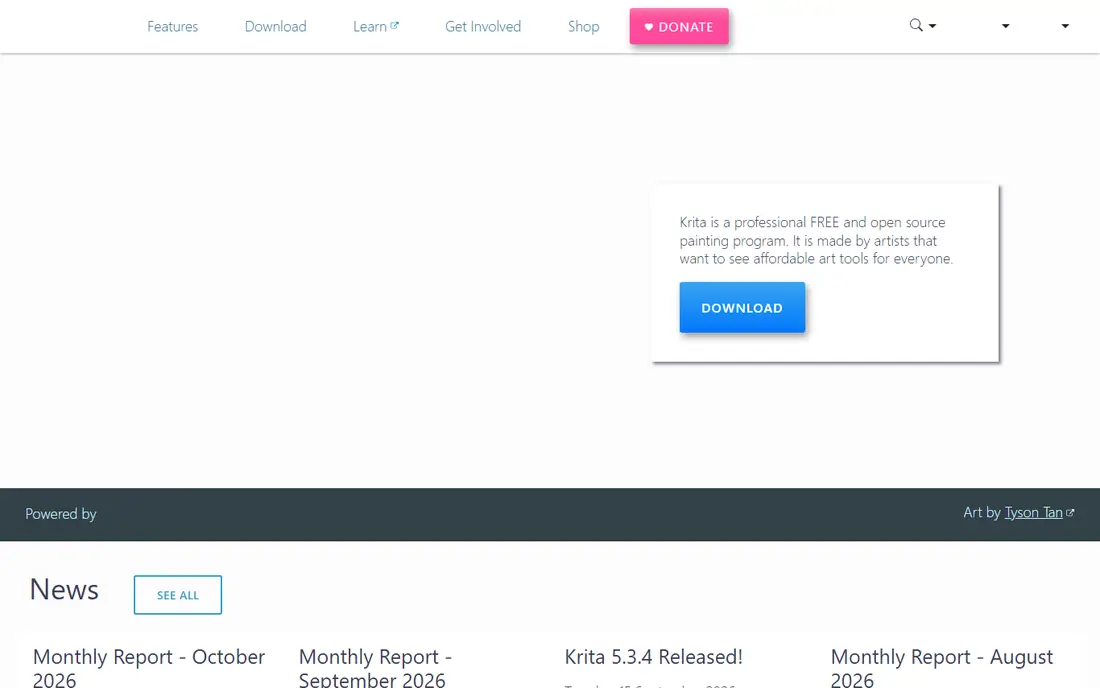
Krita is the free app we recommend first to most PC painters. The brush engines cover painting, inking, and texture work, layers and masks support a proper workflow, and animation tools let an artist try frame work without buying another app. CMYK support also helps when work will go to print. The interface can feel busy at first, and vector tools are not its strength. A new user should start with a few brushes and a simple layer setup, then add features as needed. For painting alone, Krita covers most of what a paid app offers, which makes it hard to beat on value.
- Free and open source
- Strong brush engines
- Animation and CMYK support
- Less suited to vector work
- Can feel slow on older PCs
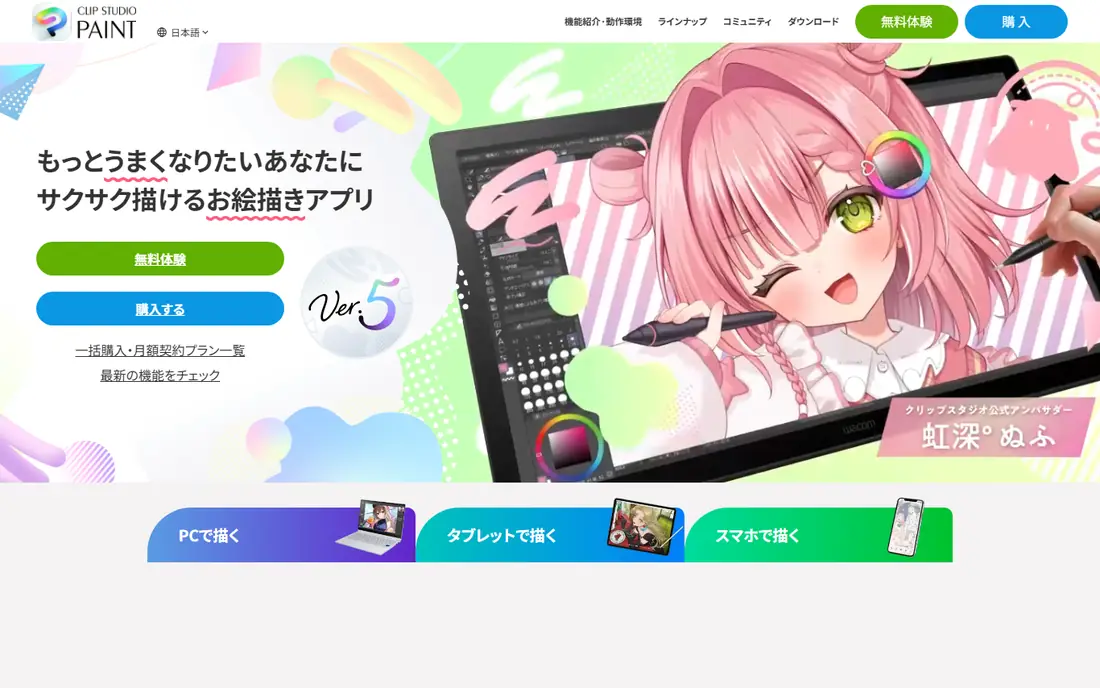
Clip Studio Paint is built for sequential art in a way general painting apps are not. Panels, speech tools, screen tones, and page management sit in the workflow, and inking brushes feel precise for line work. The 3D models help an artist check a pose before committing to a drawing. A painter who never makes comics may not need all of that depth, and the version and platform pricing needs a careful read. For comic and manga work, however, the time saved on pages and panels usually justifies the cost, and many professionals use it as their main tool.
- Panel and comic tools
- Strong inking brushes
- 3D pose reference models
- Pricing varies by version and platform
- Learning curve for comic features
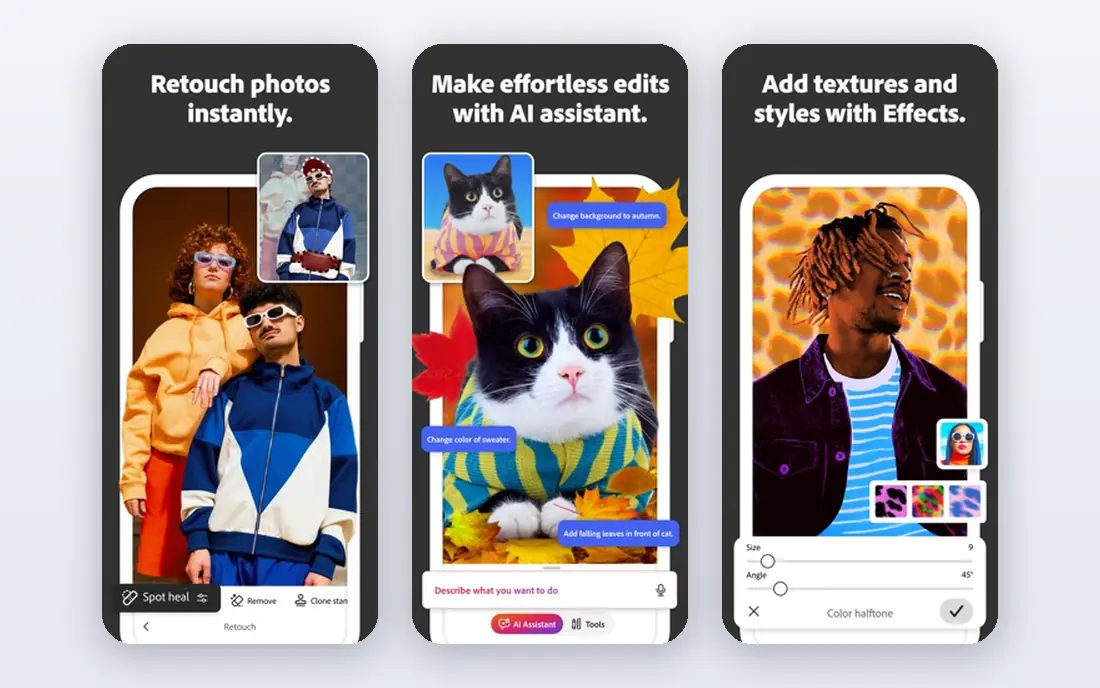
Photoshop remains the standard when files move between artists, studios, and printers. An illustrator who also retouches photos, prepares print files, or works from PSD files will find few compatibility problems. Brushes, layers, and adjustment tools cover both painting and editing in one place. The subscription is the main drawback, especially for a hobbyist who paints only a few times a month. A user who mainly paints and does not need Photoshop file compatibility may be happier with Krita or Clip Studio Paint, while a studio artist will likely need Photoshop anyway.
- Industry standard files
- Photo and illustration tools in one app
- Wide plugin and brush support
- Subscription cost adds up
- Larger install and heavier system use
Corel Painter aims to feel like real paint, paper, and canvas. Brushes that mimic oils, watercolour, and pastels, plus texture and mixing tools, suit fine artists who want a traditional look on screen. That focus sets it apart from apps that treat painting as one feature among many. It is not the cheapest or lightest app, and a user with a modest PC should check system needs first. For an artist whose main goal is a traditional media result, the brush feel can justify the price, while a comic artist or logo designer will find a better fit elsewhere.
- Natural media brushes
- Paper and canvas textures
- Realistic paint mixing feel
- Higher price
- Can be demanding on system resources
Affinity covers vector illustration and raster painting in a clean, modern interface, and it avoids a monthly subscription in the way many artists prefer. The tools suit logos, posters, book covers, and illustration work that needs both sharp vector shapes and painted texture. The limit is compatibility. A studio that requires Adobe files may still ask for Photoshop or Illustrator exports, so check how Affinity files translate before switching a client workflow. For independent work, it is a strong, low cost professional option.
- Pro grade vector and raster tools
- One-time or free options depending on version
- Clean interface
- Some studio workflows still expect Adobe files
- Feature set varies by app
Inkscape is the free answer for vector art on PC. Logos, icons, posters, and diagrams stay sharp at any size, because vector shapes scale without losing quality. That makes it the right tool when a design will appear on a business card and on a banner. It is not meant for painterly brush work, so a painter should pair it with Krita rather than force it to do both jobs. The interface takes a little learning, but the price and the scalable output make it a solid tool for design work.
- Free and open source
- Scalable vector editing
- Good for logos and diagrams
- Not a painting app
- Interface feels technical to new users
GIMP is best known for photo editing, but it also handles drawing, sketching, and digital painting at a basic to intermediate level. Layers, masks, selection tools, and filters give an artist room to build a finished image, and the price is zero. That makes it a useful second app for many PC artists. Painters will notice the difference from Krita, especially in brush engines and animation. GIMP works best when photo editing is the main job and drawing is secondary, or when a user needs a free editor that can also handle a sketch or a poster.
- Free and open source
- Strong photo editing
- Layers, masks, and filters
- Brush feel is less refined than Krita
- Interface can feel dated
MediBang Paint is a free, comic friendly app that works well on PC and on mobile. Panel tools, tones, and cloud sync help a comic artist start a page on one device and finish it on another. The brush set covers inking and colouring for most comic styles. Large, layered painting projects can feel lighter than in Krita or Photoshop, and some brushes and materials are paid extras. For comics, webtoons, and manga on a budget, it is a practical choice, especially for artists who work across devices.
- Free
- Comic panel tools
- Cloud sync across devices
- Some assets cost extra
- Less powerful for large painting projects
FireAlpaca suits a beginner who wants to draw without learning a complex app first. The interface is clear, the line tools are tidy, and basic animation features let a new artist try frame work. It runs well on modest PCs, which helps students and hobbyists. Advanced painters will outgrow it sooner than Krita, because brush depth and colour tools are more limited. That is not a flaw for its audience. FireAlpaca is a good first app, and a user can move to Krita or Clip Studio Paint when a project needs more depth.
- Free
- Simple interface
- Clean line tools and onion skin for animation
- Fewer advanced painting features
- Smaller brush library than Krita
How we picked these
We compared official feature pages, pricing pages, app store listings, and privacy policies, and we checked public reviews for recurring points about pen support, performance, and file export. We kept only apps that were still offered in October 2026 and that run on PC, with a clear focus on drawing, painting, comics, or vector work. We did not claim hands-on testing that we did not do, and where a vendor did not publish a clear starting price, we wrote See website rather than guessing. We gave weight to pen pressure support, layer handling, and export formats, because those decide whether an app fits a real project. A beautiful brush that exports poorly, or an app that lags with a tablet, scored lower than a simpler app that worked reliably.
Choosing drawing software for your kind of work
Start with the kind of art you make most. Painters need brush engines and colour tools. Comic artists need panels, inking, and page tools. Logo designers need vector shapes and clean export. Photo editors need selection, masking, and print preparation. One app rarely does all four equally well, so many artists use two: a painting app and a vector app, or a comic app and a photo editor. Check your tablet before you buy. Pen pressure, tilt, and shortcut buttons should work in the app you choose, and driver updates should not break a project mid-way. Try a free trial or a free app with your own tablet for a few drawings, not just a test stroke, and check how the app handles large canvases and many layers. Think about files and cost together. A subscription makes sense when clients require that file format or when updates matter every month. A one-time purchase or a free app makes sense when you work alone and export standard formats. Keep a backup of finished work in a widely used format, so a change of app does not lock you out of your own art.
Free drawing apps for PC
Krita, Inkscape, GIMP, MediBang Paint, and FireAlpaca cover painting, vector, photo editing, and comics at no cost. Start here if you are learning, and pay only when a project needs a feature none of them offer.
Paid apps worth paying for
Clip Studio Paint earns its price for comics, Photoshop earns it for studio and print work, and Corel Painter earns it for traditional media painting. Affinity is a middle path, with professional tools and no monthly subscription for many users.
Frequently asked questions
What is the best free drawing software for PC?
Krita is our top free pick for painting, because it offers brush engines, layers, animation, and CMYK support at no cost. Inkscape is the top free pick for vector work, and GIMP is the top free pick for photo editing that also handles drawing. The best free app depends on whether you paint, design, or edit photos.
What is the best drawing app for PC for beginners?
FireAlpaca is the easiest starting point, with a simple interface and clean line tools. Krita is also beginner friendly once you ignore the advanced panels and focus on a few brushes. A beginner should pick the app that feels calm to use, because an app you open often beats a powerful app you avoid.
Is Clip Studio Paint better than Photoshop for drawing?
For comics and manga, Clip Studio Paint is usually better, because panels, tones, and inking tools are built in. For photo editing and studio file work, Photoshop is usually better. Many artists use both, with Clip Studio Paint for drawing and Photoshop for finishing and print preparation.
Can I use Procreate on PC?
Procreate is made for iPad, not for Windows PC, so PC users need a different app. Krita, Clip Studio Paint, and MediBang Paint offer a similar painting focus on PC, and Clip Studio Paint also runs on iPad for artists who work on both. Check platform support on the vendor site before buying.
What drawing software do professionals use?
Professionals use a mix, often Photoshop for studio work, Clip Studio Paint for comics, Corel Painter for traditional media, and Affinity or Illustrator for vector work. The choice follows the job and the client file format, not a single app for every task. Free tools like Krita also appear in professional workflows.
Do I need a drawing tablet for PC drawing software?
A mouse can work for vector shapes and simple sketches, but a pen tablet gives pressure control that matters for painting and inking. A basic pen tablet is enough to start, and a display tablet suits artists who want to draw directly on the screen. Test the tablet with your chosen app before committing to a paid plan.
Sources we checked (9)

Online Jobs is an independent blog about careers, online work, learning new skills and the tools that help people earn. More about us.
Keep reading
All posts
Zoom Alternatives
Zoom alternatives compared for 2026: Google Meet, Microsoft Teams, Webex, Jitsi and more for free calls, large meetings and webinars for teams and classrooms.
What Is the Best Free Tool to Rotate a PDF
What is the best free tool to rotate a PDF? We compare eight free rotation tools on per-page control, limits, privacy and saved output quality in detail.

What Is the Best AI Dubbing Tool
We compared the best AI dubbing tools in 2026, from ElevenLabs and HeyGen to Rask AI, Dubverse and Veed, for videos and creators in many languages worldwide.