Best Document Scanner Apps in 2026: 8 Apps Compared

How we put this together: we compare official feature and pricing pages, app store listings, privacy policies and public user reviews. Prices change, so check the provider's site before you pay.
Key takeaways
- Adobe Scan gives most people the best free scans, with searchable PDFs and no watermark on the free tier.
- Apple Notes and Google Drive cover everyday scanning at no extra cost if you already use those platforms.
- Paid apps such as Genius Scan and SwiftScan earn their keep for people who scan often and want stronger organization and export options.
- Text recognition quality matters more than filters, so check whether searchable text sits behind a paywall before you commit.
- If you scan receipts or contracts, pick an app that exports clean PDFs and sends them straight to your cloud storage.
Quick comparison
| Name | Who it suits | Starting price | Free option | |
|---|---|---|---|---|
 Adobe Scan | Best free all-rounder | $9.99 per month | Yes | Visit |
 CamScanner | Document tools in one app | See website | Yes | Visit |
 Genius Scan | One-time purchase fans | See website | Yes | Visit |
 SwiftScan | Fast scanning on the move | See website | Yes | Visit |
 Apple Notes | iPhone and iPad owners | Free | Yes | Visit |
 Google Drive | Android users and Drive fans | Free | Yes | Visit |
 Dropbox | Scanning into Dropbox folders | Free | Yes | Visit |
 TurboScan | Simple, focused scanning | See website | Yes | Visit |
The best document scanner apps
A good scanner app turns a phone photo into a straight, readable PDF in seconds. We compared official feature pages, pricing pages, and app store listings to find the apps that handle real documents well, from crumpled receipts to multi-page contracts.
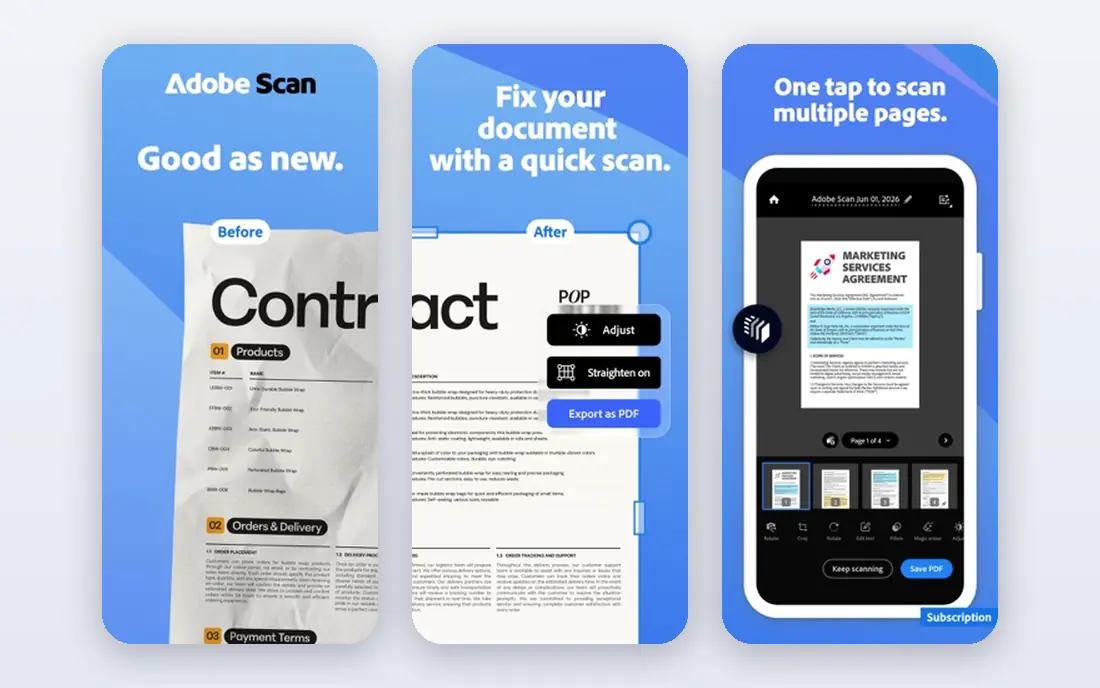
Adobe Scan is our pick for most people because the free tier covers the core job so well. Point the camera at a page and the app finds the edges, flattens the perspective, and tidies up shadows. The result reads like a real scan rather than a photo, and text recognition makes the PDF searchable, which matters when you need to find a contract clause months later.
The trade-off sits in the wider Adobe world. Signing, heavy PDF editing, and extra cloud storage push you toward paid Acrobat plans, and you need an Adobe account before you can start. For everyday scanning, though, the free version is hard to beat, and files move easily into Adobe Document Cloud or your own storage.
- Clean automatic edge detection
- Searchable text in PDFs
- No watermark on free scans
- Advanced editing needs a paid Acrobat plan
- An Adobe account is required
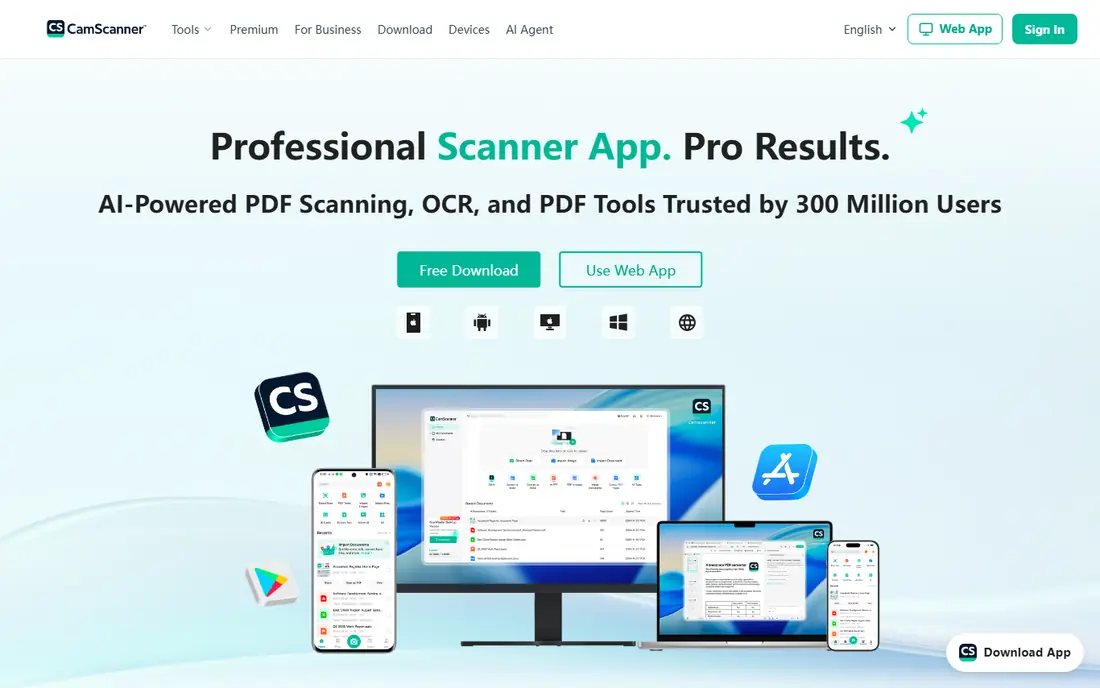
CamScanner packs more tools into one place than most rivals. Beyond basic scanning, it offers text extraction, document conversion, and editing features that suit people who process a lot of paperwork. Batch scanning keeps multi-page documents moving, and sharing to email or cloud apps takes only a few taps.
The free version comes with ads, and the more useful extras sit behind a subscription, so check the current price before you pay. CamScanner also faced a malware incident years ago, which still colors its reputation, so privacy-minded users may prefer a simpler rival. If you want one app that does nearly everything, it remains a strong option.
- Wide set of document tools
- Batch scanning
- Easy sharing options
- Free version shows ads
- Some features need a subscription
- Past privacy concerns put some users off
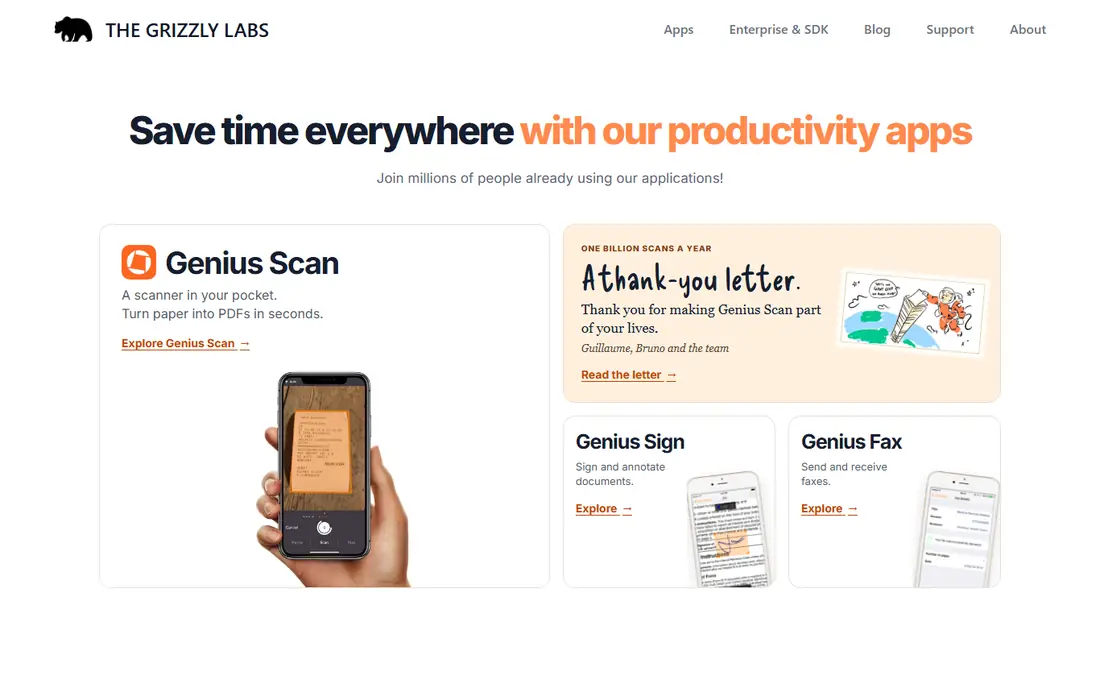
Genius Scan is the quiet workhorse of this list. It opens fast, detects pages well, and exports clean PDFs without stamping a watermark on free scans. That alone makes it a good choice for receipts, school forms, and the odd contract you need to send on quickly.
The catch is that text recognition and some smarter features require the paid upgrade, which is sold as a one-time purchase rather than a monthly charge. People who dislike subscriptions will like that model. If you live inside a particular cloud service, though, Genius Scan feels less connected than Adobe Scan or Dropbox.
- No watermark on free scans
- Fast and light
- One-time upgrade instead of a subscription
- Text recognition needs the paid tier
- Cloud features are less deep than Adobe or Dropbox
SwiftScan, formerly Scanbot, suits people who scan constantly while traveling or working away from a desk. Capture feels quick, edge detection is reliable, and syncing to cloud storage keeps documents available on other devices. The design is clean, and multi-page documents are easy to manage.
The free tier is the weak point, since scans carry a watermark and text recognition requires payment. That makes SwiftScan a better fit as a paid tool than as a free one. If you scan daily and value speed, the subscription can pay for itself in saved fiddling.
- Polished interface
- Quick capture
- Good cloud sync options
- Free scans carry a watermark
- Text recognition sits behind a subscription
Apple Notes is easy to overlook because it is not marketed as a scanner at all, yet it handles everyday scanning well. Open a note, tap to scan, and the phone captures the page, straightens it, and stores it as a PDF inside the note. For a boarding pass, a receipt, or a form, that is often all you need.
The limits show up when volume grows. Notes is not a document manager, so sorting, tagging, and searching across hundreds of scans gets awkward, and Android users cannot use it at all. Still, for iPhone owners who scan a few pages a week, it costs nothing extra and requires no new account.
- Built into iOS and iPadOS
- No extra app needed
- Scans save straight into notes
- Only on Apple devices
- Document management is basic
- No dedicated scanner features
Google Drive adds a scan button to an app many Android users already have. Tap it, capture the page, and the scan saves as a PDF in your Drive, ready to share or file. Search inside Drive can find text in scanned PDFs, which helps when your archive grows.
Dedicated apps offer finer control over image cleanup and batch handling, and Drive will not match them page for page. The advantage here is simplicity: no new app, no new account, and your scans sit where your other files already live. For students and office workers on Google Workspace, that convenience counts for a lot.
- Scanning built into the Drive app
- Files land straight in Drive
- No separate subscription
- Scanner controls are simpler than dedicated apps
- Storage limits depend on your Google account
Dropbox takes a similar approach to Google Drive, folding a document scanner into its main mobile app. Capture a page and it lands in the Dropbox folder you choose, where sharing links and folder permissions work as usual. Teams that already run on Dropbox will find this the path of least resistance.
Like other built-in scanners, it lacks the deeper editing and text tools of dedicated apps, and free Dropbox storage fills up faster than some rivals allow. If your documents already live in Dropbox, though, scanning straight into that system beats exporting from a separate app every time.
- Scans go directly to Dropbox
- Good sharing controls
- Works alongside existing folders
- Scanner features are basic
- Generous storage needs a paid Dropbox plan
TurboScan keeps things deliberately simple. It captures pages quickly, applies automatic perspective correction, and exports multi-page PDFs without a maze of menus. That focus appeals to people who find bigger apps cluttered and just want a clean scan to send on.
The downside of that simplicity is thinner organization. Tagging, searching, and managing large archives are not its strengths, and the full feature set requires a paid upgrade. Check the current price in your app store before buying. For occasional scanning with a minimum of fuss, TurboScan does the job well.
- Focused on fast capture
- Straightforward PDF export
- Email and cloud sharing
- Fewer organization tools than larger rivals
- Paid upgrade needed for the full feature set
How we picked these
We compared official feature pages, pricing pages, and app store listings for the leading scanner apps, and we favored apps that are available and supported now. Each app had to produce straight, readable PDFs from phone photos, offer a sensible free tier or a clear price, and come from a vendor whose site and app listings we could verify. We did not claim hands-on testing we did not do, and we left out apps that have been retired or that no longer accept new downloads.
What to check before you choose a scanner app
Start with how often you scan. A few pages a week need nothing more than a built-in tool such as Apple Notes or Google Drive, while daily scanning rewards a dedicated app with batch capture and better cleanup. Next, check text recognition: searchable PDFs save real time when you file taxes or keep contracts, so find out whether that feature is free or paid before you build an archive around an app.
Storage and sharing come next. If your files live in Drive, Dropbox, or Adobe cloud, pick a scanner that sends pages there without extra steps. Finally, look at the export quality on a long document, not just a single crisp page. Shadows, curved book pages, and faint receipts expose weak cleanup fast, and a free trial or free tier lets you test those cases with your own paperwork before you pay.
Free versus paid scanning
Free tiers suit light use, but watch for watermarks, ads, and limits on text recognition. A one-time purchase often beats a subscription for people who scan in bursts, while a subscription makes sense when you need cloud sync and regular feature updates. Add up what you actually use rather than paying for a bundle of tools you will never open.
Privacy and document safety
Scans often contain bank details, medical forms, and signatures, so check where processing happens and whether files stay on your device or upload to a cloud. Read the privacy policy of any app you trust with sensitive pages, and prefer apps that let you store scans locally when you need that control.
Frequently asked questions
What is the best free PDF scanner app?
Adobe Scan is our pick for most people, since its free tier produces clean scans and searchable PDFs without a watermark. Apple Notes and Google Drive are also strong free options if you already use those platforms. The best choice depends on your phone and where you want your scans to live.
Do scanner apps really replace a flatbed scanner?
For most everyday documents, yes. A phone scanner handles receipts, forms, and contracts well, especially with good light and a flat surface. A flatbed scanner still wins for photos, fragile pages, and very high-volume archiving, where consistent quality and batch feeding matter more.
What is the best document scanner software for a business?
Businesses that scan in volume should look at dedicated apps with batch capture, cloud sync, and text recognition, such as Adobe Scan or SwiftScan, and pair them with a document management system. Check whether your team needs shared folders, retention rules, or audit trails before choosing, since those needs change the pick.
Is there a best scanner app for documents on Android?
Google Drive scanning is the simplest free option on Android, and Adobe Scan is the strongest dedicated app, with good cleanup and searchable PDFs. CamScanner and Genius Scan are also solid choices, so test the free tier of each with your own documents before paying.
Can scanner apps read handwriting?
Most scanner apps capture handwriting as an image, but turning it into editable text is less reliable than printed text recognition. If handwritten notes matter to you, look for an app that advertises handwriting support and test it on your own writing, since accuracy varies a lot by handwriting style.
Sources we checked (8)

Online Jobs is an independent blog about careers, online work, learning new skills and the tools that help people earn. More about us.
Keep reading
All posts
Zoom Alternatives
Zoom alternatives compared for 2026: Google Meet, Microsoft Teams, Webex, Jitsi and more for free calls, large meetings and webinars for teams and classrooms.
Which Software Is Best for Data Entry
Compare the best data entry software for forms, OCR scanning, and spreadsheets, with free plans, pricing, and honest limits for each tool before you commit.
What's the Best App to Read PDFs
Find what's the best app to read PDFs in 2026, from Adobe Acrobat Reader and Foxit to PDF Expert and Xodo, with free options and honest limits for every device.