Best Document Management Software in 2026: 9 Tools Compared


Teams already on Microsoft 365 · Starting price: See website
How we put this together: we compare official feature and pricing pages, app store listings, privacy policies and public user reviews. Prices change, so check the provider's site before you pay.
Key takeaways
- Microsoft SharePoint gives the best value for teams already paying for Microsoft 365, since document libraries, versions, and permissions are already included.
- M-Files, DocuWare, and Laserfiche suit regulated work best, with metadata, workflows, and retention controls that go past simple file storage.
- Box and Egnyte suit teams that need strong sharing controls and governance without running their own servers.
- Google Drive, Dropbox Business, and Zoho WorkDrive suit smaller teams that want a fast start and simple sharing.
- Before you buy, test search, permissions, and version restore on your own messy files, not on a clean demo set.
Quick comparison
| Name | Who it suits | Starting price | Free option | |
|---|---|---|---|---|
| Microsoft SharePoint | Teams already on Microsoft 365 | See website | Free trial | Visit |
 Box Box | Secure cloud content sharing | See website | Free trial | Visit |
 M-Files M-Files | Metadata-driven document control | See website | Free trial | Visit |
 DocuWare DocuWare | Paper-heavy workflow automation | See website | Free trial | Visit |
 Laserfiche Laserfiche | Records and compliance work | See website | Free trial | Visit |
 Egnyte Egnyte | Hybrid cloud and on-premises storage | See website | Free trial | Visit |
 Google Drive Google Drive | Google Workspace collaboration | See website | Yes | Visit |
 Dropbox Business Dropbox Business | Simple sync and sharing | See website | Free trial | Visit |
 Zoho WorkDrive Zoho WorkDrive | Low-cost team document storage | See website | Yes | Visit |
The best document management software
We looked for tools that store files, control who can see them, keep a clear version history, and help a team find the right document fast. The list below mixes full document systems with simpler cloud storage tools, because many small teams do not need a full compliance system yet.
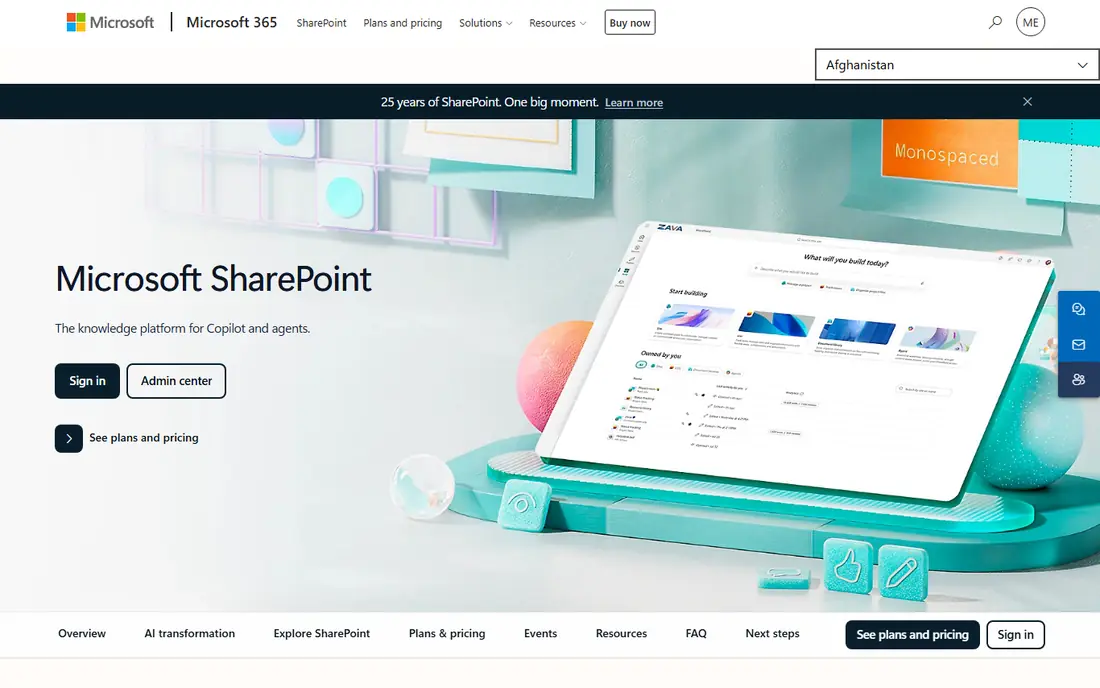
SharePoint often wins by default, and that is not a bad thing. If your team already pays for Microsoft 365, you already own document libraries with version history, check-in and check-out, metadata columns, and permissions down to the single file. Files shared in Teams channels live in SharePoint, so many teams adopt it without a separate rollout. The catch is governance. Without an owner for site structure, naming, and retention, libraries can turn into the same shared-drive chaos they were meant to replace. Give one person the job of keeping the structure tidy, set a small set of metadata fields, and SharePoint is hard to beat on value.
- Included with Microsoft 365 plans
- Strong version history and permissions
- Deep Word, Excel, and Teams integration
- Libraries can grow messy without clear ownership
- Setup and governance take real admin time
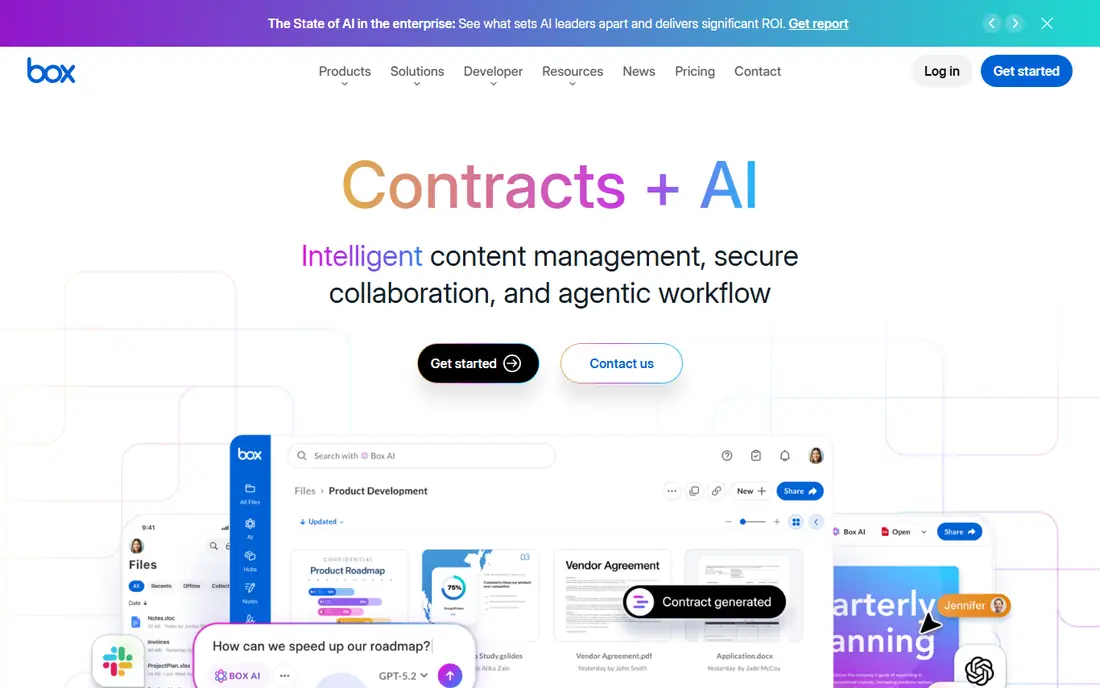
Box fits teams that share sensitive files inside and outside the company and need to prove who saw what. Admins can set folder permissions, sharing links with expiry, and classification rules, while staff still get a familiar folder view on desktop and mobile. Box also adds content tools such as e-signatures and document analysis on higher plans, which can cut the number of separate tools a team buys. The honest catch is price structure. The entry plans cover storage and sharing well, but the deeper security, retention, and workflow controls sit higher up, so check the plan table against your actual compliance needs before you sign.
- Granular sharing and access controls
- Strong compliance and admin tools
- Broad app integrations
- Higher tiers are needed for the full governance set
- Per-user pricing adds up on larger teams
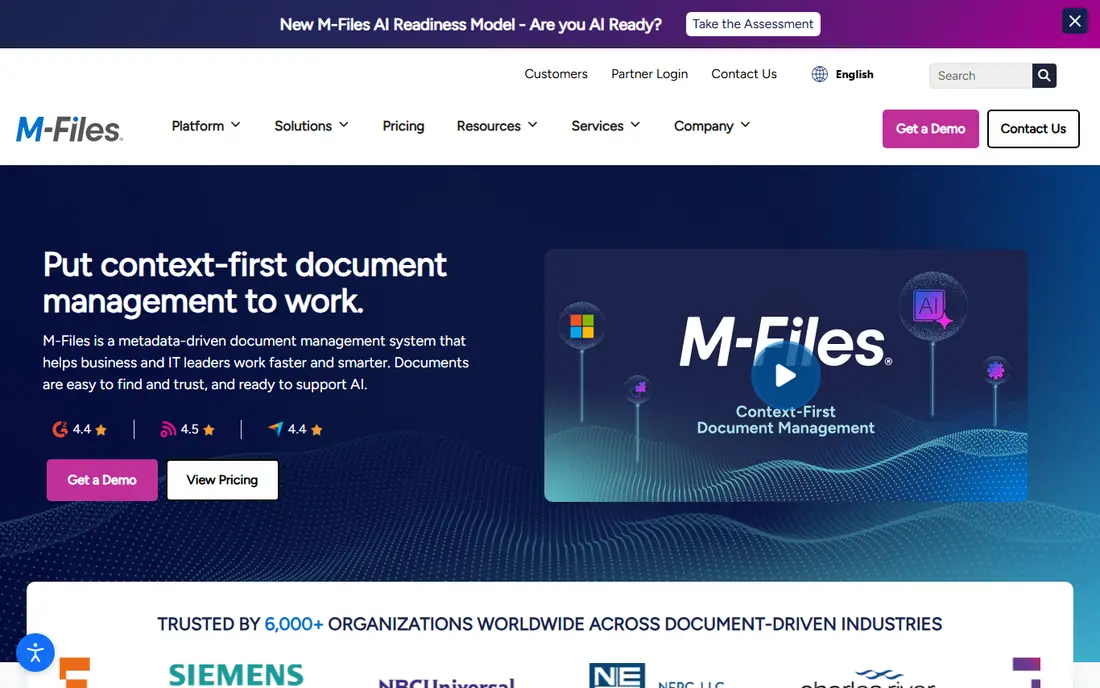
M-Files takes a different path from folder-based tools. Instead of asking staff to remember where a file was saved, it organises documents by metadata such as client, project, document type, and status, so the same file can appear in every view where it belongs. That approach pays off when a team handles contracts, case files, or project records that need consistent naming and approval steps. Workflows can route a document for review, lock a version, and keep an audit trail of changes. The trade-off is upfront design work. If you rush the metadata model, staff will still struggle to find things, so plan a short pilot with one document type and fix the fields before you roll it out widely.
- Finds files by what they are, not where they sit
- Workflow and automation tools
- Strong Microsoft 365 integration
- Takes time to design metadata well
- Smaller teams may find it more system than they need
DocuWare suits offices that still receive paper, scanned forms, and emailed invoices and need them filed and routed without manual sorting. Its capture tools can read key fields from a document, index it, and send it through an approval chain, which suits finance and operations teams well. Once a document is stored, staff can search by indexed fields rather than hunting through folders, and permissions control who can view or edit each file type. The catch is that pricing is quote-based, so you cannot compare it at a glance with per-user tools. Ask for a quote tied to your user count, storage, and workflow volume, and include any capture hardware or scanning volume in that request.
- Strong document capture and indexing
- Invoice and approval workflows
- Cloud and on-premises options
- Quote-based pricing makes quick cost comparison hard
- Setup benefits from vendor or partner help
Laserfiche is built for organisations that must keep records for set periods, prove how a record was handled, and dispose of it on schedule. It covers capture, workflow, forms, and records management in one system, which helps regulated teams avoid stitching together separate tools for each step. Automated processes can move a record from intake to approval to archive with a clear trail at each stage. That depth comes with a heavier setup than a simple cloud drive, and smaller teams may find the scope more than they need. It fits best when compliance, retention, and audit evidence are core requirements rather than nice extras.
- Full records lifecycle and retention controls
- Process automation
- Strong audit trails
- Enterprise scope and minimums can price out very small teams
- Implementation takes planning
Egnyte suits teams with a foot in both worlds, such as firms with large design or media files on local servers and remote staff who need cloud access to the same content. It can sync local folders to the cloud, apply consistent permissions, and give admins visibility over sharing and sensitive content. Built-in detection for unusual file activity adds a layer of protection that plain sync tools do not offer. The catch is tiering. Entry plans cover storage and sharing, while the stronger governance and compliance controls sit on higher plans, so map your must-have controls to the plan list before you choose.
- Works across cloud and local storage
- Ransomware detection and governance tools
- Fast file access for large files
- Plan tiers differ a lot on governance features
- Small teams may not use the full platform
Google Drive is the simplest pick for teams that already live in Gmail and Google Docs. Sharing is quick, real-time editing works well, and most staff need almost no training to start. A free personal tier also makes it a useful place for solo workers and very small teams to organise personal documents. The limit shows up when a business needs formal retention rules, strict approval chains, or deep audit reporting. Drive can handle everyday document work well, but teams with strict compliance duties should pair it with clear folder rules or pick a dedicated system from higher up this list.
- Free personal tier
- Fast real-time collaboration in Docs and Sheets
- Simple sharing
- Light formal records controls compared with dedicated systems
- Storage limits depend on the Workspace plan
Dropbox Business suits teams that want files to just work across laptops, phones, and the web. Its desktop sync is fast, version restore is easy to find, and sharing a folder with a client takes seconds. Admin tools cover team folders, permissions, and activity, which is enough for many small and mid-size teams. The catch is scope. If you need invoice approval chains, retention schedules, or metadata-driven filing, Dropbox will feel thin next to DocuWare or Laserfiche. Buy it for reliable storage and sharing, not as a full records platform, and you will not be disappointed.
- Fast and reliable desktop sync
- Easy file recovery and version restore
- Simple sharing controls
- Less workflow and records depth than dedicated systems
- Pooled storage needs checking on larger teams
Zoho WorkDrive is our pick for budget-conscious teams that still want real document basics rather than a bare shared folder. Team folders, file locking, version history, and admin controls cover the daily needs of a small office, and the price stays low as the team grows. It also fits naturally for teams already using Zoho apps for mail, CRM, or books. The trade-off is depth. Integrations and workflow automation are thinner than the enterprise tools on this list, so larger teams with complex approval chains should test those limits early. For a small business moving off personal drives, it is a strong and low-risk step up.
- Low entry cost for small teams
- Team folders and file versioning
- Fits well with other Zoho apps
- Smaller integration set than Box or SharePoint
- Advanced workflow features are limited
How we picked these
We compared official feature pages, pricing pages, app store listings, privacy and security pages, and public user reviews for each tool. We gave weight to search quality, version history, permissions, sharing controls, retention and audit features, and how well each tool fits small teams as well as larger ones. We did not run hands-on trials of every plan, and prices change often, so we mark pricing as See website where we could not verify a current vendor price at the time of writing. Check the vendor pricing page before you buy, and use a free trial to test your own files.
What to check before you choose
A document tool fails in daily use, not in the demo. Use this checklist to test the shortlist on your own work.
Search and filing
Test search with misspelled file names, scanned PDFs, and old files with vague names. A tool that only works on tidy demo files will waste hours later. Check whether search covers file contents, metadata, and scanned text, and whether staff can filter by client, date, or document type.
Permissions and sharing
Check who can view, edit, share, and delete each folder, and what happens when someone leaves the team. Look for link expiry, download controls, and an activity log. If you share files with clients, test the client view yourself before you invite a real client.
Versions, retention, and exit
Confirm how far back version history goes, how you restore an older version, and how long deleted files stay recoverable. Ask about retention rules and how you export your files if you leave. A tool that locks your documents in is a long-term cost, even when the monthly price looks low.
Cost and rollout
Add up per-user fees, storage overages, and any implementation help. Start with one team and one document type, fix naming and permissions, then expand. A slow rollout with clear ownership beats a fast rollout that no one trusts.
Frequently asked questions
What is the best document management software for small business?
For most small teams, Google Drive, Dropbox Business, or Zoho WorkDrive cover daily storage and sharing at low cost. If your team already uses Microsoft 365, SharePoint is often the best value. Move to M-Files, DocuWare, or Laserfiche when you need formal workflows, retention, or audit trails.
What is the best personal document management software?
Google Drive and Dropbox both work well for personal use, with free tiers, mobile apps, and simple sharing. Zoho WorkDrive also offers a free tier for individuals and small teams. Pick the one that matches the apps you already use daily, so filing stays a habit rather than a chore.
What is the difference between document management software and cloud storage?
Cloud storage mainly stores and syncs files. Document management software adds metadata, version control, permissions, workflows, retention, and audit trails on top of storage. Many teams start with storage and move to a full system when compliance or approval work grows.
Do I need a dedicated system, or is Google Drive enough?
Google Drive is enough when your main needs are storage, sharing, and collaboration. You need a dedicated system when you must enforce retention, route approvals, control access by document type, or prove how a record was handled. If those needs are rare, clear folder rules can bridge the gap for a while.
How much does document management software cost?
Costs range from free tiers for personal and small-team use to quote-based enterprise pricing for regulated systems. Per-user plans are common, and storage, governance features, and implementation help all affect the total. Always ask for the total annual cost for your user count before you compare headline prices.
What are the best document management tools for paper-heavy offices?
DocuWare and Laserfiche lead for paper-heavy offices, thanks to capture, indexing, and workflow tools that turn scans into searchable, routable records. M-Files also works well when scanned records need metadata and approval steps. Test capture quality on your own scanned forms before you commit.
Sources we checked (9)

Online Jobs is an independent blog about careers, online work, learning new skills and the tools that help people earn. More about us.
Keep reading
All posts
DocuSign Alternatives
We compared the best DocuSign alternatives on price, free plans, templates, audit trails and ease of use, including free DocuSign alternatives for small teams.
Best Spend Management Software
Looking for the best spend management software? We compared 8 platforms on cards, approvals, travel and price to help your finance team pick the right one.

Best Recruitment Software for Direct Hire
Looking for the best recruitment software for direct hire? We compared 8 ATS tools on price, pipelines, interviews and hiring tools to pick the right one.