Best Design Software for Beginners in 2026: 8 Tools Compared

How we put this together: we compare official feature and pricing pages, app store listings, privacy policies and public user reviews. Prices change, so check the provider's site before you pay.
Key takeaways
- Canva is the easiest all-round start for beginners, thanks to templates and a genuinely useful free plan.
- Adobe Express and VistaCreate suit quick social graphics, while Pixlr suits browser-based photo editing.
- Figma suits beginners who want to learn interface design, and Affinity suits those ready for professional desktop tools.
- GIMP and Inkscape are free, powerful options, but they take longer to learn than template tools.
Quick comparison
| Name | Who it suits | Starting price | Free option | |
|---|---|---|---|---|
 Canva | All-round beginner design | Free | Yes | Visit |
 Adobe Express | Quick branded social graphics | Free | Yes | Visit |
 Figma | Learning interface design | Free | Yes | Visit |
 VistaCreate | Affordable template design | Free | Yes | Visit |
 Pixlr | Browser photo editing | Free | Yes | Visit |
 Affinity | Professional desktop design | Free | Yes | Visit |
 GIMP | Free photo editing | Free | Yes | Visit |
 Inkscape | Free vector illustration | Free | Yes | Visit |
The best design software for beginners
The best graphic design tools for beginners share one trait: you can make something good on day one, without a design degree. We compared official free plans, templates, photo and vector tools, and learning curves, and we kept only tools that exist and work today. Start with the job you need most, such as social posts, logos, or app screens, and pick the tool built for that job.
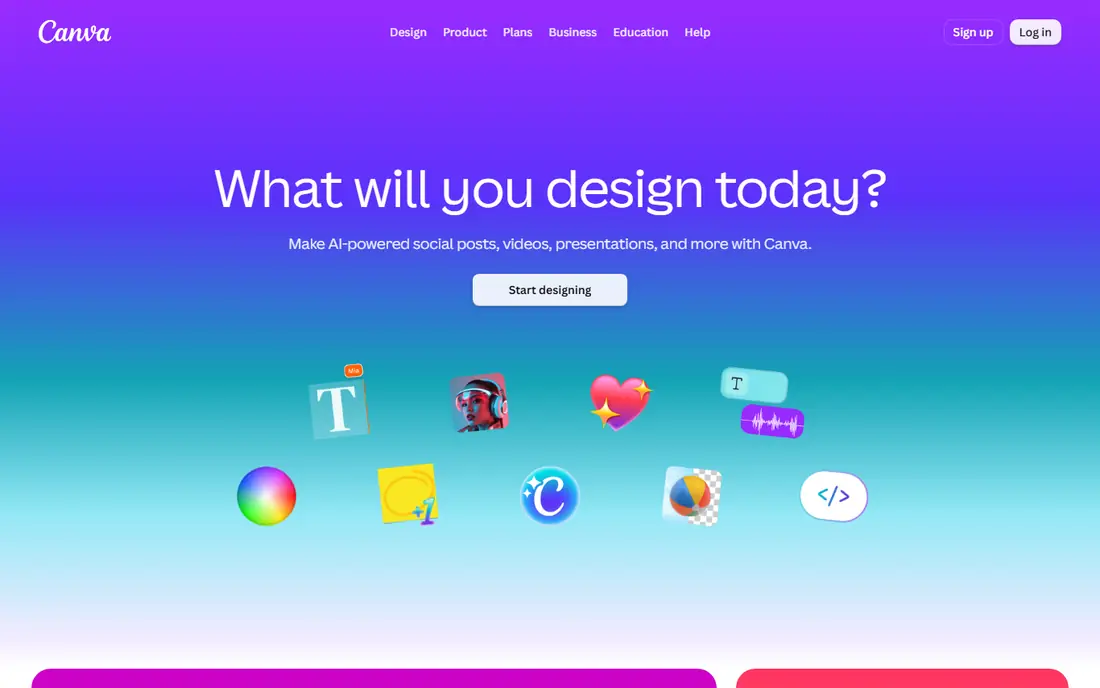
Canva is the reason beginner design feels accessible today. Pick a template for a social post, presentation, flyer, or video, swap in your text and images, and you have a finished design in minutes. The free plan includes the editor, templates, and storage, which is enough for real work, while Pro adds premium content, background removal, and resizing tools.
The limits show when you move beyond templates. Fine typographic control and advanced print setup are weaker than in professional desktop tools, and the best stock and AI features need Pro. For social posts, decks, and marketing graphics, though, Canva is the easiest place to start, and the skills transfer to other tools later.
- Huge template library
- Easy drag-and-drop editor
- Useful free plan
- Best features sit on Pro
- Typographic control is limited for print work
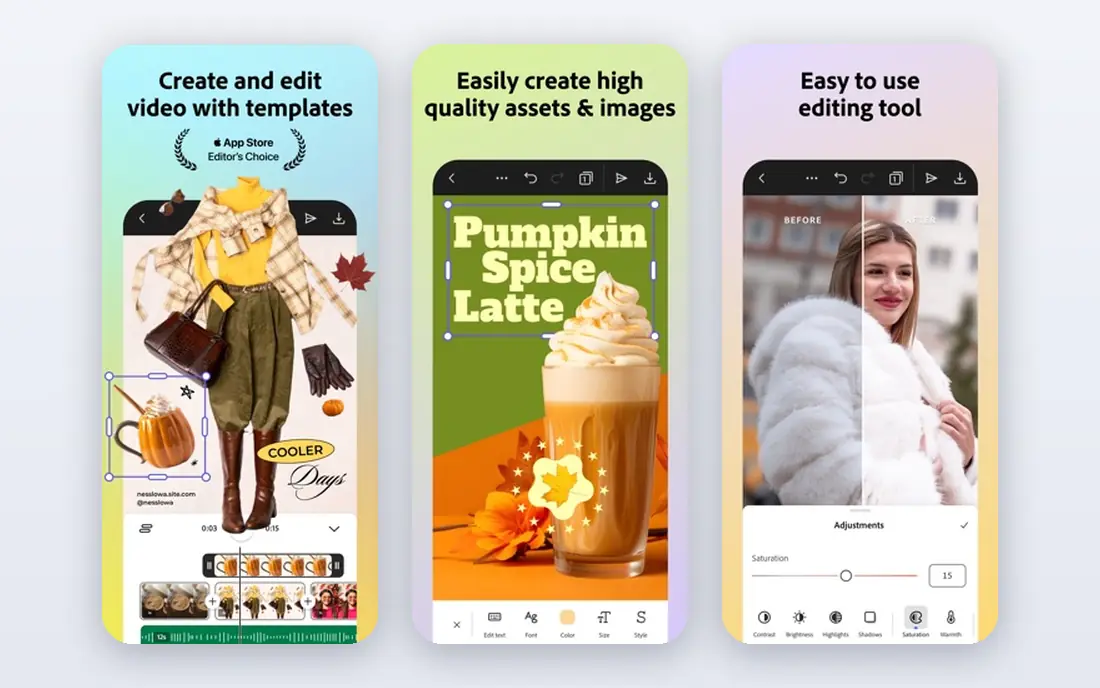
Adobe Express is Adobe answer to quick design, and it suits small businesses that need branded content fast. Templates, brand kits, and one-click resizing help you turn one design into posts for several platforms, and the free plan covers the basics well. Premium assets and advanced features need the paid plan, priced around $9.99 per month in recent listings.
It will not replace Photoshop or Illustrator for detailed work, and that is not its job. If you need a steady stream of clean social graphics and short videos without learning a complex app, Adobe Express is a strong alternative to Canva, especially if you already use Adobe tools.
- Strong templates
- Brand kits
- Quick resizing for social platforms
- Premium assets need a paid plan
- Less depth than full Adobe apps
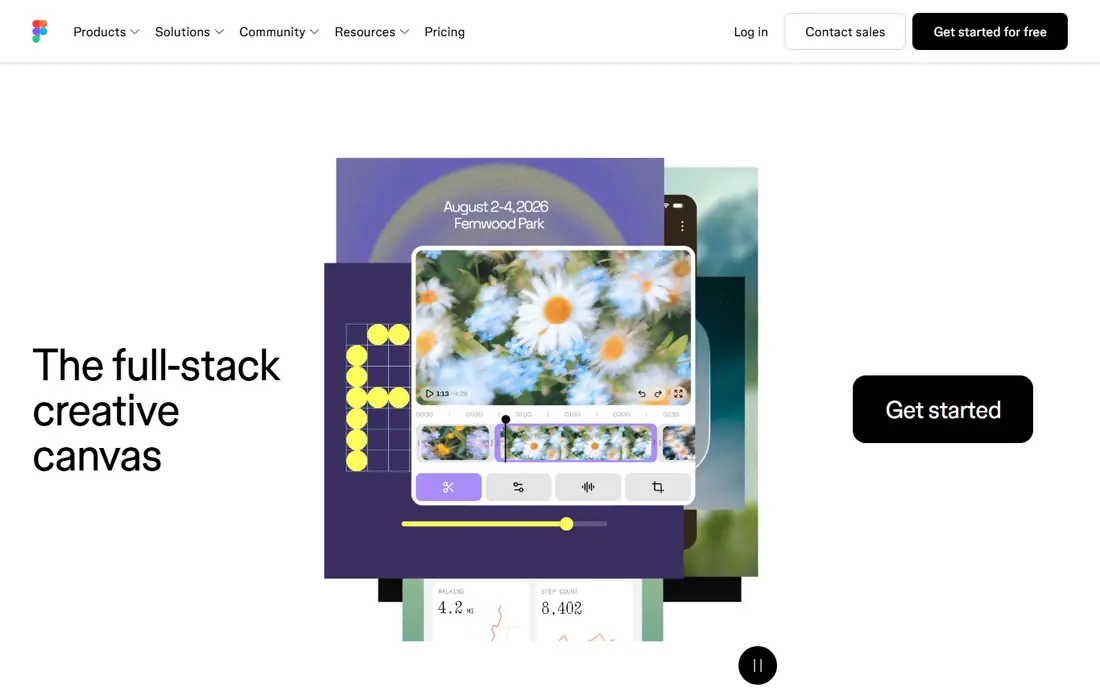
Figma is the best beginner tool for app and website design. The free Starter plan covers drafts and collaboration, and you can design screens, build clickable prototypes, and share them for feedback in the same file. That makes it ideal for students, founders, and junior designers learning interface work.
It is not a template tool for social posts, and it takes longer to learn than Canva, because it expects you to understand layout, components, and responsive behavior. If your goal is to design interfaces or work in a product team, that learning curve is worth it. If you only need social graphics, start with Canva instead.
- Free Starter plan
- Real-time collaboration
- Prototypes and developer handoff
- Takes longer to learn than Canva
- Focused on screens, not print
VistaCreate, formerly Crello, is a solid Canva alternative for template-based design. It offers thousands of templates, animated social posts, and a free Starter plan, with Pro priced around $10 per month on annual billing in recent listings. For a small business that mainly needs social and marketing graphics, it covers the essentials at a fair price.
Its community, tutorials, and third-party integrations are smaller than Canva, so help and templates can feel thinner. If you want the widest library and the most tutorials, Canva still leads. If you want a capable template tool at a lower paid price, VistaCreate is worth trying.
- Large template library
- Animated posts
- Lower Pro price than Canva
- Smaller community and fewer integrations
- Some features need Pro
Pixlr suits beginners who mainly need to fix photos and make simple layouts in a browser. Open the editor, adjust brightness, crop, remove a background, and add text, all without installing software. The free version is ad-supported, and Plus plans start around $1.99 per month on annual billing in recent listings.
It is not a full design suite. Template choice and brand tools are thinner than Canva or Adobe Express, and advanced editing is limited. For photo-first work on a shared computer or a Chromebook, Pixlr is a handy, low-cost option that keeps things simple.
- Works in a browser with no install
- Quick photo fixes
- Low paid price
- Free version is ad-supported
- Fewer design templates than Canva
Affinity, now owned by Canva, offers professional desktop tools for vector illustration, photo editing, and page layout, and it is free with a Canva account according to recent vendor listings. That makes it the best free route into professional design, without a subscription for the core apps.
The trade-off is learning time. Affinity expects you to understand layers, vectors, and print settings, so beginners should expect tutorials and practice before results match Canva speed. Some Canva AI features inside Affinity also need a paid Canva plan. If you want to grow beyond templates, Affinity is the tool to graduate to.
- Desktop-class vector, photo, and layout tools
- Free with a Canva account
- Fast performance
- Steeper learning curve
- AI features in Affinity need a paid Canva plan
GIMP is a free, open-source photo editor that can handle retouching, compositing, and layered files, including Photoshop-format files. It runs on Windows, Mac, and Linux, and a large community offers tutorials and plugins. For a beginner on a zero budget who wants real photo editing power, it is unmatched for price.
The interface feels dated and less guided than Canva or Pixlr, and beginners may need time to learn its workflow. If you only need quick social graphics, a template tool will be faster. If you want to learn photo editing properly without paying, GIMP rewards the effort.
- Completely free and open source
- Powerful photo editing
- Large plugin community
- Interface feels dated
- Learning curve is steep for beginners
Inkscape is the free vector counterpart to GIMP. It excels at logos, icons, illustrations, and scalable graphics in SVG format, which stay sharp at any size. That makes it a good pick for beginners who want to design a logo or brand marks without paying for Illustrator.
Vector editing takes practice, and Inkscape is not a photo editor or a full page-layout tool. Beginners should start with simple shapes, paths, and text, and use tutorials to learn bezier curves and fills. For a free logo and illustration tool, Inkscape is one of the best options available.
- Free and open source
- Strong SVG vector tools
- Good for logos and icons
- Steeper learning curve
- Less suited to photo editing or page layout
How we picked these
We compared official free plans, templates, photo and vector features, and learning curves for design tools that exist and work today. We split the list across template tools, interface design, professional desktop apps, and free open-source tools, so beginners can match the tool to their goal rather than learning a professional app for a simple social post. Prices change often, so check the vendor site before you upgrade from a free plan.
How to start designing without getting stuck
Start with one job, such as a social post or a logo, and pick the simplest tool that does it well. Canva or Adobe Express will get a post done today, while Figma is better for an app screen and Inkscape is better for a logo. Trying to learn three tools at once usually leads to three half-finished designs.
Next, use templates as a starting point, not a finished design. Change the colors, fonts, and images to fit your brand, and keep text short and readable. Check contrast, alignment, and spacing before you publish, since those basics matter more than fancy effects. Export at the right size for each platform, and keep the original file so you can edit later.
Finally, learn in small steps. One tutorial on layers, one on color, and one on typography will improve your work more than a long course you never finish. When templates start to feel limiting, move to Affinity, GIMP, or Inkscape for the specific skill you need, rather than switching tools entirely.
Frequently asked questions
What is the best design software for beginners?
Canva is the best all-round pick for beginners, thanks to templates, an easy editor, and a useful free plan. Adobe Express and VistaCreate are good alternatives for social graphics. Figma is best for learning interface design, while Affinity, GIMP, and Inkscape suit beginners ready for deeper tools.
What are the best graphic design tools for free?
Canva, Adobe Express, Figma, VistaCreate, and Pixlr all offer free plans, while GIMP and Inkscape are completely free and open source. Affinity is also free with a Canva account according to recent listings. Free plans usually limit premium content, storage, or AI features.
Is Canva good for beginners?
Yes. Canva is built for beginners, with templates, drag-and-drop editing, and a free plan that covers real work. Its limits appear in advanced typography and print work, where desktop tools such as Affinity offer more control. For social, presentations, and marketing graphics, Canva is an excellent start.
Should a beginner learn Figma or Canva first?
Learn Canva first if you need social posts, presentations, or marketing graphics quickly. Learn Figma first if you want to design apps, websites, or interfaces, or work in a product team. Many beginners use both: Canva for marketing, Figma for product screens.
Can I design a logo for free?
Yes. Inkscape is a strong free tool for logos, since vector files stay sharp at any size. Canva also offers logo templates for free, though premium elements need a paid plan. For a professional brand, keep the design simple, test it at small sizes, and save the vector file for future use.
Sources we checked (8)

Online Jobs is an independent blog about careers, online work, learning new skills and the tools that help people earn. More about us.
Keep reading
All posts
Zoom Alternatives
Zoom alternatives compared for 2026: Google Meet, Microsoft Teams, Webex, Jitsi and more for free calls, large meetings and webinars for teams and classrooms.
What Is the Best Free Tool to Rotate a PDF
What is the best free tool to rotate a PDF? We compare eight free rotation tools on per-page control, limits, privacy and saved output quality in detail.

What Is the Best AI Dubbing Tool
We compared the best AI dubbing tools in 2026, from ElevenLabs and HeyGen to Rask AI, Dubverse and Veed, for videos and creators in many languages worldwide.