Best Data Recovery Software in 2026: 8 Products Compared


Guided recovery for most people · Starting price: See website
How we put this together: we compare official feature and pricing pages, app store listings, privacy policies and public user reviews. Prices change, so check the provider's site before you pay.
Key takeaways
- Stop using the affected drive at once, and recover files to a different drive, because new writes can overwrite what you want back.
- A free scan and preview is the safest first step, since it shows what a tool can see before you pay.
- Recuva and PhotoRec are strong free starting points, while EaseUS, Disk Drill, and Stellar suit deeper or more complex jobs.
- No software can fix a clicking, dead, or physically damaged drive, and that job belongs to a lab.
- SSD recovery is harder than hard drive recovery because TRIM can erase deleted blocks quickly.
Quick comparison
| Name | Who it suits | Starting price | Free option | |
|---|---|---|---|---|
| EaseUS Data Recovery Wizard | Guided recovery for most people | See website | Yes | Visit |
 Disk Drill Disk Drill | Mac and Windows preview first recovery | See website | Yes | Visit |
 Recuva Recuva | Quick free Windows undelete | Free | Yes | Visit |
 Stellar Data Recovery Stellar Data Recovery | Photos, video, and documents | See website | Yes | Visit |
 Wondershare Recoverit Wondershare Recoverit | Media recovery and repair | See website | Yes | Visit |
 PhotoRec PhotoRec | Free deep file carving | Free | Yes | Visit |
 R-Studio R-Studio | Technical and RAID recovery | See website | Free trial | Visit |
 MiniTool Power Data Recovery MiniTool Power Data Recovery | Simple recovery with a free allowance | See website | Yes | Visit |
The best data recovery software
Losing files is stressful, and the wrong first move can make it worse. The tools below cover simple deletions, formatted drives, lost partitions, and damaged media, but none of them is magic. Use the free scan first, check the preview, and only pay when you can see the files you need.
EaseUS Data Recovery Wizard
Who it suits: Guided recovery for most people
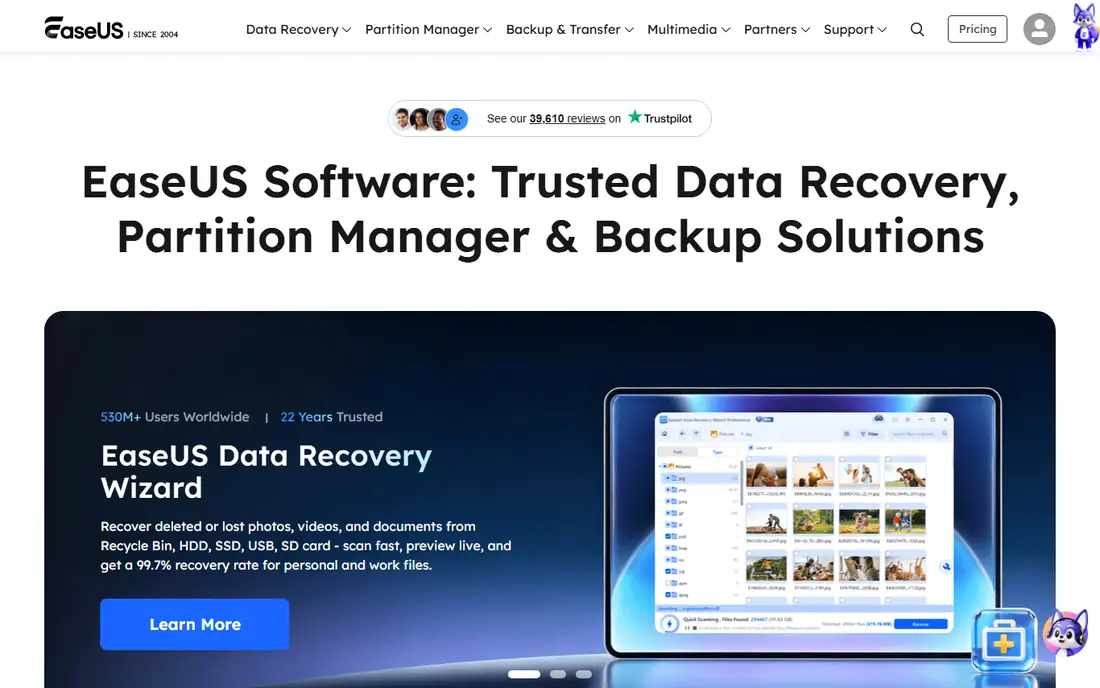
EaseUS is our first pick for most home users because it explains itself as it goes. You pick the drive, run a scan, preview the files, and then choose what to save. That order matters when you are stressed, since it stops you paying for a tool that cannot see your files. It handles deleted files, formatted drives, lost partitions, and files from external drives and memory cards in one place.
The main limit is the free tier. It is useful for a small recovery, but a large job will need a paid plan. Deep scans are also slow on a full drive, so start with a quick scan and only run a deep scan if the files do not appear. Always save recovered files to a different drive from the one you scanned.
- Clear step by step workflow for beginners
- Works on Windows and Mac
- Preview before recovery and deep scan for harder cases
- Free recovery amount is limited
- Deep scans can take a long time on large drives
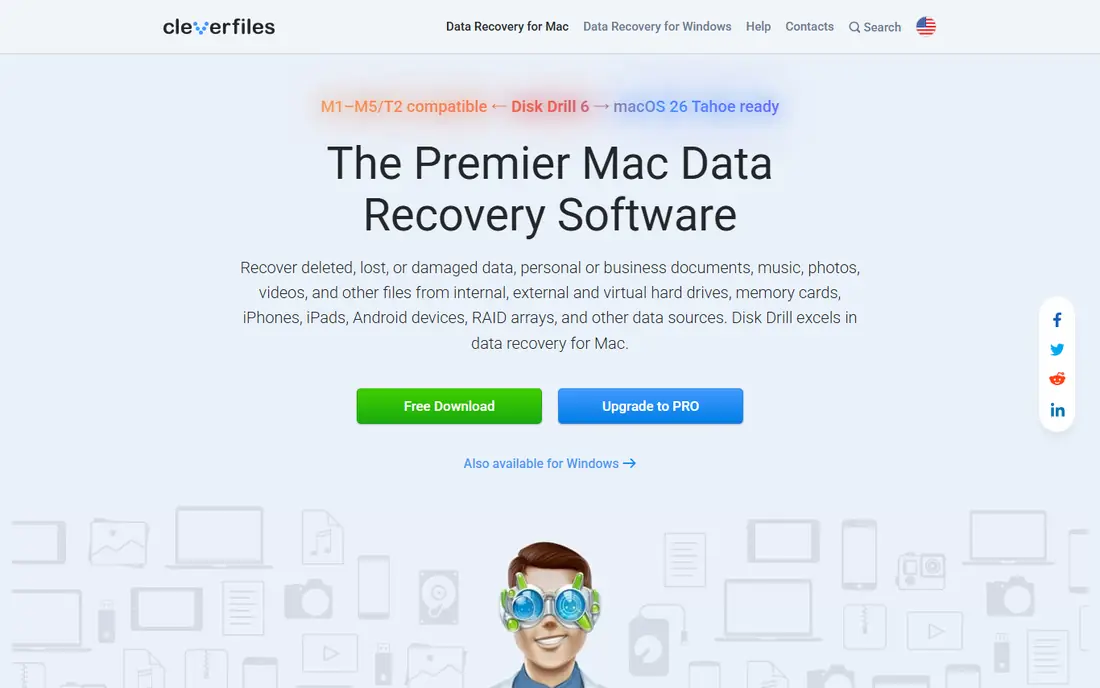
Disk Drill is a good second option, especially for Mac users who want a polished tool. The scan and preview are free in the usual setup, which lets you judge the result before spending money. It supports a wide range of file types, and the interface makes it clear which files are found, which are previewable, and which look damaged.
The catch is the same as with most paid tools: preview is free, recovery is not. Disk Drill also cannot help a drive with a physical fault, and running long scans on a failing drive can make things worse. If the drive makes odd noises or keeps disconnecting, stop and get lab advice instead of running scan after scan.
- Clean interface and wide file type support
- Preview before you pay
- Covers internal drives, external drives, cards, and some RAID setups
- Full recovery needs a paid licence
- Deep scans can be slow on large or failing drives
Recuva is still the best place to start on Windows when files were deleted recently and the drive is healthy. The wizard asks what kind of file you lost and where it was, then scans and lists what it can find. For a file deleted from the Recycle Bin or a USB stick, that is often all you need, and the free version does the job without a licence.
Recuva is not the right tool for every case. It struggles with badly corrupted file systems, formatted drives with heavy overwriting, and RAID setups. Development has also been slower than some rivals. Use it first for simple deletions, and move to a deeper tool if the files do not appear or the preview looks broken.
- Free version covers many basic deletions
- Simple wizard for beginners
- Deep scan mode for harder simple cases
- Windows only
- Weaker on badly corrupted drives and complex partition loss
Stellar suits people who lost a mix of photos, video, and documents rather than a single file type. The interface is structured around the kind of loss, such as deletion, formatting, or a lost partition, which helps you pick the right scan. Preview is a real benefit here, since photos and video are hard to judge from file names alone.
Pricing is the main drawback. The basic edition may not cover every case, and the higher editions cost more. That is fine if you need video repair or RAID support, but wasteful for a single deleted document. Check which edition covers your file type and drive type on the Stellar site before you buy.
- Wide device and file type coverage
- Preview before recovery
- Editions for photos, video, and more serious cases
- Paid tiers can get expensive as needs grow
- Scan time rises on large drives
Recoverit is worth a look when the lost files are mainly photos and video. It scans a wide range of storage, including internal drives, external drives, cards, and cameras, and it adds repair tools for video files that recover but will not play cleanly. That second step matters, because a recovered video file is not useful if it stutters or stops halfway through.
The free tier will only take you so far, so treat the scan as a test. If the preview shows your clips, check whether the paid plan covers the repair features you need, not just the recovery itself. As with every tool here, save the output to a different drive and do not keep using the source drive while you work.
- Strong focus on photo and video recovery
- Media repair tools for damaged files
- Clear scan and preview workflow
- Free recovery is limited
- Full media repair features sit in paid plans
PhotoRec is the most powerful free option for technical users, and the least friendly. It works by scanning the raw data on a drive for known file patterns, which means it can find files even when the directory is gone. That makes it useful after formatting or corruption that defeats simpler tools. It is also free, with no recovery cap to worry about.
The price is usability. The interface is text based, the output needs sorting, and recovered files often come back with generic names. You will spend time opening files to work out what they are. Pair PhotoRec with TestDisk from the same project if the problem is a lost partition rather than lost files. Beginners should try Recuva or EaseUS first and keep PhotoRec as a backup plan.
- Free and open source
- Works on Windows, Mac, and Linux
- Can find files even when the file system is badly damaged
- Text based interface that puts off beginners
- Recovered files often lose their original names and folder structure
R-Studio is a professional grade tool, not a one click wizard. It gives technicians control over RAID parameters, disk imaging, hex viewing, and file system repair, which is why it appears in IT toolkits. If you know what a RAID array is, what file system your drive uses, and why imaging first matters, R-Studio rewards that knowledge with better control.
Home users should think twice before starting here. The options are dense, and a wrong setting can waste hours. It is also priced for professional use rather than a single deleted photo. Choose R-Studio when the job is complex, the drive setup is unusual, or a consumer tool has already failed and you need deeper control.
- Deep control over scans, RAID rebuilds, and damaged file systems
- Strong for IT staff and advanced users
- Supports many file systems
- Interface and options can overwhelm home users
- Pricing and setup take more study than consumer tools
MiniTool Power Data Recovery
Who it suits: Simple recovery with a free allowance
MiniTool is a solid middle ground between Recuva and the larger paid tools. The interface is clear, the scan steps are easy to follow, and the free tier lets you recover a small amount of data without paying. That makes it a good test tool: if MiniTool finds your files, you can decide whether the paid plan is worth it for the full amount.
The free allowance will run out fast on a photo library or a video folder, so do not start a large recovery expecting it to finish free. MiniTool is also not the best choice for RAID or badly damaged file systems. Use it for everyday deletion and formatting cases on a healthy drive, and move on if the scan looks thin.
- Clean interface for beginners
- Free tier for small recoveries
- Covers deletion, formatting, and lost partitions
- Free allowance is small for large jobs
- Less deep than R-Studio or PhotoRec for complex cases
How we picked these
We compared official feature pages, pricing pages, app listings, and public reviews for each tool. We looked at platform support, free scan and preview rules, file type coverage, and whether the tool handles formatted drives, lost partitions, and external media. We also weighed ease of use against depth, since a simple tool that finds your file beats a powerful tool you cannot operate. We did not run lab tests for this guide, and we did not count a feature unless the vendor page or documentation supported it.
Before you scan: what actually helps
Stop writing to the drive
Every new file, download, or install on the affected drive can overwrite deleted data. If the drive is your system drive, install the recovery tool on a different drive or use a portable version. If the drive is external, unplug it until you are ready to scan.
Image first when the drive is suspect
If the drive is slow, disconnecting, or showing errors, make a disk image if you can and scan the image instead. That reduces stress on the original drive. If the drive clicks, buzzes, or does not spin, turn it off and contact a recovery lab. Software cannot repair a mechanical fault.
Check backups before you pay
Many losses are already covered by a cloud backup, a Time Machine backup, a File History copy, or a photo sync service. Check those first, because a backup restore is faster and safer than a scan. After recovery, set up a backup so the next loss is a restore job, not a rescue job.
Frequently asked questions
What is the best data recovery software for PC?
EaseUS Data Recovery Wizard is our pick for most PC users because the workflow is clear and the preview step stops wasted spending. Recuva is the best free first try on Windows for simple deletions, while Disk Drill and Stellar are strong when you need a wider preview or media focus.
Can I recover files from a formatted drive?
Sometimes, yes, if the data has not been overwritten. A quick format often leaves data in place until new files reuse the space, while a full format or heavy reuse makes recovery much less likely. Scan as soon as you notice the loss, and save results to a different drive.
How much free recovery do these tools offer?
It varies by tool and changes over time, so check the vendor page for the current free allowance. Recuva and PhotoRec are free for basic use, while EaseUS, Disk Drill, Stellar, Recoverit, and MiniTool offer a free scan with a limited free recovery amount or a preview only model.
Can software recover files from an external hard drive?
Yes, if the drive is detected by your computer and the fault is logical rather than physical. Connect the drive directly where possible, avoid USB hubs during a long scan, and save recovered files to a different drive. If the drive is not detected at all, try another cable and port before assuming the data is gone.
Why is SSD recovery harder?
Modern SSDs use TRIM, which can erase deleted blocks soon after deletion. That means a file deleted from an SSD may be gone within minutes, while the same file on a hard drive could survive until overwritten. Act fast on SSDs, and do not rely on recovery software as a backup plan for SSD data.
When should I use a recovery lab instead?
Use a lab when the drive clicks, does not spin, smells burnt, has water or drop damage, or is not detected after basic cable checks. Stop powering the drive in those cases, because repeated attempts can cause more damage. Lab recovery costs more, but it is the only safe route for physical faults.
Sources we checked (8)

Online Jobs is an independent blog about careers, online work, learning new skills and the tools that help people earn. More about us.
Keep reading
All posts
Best Free PDF Split Software
Find the best free PDF split software in 2026. We compare 8 free tools for splitting PDFs by pages, ranges, bookmarks, and size offline or online in detail.

Zoom Alternatives
Zoom alternatives compared for 2026: Google Meet, Microsoft Teams, Webex, Jitsi and more for free calls, large meetings and webinars for teams and classrooms.

Workday Alternatives
We compared the best workday alternatives for HR, payroll, and global hiring, from BambooHR and Gusto to Rippling, Deel, and HiBob for growing teams in 2026.