Best Collage Maker App in 2026: 10 Apps Compared

How we put this together: we compare official feature and pricing pages, app store listings, privacy policies and public user reviews. Prices change, so check the provider's site before you pay.
Key takeaways
- Canva is the best all-round collage maker, with the largest template range and a free plan that covers most casual needs.
- PicCollage and Google Photos are fastest for a quick phone collage, with PicCollage offering more creative freedom.
- Adobe Express suits branded collages that need clean typography and consistent layouts.
- Free exports are not equal: some apps watermark free collages, while others export clean.
- For printing, check export resolution before you start, because free plans can cap image size.
Quick comparison
| Name | Who it suits | Starting price | Free option | |
|---|---|---|---|---|
 Canva | All-round collage design | Free | Yes | Visit |
 PicCollage | Phone-first scrapbook collages | Free | Yes | Visit |
 Adobe Express | Branded business collages | Free | Yes | Visit |
 Picsart | Creative and AI-assisted collages | Free | Yes | Visit |
 Fotor | Template-heavy quick collages | Free | Yes | Visit |
 BeFunky | No-watermark free collages | Free | Yes | Visit |
 PhotoGrid | Social and video collages | Free | Yes | Visit |
 Google Photos | Fastest free photo grids | Free | Yes | Visit |
 MOLDIV | Layout variety on mobile | Free | Yes | Visit |
 Layout from Instagram | Simple Instagram grids | Free | Yes | Visit |
The best collage maker app
A collage maker should make it easy to arrange photos, adjust borders and spacing, add text, and export at a size that looks good where you plan to share it. The apps below cover that range, from full design platforms to simple grid tools, and we compare them on templates, free plan limits, and export quality.
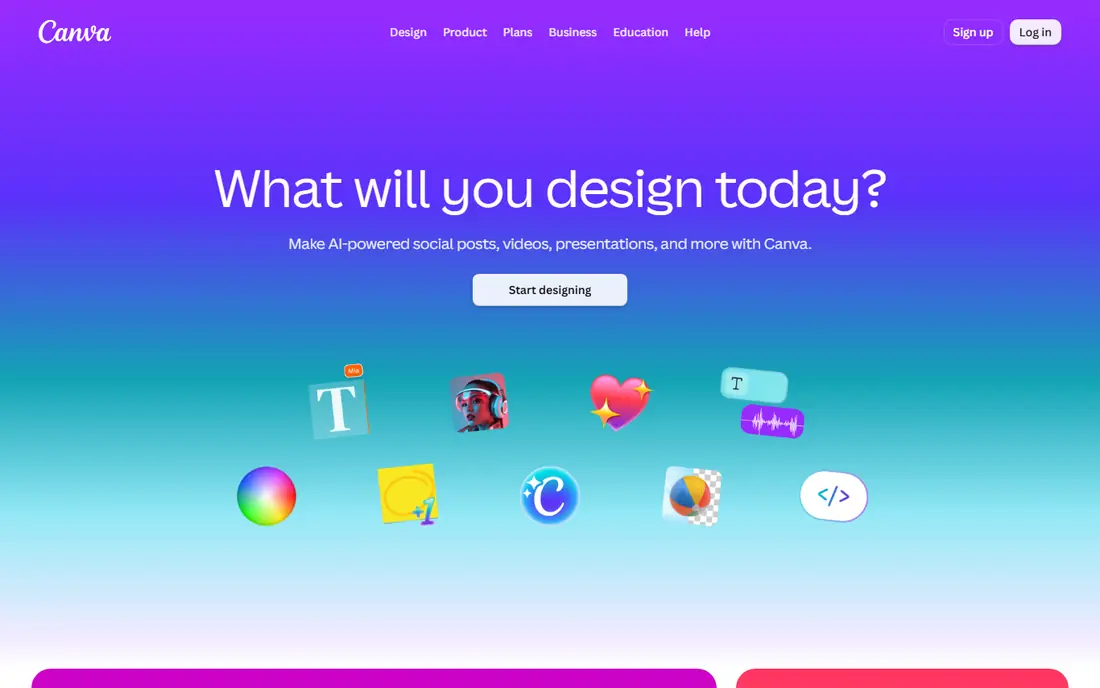
Canva is the best starting point if you are unsure which collage app to install. Its template library covers grids, Instagram posts and stories, birthday cards, and Pinterest pins, all pre-sized for their platform. Typography tools, including font pairing and text effects, are stronger than in most phone-first collage apps, which matters when a collage includes a headline or caption.
The free plan covers most casual needs, and many free templates export without a watermark. Premium templates and features, including background removal and brand tools, sit behind Canva Pro. If you only need a quick grid, a simpler app may be faster, but for anything with text or branding, Canva is the strongest pick.
- Largest template library in this list
- Good typography tools
- Works on web, iOS, and Android
- Free tier watermarks some premium templates
- Template choice can feel overwhelming for a quick grid
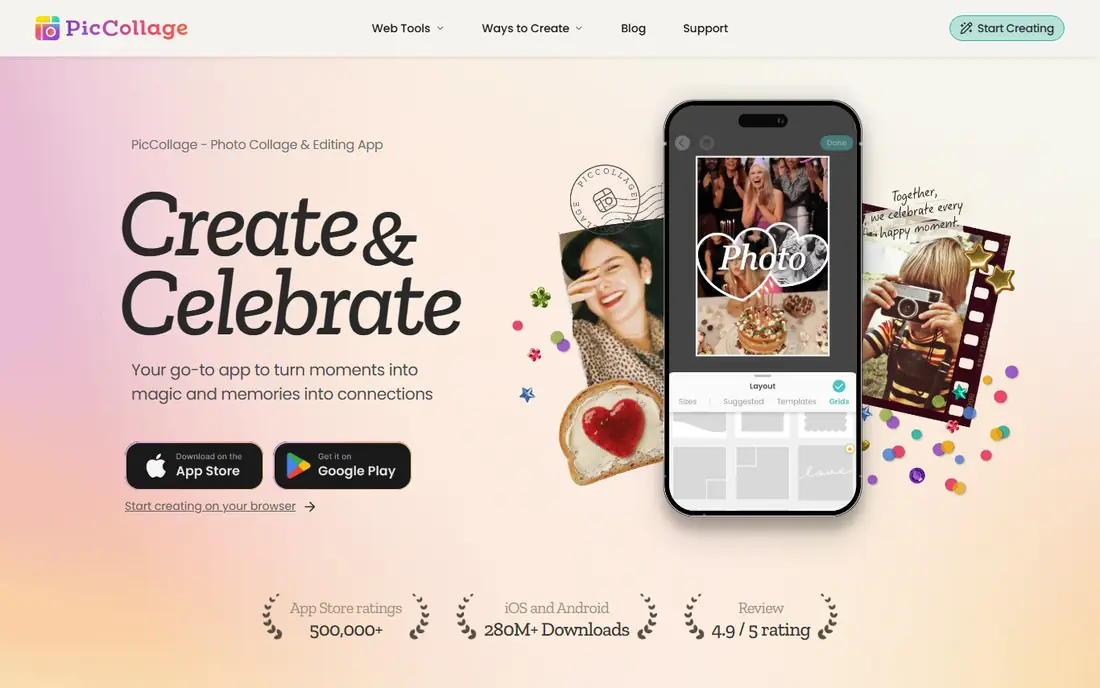
PicCollage is the fastest photos-in, collage-out experience on a phone. You pick photos, choose a grid or freestyle canvas, and adjust borders, stickers, and text in a few taps. Aspect ratios for posts, stories, and reels are built in, so you do not need to guess dimensions for social sharing.
The free tier includes ads, and a VIP subscription removes ads and watermarks and adds extra templates. Typography is weaker than Canva, so PicCollage suits fun, scrapbook-style collages more than formal branded designs. For a quick birthday post or holiday grid, it is hard to beat for speed.
- Fast grid and freestyle modes
- Large sticker and text library
- Social aspect ratios built in
- Free tier includes ads
- Premium subscription needed to remove watermark and ads on some exports
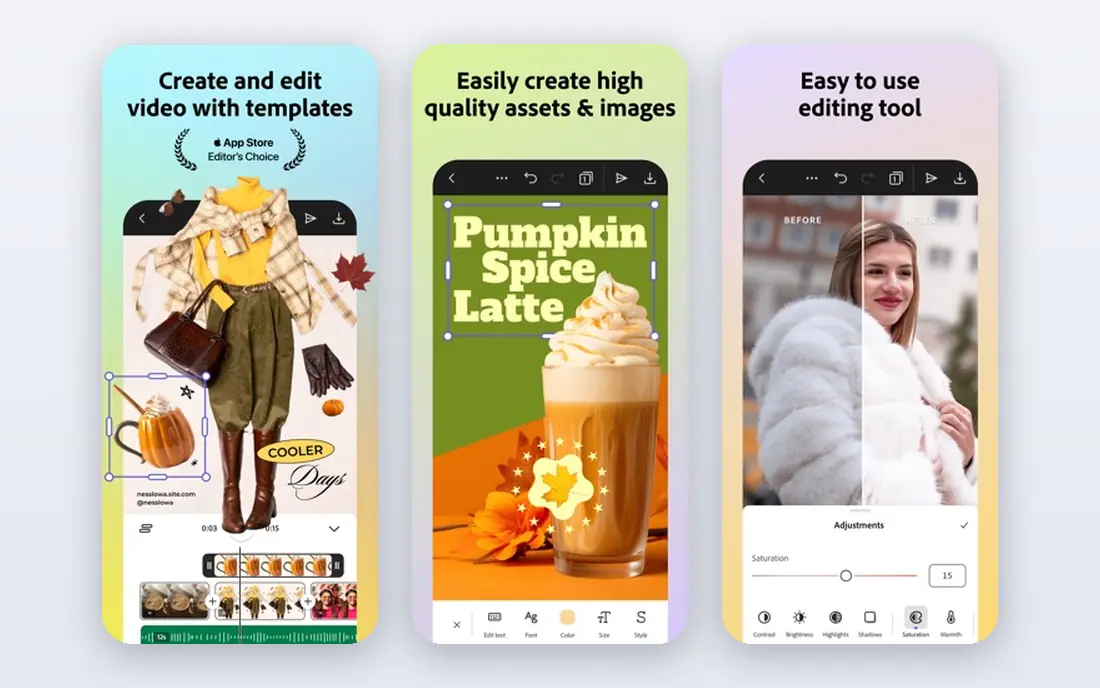
Adobe Express suits collages that need to look professional. Its templates are clean, its typography tools are strong, and brand kits on paid plans keep colors and fonts consistent across posts. Businesses that already use Adobe tools will find the workflow familiar, and the web editor is capable for a browser-based tool.
For playful, sticker-heavy collages, PicCollage or Picsart will feel more fun. Adobe Express earns its place for business collages, event graphics, and any design where clean type matters more than stickers. Check which templates are free before starting a project, because some require a paid plan.
- Clean typography and brand consistency
- Good template quality
- Works on web and mobile
- Free tier limits some premium templates and assets
- Fewer playful stickers than PicCollage
Picsart combines photo editing with collage making, so you can retouch a photo, remove a background, and place it in a collage without leaving the app. Its AI tools add creative effects and backgrounds, and its template range covers social, seasonal, and artistic styles. For creators who edit heavily before collaging, that combination saves time.
The app has many features, which can feel busy if you only want a simple grid. Premium tools and assets require a subscription, and free exports may be limited in resolution or features. Picsart suits creative users who want editing and collage in one place.
- Strong photo editing alongside collages
- AI tools for backgrounds and effects
- Large template range
- Free tier limits premium tools and assets
- App can feel busy with many features
Fotor offers a large template library for collages, with browser and mobile versions that make it easy to start on one device and finish on another. Its photo editing tools cover filters, adjustments, and retouching, which helps when photos need a quick fix before they go into a grid.
Free exports are the limit. Fotor watermarks some free exports, and its paid Pro plan, listed at $39.99 per year in recent comparisons, removes watermarks and opens premium templates and higher resolution. For a quick template collage where a watermark is acceptable, Fotor works well. For clean sharing, check export terms first.
- Many collage templates
- Browser and mobile versions
- Photo editing tools included
- Free exports can include watermarks
- Paid plan needed for full resolution and premium templates
BeFunky is a browser-based editor with collage tools that export clean on many free designs, which sets it apart from rivals that watermark free work. Its layout tools are simple: pick a grid, add photos, adjust spacing and borders, and download. That simplicity suits users who want a clean result without installing an app.
The template range is smaller than Canva, and advanced features sit behind a paid plan. BeFunky suits web users who want a quick, clean collage without a watermark, especially for a one-off project where installing an app feels like overkill.
- Free exports without watermark on many collages
- Browser-based editor
- Simple layout tools
- Template range is smaller than Canva
- Premium features need a paid plan
PhotoGrid is built for social sharing, with templates sized for feeds and stories and support for video collages that mix clips with photos. That video option matters for TikTok, Reels, and Shorts, where a static grid may not stand out. The mobile workflow is fast, and the grid options cover most common layouts.
Free use includes ads, and premium features require a subscription. Typography and branding tools are simpler than Canva or Adobe Express. PhotoGrid suits social creators who want video collages and quick grids in one phone app.
- Video collages alongside photo grids
- Social templates for feeds and stories
- Fast mobile workflow
- Free tier includes ads and limits some features
- Typography is simpler than Canva
Google Photos can create a collage from selected photos in a few taps, and because many Android phones and iPhone users already have it, there is nothing new to install. Exports are clean, without a watermark, and the collage uses photos already backed up in your library.
Creative control is limited. You cannot freestyle arrange photos, add stickers, or fine-tune typography the way PicCollage or Canva allow. Google Photos suits the fastest possible grid from photos you already have, not a designed scrapbook page.
- Free and already installed on many phones
- Fast collage creation from your library
- No watermark
- Limited creative controls
- No freestyle canvas or sticker library like PicCollage
MOLDIV offers a wide range of layouts, including magazine-style templates that go beyond simple grids. Its photo editing tools cover filters and adjustments, so photos can be polished before they enter a collage. For users who want layout variety on a phone, MOLDIV is a strong alternative to PicCollage.
Some templates and features require a paid plan, and the interface packs many options into a small screen. MOLDIV suits users who enjoy trying different layouts and who want more than a basic grid, without moving to a full design platform.
- Wide layout variety
- Magazine-style templates
- Good photo editing tools
- Free tier limits some templates
- Interface can feel dense at first
Layout from Instagram is a separate, simple app for making photo grids to share on Instagram. You pick photos, choose a grid, arrange them, and save or share directly. There are no stickers, text tools, or complex templates to learn, which is the point.
Its simplicity is also its limit. If you want text, stickers, freestyle layouts, or video, use PicCollage, PhotoGrid, or Canva instead. Layout suits users who want a clean, basic grid for Instagram and nothing else, and who value speed over creative options.
- Free and simple
- Built for Instagram grids
- Fast photo selection and arrangement
- Very limited features
- No stickers, text tools, or freestyle canvas
- Only basic grids
How we picked these
We compared apps and web tools that actively offer collage making in 2026, checking their homepages, app listings, and pricing pages. We weighted template range, free plan usefulness, watermark rules, export quality, and ease of use on phones and browsers. We left out desktop-only tools that require a download for a simple grid, except where they offer a clear print advantage, because most readers make collages on a phone or in a browser.
Watermark and resolution rules change by plan, so check the current terms in the app before starting a collage you plan to print or post professionally. A free collage that looks fine on a phone screen may not print well at larger sizes.
How to make a collage that looks good
Start with photos that share similar lighting and color, because mixed lighting makes a grid look uneven. Pick a layout that fits your photo count, rather than squeezing ten photos into a grid designed for four. Leave breathing room with borders and spacing, and keep text short and readable against the photos behind it.
Before exporting, check the size. For social posts, the app's preset for that platform is usually correct. For printing, export at the largest size offered and check resolution with your print shop if the collage will be larger than a standard photo print. Save a copy of the project if the app allows it, so you can adjust text or photos later without starting over.
Frequently asked questions
Which collage maker app is best?
Canva is best overall, PicCollage is best for fast phone collages, and Adobe Express is best for branded collages. The best app depends on whether you want templates, speed, or clean typography. Try Canva first if you are unsure, then switch to a simpler app if templates feel overwhelming.
What is the best app for photo collage on a phone?
PicCollage is best for creative phone collages, Google Photos is fastest for a simple grid, and PhotoGrid is best if you want video collages. All three are free to start, so try the one that matches your style: scrapbook, simple grid, or video.
What is the best free collage app?
Canva's free plan is the best all-round free option, with many templates and no watermark on most free exports. BeFunky and Google Photos also export clean on many free collages. Check watermark rules for the exact template you use, because premium templates may differ.
Can I make a collage without downloading software?
Yes. Canva, Fotor, BeFunky, and Adobe Express all run in a browser with free tiers. Upload photos, arrange them, and download the result without installing anything. Browser tools suit one-off collages and desktop users.
Do collage makers add watermarks?
Most free tiers do on some templates or exports, with Canva, BeFunky, and Google Photos as notable exceptions for many free designs. Paid plans universally remove watermarks. Check the export preview before sharing a collage professionally.
Which collage app is best for Instagram?
PicCollage and PhotoGrid are built for Instagram, with templates sized for feeds and stories. Canva also offers Instagram-sized templates plus scheduling on paid plans. For a simple Instagram grid with no extras, Layout from Instagram is the fastest option.
Sources we checked (10)

Online Jobs is an independent blog about careers, online work, learning new skills and the tools that help people earn. More about us.
Keep reading
All posts
n8n Alternatives
n8n alternatives compared for 2026, with Zapier, Make, Activepieces, and more, covering visual builders, code steps, self-hosting, and pricing models.
eBay Alternatives
Looking for ebay alternatives? We compared 9 marketplaces for sellers on fees, buyer reach, categories and ease of listing, to help you sell with confidence.

ZoomInfo Alternatives
The best ZoomInfo alternatives in 2026, compared on price, free plans, data coverage, and which tool fits small teams or large sales teams best in detail.