Best Collage App in 2026: 8 Apps Compared

How we put this together: we compare official feature and pricing pages, app store listings, privacy policies and public user reviews. Prices change, so check the provider's site before you pay.
Key takeaways
- Canva is the best all-round pick because its template library covers social posts, prints, and invitations in one place.
- PicCollage is the fastest phone-first pick for scrapbook-style collages with stickers and text.
- Google Photos is the quickest free grid maker if you already store photos there and just need a clean layout.
- Paid plans mainly buy watermark removal, premium templates, and higher resolution, so check the free export first.
Quick comparison
| Name | Who it suits | Starting price | Free option | |
|---|---|---|---|---|
 Canva | All-round collage design | See website | Yes | Visit |
 Adobe Express | Branded and business collages | See website | Yes | Visit |
 Picsart | Creative and AI-assisted collages | See website | Yes | Visit |
 PicCollage | Phone-first scrapbook collages | See website | Yes | Visit |
 Fotor | Template-heavy quick collages | See website | Yes | Visit |
 BeFunky | Clean free collages on the web | See website | Yes | Visit |
 FotoJet | Browser collages without a heavy signup | See website | Yes | Visit |
 Google Photos | Fastest free photo grids | Free | Yes | Visit |
The best collage apps
A good collage app should let you drop photos into a layout, adjust spacing and text, and export a clean image in a few minutes. The apps below cover phone-first scrapbooks, web design tools, and quick grids, so the right pick depends on whether you print, post, or just share with family.
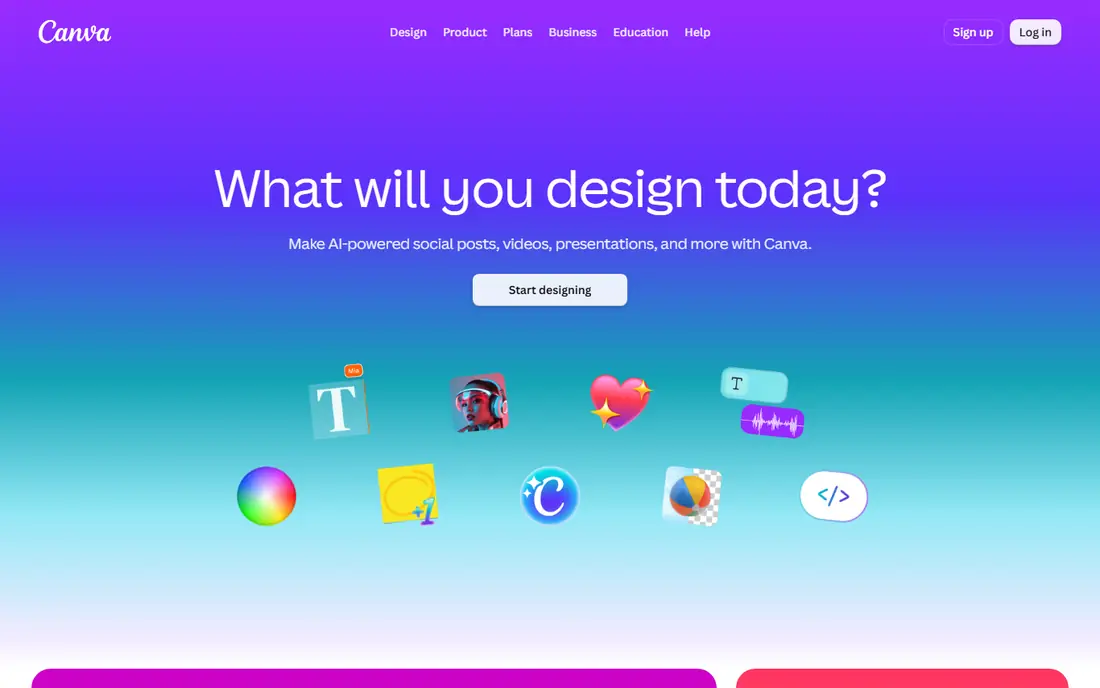
For a first look, Canva is the default choice for most people because it covers collages, social posts, invitations, and prints in one editor. You start from a template, swap in your photos, edit text, and export in the size you need, which keeps a birthday collage and a work graphic in the same workflow.
The free tier covers a lot, but background removal and some premium templates sit behind a paid plan. If you only make occasional collages, the free tier is likely enough, and you should test the export before paying for features you may not use often.
- Huge template library
- Sizes for social and print
- Easy drag-and-drop editing
- Some features need a paid plan
- Large library can feel busy
- Export quality varies by plan
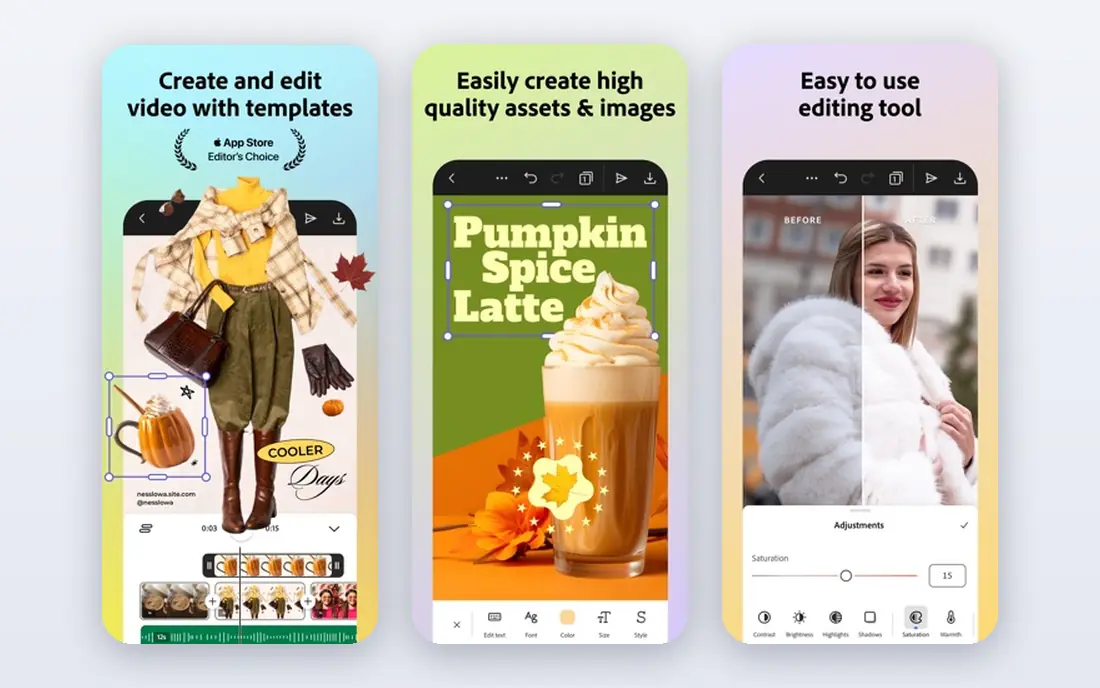
If you want a simple starting point, Adobe Express suits collages that need to look tidy and consistent, such as team posts, event graphics, and small business announcements. Its templates lean professional rather than playful, and its text tools make it easy to keep headings readable at small sizes.
The trade-off is a more formal feel, so it is less fun for scrapbook-style collages full of stickers. It also works best if you already use Adobe tools or are happy to keep brand assets in one place. For a polished work collage, that focus is a strength.
- Clean, professional templates
- Strong typography
- Good brand controls
- Some features need a paid plan
- Adobe account required
- Fewer playful stickers than phone apps
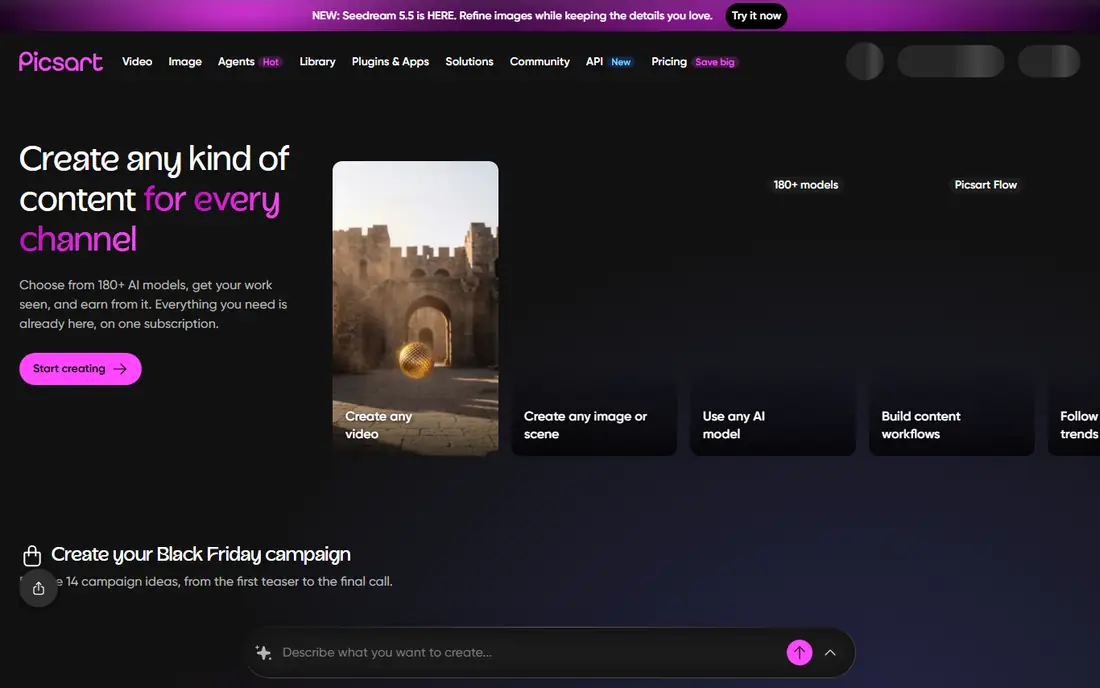
A good way to judge this one is to ask who it helps most. Picsart goes further than a grid maker, with photo editing, cutouts, and AI-assisted backgrounds built into the same app. That range suits creators who want to remove a background, blend photos, or add effects before arranging them into a collage.
The breadth can feel busy if you only want a quick grid, and the most interesting AI features sit behind a paid plan. Use it when you enjoy editing photos as part of the collage, and pick a simpler app when speed matters more than creative control.
- Wide creative tools
- AI cutouts and backgrounds
- Strong mobile editor
- Free tier has limits and ads in places
- Some AI features need a paid plan
- Interface is busy
Start here if PicCollage is built for phones first, and it shows in how fast you can drop photos into a layout, add stickers and text, and share the result. Freestyle layouts let you rotate and layer photos like a paper scrapbook, which suits birthdays, trips, and family updates.
The free version includes ads and locks some stickers and layouts behind a paid plan. Print control is also thinner than in web design tools, so keep PicCollage for sharing on phones and use Canva or Adobe Express when you plan to print at a larger size.
- Fast phone workflow
- Stickers, text, and freestyle layouts
- Easy social sharing
- Some features need a paid plan
- Free version shows ads
- Print control is limited
What stands out first is Fotor suits people who want a template to do most of the work. Pick a layout, drop in photos, adjust text, and export, without learning a full design tool. Its photo editing tools also help when a photo needs a quick brightness or crop fix before it goes into the collage.
The free tier is useful, but you should check each export for limits and whether the template you want needs a paid plan. If you make collages often, the paid plan is worth comparing against Canva, because the template quality is similar for everyday social use.
- Many ready-made templates
- Web and mobile editors
- Built-in photo editing
- Free exports may carry limits
- Some templates need a paid plan
- Interface has many upsells
The key question with this option is fit. BeFunky is a strong web pick because its collage maker is straightforward and its free exports stay clean for everyday use. You can adjust spacing, borders, and layout without signing up for a complex design suite, which makes it a good choice for a quick family or event collage.
The template range is smaller than Canva, and the mobile app does not match the web tool for control. Use BeFunky when you work on a computer and want a fast, clean result, and switch to a phone app when you are building collages on the go.
- Web collage maker with clean free exports
- Good layout control
- Photo editor included
- Some advanced features need a paid plan
- Mobile app is thinner than the web tool
- Template range is smaller than Canva
Consider this one when FotoJet is one of the quickest web options, because you can pick a grid or creative layout and build a collage in a browser without learning a design tool. It suits one-off collages for a party, a school project, or a social post where speed matters more than fine control.
The editor is basic compared with Canva or Adobe Express, so text styling and brand control are limited. That is fine for a simple photo collage, but if you need precise typography or a consistent brand look, a fuller design tool will serve you better.
- Quick web collages
- Many grid and creative layouts
- Simple editor
- Some features need a paid plan
- Fewer text and brand tools
- Export options are basic
For many readers, Google Photos is the fastest option if your photos already live there, because its collage tool turns selected photos into a clean grid in seconds. There is no new app to learn, no watermark on the result, and sharing to family or social apps takes a couple of taps.
Control is the limit, because you cannot freely arrange photos, add stickers, or style text in the same way as PicCollage or Canva. Use Google Photos when you want a tidy grid fast, and move to a dedicated collage app when the design itself is part of the fun.
- Already on many phones
- Very fast grid creation
- No watermark on collages
- Layout control is limited
- No freestyle scrapbook tools
- Needs photos in Google Photos
How we picked these
We compared official feature pages, pricing pages, and app store listings for each app, and we checked template range, layout control, export quality, and whether the free tier adds a watermark. We favoured apps that are still maintained and work on current phones or browsers, and we noted where a feature sits behind a paid plan. We did not count store ratings as proof of quality on their own, because they change often and reflect many different uses.
How to pick a collage app
Decide where the collage will live
A social post needs the right size and a clean export, while a print needs higher resolution and careful colour. Phone-first apps are faster for stories and messages, while web tools give you more control for prints and invitations. Pick the output first, then shortlist apps that export at that size.
Check the free export before you commit
Some free tiers add a watermark, limit resolution, or lock the layout you want behind a paid plan. Make one real collage with your own photos and export it before you pay. If the free export looks clean and sharp enough, you may not need a subscription at all.
Look for layouts you will actually reuse
A huge template library helps only if you can find layouts that fit your photos. Try a grid, a freestyle layout, and a text-led design in each app you test. The app that makes your second collage as fast as your first is usually the one you will keep using.
Frequently asked questions
What is the best collage app overall?
Canva is our all-round pick because it covers templates, text, and export sizes in one tool. PicCollage is better if you want a phone-first scrapbook feel. Google Photos is best if you only need a quick, clean grid from photos you already have.
What are the best collage apps for free?
Canva, Google Photos, BeFunky, and FotoJet all offer useful free tiers. Check the export for watermarks and resolution before you settle, because free terms differ. For a simple grid with no fuss, Google Photos is hard to beat.
What is the best free collage app for photos?
Google Photos makes a clean grid in seconds from photos already in your library. BeFunky and FotoJet also export clean free collages on the web. PicCollage offers more creative freedom on phones, but some features need a paid plan.
What is the best picture collage app for social media?
PicCollage and Canva both suit social posts, with sizes for stories and feeds built in. Canva gives you more text and brand control, while PicCollage feels faster for playful, sticker-led designs. Try both with the same photos and compare the exports.
What is the best collage software for a computer?
Canva and Adobe Express work well in a browser and give you precise text and layout control. FotoJet and BeFunky are lighter web options for quick collages. If you print often, pick the tool that exports at the resolution your printer needs.
Sources we checked (8)

Online Jobs is an independent blog about careers, online work, learning new skills and the tools that help people earn. More about us.
Keep reading
All posts
Zoom Alternatives
Zoom alternatives compared for 2026: Google Meet, Microsoft Teams, Webex, Jitsi and more for free calls, large meetings and webinars for teams and classrooms.

Which Software Is Best for Data Entry
Compare the best data entry software for forms, OCR scanning, and spreadsheets, with free plans, pricing, and honest limits for each tool before you commit.

What's the Best App to Read PDFs
Find what's the best app to read PDFs in 2026, from Adobe Acrobat Reader and Foxit to PDF Expert and Xodo, with free options and honest limits for every device.