9 Best Coding Software Picks for Beginners and Pros

most languages and beginners · Starting price: Free
How we put this together: we compare official feature and pricing pages, app store listings, privacy policies and public user reviews. Prices change, so check the provider's site before you pay.
Key takeaways
- Visual Studio Code is our first pick for most people because it is free, runs on Windows, Mac, and Linux, and supports a very wide range of languages through extensions.
- JetBrains tools such as IntelliJ IDEA and PyCharm suit developers who work in one main language and want deep refactoring, inspection, and debugging built in.
- Beginners do well to start free with Visual Studio Code, Eclipse, or Notepad++ before paying for a full IDE.
- Speed matters for quick edits, and Sublime Text and Zed are the strongest choices when startup time and responsiveness are the priority.
Quick comparison
| Name | Who it suits | Starting price | Free option | |
|---|---|---|---|---|
| Visual Studio Code | most languages and beginners | Free | Yes | Visit |
 IntelliJ IDEA IntelliJ IDEA | Java and Kotlin work | See website | Yes | Visit |
 PyCharm PyCharm | Python development | See website | Yes | Visit |
 Sublime Text Sublime Text | fast editing | See website | Free trial | Visit |
 WebStorm WebStorm | JavaScript and TypeScript | See website | Free trial | Visit |
 Eclipse IDE Eclipse IDE | free Java tooling | Free | Yes | Visit |
 Apache NetBeans Apache NetBeans | Java and PHP learning | Free | Yes | Visit |
 Notepad++ Notepad++ | light Windows editing | Free | Yes | Visit |
 Zed Zed | fast modern editing | Free | Yes | Visit |
The best coding software
We compared free and paid editors and IDEs on language support, debugging, extension choice, and price, so you can pick a tool that fits your current project rather than a tool you may grow into later.
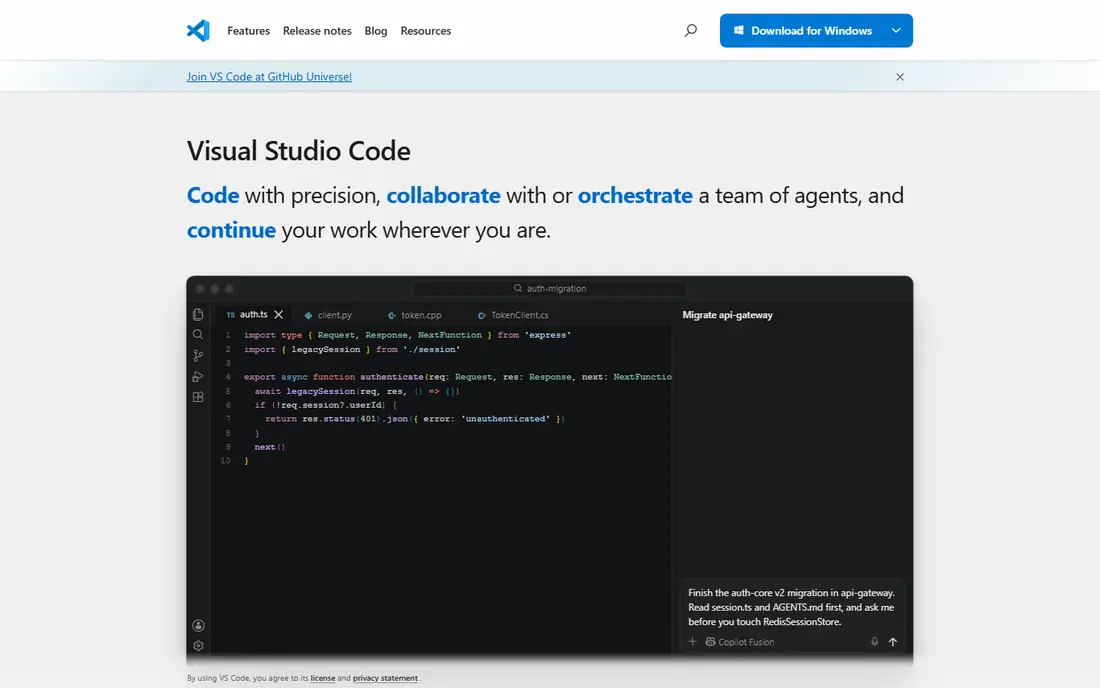
Visual Studio Code is the editor we suggest first for most readers. It opens fast, runs on Windows, Mac, and Linux, and covers web work, Python, Go, Rust, and many scripting languages with the right extensions. The built-in terminal, Git tools, and debugger mean beginners can write, run, and fix code in one place.
The honest catch is choice. Because so much comes from extensions, two developers can have very different setups, and a new user may need time to find a good set for their language. That effort pays off once the setup is done, and the free price makes it easy to try without a commitment.
- Free for private and commercial use
- Huge extension marketplace
- Built-in Git, debugging, and terminal
- Setup takes time for some languages
- Extensions vary in quality
IntelliJ IDEA is built for Java and Kotlin teams who work in large codebases. It indexes the whole project, so renaming, moving code, and finding usages tend to work with fewer surprises than in a general editor. Inspections catch common mistakes early, and the debugger is a clear step up for complex programs.
The trade-off is weight and price. The core features are free, while the full set sits behind a subscription, so check the vendor pricing page before you plan a team rollout. If your main work is Java or Kotlin, that cost is often easy to justify. If you switch languages often, a lighter editor may fit better.
- Deep Java and Kotlin support
- Strong refactoring and code inspection
- Built-in database tools on paid tiers
- Paid features cost extra
- Can feel heavy on older machines
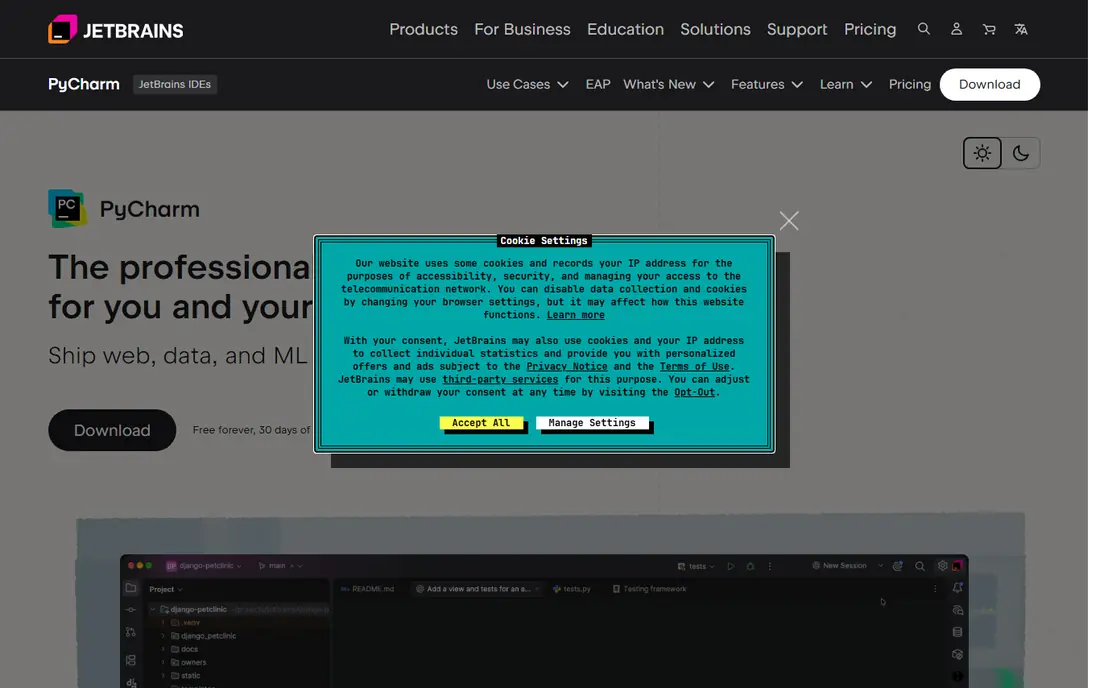
PyCharm is the Python-focused member of the JetBrains family, and it shows in the details. It understands Python imports, virtual environments, and common frameworks, and it helps with refactoring in ways that a general editor often misses. Data work, web work, and testing all sit in the same window.
For a quick script, PyCharm can feel like more tool than you need, and it starts slower than Visual Studio Code or Sublime Text. For a Python project you will live in for weeks or months, the extra structure is a real benefit, and the free core version is a sensible place to start.
- Python-aware editing and refactoring
- Strong debugger and test tools
- Good support for web frameworks
- Heavier than a plain editor
- Full features need a paid plan
Sublime Text is the pick for people who value speed above all else. It opens large files quickly, searches across a project without delay, and stays out of the way when you only need to read or change a file. Many developers keep it alongside a full IDE for quick edits, notes, and config files.
It is not a full IDE out of the box. Debugging, project tools, and language servers come through packages, and you will do more setup than with PyCharm or IntelliJ IDEA. If you want one tool that does everything, look elsewhere. If you want the fastest editor on your machine, this is hard to beat.
- Very fast startup and search
- Clean and stable interface
- Works on Windows, Mac, and Linux
- Fewer built-in IDE features
- Licence is paid for continued use
WebStorm brings JetBrains depth to JavaScript and TypeScript work. It follows imports across a web project, understands React, Angular, Vue, and Node.js code, and offers refactoring that respects how those frameworks are structured. Built-in test running and debugging save time on front-end and full-stack projects.
The catch is the same as with other JetBrains tools. It is a paid product with a trial, and it uses more memory than a light editor. Teams that build web apps every day will get value from it. People who only touch JavaScript now and then may prefer Visual Studio Code with a few extensions.
- Strong JavaScript and TypeScript support
- Built-in testing and debugging
- Good framework awareness
- Subscription pricing
- Heavier than a plain editor
Eclipse IDE has served Java developers for many years, and it remains a solid free choice. It handles large Java projects, offers a wide set of plugins, and runs on the main desktop systems. Schools, open source teams, and companies with tight budgets can adopt it without licence costs.
The interface and setup feel less polished than newer tools, and first-time users may need help picking the right package for their language. Once it is set up, though, Eclipse is dependable for daily Java work, and its price makes it easy to recommend for learning and for teams that want free tooling.
- Free and open source
- Long history with Java
- Wide plugin choice
- Interface feels dated to some users
- Setup can take patience
Apache NetBeans is a friendly free IDE for Java, with support for PHP and other languages as well. Project setup is simple, which helps students and new developers get a program running without wrestling with build settings. It includes editing, debugging, and project tools in one download.
It does not have the same plugin range or industry presence as Eclipse or IntelliJ IDEA, so some advanced workflows may need extra work. For learning Java, for small projects, and for anyone who wants a free IDE that works right after install, NetBeans is a calm and practical choice.
- Free and open source
- Simple project setup for Java
- Useful for teaching
- Smaller plugin range than some rivals
- Less common in large firms
Notepad++ is the best free coding app for quick work on Windows. It opens in a moment, handles many file types with syntax highlighting, and includes search, replace, and macro tools that go well past a plain text editor. It is ideal for config files, scripts, log files, and short edits.
It is not a full development environment. There is no built-in debugger or project system to match an IDE, and it runs only on Windows. Use it as a fast companion to a full IDE, or as a first coding app on Windows while you learn the basics.
- Free and very light
- Fast for text and code files
- Useful plugin set
- Windows only
- Not a full IDE
Zed is a newer editor built for speed, and it feels quick from the first open. It includes collaboration tools, a modern interface, and support for many languages, with a free personal plan for individual use. Developers who felt slowed down by heavier editors often enjoy how direct Zed feels.
The trade-off is maturity. Its extension range is smaller than the Visual Studio Code marketplace, so a niche workflow may not yet be covered. Paid plans add AI features and team controls, so check the pricing page if those matter to you. For fast daily editing, Zed is already a strong free option.
- Very fast and responsive
- Built-in collaboration features
- Clean modern interface
- Smaller extension range than Visual Studio Code
- Newer product with changing features
How we picked these
We checked official feature pages, pricing pages, and app store and download pages for each product, and we read public reviews to see where users praise or criticise each tool. We favoured tools that cover a clear use case, that are still maintained, and that offer a free way to try them. We did not claim hands-on testing, and where a price could not be confirmed on the vendor site at the time of writing, we wrote See website rather than guess.
What to check before you choose a coding tool
Start with your main language, then with your project size. A general editor such as Visual Studio Code suits mixed-language work, while a language-focused IDE suits a large single-language codebase. Check the debugger, test runner, and Git support for your stack, since those tools shape daily work more than themes or fonts.
Free coding apps and learning to code
If you are looking for the best free coding apps or the best app to learn to code, start with Visual Studio Code or Notepad++ on Windows. Both are free, both have large help communities, and both let you learn real tools rather than a toy app. Add a good tutorial for your language, and move to a full IDE only when a project grows past simple scripts.
Paid IDEs and team use
For teams, check licence terms, renewal pricing, and how many machines each licence covers. JetBrains tools offer free core versions and paid full versions, so a team can trial the free tier before buying. Also check system needs, since full IDEs use more memory and disk space than light editors, and that matters on older laptops.
Frequently asked questions
What is the best coding software for beginners?
Visual Studio Code is our pick for most beginners because it is free, supports many languages, and has a large set of guides and extensions. Notepad++ is a simpler free start on Windows, and Apache NetBeans is a good free IDE for learning Java. Pick one, learn its debugger and Git tools, and change only if a project needs more.
What is the best coding app for learning to code?
The best app to learn to code is the one you will open every day, and for most learners that is Visual Studio Code. It is free, it runs on the main desktop systems, and it works for web, Python, and many other first languages. Pair it with a structured course for your language rather than switching tools often.
Are there good best free coding apps?
Yes. Visual Studio Code, Eclipse IDE, Apache NetBeans, Notepad++, and Zed all offer free use, and each covers a different need. Visual Studio Code suits mixed work, Eclipse and NetBeans suit Java, Notepad++ suits quick Windows edits, and Zed suits fast editing. Try two of them for a week each and keep the one that feels natural.
What is the best coding tool for Python?
PyCharm is the strongest Python-focused tool here, with Python-aware editing, debugging, and test support. Visual Studio Code is a close second and suits people who also work in other languages. Beginners can start free with either one and move to a paid PyCharm plan only if the extra features help their project.
What is the best coding app for Java?
IntelliJ IDEA leads for professional Java and Kotlin work, while Eclipse IDE and Apache NetBeans are strong free choices. Eclipse suits teams that want free tooling with a wide plugin range, and NetBeans suits learners who want simple project setup. All three handle Java well, so price and team habits often decide the pick.
Should I use an editor or a full IDE?
Use an editor such as Visual Studio Code, Sublime Text, or Zed for mixed languages, quick edits, and small projects. Use a full IDE such as IntelliJ IDEA, PyCharm, or WebStorm for a large project in one language, where refactoring, inspection, and debugging save real time. Many developers use both, with an editor for quick tasks and an IDE for main project work.
Sources we checked (9)

Online Jobs is an independent blog about careers, online work, learning new skills and the tools that help people earn. More about us.
Keep reading
All posts
Replit Alternatives
Replit alternatives for 2026 compared: browser coding, AI app builders and team workspaces, with free plans, limits and honest trade-offs for developers.

Docker Alternatives
Compare Docker alternatives for 2026, with Podman, Rancher Desktop, OrbStack, containerd, Colima, Finch, Portainer and Kubernetes on cost, fit and licensing.
Best Platform for Data Science
Compare the best platform for data science for teams and solo analysts, with notebooks, AutoML, governance and open source options for 2026 projects today.