Best Cloning Software in 2026: 8 Tools Compared


Reliable Windows imaging · Starting price: $49.99 per year
How we put this together: we compare official feature and pricing pages, app store listings, privacy policies and public user reviews. Prices change, so check the provider's site before you pay.
Key takeaways
- Clonezilla and Rescuezilla are the best free cloning software options, with Clonezilla for technicians and Rescuezilla for beginners.
- Macrium Reflect and Acronis Cyber Protect Home Office are the strongest paid picks for reliable Windows imaging and recovery.
- Carbon Copy Cloner is the clear choice for Mac users who want cloning plus scheduled backups.
- AOMEI Backupper and EaseUS Todo Backup offer useful free tiers, but system disk cloning often needs a paid license.
- Always back up irreplaceable files separately before cloning, since cloning overwrites the destination drive completely.
Quick comparison
| Name | Who it suits | Starting price | Free option | |
|---|---|---|---|---|
| Macrium Reflect | Reliable Windows imaging | $49.99 per year | Free trial | Visit |
 Acronis Cyber Protect Home Office | Cloning plus cyber protection | $49.99 per year | Free trial | Visit |
 Clonezilla | Free power-user cloning | Free | Yes | Visit |
 Rescuezilla | Easy free cloning with a GUI | Free | Yes | Visit |
 AOMEI Backupper | Free Windows backup and clone | Free | Yes | Visit |
 EaseUS Todo Backup | Beginner-friendly backup | See website | Yes | Visit |
 Carbon Copy Cloner | Mac cloning and backup | See website | Free trial | Visit |
 Paragon Hard Disk Manager | Advanced disk management | See website | Free trial | Visit |
The best cloning software
Cloning makes an exact, bootable copy of a drive, which is what you need when moving to a new SSD. Imaging makes a compressed backup file, which is better for ongoing protection. Most tools in this list do both, but they differ on ease of use, price, and platform support. We compared official product pages, pricing pages, and public reviews, and we favored tools that are maintained today and work with modern Windows, Mac, or Linux systems.
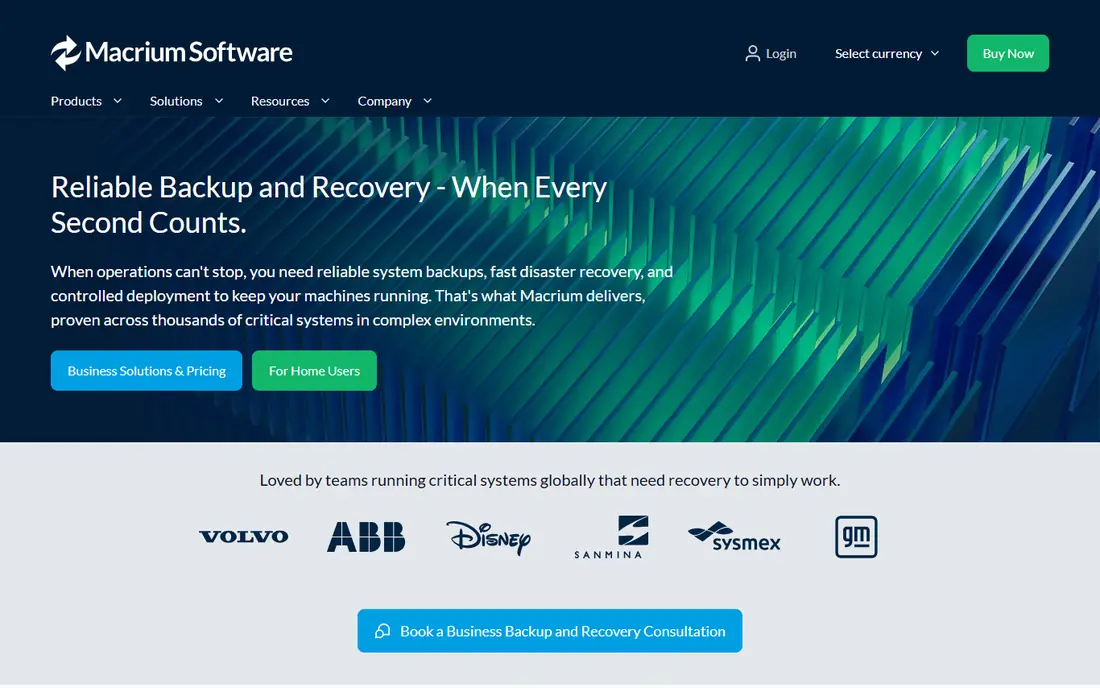
Macrium Reflect is our pick for Windows users who want imaging they can trust. Its Reflect engine has a long track record, and rapid delta restore speeds up recovery by restoring only changed blocks. Rescue media creation is straightforward, and scheduled imaging works well for a home PC or a small office machine.
The interface is dense, with many options that beginners may not need at first. It is also Windows only, so Mac and Linux users should look elsewhere. The Home plan is listed at $49.99 per year in recent vendor and review listings, with a trial available. Note that the old free edition reached end of life, so do not rely on outdated installers.
- Proven imaging engine
- Rapid delta restore
- Strong rescue media
- Windows only
- Interface can feel dense for beginners
Acronis Cyber Protect Home Office
Who it suits: Cloning plus cyber protection
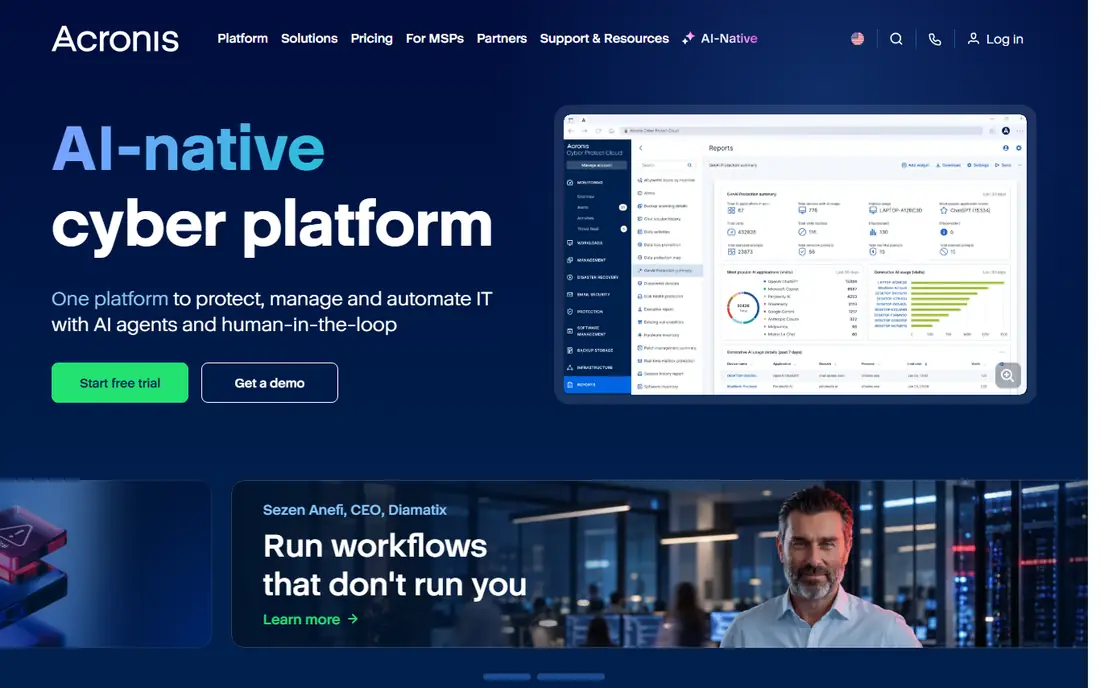
Acronis Cyber Protect Home Office, formerly True Image, pairs cloning and imaging with antivirus, ransomware protection, and optional cloud backup. That combination suits users who want one package for both migration and ongoing protection, on Windows or Mac. Universal restore helps when moving to different hardware, which is a common pain point in cloning.
The downside is weight. On older or low-spec PCs, the full suite can feel heavier than a focused cloning tool. Pricing starts at $49.99 per year for Essentials in recent listings, with a trial available. If you only need a one-off clone, a free tool may be enough, but Acronis is strong value if you will also use its backup and protection features.
- Full disk cloning
- Antivirus and ransomware protection
- Cloud backup options
- Can feel heavy on older PCs
- Subscription model
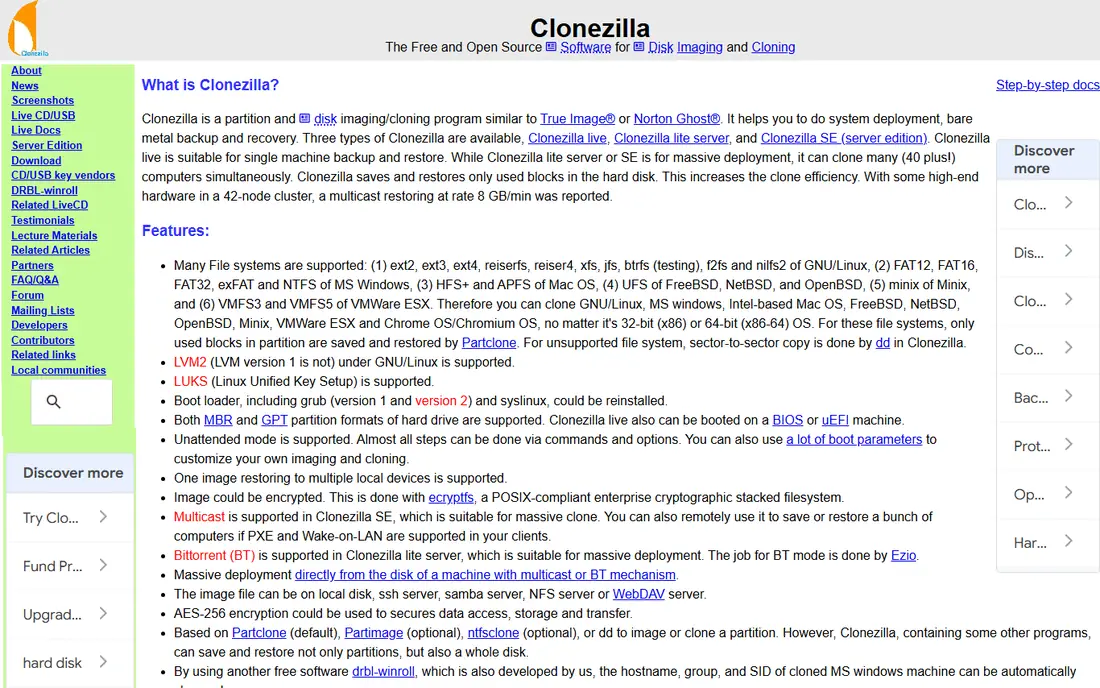
Clonezilla is the best free cloning software for technicians and confident users. It clones disks and partitions, supports many file systems, and can clone many machines over a network, which makes it popular in schools and IT departments. It runs from a bootable USB, so it works even when the system drive cannot be cloned from inside Windows.
The interface is text-based, and the workflow assumes you know the difference between source and destination drives, partitions, and boot modes. That learning curve is real, but the payoff is a free tool with no feature gates. If the menus put you off, Rescuezilla below offers a graphical front end for similar cloning.
- Free and open source
- Powerful disk and partition cloning
- Network cloning for IT teams
- Text-based interface
- Steep learning curve for beginners
Rescuezilla is the friendly face of free cloning. It boots from USB, walks you through cloning or restoring with a graphical wizard, and can work with Clonezilla images. For a first-time SSD upgrade, that wizard removes the main fear: picking the wrong drive. It is also useful for rescuing a system that will not boot.
It does not match paid tools for scheduled backups, incremental imaging, or cloud features, so treat it as a migration and rescue tool rather than a full backup suite. For many home users, that is enough, especially when paired with a separate file backup. If you want scheduled imaging too, look at Macrium or AOMEI.
- Free and open source
- Graphical wizard
- Compatible with Clonezilla images
- Fewer advanced backup features than paid tools
- Bootable USB required
AOMEI Backupper is a popular Windows choice because the free Standard edition covers basic backup and data disk cloning with a clear interface. System backup, scheduled tasks, and disk cloning are easy to find, and the tool handles partition resizing when moving to a smaller SSD, provided the used data fits.
The key limit is that cloning the Windows system disk usually needs the Professional license, which is a common pattern among free tools. Check the current edition comparison before downloading, so you are not surprised at the last step. For data disks and general backup, the free edition is genuinely useful, and paid pricing is listed on the vendor site.
- Polished Windows interface
- Free edition for basic backup
- System migration tools
- System disk cloning needs a paid license
- Interface includes upsells
EaseUS Todo Backup suits beginners who want a guided wizard rather than technical menus. You can back up files, partitions, or the whole system, schedule regular backups, and restore to different hardware on paid plans. The interface is clean, and help material is easy to follow for a first migration.
As with AOMEI, the free edition has limits, and system disk cloning often sits behind a paid license. Check the current free versus Home comparison on the vendor site before starting a system migration. If you only need data disk cloning or file backup, the free edition may be enough, but budget for Home if you are moving a Windows system drive.
- Simple wizard
- System and file backup
- Dissimilar hardware restore on paid plans
- System cloning often needs a paid plan
- Free edition has limits
Carbon Copy Cloner is the standard answer for Mac cloning. It makes bootable backups where macOS allows, schedules regular updates, and handles the details of Mac volumes, snapshots, and external drives. For Mac users moving to a larger drive or setting up a reliable backup routine, it is the most focused tool in this list.
It is Mac only, and Apple changes to macOS have made bootable backups more complex over time, so read the current vendor guidance for your macOS version before relying on a bootable clone. A trial is available, and pricing is listed on the vendor site. Windows users should ignore this pick and choose from the Windows tools above.
- Mac-focused cloning
- Scheduled backups
- Bootable backups for supported Macs
- Mac only
- Bootable backup behavior varies by macOS version
Paragon Hard Disk Manager goes beyond cloning, adding partition resizing, disk management, and recovery media in one package. That breadth suits power users who also manage partitions, convert disk layouts, or maintain several machines. It supports Windows and Mac, which helps households with mixed systems.
The breadth is also the drawback. Casual users may find more options than they need, and edition pricing varies, so check which edition includes the cloning and backup features you want. For a simple one-off clone, a free tool is faster to learn. For ongoing disk management plus cloning, Paragon is worth a trial.
- Cloning plus partition management
- Recovery media builder
- Windows and Mac support
- Interface can feel complex
- Pricing varies by edition
How we picked these
We compared official product pages, pricing pages, and public reviews for cloning and imaging tools that work today on Windows, Mac, or Linux. We kept tools with a clear cloning function, current maintenance, and a distinct audience, from free open source tools to paid suites. Prices are vendor or recent review listings where published, and we used See website where pricing varies by edition. We did not claim hands-on cloning of every drive type, and we recommend testing rescue media after any install.
How to clone a drive without losing data
Cloning is safe when you slow down and check each step. Most accidents come from rushing the source and destination choice.
Back up first, then check drive sizes
Copy irreplaceable files to a separate drive or cloud backup before you start. Cloning overwrites the destination completely, and there is no undo. Then check that the used data on the source fits on the destination, especially when moving to a smaller SSD, and shrink partitions in advance if your tool does not resize automatically.
Pick source and destination twice
In your cloning tool, confirm the source drive, the destination drive, and the partition layout before you click start. A wrong choice here is the most common cloning mistake. If the tool offers a preview, read it line by line, and do not clone while tired or in a rush.
Test the new drive before wiping the old one
After cloning, boot from the new drive and check that apps, files, and settings work. Keep the old drive untouched for a week as a fallback, in case a problem only appears later. Only wipe or reuse the old drive once you are sure the new one is stable, and test your rescue USB at least once so you know it boots.
Frequently asked questions
What is the best cloning software?
Macrium Reflect is our pick for reliable Windows imaging, Acronis Cyber Protect Home Office for cloning plus protection, and Clonezilla or Rescuezilla for free cloning. Carbon Copy Cloner is the best pick for Mac users. The right tool depends on your operating system, budget, and whether you also want scheduled backups.
What is the best free cloning software?
Clonezilla is the most powerful free option, and Rescuezilla is the easiest free option, since it adds a graphical wizard. AOMEI Backupper and EaseUS Todo Backup also offer free editions, but system disk cloning often needs a paid license. For a first SSD upgrade, Rescuezilla is usually the least stressful free choice.
Can I clone a hard drive to a smaller SSD?
Yes, if the used data fits on the smaller SSD and your tool supports resizing partitions. Some tools shrink partitions automatically, while others need you to shrink the source partition first in disk management. Check the used space, not just the drive size, before starting, and leave some free space on the new SSD.
Is cloning better than imaging?
Cloning and imaging solve different problems. A clone is a directly bootable duplicate drive, which is ideal for a one-off SSD upgrade. An image is a compressed backup file, which is better for ongoing protection and version history. Many tools do both, so use cloning for migration and imaging for regular backups.
How long does cloning take?
Cloning time depends on the amount of data, drive speed, and connection type, from under an hour for a small SSD to several hours for a large hard drive. NVMe to NVMe clones are fastest, while older USB connections are slowest. Do not interrupt a clone, and keep the computer powered and awake until it finishes.
Do I need to back up before cloning?
Yes. Cloning overwrites the destination drive, and a wrong source choice can overwrite the wrong disk. Keep a separate copy of files you cannot replace, and keep the old drive as a fallback until the new drive has been tested. A clone is not a substitute for a regular backup routine.
Sources we checked (8)

Online Jobs is an independent blog about careers, online work, learning new skills and the tools that help people earn. More about us.
Keep reading
All posts
Eventbrite Alternatives
Compare the best Eventbrite alternatives for ticketing fees, free events and event pages, with honest notes on cost, discovery and fit for organisers.
Chrome Alternatives
Chrome alternatives compared: Brave, Firefox, Vivaldi, Edge and more for privacy, speed and tab organisation, with free plans, pros and cons to compare.
Buffer Alternatives
Compare the best Buffer alternatives for scheduling, analytics and team approvals, with pricing notes and honest trade-offs for creators, teams and agencies.