Best Calendar App in 2026: 8 Apps Compared

How we put this together: we compare official feature and pricing pages, app store listings, privacy policies and public user reviews. Prices change, so check the provider's site before you pay.
Key takeaways
- Google Calendar and Apple Calendar remain the simplest free starting points, and both work well if you already use their wider services.
- Fantastical is our pick for Apple and Windows users who want fast event entry and strong scheduling tools in one place.
- Outlook suits workplaces that already run on Microsoft email, while Notion Calendar suits people who plan projects and dates together.
- A good calendar app is less about extra features and more about reliable sync, clear week views and easy sharing with other people.
Quick comparison
| Name | Who it suits | Starting price | Free option | |
|---|---|---|---|---|
 Google Calendar Google Calendar | Everyday use across devices | Free | Yes | Visit |
 Apple Calendar Apple Calendar | Apple device owners | Free | Yes | Visit |
 Microsoft Outlook Microsoft Outlook | Work email and meetings | See website | Free trial | Visit |
 Fantastical Fantastical | Fast scheduling and proposals | $6.99 per month | Yes | Visit |
 Notion Calendar Notion Calendar | Project planning in one place | See website | Yes | Visit |
 Calendars by Readdle Calendars by Readdle | Detailed day planning on Apple devices | See website | Yes | Visit |
 Timepage Timepage | A calm, visual daily view | See website | Free trial | Visit |
 Proton Calendar Proton Calendar | Privacy focused scheduling | See website | Yes | Visit |
The best calendar apps
The best calendar app is the one you will actually open each morning. We compared official feature pages, pricing pages and app store listings, and we focused on sync, sharing, views and the cost of paid plans. The eight options below cover free built-in apps, paid upgrades and tools for work teams.
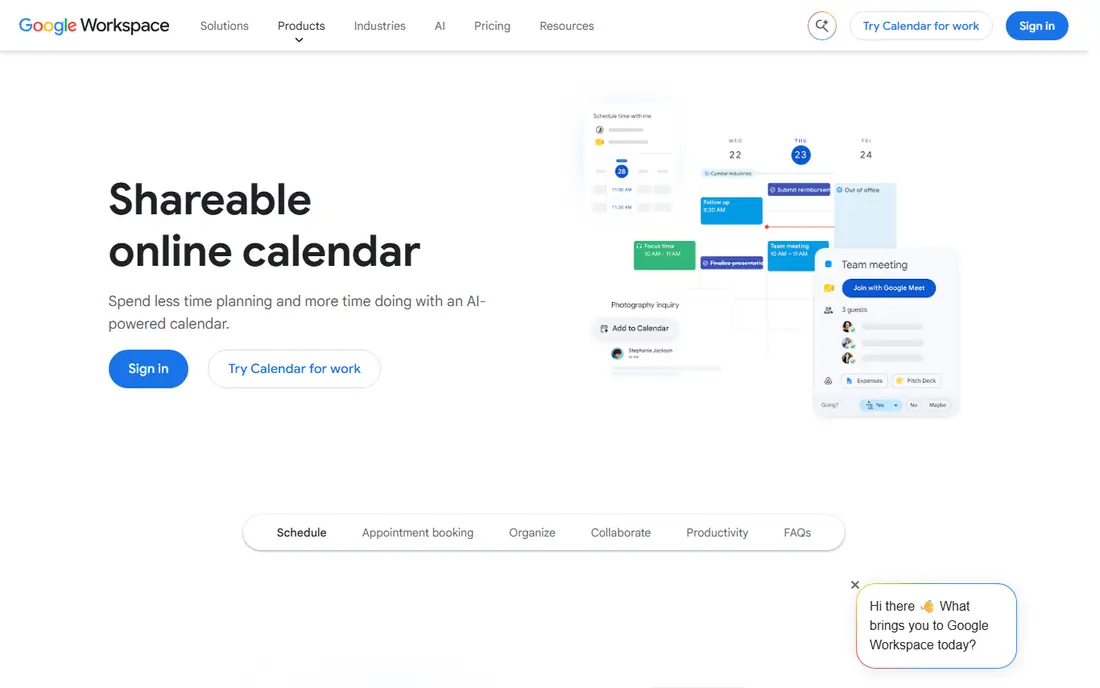
Google Calendar fits people who want a calendar that simply works. It runs in a browser and on phones, it syncs with Gmail and Google Meet, and it makes it easy to invite others, set repeat events and check a shared family or team calendar. The interface stays plain, which helps when a week gets busy.
The catch is depth. If you want detailed templates, meeting polls or a highly custom look, you will need add-ons or a different app. For most readers, though, the free price and broad device support make it the safest first choice, and it pairs well with other Google services many people already use.
- Works on almost every device
- Easy sharing and invites
- Strong search and reminders
- Fewer design options than paid rivals
- Some advanced scheduling tools need other Google tools
Apple Calendar is the obvious pick if your phone, tablet and computer all come from Apple. Events added on one device appear on the others, and the app stays light and quick to open. It handles family sharing, travel time and alerts without much setup, which suits people who dislike fiddling with settings.
The main limit is platform reach. People who mix Apple devices with Windows or Android phones may find sync less smooth, and workplaces that use Google or Microsoft tools may prefer an app that sits closer to those systems. Inside the Apple world, however, it is hard to beat for simplicity.
- Built into iPhone, iPad and Mac
- Clean day and week views
- Works with Siri and reminders
- Less useful on Windows or Android
- Sharing options are simpler than some rivals
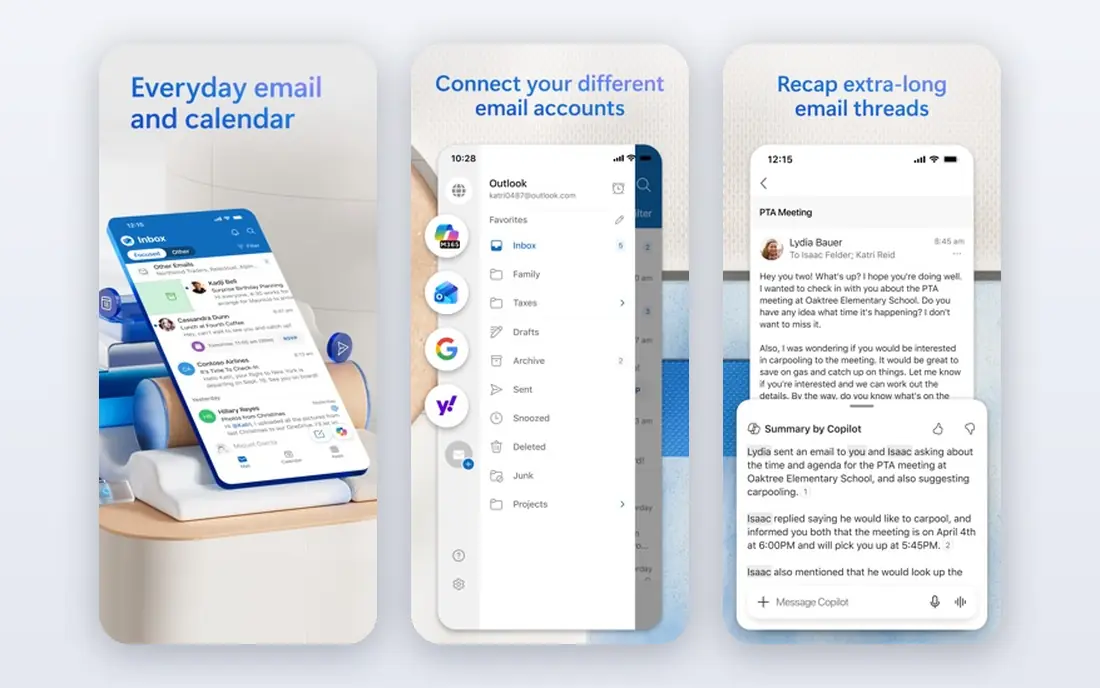
Outlook suits people whose work already runs on Microsoft email. The calendar sits beside mail and tasks, so you can turn a message into a meeting, check colleague availability and book a room without switching apps. That close link between mail and dates is the main reason many offices stick with it.
For personal use, Outlook can feel larger than needed. The free version covers basic calendars, but some readers will find Google or Apple Calendar lighter. If your job uses Microsoft tools every day, Outlook keeps work planning in one place and avoids a second system.
- Email, calendar and tasks in one place
- Strong meeting tools for work
- Wide business support
- Can feel heavy for personal use
- Full features often need a paid Microsoft plan
Fantastical stands out for speed. You can type a plain sentence such as lunch with Sam tomorrow at noon, and the app turns it into a timed event. It also offers meeting proposals, so a group can pick a time, and open slots that let others book time with you. Those tools save back and forth messages for busy people.
The free version covers basic calendars, but the paid plan holds most of the scheduling power. At $6.99 per month, it is a clear upgrade cost, so it fits best for people who book many meetings each week. If you only need a simple date list, a free built-in app will do the same job for less.
- Natural language event entry
- Meeting proposals and open slots
- Weather and task views
- Full features need a paid plan
- Some users may find the price high for a calendar
Notion Calendar suits people who already keep notes, tasks and projects in Notion. Instead of keeping dates separate from work pages, you can see deadlines beside the documents and tasks they relate to. That link helps students, freelancers and small teams who plan a project from start to finish in one workspace.
The trade-off is focus. As a calendar alone, it is less quick than Google or Apple Calendar, and new users may spend time learning how Notion pages work. If you already use Notion daily, the calendar adds real value. If you do not, a simpler app will feel faster.
- Links dates to notes and project pages
- Good for teams that plan in Notion
- Clear timeline views
- Less focused than a pure calendar app
- Setup takes more time at first
Calendars by Readdle
Who it suits: Detailed day planning on Apple devices
Calendars by Readdle is a good middle ground between a free built-in app and a full paid scheduler. It blends tasks and events on one timeline, so you can see what must be done and when you have time to do it. Natural language entry helps you add events quickly, and the day view stays readable even when a day fills up.
The main limit is platform. It works best on Apple devices, so households or teams with mixed devices may prefer a cross-platform option. For iPhone and iPad owners who want more planning power without switching to a complex system, it is a solid step up from Apple Calendar.
- Strong task and event mix
- Natural language entry
- Useful offline views
- Apple only for full features
- Some advanced tools need a paid plan
Timepage takes a different approach to design. It shows your day as a timeline with weather and travel context, which helps you judge whether a gap between meetings is realistic. The look is calm and uncluttered, and many people find that easier to scan than a dense grid when mornings are rushed.
It is less suited to heavy team scheduling. You will not find the same meeting proposal tools as Fantastical, and some features sit behind a paid plan after a trial. Timepage fits personal planners who value a clear daily view and are happy to use another tool for group booking.
- Clear timeline design
- Weather and travel context
- Pleasant to check each morning
- Fewer team scheduling tools
- Paid plan needed for full use
Proton Calendar appeals to readers who put privacy first. Calendar data is encrypted, and the app pairs with Proton Mail for people who already use that service. The interface stays simple, with day, week and month views and basic sharing for events you need to send to others.
The cost of that privacy focus is breadth. You will find fewer third-party integrations than with Google Calendar or Outlook, and some team features are still catching up. If privacy is your top filter, Proton Calendar is a fair choice. If wide app connections matter more, a mainstream calendar will fit better.
- Encrypted calendar data
- Clean interface
- Works with Proton Mail
- Fewer integrations than Google or Outlook
- Sharing is more limited in some cases
How we picked these
We compared official feature pages, pricing pages and app store listings for each app, and we checked which platforms each one supports and whether a free plan or trial is offered. We left out apps that only book meetings for others, and we kept only calendar apps that a US reader can download and use now. Prices shown are starting prices from vendor pages, and we wrote See website where a vendor price was not confirmed at the time of writing.
How to choose a calendar app
Start with the devices you already own. If you use an iPhone and a Mac, Apple Calendar or Fantastical will feel natural. If you use Android and a Windows computer, Google Calendar will sync with less friction. Work users should check what their employer already uses, because a calendar that matches work email saves time every week.
Next, test the week view for a few days. A good calendar should show clashes at a glance, make repeat events easy and let you add travel time without extra steps. Try adding an event with a guest, a location and a reminder, and see how many taps that takes. If that basic task feels slow, the app will annoy you when life gets busy.
Sharing and privacy
Check who can see your calendar before you share it widely. Some apps let you share only free and busy times, which is safer for work. Others share full event details by default, so review those settings for family and team calendars. If privacy matters, read the vendor privacy page and note what data is encrypted and what is stored in plain form.
Paid plans and value
Do not pay for a calendar until the free version feels limiting. Paid plans make sense when you book many meetings, need proposals or want task and calendar views combined. Before you subscribe, check whether the paid features work on all your devices, and whether a family plan covers everyone who needs it.
Frequently asked questions
What is the best calendar app?
There is no single winner for every reader. Google Calendar suits most people for free, Apple Calendar suits Apple owners, and Fantastical suits heavy schedulers who want proposals and fast entry. Pick based on your devices, your work tools and how often you book meetings with others.
What are the best calendar apps for work?
Outlook fits workplaces that use Microsoft email, while Google Calendar fits teams that use Gmail and Google Meet. Notion Calendar fits teams that plan projects and dates in the same workspace. Check what your team already uses before you add a separate calendar system.
What is the best calendar software for sharing with family?
Google Calendar and Apple Calendar both offer simple family sharing, with separate calendars for each person and a shared view for the whole household. Google Calendar works across more device types, which helps mixed households, while Apple Calendar is simpler inside the Apple system.
What is the best digital planner app for daily planning?
A digital planner app usually mixes tasks and dates, so Calendars by Readdle and Notion Calendar are strong options here. Timepage also works well for a calm daily timeline. If you mainly need task lists with dates, check whether the app shows tasks and events on the same day view.
What is the best cross platform calendar app?
Google Calendar is the strongest cross-platform choice in this list, because it runs on Android, iPhone, Windows and Mac through browsers and apps. Proton Calendar also works across devices, though with fewer integrations. Fantastical now covers Apple devices and Windows, which helps mixed setups.
What is the best work calendar app for meetings?
Fantastical and Outlook both handle meeting booking well. Fantastical offers proposals and open slots for outside guests, while Outlook offers availability checks and room booking inside Microsoft workplaces. For simple team meetings, Google Calendar invites and shared calendars are often enough.
Sources we checked (8)

Online Jobs is an independent blog about careers, online work, learning new skills and the tools that help people earn. More about us.
Keep reading
All posts
Best Writing Software
Looking for the best writing software in 2026? We compared 9 writing apps for books, articles and screenplays on price, features and fit. All verified.
Best Weather Apps
Searching for the best weather app? We compared eight top weather apps for accurate forecasts, radar, severe alerts, and daily planning near you today.
Best Video Editing Software
We compared the best video editing software for beginners and pros, checking official pricing, free plans and honest limits before ranking all nine editors.