Best CAD Software for 3D Printing in 2026: 10 Tools Compared

How we put this together: we compare official feature and pricing pages, app store listings, privacy policies and public user reviews. Prices change, so check the provider's site before you pay.
Key takeaways
- Fusion is the best all-round CAD tool for functional 3D printing, with parametric design and clean STL, 3MF, and STEP export, plus a free personal tier.
- Tinkercad is the easiest first step, running in a browser with drag-and-drop shapes, while FreeCAD is the best fully free parametric tool for precise parts.
- Blender suits organic shapes, miniatures, and cosplay parts, while OpenSCAD suits programmers who want designs defined by code and parameters.
- Onshape suits browser-based collaboration, Shapr3D suits tablet and iPad design, and SOLIDWORKS for Makers suits hobbyists who want professional-grade mechanical tools.
- CAD software designs the model, while a slicer turns it into printer instructions, so check export formats and mesh repair tools before you commit to a workflow.
Quick comparison
| Name | Who it suits | Starting price | Free option | |
|---|---|---|---|---|
 Fusion | All-round parametric CAD for printing | See website | Yes | Visit |
 Tinkercad | First model in a browser | Free | Yes | Visit |
 FreeCAD | Fully free parametric CAD | Free | Yes | Visit |
 Blender | Organic shapes and miniatures | Free | Yes | Visit |
 Onshape | Browser collaboration | Free | Yes | Visit |
 OpenSCAD | Code-driven parametric parts | Free | Yes | Visit |
 Shapr3D | Tablet and iPad CAD design | See website | No | Visit |
 SketchUp | Quick concept models | See website | Yes | Visit |
 SOLIDWORKS for Makers | Professional-grade maker CAD | See website | No | Visit |
 SelfCAD | Beginner-friendly browser CAD and slicing | See website | No | Visit |
The best cad software for 3d printing
The best CAD software for 3D printing depends on what you want to print. A bracket that must fit existing hardware needs precise dimensions and parametric editing, a miniature needs sculpting, and a first project needs a tool you can learn in an hour. The tools below cover those jobs, from free browser tools to professional mechanical CAD, and all of them can export a model you can slice and print.
Fusion, formerly Fusion 360, is the most complete CAD tool in this list for functional 3D printing. You sketch, dimension, extrude, and assemble parts parametrically, so changing one dimension updates the whole model, which matters when a bracket, enclosure, or mount must fit real hardware. Export to STL, 3MF, and STEP is straightforward, and the software also covers rendering and manufacturing tools for makers who go beyond printing. Autodesk offers Fusion free for personal, non-commercial use, with limits including a cap on active editable documents and exclusion of some advanced simulation tools, while commercial use needs a paid subscription, with pricing on the vendor site. That free tier is generous enough to learn properly and to print many projects. For makers who want one serious CAD tool that grows from first bracket to complex assembly, Fusion is the default pick.
- Full parametric CAD with assemblies and drawings
- Clean STL, 3MF, and STEP export
- Free personal-use tier for hobbyists
- Personal tier limits active documents and some advanced tools
- Needs a capable computer for large designs
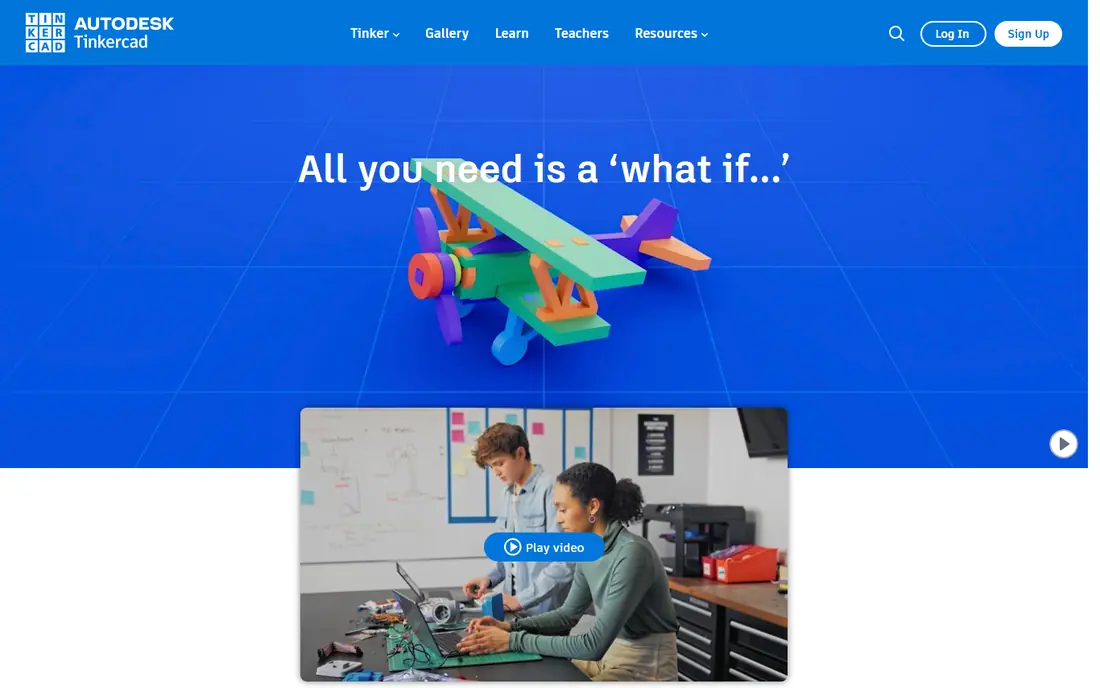
Tinkercad is the fastest way to a first printed model. It runs in a browser, uses drag-and-drop shapes that you combine, cut, and resize, and exports straight to STL or 3MF for slicing. Most people can make a simple nameplate, phone stand, or replacement knob within an hour, which makes Tinkercad ideal for schools, beginners, and anyone testing whether 3D design appeals to them. The limit is precision. Tinkercad is not a parametric modeller, so revising a dimensioned part or building a complex assembly is harder than in Fusion or FreeCAD. Treat it as an on-ramp: learn shapes, orientation, and export here, then move to Fusion or FreeCAD when parts need exact dimensions, tolerances, and fit. For a first print today, nothing beats Tinkercad for speed and simplicity.
- Free and browser-based, with no install
- Drag-and-drop shapes for fast first models
- Direct STL and 3MF export
- No true parametric modelling
- Limited precision for mechanical parts
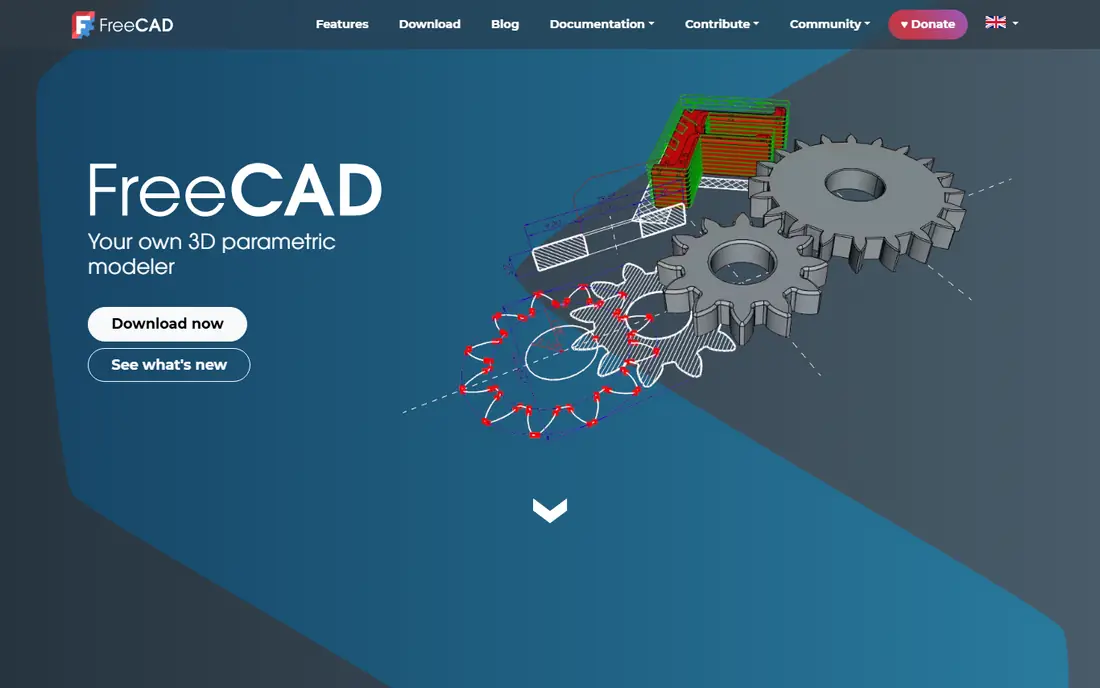
FreeCAD is the best fully free parametric CAD tool for 3D printing, and it has improved steadily to version 1.1. You build parts from sketches and features, change dimensions later, and use workbenches for part design, assemblies, drafting, and mesh work. Because it is open source, there are no document caps, no subscription, and no commercial-use restriction of the kind that applies to free personal tiers elsewhere. The interface is less polished than Fusion or Onshape, and new users need time to understand workbenches and the sketcher. That learning curve pays off for functional parts, where precise dimensions and repeatable edits matter. For makers who want a free, capable, desktop CAD tool with no strings attached, FreeCAD is the long-term pick, and it pairs well with Blender for organic work.
- Fully free and open source
- True parametric modelling with workbenches
- STL and OBJ export for printing
- Interface is less polished than commercial tools
- Learning curve for workbench workflow
Blender is not traditional CAD, and that is why it belongs here. For miniatures, creatures, masks, cosplay parts, and other organic shapes, Blender sculpting is the free standard, with tools for modelling, sculpting, and mesh repair that parametric CAD tools lack. Its 3D Print Toolbox helps check a model for manifold errors, wall thickness, and other problems before export to STL. For a bracket or enclosure with exact dimensions, Blender is the wrong tool, because it does not offer the same parametric, dimension-driven workflow as Fusion or FreeCAD. Most hobbyists end up using two tools: a parametric modeller for functional parts and Blender for artistic prints. If your printer output is mainly figures, props, and organic designs, Blender is free, powerful, and widely supported by tutorials.
- Free and open source
- Powerful sculpting for organic models
- 3D Print Toolbox for checking meshes
- Not a parametric CAD tool
- Steeper learning curve for mechanical parts
Onshape brings professional parametric CAD to the browser, which makes it ideal for low-powered computers, classrooms, and teams that collaborate. Several people can edit the same document at once, with version control and branching built in, so a team can review a design without passing files back and forth. Export for printing covers STL and other standard formats, and the modelling tools suit functional parts and assemblies. The free plan makes documents public, which suits learning and open projects but not private commercial work. Paid plans, with pricing on the vendor site, add private documents and more features. For students, maker groups, and teams that need collaboration without installing heavy software, Onshape is a strong, modern alternative to desktop CAD.
- Runs fully in a browser on modest hardware
- Real-time multi-user editing
- Parametric CAD with version control
- Free documents are public
- Paid plans needed for private professional work
OpenSCAD is CAD for programmers. You write code that defines shapes, dimensions, and parameters, and the software builds the solid model from that code. That approach makes parts easy to customise: change a variable for width, height, or hole spacing, and the whole part rebuilds correctly. It is popular for parametric enclosures, mounts, brackets, and printable designs shared with customiser parameters. There is no mouse-driven sketching or sculpting, so visual designers may find it slow for organic shapes. Learning OpenSCAD means learning its small scripting language, but the language is simple compared with general programming, and the repeatability is unmatched for families of similar parts. For makers who think in parameters and want version-controlled, shareable designs, OpenSCAD is a free, precise, and durable choice.
- Free and open source
- Designs defined by code, so they are repeatable and customisable
- Excellent for parametric parts and enclosures
- No interactive sketching or sculpting
- Code workflow suits programmers more than visual designers
Shapr3D brings serious CAD to the iPad, with direct modelling, Apple Pencil sketching, and a professional CAD engine underneath a touch-friendly interface. You can sketch a profile, extrude it, fillet edges, and export STL for printing, all from a tablet on a sofa or in a workshop, then continue on Mac or Windows. That mobility suits makers who design away from a desk, or who like to sketch ideas by hand before refining dimensions. Full use needs a paid subscription, with pricing on the vendor site, and there is no lasting free plan for professional work. Large assemblies and advanced manufacturing tools are less deep than Fusion or SOLIDWORKS. For tablet-first makers who want real CAD, not just a viewer, Shapr3D is the most polished option, and it bridges the gap between sketching and precise modelling.
- Direct modelling on iPad, Mac, and Windows
- Apple Pencil support for sketching
- Professional CAD engine with STL export
- Paid subscription for full use
- Less suited to large assemblies than desktop CAD suites
SketchUp is known for architecture and interior design, but its free web version also works for quick 3D printing concepts. Push-pull modelling lets you draw a shape and pull it into three dimensions in seconds, which suits simple objects, display pieces, and early prototypes. The component library adds ready-made parts, and STL export is available for printing. For precision mechanical parts, SketchUp falls short, because it lacks true parametric modelling and dimension-driven editing. A bracket that must fit a bolt pattern is better built in Fusion or FreeCAD. For quick concepts, simple printable objects, and learners who want an intuitive first modeller after Tinkercad, SketchUp Free is a friendly, browser-based step up, with paid plans for professional use.
- Intuitive push-pull modelling
- Free web version for basic work
- Large library of components
- No true parametric modelling
- Less suited to precision mechanical parts
SOLIDWORKS for Makers gives hobbyists access to professional-grade mechanical CAD at a price aimed at makers rather than companies. It covers parametric part and assembly design, drawings, and sheet metal tools, with the same modelling approach used in industry. For makers building complex mechanisms, enclosures with precise fits, or projects they may later take into professional work, that depth matters. It is a paid subscription, with pricing on the vendor site, and it is primarily Windows-based, with a learning curve that rewards structured study. Casual makers printing simple parts do not need it, and Fusion or FreeCAD will serve them well for free. For serious makers who want industry-standard tools without a company licence, SOLIDWORKS for Makers is the premium hobbyist pick.
- Commercial-grade parametric CAD at hobbyist pricing
- Strong assemblies, drawings, and sheet metal tools
- Good for serious maker projects
- Paid subscription, with no free tier
- Windows-focused, with a steeper learning curve
SelfCAD aims at beginners who want modelling and slicing in one browser tool, without installing several apps. It combines simple CAD modelling, sculpting, and drawing tools with a built-in slicer, so a learner can design a model and prepare it for printing in the same workspace. That all-in-one flow helps schools and new makers who find separate CAD and slicer apps confusing at first. For complex parametric parts, assemblies, or professional work, SelfCAD is less powerful than Fusion, FreeCAD, or Onshape, and full features need a paid plan, with pricing on the vendor site. As a learning tool, or as a fast way from idea to printed part for simple designs, SelfCAD is a friendly option, especially for users who want one app for design and slicing.
- Browser-based modelling with sculpting and drawing tools
- Built-in slicing for direct printing
- Gentle learning curve for beginners
- Less powerful than Fusion or FreeCAD for complex parts
- Paid plans for full features
How we picked these
We compared official feature pages, pricing pages, app store listings, privacy policies, and public user reviews, focusing on tools that can export printable models in 2026 and that cover different maker needs, from first models to professional mechanical design. We included free, free-tier, and paid tools, and we distinguished parametric CAD, sculpting, code-driven design, and browser collaboration, because those approaches suit different print jobs. We did not claim hands-on testing, and where free tiers have limits we note them, so readers can check current terms on the vendor site. We also checked the CAD-to-print workflow, not just modelling. A tool that exports clean STL or 3MF, checks meshes, and fits with common slicers is more useful for printing than a modeller that looks good on screen but produces broken meshes. That practical test shapes the list, and it is why Tinkercad, FreeCAD, and Fusion lead for functional printing, while Blender leads for organic work.
What to check before you choose CAD software for 3D printing
Start with the shape you want to print. Functional parts need parametric CAD, organic parts need sculpting, code-driven parts need OpenSCAD, and first projects need Tinkercad. Picking a tool for the wrong shape wastes weeks, however good the tool is in its own niche. If you print both functional and organic parts, plan to use two tools, and learn one well before adding the second. Next, check export, tolerances, and your printer workflow. Confirm the tool exports STL or 3MF cleanly, learn how to set wall thickness and tolerances for your printer and material, and test a small calibration part before a large print. Check system requirements too: browser tools such as Tinkercad, Onshape, and SelfCAD run on modest hardware, while Fusion and Blender benefit from a stronger CPU and graphics for large designs. Finally, check licence terms, especially for free personal tiers, which may limit documents, commercial use, or privacy, and choose a tool whose limits you can live with for a year.
Frequently asked questions
What is the best free CAD software for 3D printing?
FreeCAD is the best fully free parametric CAD tool for functional parts, Blender is the best free tool for organic models, and Tinkercad is the best free tool for absolute beginners. Fusion also offers a free personal tier, and Onshape offers a free plan with public documents. The best free pick depends on whether you need precise dimensions, sculpting, or a first model in a browser.
Is Fusion still free in 2026?
Yes, through a free personal-use licence for non-commercial work, with limits on active documents and some advanced tools, and with renewal terms published by Autodesk. Commercial work needs a paid subscription. Check the current personal-use terms on the Autodesk site before relying on the free tier for a business project, because limits and eligibility can change.
What is the easiest CAD software for beginners?
Tinkercad is the easiest, because it runs in a browser, uses drag-and-drop shapes, needs no install, and exports directly to STL or 3MF. Most beginners make a first printable model within an hour. SelfCAD and SketchUp Free are also beginner-friendly, while Fusion and FreeCAD take longer to learn but offer far more precision for later projects.
Do I need CAD software or a slicer for 3D printing?
You need both for original designs, but they do different jobs. CAD software designs the model, while a slicer converts that model into layer-by-layer instructions your printer can follow, including supports, infill, and print settings. If you only want to print downloaded models, you can skip CAD and use a slicer alone. If you want to design your own parts, start with CAD, then slice the exported STL or 3MF file.
Sources we checked (10)

Online Jobs is an independent blog about careers, online work, learning new skills and the tools that help people earn. More about us.
Keep reading
All posts
Zoom Alternatives
Zoom alternatives compared for 2026: Google Meet, Microsoft Teams, Webex, Jitsi and more for free calls, large meetings and webinars for teams and classrooms.

What Is the Best Free Tool to Rotate a PDF
What is the best free tool to rotate a PDF? We compare eight free rotation tools on per-page control, limits, privacy and saved output quality in detail.

What Is the Best AI Dubbing Tool
We compared the best AI dubbing tools in 2026, from ElevenLabs and HeyGen to Rask AI, Dubverse and Veed, for videos and creators in many languages worldwide.