Best Apps for Creating Family Portraits in 2026: 9 Apps Compared

How we put this together: we compare official feature and pricing pages, app store listings, privacy policies and public user reviews. Prices change, so check the provider's site before you pay.
Key takeaways
- Family portraits need three jobs: fixing a photo, designing a layout, and preparing a print, and different apps lead on each job.
- Canva is our pick for most families, with templates, collages, and print options in one place.
- Remini suits restoring old or blurry portraits, while Picsart and Fotor suit creative edits and quick fixes.
- Adobe Express, PhotoRoom, PicCollage, Google Photos, and Pixlr cover design, cutouts, collages, and free editing.
- All apps on this list have a free plan or free tier, though high-resolution exports and some AI features need a paid plan.
Quick comparison
| Name | Who it suits | Starting price | Free option | |
|---|---|---|---|---|
 Canva | Templates, collages, and prints | See website | Yes | Visit |
 Adobe Express | Quick design and photo fixes | See website | Yes | Visit |
 Remini | Restoring old portraits | See website | Yes | Visit |
 Picsart | Creative mobile edits | See website | Yes | Visit |
 Fotor | Easy portrait enhancement | See website | Yes | Visit |
 PhotoRoom | Clean cutouts and backgrounds | See website | Yes | Visit |
 PicCollage | Simple family collages | See website | Yes | Visit |
 Google Photos | Free phone photo fixes | Free | Yes | Visit |
 Pixlr | Browser editing with layers | See website | Yes | Visit |
The best apps for creating family portraits
A family portrait app can mean an editor, a collage maker, or a design tool, and the best pick depends on your starting photo. A new phone photo needs light fixes and a layout, while an old scanned print needs restoration first. The apps below cover that full range, from free editing to print-ready design.
Canva is our pick for most families because it covers the whole portrait job. Start with a photo, pick a collage or card template, add names or a date, and export for sharing or printing. The template library saves time, especially for holiday cards and framed prints.
Free use is generous for basic layouts, but some templates, stock photos, and AI tools need a paid plan. Export at the highest quality your plan allows if you plan to print large. For a family that wants one app for cards, collages, and prints, Canva is the simplest route.
- Many portrait and collage templates
- Easy text and layout tools
- Print ordering options
- Free exports and features have limits
- Advanced AI edits sit on paid plans
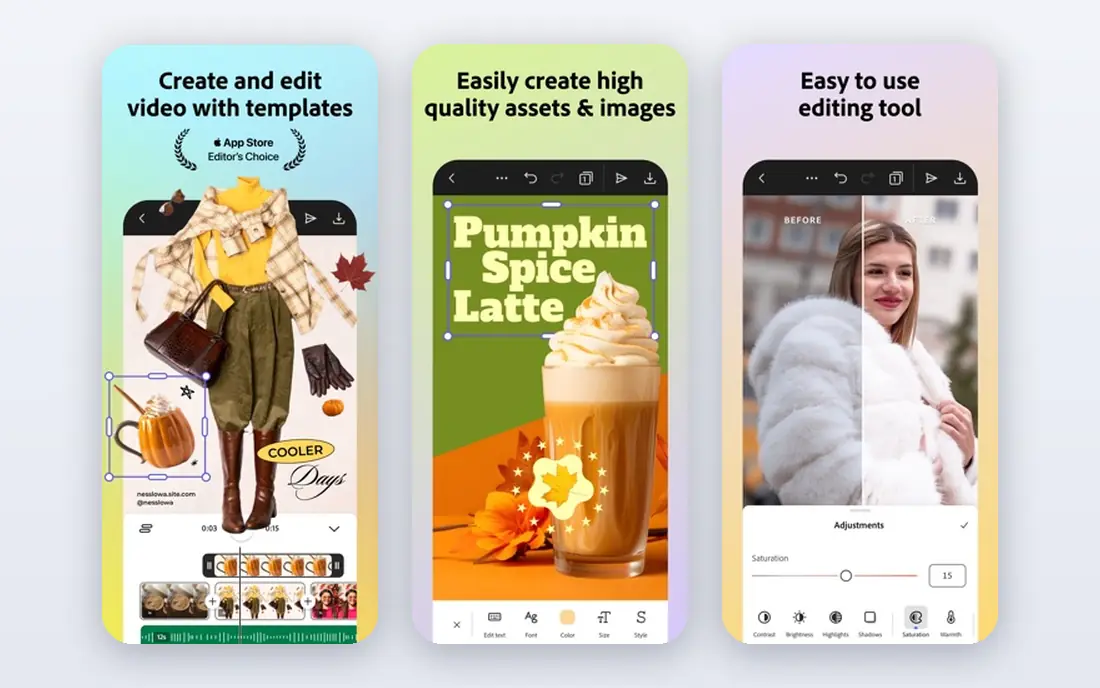
Adobe Express suits families that want polished cards and posts without learning a full editor. Templates handle layout, text, and sizing, while quick actions fix light, remove backgrounds, and resize for print or sharing. Adobe fonts and assets give cards a clean look.
It is not a deep retouching tool, so heavy skin work or complex edits belong in a fuller editor. For a holiday card, a social post, or a simple framed print, Express is fast and friendly. Check plan limits for generative features and high-quality exports before a large print.
- Templates for cards and social posts
- Quick photo fixes
- Adobe fonts and assets
- Some features need a paid plan
- Less deep than full Photoshop for retouching
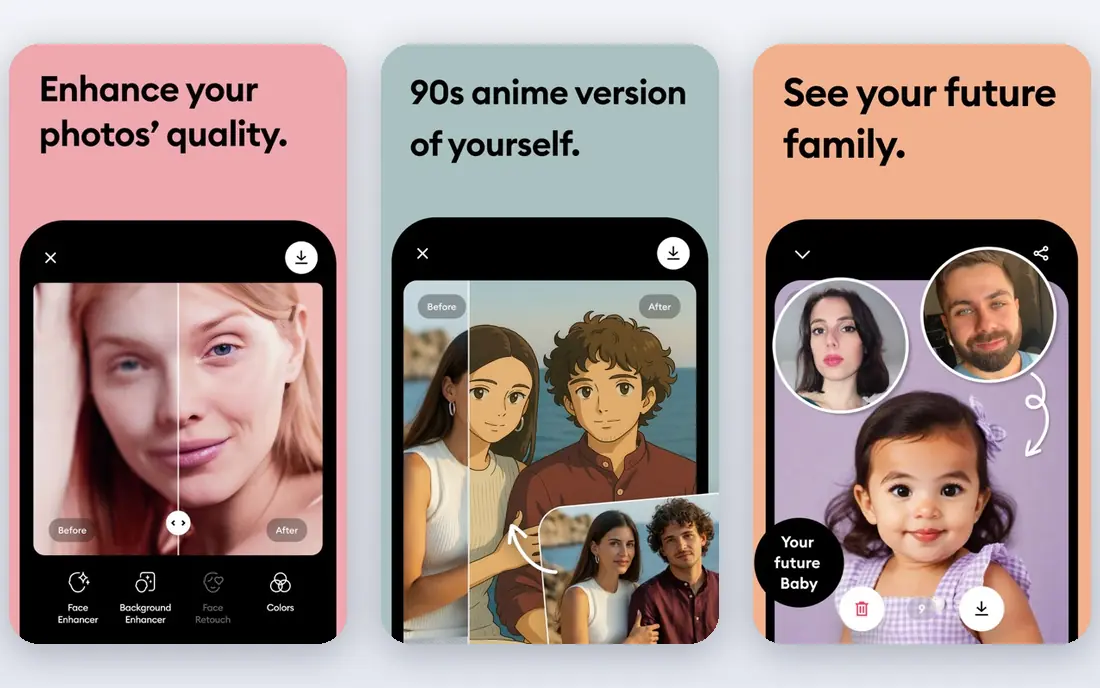
Remini is the pick for old family portraits that need rescue. A blurry scan, a faded print, or a low-resolution phone photo can gain sharpness and clarity with a single enhancement. That makes it valuable for grandparents photos and archive prints that cannot be retaken.
Free use is capped, and AI enhancement can smooth skin or alter small details, so compare the result with the original before printing. Use Remini for restoration, then move the result to Canva or another design app for layout and text. That two-step workflow gives the best print.
- Enhances blurry and old photos
- Simple one-tap workflow
- Useful for scanned family prints
- Free use has daily limits
- Results can look smoothed on faces, so check details
Picsart suits families that want a fun, creative edit on a phone. Filters, stickers, backgrounds, and collage layouts turn a plain group photo into a playful card or post. The mobile editor is direct, and sharing to social apps is simple.
The free version pushes upgrades, and some popular tools sit behind a paid plan. For a straightforward portrait, a simpler editor may be less distracting. For a creative card with effects and text, Picsart gives more playful options than a plain editor.
- Wide filters, stickers, and effects
- Collage and background tools
- Active mobile community
- Many best features need a paid plan
- Free version includes ads and prompts to upgrade
Fotor is a good middle ground for families that want better portraits without learning editing terms. One-click enhancement fixes light and color, batch tools handle many photos at once, and templates cover collages and cards. That speed helps when you have a whole holiday shoot to sort.
Free exports and AI features have limits, so check resolution before printing large. For quick, consistent edits across many family photos, Fotor is efficient. For deep retouching or layered design, pair it with Google Photos or Canva.
- One-click portrait enhancement
- Batch editing
- Collage and card templates
- Free exports have limits
- AI features vary by plan
PhotoRoom started with product photos, but its cutout tools suit family portraits too. Remove a messy background, place a family group on a clean color, and export a tidy image for a card or print. That clean look helps when the original background distracts from faces.
It is less of a full card designer than Canva or Adobe Express, so use it for the cutout step, then design elsewhere. Batch processing helps for many photos, though higher plans include it fully. For a portrait that needs a new background, PhotoRoom is a focused, effective tool.
- Strong background removal
- Clean portrait cutouts
- Batch processing on higher plans
- Portrait design templates are thinner than Canva
- Best features need a paid plan
PicCollage is the simplest collage app on this list, and that simplicity is its strength. Pick photos, choose a grid or freestyle layout, add stickers and text, and share. Kids and grandparents can use it without a tutorial, which matters for a family project.
Editing depth is limited, so fix light and color in another app first if a photo needs it. PicCollage is best for the layout step, not for restoration or detailed retouching. For a quick multi-photo collage, it is fast and friendly.
- Simple collage grids and freestyle layouts
- Stickers and text
- Easy sharing
- Editing depth is limited
- Some content needs a paid plan
Google Photos is the free editor most families already have on their phones. Its editing tools fix light, color, and cropping, and its backup and sharing features make it easy to gather photos from several family members into one album. That collection step matters as much as editing for a group portrait.
It is not a design tool, so collages, cards, and text still belong in Canva or PicCollage. Use Google Photos to fix and gather portraits, then move the best versions to a design app for layout. For a free, simple starting point, Google Photos is hard to beat.
- Free editing and backup tools
- Simple light, color, and crop fixes
- Easy sharing with family
- No templates or print ordering
- Deeper edits need another app
Pixlr suits families that prefer editing in a browser rather than installing an app. Layers, masks, and selection tools go deeper than most mobile editors, which helps with tricky backgrounds or combined photos. Quick AI tools also cover background removal and enhancement.
Free use includes ads, and some tools need a paid plan. For a desktop edit without installing software, Pixlr is a strong pick. For a phone-only workflow, Picsart or Google Photos will feel more natural.
- Works in a browser with no install
- Layers and masks for deeper edits
- Quick AI tools
- Free version includes ads
- Some tools need a paid plan
How we picked these
We compared official app and pricing pages for editors, collage makers, and design tools that families can use for portraits, and we favored apps with a free plan, a clear portrait use, and an active product in 2026. We did not claim hands-on testing, and where pricing varies by billing period or plan, we used See website. Always export at print quality and check a small test print before ordering a large frame.
How to create a family portrait with apps
Start with the best original photo you have, not the most edited one. Good light, sharp faces, and a simple background matter more than any filter. Fix light and color first, restore an old photo if needed, then design a layout, and only then order a print.
Fix, then design, then print
Use Google Photos, Fotor, or Remini for fixing, depending on whether the photo is new, dull, or old. Move the fixed photo to Canva, Adobe Express, or PicCollage for layout and text. Export at the highest resolution your plan allows, and check the image at full size before printing.
Keep faces natural
AI enhancement and smoothing can help, but they can also erase detail that makes a portrait feel real. Compare edits with the original, especially for older relatives, and keep smoothing light. A slightly imperfect photo that looks like your family beats a polished photo that looks like strangers.
Plan print size early
Decide the print size before you edit, since a small phone photo will not stretch to a large frame cleanly. For a large print, use the highest-resolution original, avoid heavy cropping, and test a small print first. A collage of several smaller photos often prints better than one heavily enlarged image.
Frequently asked questions
What is the best app for creating family portraits?
Canva is the best all-round pick for templates, collages, and prints, while Google Photos is the best free editor for fixing photos. For old portraits, start with Remini for restoration, then design the result in Canva.
Can I make a family portrait from an old photo?
Yes, Remini can enhance blurry or faded scans, and Fotor or Google Photos can fix light and color. Compare the restored image with the original before printing, since AI tools can smooth details, and keep the original scan safe.
Are these family portrait apps free?
All apps on this list have a free plan or free tier, though high-resolution exports, some templates, and AI features may need a paid plan. Check the current pricing page and export limits before ordering a large print.
Which app is best for a family holiday card?
Canva and Adobe Express are best for holiday cards, with templates, text, and sizing for cards and social posts. PicCollage is a simpler choice for a photo-only collage, while Picsart adds playful stickers and effects.
How do I print a family portrait at good quality?
Use the highest-resolution original, export at the largest size your plan allows, and avoid heavy cropping. Order a small test print first for a large frame, and check colors and sharpness before committing to a big order.
Sources we checked (9)

Online Jobs is an independent blog about careers, online work, learning new skills and the tools that help people earn. More about us.
Keep reading
All posts
Best Tools to Unblur Photos for Free
We compared the best tool to unblur photos for free, covering face repair, web tools, desktop apps, free limits, watermarks, and what blur cannot fix.

Best Photo Storage App
Looking for the best photo storage app? We compared 9 photo storage and backup apps on free space, price, search, sharing and privacy, to help you choose.

Best Photo Editor App
Best photo editor app guide: we compare 8 photo editors on editing control, presets, free plans, and pricing so you can pick the right app for photos.