Best App to Remove Person From Photo Free in 2026: 9 Apps Compared

How we put this together: we compare official feature and pricing pages, app store listings, privacy policies and public user reviews. Prices change, so check the provider's site before you pay.
Key takeaways
- Snapseed is the best truly free starting point, with a Healing tool that removes small figures and distractions at no cost.
- TouchRetouch is the best specialist removal tool, especially for people, wires, and lines, although it is a paid app rather than free.
- PhotoDirector, Fotor, and YouCam Perfect offer AI removal with free tiers, but exports and advanced features may need a subscription.
- Large or complex figures over detailed backgrounds are the hardest removals, and no app guarantees a perfect result every time.
Quick comparison
| Name | Who it suits | Starting price | Free option | |
|---|---|---|---|---|
 Snapseed | Truly free healing and retouching | Free | Yes | Visit |
 TouchRetouch | Specialist object and person removal | See website | No | Visit |
 PhotoDirector | AI removal plus a full editor | See website | Yes | Visit |
 Fotor | Web and mobile AI object removal | See website | Yes | Visit |
 YouCam Perfect | Removal plus beauty retouching | See website | Yes | Visit |
 Adobe Lightroom Mobile | Controlled healing inside a photo workflow | Free | Yes | Visit |
 Cleanup.pictures | Browser removal without an install | See website | Yes | Visit |
 Pixelcut | Quick AI removal for social and product photos | See website | Yes | Visit |
 PhotoRoom | Removal and background work for sellers | See website | Yes | Visit |
The best app to remove person from photo free
A stranger in the background can spoil an otherwise good photo, and modern apps can now rebuild the area behind that person rather than just blurring it. The best free options vary: some are fully free, others offer a free tier with limits. We compared official app listings, product pages, and feature descriptions, and we focused on apps that actually remove people, not just crop them out.
A note on use: removing a person from your own photo is fine for personal editing, but do not use these tools to mislead others about who was present, or to alter photos in ways that could harm someone. Keep the original file when the photo matters for records or evidence.
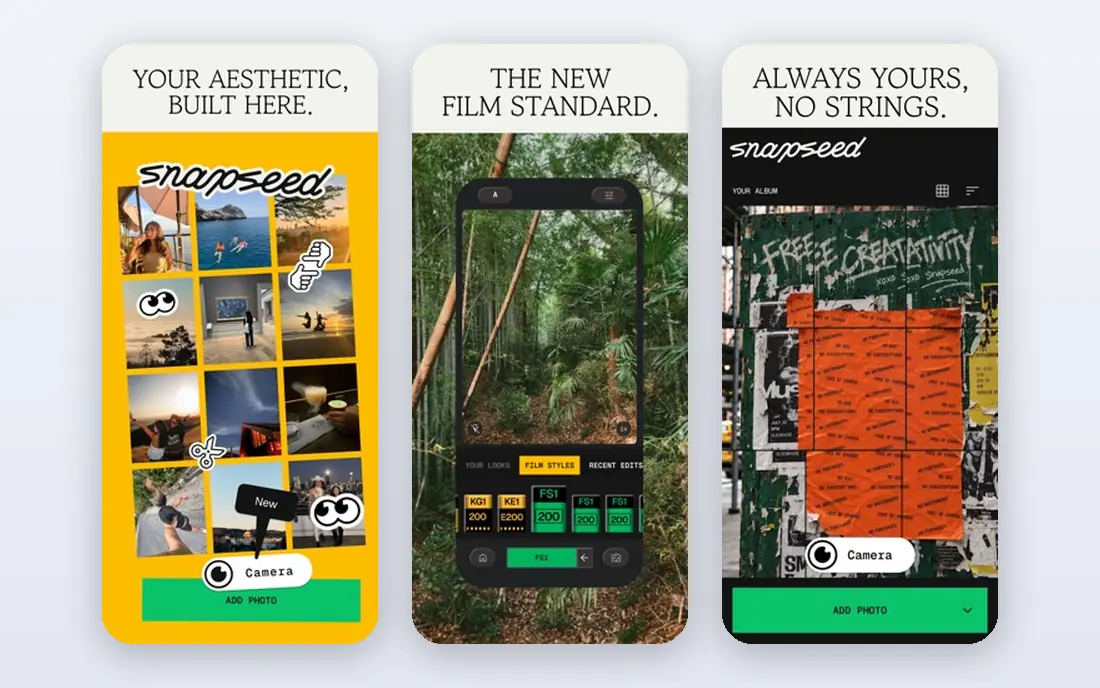
Snapseed, made by Google, is the first app we suggest for free person removal. Its Healing tool lets you brush over an unwanted person or object, and the app fills the area from surrounding pixels. Around that sits a full editor with exposure, colour, selective adjustments, and filters, so you can blend the repair into the rest of the photo.
The limit is scale. Small background figures, signs, and distractions disappear cleanly, while a large person in the foreground over a detailed background is harder and may need repeated, careful brushing. For a free app with no ads, subscriptions, or watermarks in its core editing, Snapseed is still the best value in this list.
- Completely free with no subscription
- Healing tool plus full editing suite
- Non-destructive editing
- Healing works best on small figures
- Large removals can leave visible traces

TouchRetouch is the specialist in this list, and it shows. Every tool points at removal: brush, lasso, and line tools, plus AI erase that finds background objects, meshes, and shadows. It is particularly strong on linear distractions such as wires and poles, where general editors struggle, and it handles background people well when the background is reasonably uniform.
It is not free, and it is not a general editor, so most users pair it with Snapseed or Lightroom for the rest of the edit. If you remove people often, or you need clean results on travel and street photos, the focused toolset is worth paying for. For occasional use, start free with Snapseed first.
- Built only for removal
- Strong on people, wires, and lines
- AI erase for background objects
- Paid app, not free
- Not a full photo editor, so you still need another app for colour and exposure
PhotoDirector, from CyberLink, combines AI removal with a complete mobile editor. You can tap or brush a person, let the app detect the outline and rebuild the background, then adjust colour, light, and background in the same app. That all-in-one flow suits users who want one app for editing, not a chain of specialist tools.
The free tier covers basic removal and editing, while premium tools sit behind a subscription. Results are usually strong on medium-sized figures, although complex backgrounds still need manual refinement. For a free-to-start AI editor, PhotoDirector is one of the most capable options.
- AI-powered removal with brush precision
- Automatic background fill
- Full photo editing suite
- Some advanced features need a subscription
- Exports can lose sharpness if over-edited
Fotor works across web and mobile, which helps if you edit on a computer as well as a phone. Its AI people remover and Magic Eraser let you brush over a person and let the app rebuild the background, then polish the photo with filters and retouching. The cross-device flow is a real advantage for sellers and social media users.
Free use has limits, and higher-resolution or unlimited exports may need a paid plan, so check the current free terms before a large project. Fotor fits best when you want quick AI removal without installing a specialist app, and you are happy to work in a browser for larger edits.
- AI people remover on web, iOS, and Android
- Magic Eraser for objects and text
- Easy sharing
- Free tier has limits and may add watermarks or limits on exports
- Best results need a clear figure
YouCam Perfect pairs object removal with beauty retouching, which suits portrait and selfie editing. Remove a background person, smooth skin, adjust lighting, and share, all in one app. The interface is friendly for beginners, and the free tier covers the basics.
The risk is over-editing. Beauty tools are powerful, and heavy use can make skin look artificial. Some advanced removal and retouching features also need a subscription. Use YouCam Perfect when portrait retouching matters as much as removal, and keep edits light for natural results.
- Object removal plus face and body retouching
- Easy for selfies and portraits
- Social sharing built in
- Beauty features can look over-processed if pushed too far
- Some tools need a subscription
Adobe Lightroom Mobile
Who it suits: Controlled healing inside a photo workflow
Lightroom Mobile suits photographers who already edit in Adobe workflow. Its healing and remove tools give more control than a one-tap AI eraser: you can guide the replacement area, refine edges, and keep texture and grain consistent. That control matters for prints and professional work.
It is slower than TouchRetouch or PhotoDirector for a quick removal, and some tools need a paid plan. If you already use Lightroom for colour and organisation, its removal tools are a natural extension. If you only want fast removal, an AI-first app will be quicker.
- Precise healing and clone tools
- Full colour and RAW workflow
- Edits sync across devices
- Removal is more manual than AI-first apps
- Premium features need a subscription
Cleanup.pictures is useful when you do not want to install anything. Open the site, upload a photo, brush over the person, and download the result. It is ideal for a one-off edit on a shared computer or a Chromebook, and the free tier handles basic removals.
Resolution limits and the need for an internet connection are the drawbacks, and complex backgrounds still challenge it. For quick, occasional removals, it is one of the simplest free options. For repeated or high-resolution work, a mobile app gives more control.
- No app install needed
- Brush removal in a browser
- Quick for one-off edits
- Free version may limit resolution
- Needs an internet connection
- Less control than desktop editors
Pixelcut is built for speed, especially for social media and product photos. Remove a person or object, clean the background, and export in a social-ready format without a long editing session. Sellers and creators who edit many similar photos will appreciate the templates and batch-friendly flow.
The free tier has limits, and detailed or busy backgrounds can leave artefacts. Pixelcut fits best for clean, simple scenes and quick turnaround. For a detailed travel photo with a crowd, a specialist tool such as TouchRetouch will do better.
- Fast AI removal and background tools
- Templates for social and product shots
- Easy sharing
- Free tier limits exports
- Best for simple backgrounds rather than complex scenes
PhotoRoom is best known for product photos, but its AI cleanup tools also remove people and distractions from backgrounds. Sellers can clean a listing photo, replace a background, and keep a consistent look across products. Batch options help when many photos need the same treatment.
General photo editing is thinner than in Snapseed or Lightroom, so PhotoRoom is a complement rather than a full editor. If your main need is clean product or social photos, it is efficient. If you need fine portrait retouching, pair it with a dedicated editor.
- AI background removal and cleanup
- Product-photo templates
- Batch editing options
- Focus is product photos, not general portrait removal
- Advanced exports need a subscription
How we picked these
We compared official app listings and product pages for apps that offer a real person-removal tool, not just cropping or blurring. We included fully free apps, free-tier AI apps, and one paid specialist, and we labelled the pricing clearly so readers chasing a free option are not misled. Where pricing varied by platform or plan, we wrote See website rather than publishing a single price.
What to check before you choose
Match the app to the photo. A small background figure needs only Snapseed or a browser tool. A large foreground person needs a specialist or AI tool, and even then, a clean result depends on the background. Try the free tier on your hardest photo first, not your easiest one.
Tips for cleaner removals
Work on the highest-resolution original you have, and zoom in to check edges after removal. Remove in small sections rather than brushing a huge area at once, and then adjust light and colour so the repaired area matches the rest of the photo. Save a copy of the original, and export at full resolution when the photo will be printed or used professionally.
Frequently asked questions
What is the best app to remove people from photos for free?
Snapseed is the best fully free option, with a Healing tool and a full editor at no cost. PhotoDirector, Fotor, and YouCam Perfect also offer free tiers with AI removal, although advanced exports may need a subscription.
How do I remove a person from a photo on iPhone for free?
Open Snapseed, choose Tools, then Healing, and brush over the person in small sections. For larger figures, try PhotoDirector or Fotor free tiers, and check the result at full zoom before exporting.
What is the best app to remove someone from a photo on Android?
Snapseed and PhotoDirector both work well on Android, with Snapseed best for free manual healing and PhotoDirector best for AI removal. TouchRetouch is the paid specialist if you remove people often.
Can I remove people from the background of a photo online for free?
Yes. Cleanup.pictures and Fotor web tools let you brush out background people in a browser without installing an app, although free exports may have resolution limits.
Why does person removal sometimes look blurry?
Removal works by rebuilding the background from nearby pixels, so busy or detailed areas are harder to reconstruct than plain skies or walls. Smaller brush strokes, higher-resolution originals, and a follow-up colour adjustment usually give cleaner results.
Sources we checked (9)

Online Jobs is an independent blog about careers, online work, learning new skills and the tools that help people earn. More about us.
Keep reading
All posts
Best Tools to Unblur Photos for Free
We compared the best tool to unblur photos for free, covering face repair, web tools, desktop apps, free limits, watermarks, and what blur cannot fix.

Best Photo Storage App
Looking for the best photo storage app? We compared 9 photo storage and backup apps on free space, price, search, sharing and privacy, to help you choose.

Best Photo Editor App
Best photo editor app guide: we compare 8 photo editors on editing control, presets, free plans, and pricing so you can pick the right app for photos.