Best App to Insert PDFs on My Phone in 2026: 8 Apps Compared


Complete mobile editing · Starting price: $14.99 per month
How we put this together: we compare official feature and pricing pages, app store listings, privacy policies and public user reviews. Prices change, so check the provider's site before you pay.
Key takeaways
- Adobe Acrobat and PDF Expert give the most complete mobile PDF editing, including inserting pages and files.
- iLovePDF and Smallpdf are best for quick browser-based tasks on a phone, with no heavy app install needed.
- Sejda and PDFgear suit users who want simple edits and low cost, with clear free limits.
- For sensitive documents, prefer an app that edits on your device rather than uploading every file to a server.
Quick comparison
| Name | Who it suits | Starting price | Free option | |
|---|---|---|---|---|
| Adobe Acrobat | Complete mobile editing | $14.99 per month | Yes | Visit |
 PDF Expert | Editing on the go | $79.99 per year | Free trial | Visit |
 iLovePDF | Quick online tools | $9.00 per month | Yes | Visit |
 Smallpdf | Simple online editing | See website | Yes | Visit |
 Sejda | Quick annotations | See website | Yes | Visit |
 PDFgear | Free desktop and mobile | Free | Yes | Visit |
 Xodo | Mobile annotation | See website | Yes | Visit |
 Foxit PDF Editor | Business PDF editing | See website | Free trial | Visit |
The best app to insert PDFs on my phone
Inserting a PDF on your phone can mean two different jobs, and it helps to know which one you need. Some users want to insert a new page into an existing PDF, while others want to insert a PDF file, image or signature into another document. The apps below cover both jobs on iOS and Android, with a mix of full editors and quick online tools. We compared official feature pages, pricing pages and app store listings.
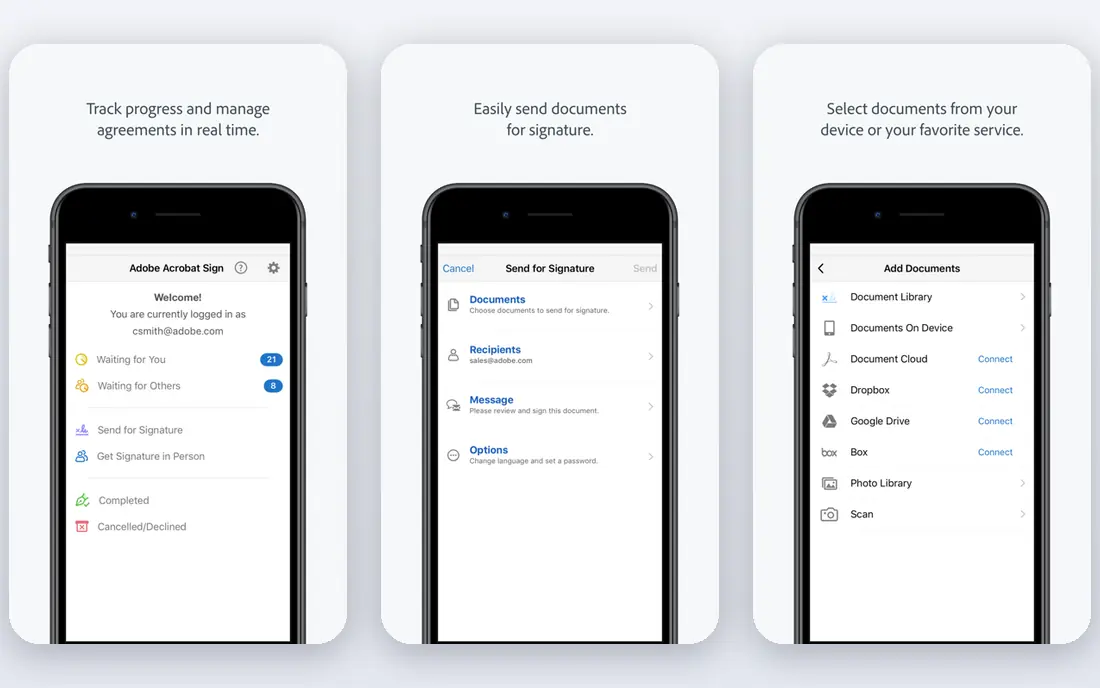
Adobe Acrobat is the most complete mobile PDF editor on this list. On your phone you can insert pages, reorder pages, edit text and images, add comments and sign documents, then sync the result across devices. That breadth matters when a PDF task is not just one insert, but a full round of edits before sending. The mobile app is also well supported, with regular updates and a large help library.
The cost is the main drawback. The free Reader app covers viewing and basic annotation, but fuller editing sits behind a paid plan, and the monthly price is higher than simpler rivals. Acrobat suits people who work with PDFs daily, handle forms and signatures, or need reliable formatting. For a one-off insert, a free online tool may be enough.
- Full page insertion and editing
- Strong annotation and signing tools
- Cloud sync across devices
- Paid plans cost more than rivals
- Many features need a subscription
- Interface can feel dense
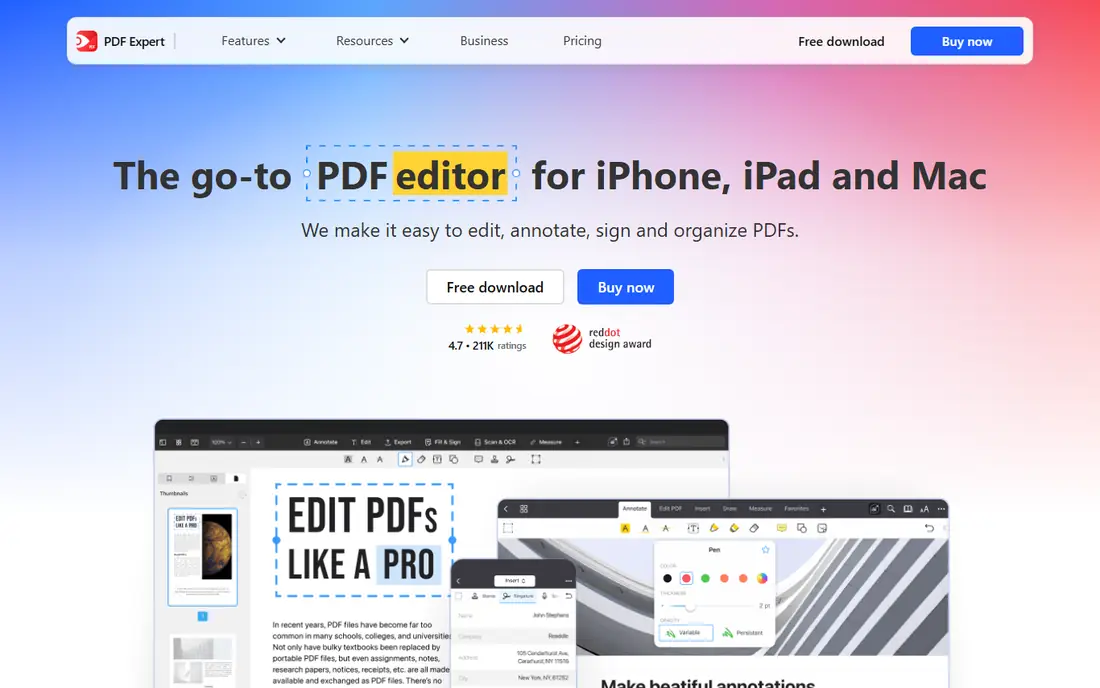
PDF Expert is built for fast editing on mobile, with a clean interface that keeps page tools within easy reach. You can insert pages, reorder them, add text and images, annotate and fill forms without switching to a desktop app. Reading is also pleasant, with smooth scrolling and clear annotation colours, which helps when you review a document before you edit it.
Full features require a paid plan, priced annually as shown here, so casual users should test the trial first. Some advanced features also feel more polished on Apple devices than on Android, so Android users should check the current feature list. PDF Expert suits frequent mobile editors who want speed and a tidy interface over a large online toolset.
- Fast mobile editing
- Page insertion and reordering
- Clean reading and annotation tools
- Annual pricing for full features
- Some tools are Apple-focused
- Free version is limited
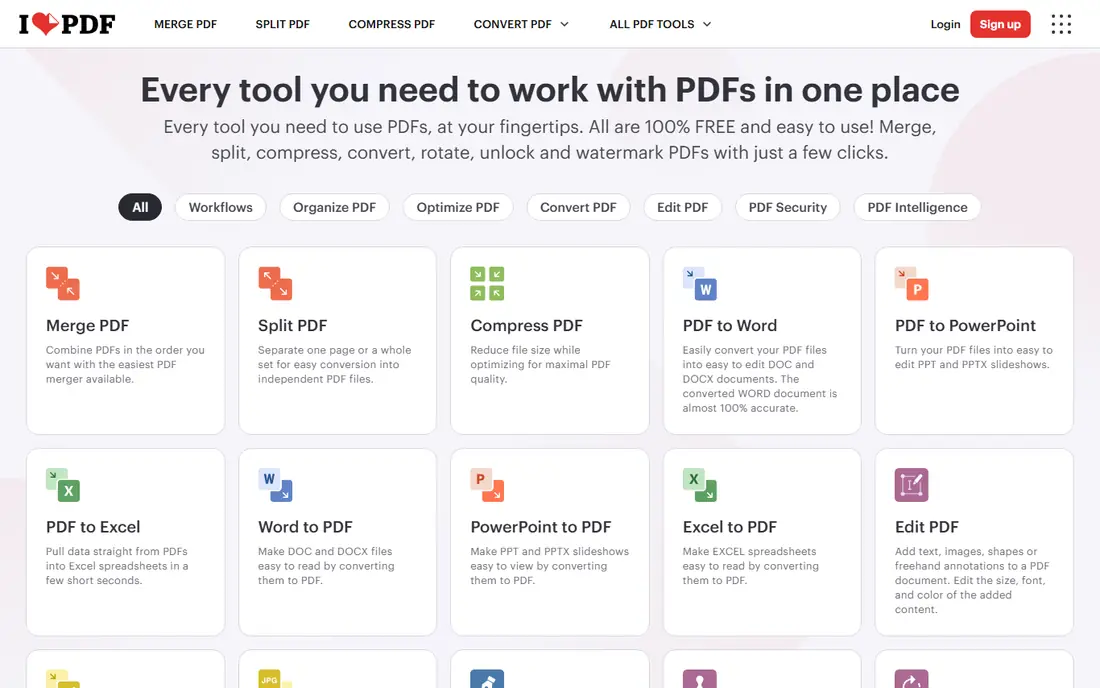
iLovePDF is a suite of online PDF tools that also offers mobile apps for iOS and Android. From your phone browser or app you can merge PDFs, insert pages, split files, compress documents and add images or text. That breadth makes it useful when you face a different PDF task each week, because you do not need a separate app for each job. The interface is simple, and most tools take only a few taps.
Free use has limits on tasks and file handling, and Premium removes those limits at the monthly price shown here. Because the tools run online, files are uploaded to a server, so avoid iLovePDF for highly sensitive documents unless you have checked its privacy terms. For everyday, non-sensitive PDFs, it is one of the fastest ways to insert pages on a phone.
- Many PDF tools in one place
- Mobile app and browser access
- Merge, split and page tools
- Free plan has task limits
- Uploads go to a server
- Some tools need Premium
Smallpdf focuses on simplicity. Its web tools work well on a phone browser, with clear steps for merging PDFs, editing pages, adding text and signing. That simplicity helps when you need a quick insert and do not want to learn a full editor. The design is clean, and the tool names match the job, so you spend less time searching menus.
The free plan limits how many tasks you can run per day, which can be frustrating if you hit the limit mid-task. Full access requires a Pro subscription, so check the current price on the vendor page before you commit. Smallpdf suits occasional users who value a clear interface and who are working with non-sensitive files.
- Very simple interface
- Merge, edit and sign tools
- Mobile-friendly web tools
- Free plan limits tasks per day
- Full features need Pro
- Server upload required
Sejda is a browser-based PDF editor with a straightforward approach to page and text edits. You can open a PDF, insert or delete pages, add text and images, annotate and sign, then download the result. The free plan is useful for quick jobs, and it avoids watermarks on many edits, which sets it apart from some rivals. For a phone user who does not want to install another app, the browser route is a plus.
Free use limits tasks per hour, so heavy users will need a paid plan. Files are also processed online, so Sejda is best for non-sensitive documents. Sejda suits users who want a quick, no-fuss edit on a phone browser, with a clear upgrade path if they start editing PDFs more often.
- No watermark on free edits in many cases
- Simple page tools
- Browser and desktop options
- Free plan limits tasks per hour
- Uploads go to a server
- Mobile web is simpler than a full app
PDFgear stands out because its core PDF editing is free, including page management, annotation and basic text edits. That makes it a strong choice for users who need to insert pages regularly but do not want a subscription. The mobile app covers the main jobs, and the desktop version gives a larger workspace when you need it. For students and small businesses on a tight budget, that free core is a real advantage.
Advanced business features, such as deeper form tools or enterprise support, are thinner than in Adobe Acrobat or Foxit. Some newer AI tools may also sit outside the free core, so check the current feature list. PDFgear suits users who want solid, free editing without a monthly bill, and who do not need a full enterprise feature set.
- Free core editing
- Page insertion and annotation
- No subscription for basic tools
- Fewer advanced business features
- Support and updates vary
- Some AI tools may cost extra
Xodo is a mobile-friendly PDF reader and editor with strong annotation tools. You can add comments, highlights, text and images, manage pages and fill forms, then save or share the file. That makes it useful for reviewing a PDF on your phone, marking changes, and inserting a page or image before sending it on. Cloud sync options help if you move between phone and desktop.
Pricing for full features varies by platform and plan, so check the vendor page for your device. The interface also packs many tools into a small screen, which can feel busy at first. Xodo suits readers and reviewers who annotate often and want page tools in the same app, rather than a separate viewer and editor.
- Strong annotation on mobile
- Page tools and form filling
- Cloud sync options
- Full feature pricing varies
- Interface can feel busy
- Some tools need a paid plan
Foxit PDF Editor is a full PDF editor with mobile apps alongside desktop versions. It covers page insertion, text and image editing, forms, signatures and document security, which suits business users who handle PDFs across devices. The mobile app lets you make core edits on the go, while the desktop version handles larger or more complex documents. That pairing is useful for teams that standardise on one editor.
Pricing varies by plan and platform, so use the vendor page for a current figure rather than an old review. The mobile app is also lighter than the desktop version, so very complex edits are still easier on a computer. Foxit suits business users who want a complete editor and who will use both mobile and desktop, rather than casual users who need one quick insert.
- Full page and text editing
- Form and signature tools
- Desktop and mobile versions
- Pricing varies by plan
- Mobile app is lighter than desktop
- Learning curve for new users
How we picked these
We compared official feature pages, pricing pages and app store listings, and we kept only apps that are still available on iOS or Android, or through a mobile-friendly browser, in 2026. We favoured apps that can truly insert pages or files into a PDF on a phone, rather than viewers that only open PDFs. Price, free plan limits, mobile usability and privacy handling shaped the shortlist.
We did not claim hands-on testing, and we did not invent prices or features. Where pricing varied by plan or platform, we marked it as See website and advised readers to check the vendor page. Prices and free limits change, so confirm them before you start an important edit.
How to insert a PDF page on your phone without losing formatting
First, make a copy of the original PDF before you edit it. That copy protects you if an insert shifts page order or formatting, and it lets you start again without losing the source file. Then open the copy in your chosen app, use the page management or insert tool, and check the page order before you save.
Check privacy before you upload
If the PDF contains personal, financial or client information, prefer an app that edits on your device rather than uploading the file to a server. Online tools are convenient, but they add a step where your file leaves your phone. For sensitive files, use a device-based editor, delete uploaded copies when you are done, and avoid public Wi-Fi for document uploads when possible.
Test the result before you send it
After inserting a page, open the saved PDF and scroll through the pages around the insert. Check that text is readable, images are placed correctly and the page order matches your intent. A quick check takes a minute and avoids sending a document with a blank page, a duplicated page or a misplaced insert.
Frequently asked questions
What is the best PDF app for my phone?
Adobe Acrobat is the most complete choice, while PDF Expert suits fast mobile editing and iLovePDF suits quick online tasks. The best app depends on whether you edit PDFs daily or only need an occasional insert. Start with the free plan or trial and test the insert tool on a copy of a real file.
Can I insert a PDF into another PDF on my phone?
Yes, most editors on this list let you merge PDFs or insert pages from one PDF into another. In a full editor, use the page management tool, while in an online tool, use the merge tool and select the files in order. Always check the final page order before you save or share the result.
Is there a free app to insert PDFs on my phone?
Yes, PDFgear offers free core editing, and iLovePDF, Smallpdf and Sejda offer free plans with task limits. Free plans usually limit tasks per day or hour, or require an upload to a server. For frequent edits, a paid plan or a device-based editor may be better value.
How do I insert a page into a PDF on iPhone or Android?
Open the PDF in an editor such as Adobe Acrobat, PDF Expert or PDFgear, find the page management or insert page tool, and choose the page or file to add. Place it in the correct order, save a copy, and review the pages around the insert. The exact menu names vary by app, so check the app help page if the tool is hard to find.
Should I use an online PDF tool or a mobile app?
An online tool is faster for a one-off task and needs no install, while a mobile app is better for frequent edits and for sensitive files that should stay on your device. If privacy matters, choose a device-based editor. If speed matters and the file is not sensitive, an online tool is a practical choice.
Sources we checked (8)

Online Jobs is an independent blog about careers, online work, learning new skills and the tools that help people earn. More about us.
Keep reading
All posts
Zoom Alternatives
Zoom alternatives compared for 2026: Google Meet, Microsoft Teams, Webex, Jitsi and more for free calls, large meetings and webinars for teams and classrooms.
Which Software Is Best for Data Entry
Compare the best data entry software for forms, OCR scanning, and spreadsheets, with free plans, pricing, and honest limits for each tool before you commit.
What Is the Best Free Tool to Rotate a PDF
What is the best free tool to rotate a PDF? We compare eight free rotation tools on per-page control, limits, privacy and saved output quality in detail.