Best App for Shrinking PDFs in 2026: 9 Apps Compared

How we put this together: we compare official feature and pricing pages, app store listings, privacy policies and public user reviews. Prices change, so check the provider's site before you pay.
Key takeaways
- Most PDFs shrink well by recompressing images, and a good tool should let you preview the result before you download it.
- Smallpdf and iLovePDF are our picks for most people, because they are easy to use on web and mobile and they offer clear quality levels.
- Adobe Acrobat is best when you need reliable results for work documents, while PDF24 and Sejda are strong free options for occasional use.
- For sensitive documents, prefer a tool that processes files in your browser or on your device, rather than uploading them to a server.
- Always keep the original file until you have checked the compressed version, because heavy compression can blur images and small text.
Quick comparison
| Name | Who it suits | Starting price | Free option | |
|---|---|---|---|---|
 Smallpdf | Easy everyday compression | Free | Yes | Visit |
 iLovePDF | Mobile compression and PDF tools | Free | Yes | Visit |
 Adobe Acrobat | Reliable work compression | See website | Free trial | Visit |
 PDF24 Tools | Free web compression | Free | Yes | Visit |
 Sejda | Free compression without an account | Free | Yes | Visit |
 PDFelement | Desktop compression and editing | See website | Free trial | Visit |
 Foxit PDF Editor | Desktop compression for teams | See website | Free trial | Visit |
 PDF2Go | Quick web compression | Free | Yes | Visit |
 Stirling PDF | Self-hosted local compression | Free | Yes | Visit |
The best app for shrinking pdfs
We focused on tools that actually reduce file size while keeping text readable, not tools that only rename or re-save a file. Every pick below offers a web tool, a mobile app, or a desktop app, and we note where your file is uploaded, because that matters for private documents.
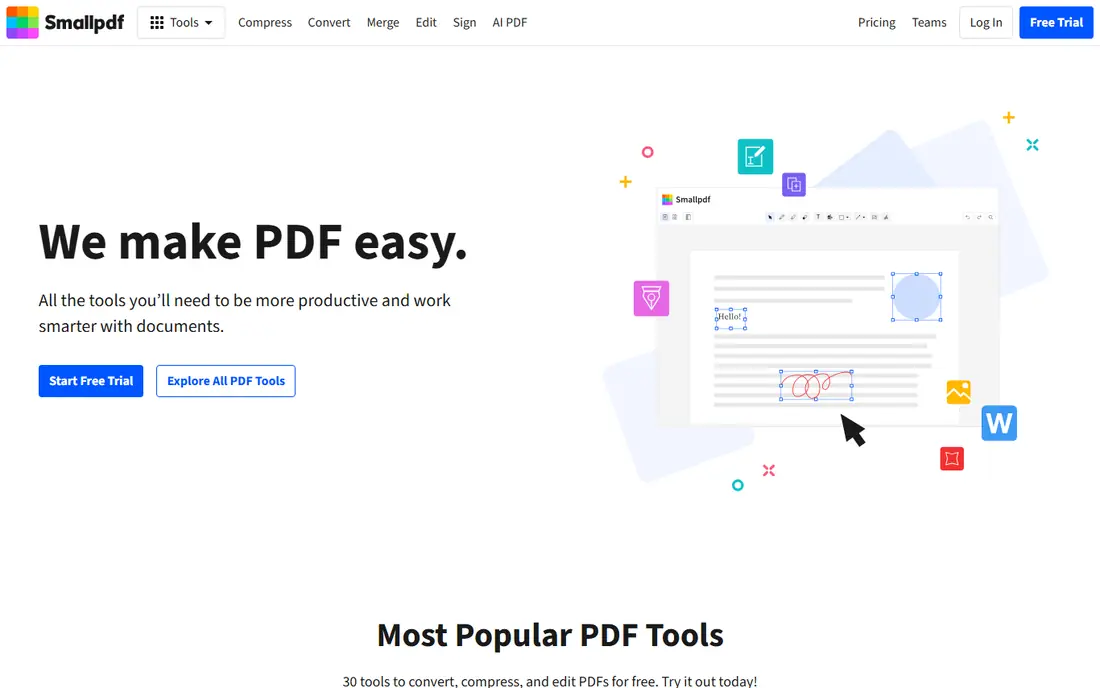
Smallpdf is the easiest compressor for most people. Drop a PDF onto the web tool or open it in the mobile app, choose basic or strong compression, and download the result. The interface explains the trade-off plainly, and the wider toolset covers merging, splitting, converting, and signing, so you are not installing a one-trick app.
The free tier limits how many tasks you can run each day, and very large files need the paid plan. Files are also uploaded to Smallpdf servers for processing, with deletion after a stated period, so sensitive documents deserve a local tool instead. For everyday email attachments and uploads, Smallpdf is fast, clear, and hard to get wrong.
- Very easy to use
- Clear compression levels
- Web, mobile, and desktop access
- Free tier limits daily tasks
- Large files need the paid plan
- Files are uploaded to its servers
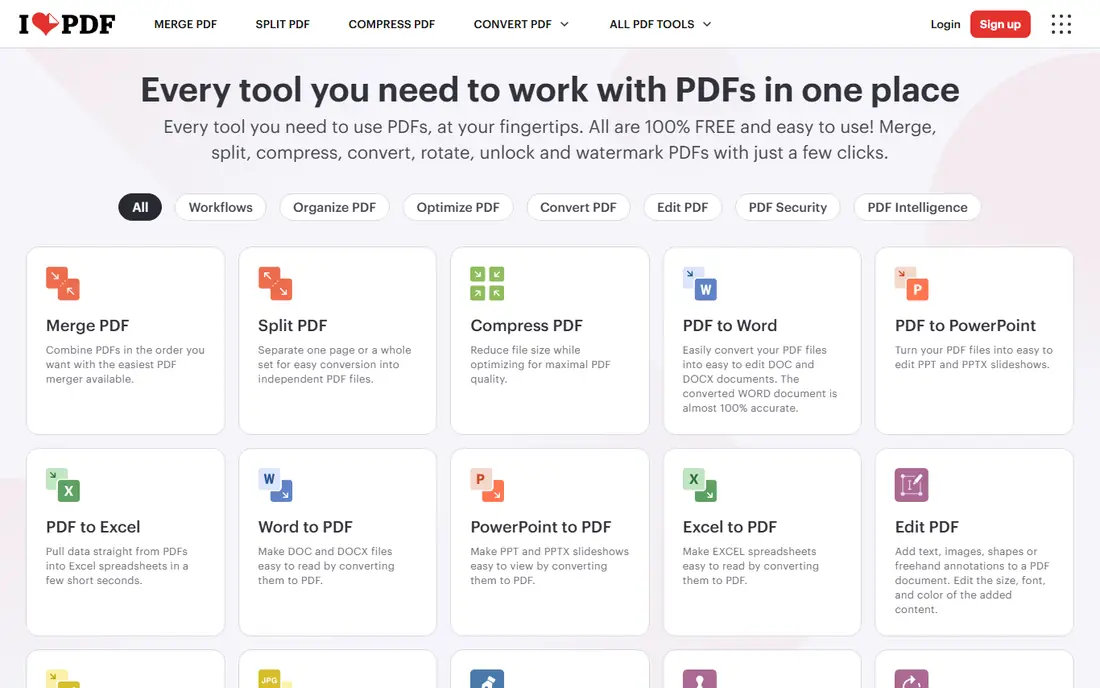
iLovePDF pairs a clean web compressor with strong mobile apps, which makes it a good pick for people who shrink PDFs on a phone. You can choose a compression level, see the resulting size, and then use the same app to merge, split, convert, or sign the file. The workflow feels coherent rather than a set of disconnected web pages.
Free use has file size and task limits, and unlimited use needs the premium plan. As with Smallpdf, files are uploaded for processing, so read the deletion policy before using it for private material. For frequent mobile use, iLovePDF is one of the most polished options here.
- Strong mobile apps
- Several compression levels
- Wide PDF toolset in one place
- Free tier has file size limits
- Premium needed for unlimited use
- Files are uploaded for processing
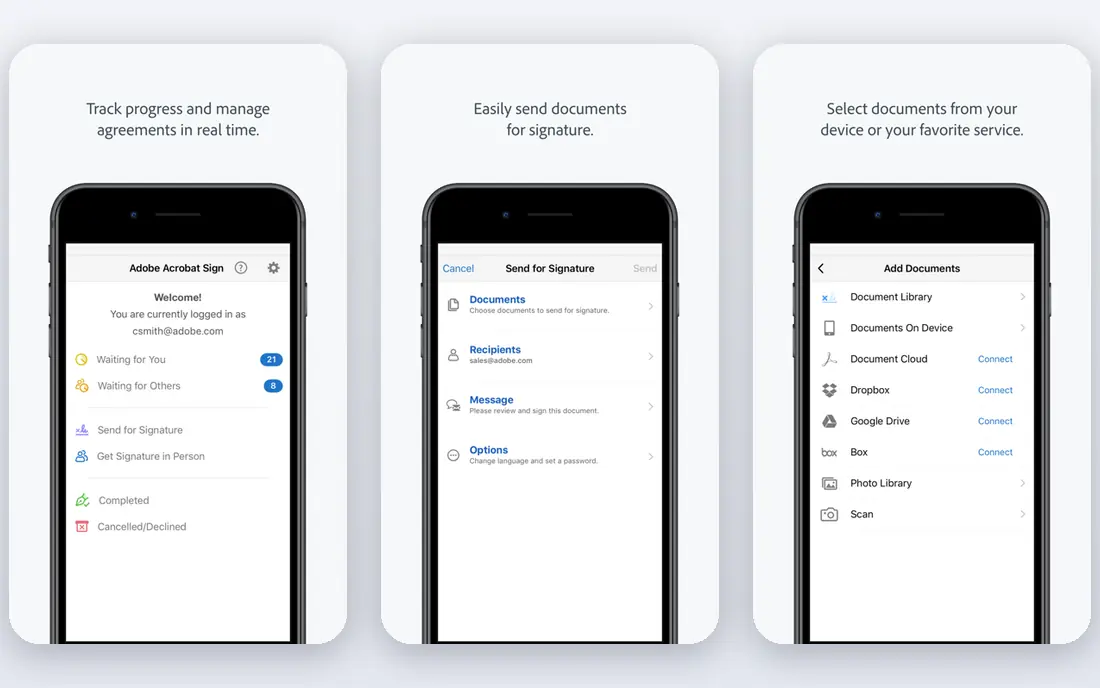
Adobe Acrobat is the workhorse choice when a PDF has to look right after compression. The desktop app offers detailed optimisation controls, including image downsampling and font handling, while the online compressor covers quick one-off jobs. Results are predictable, which matters for client documents, portfolios, and forms that will be printed or archived.
The cost is the main barrier. Full Acrobat needs a subscription, and it is heavier than a simple web tool if you only shrink one file a month. For occasional use, the free online tool may be enough. For regular work documents, Acrobat is worth the price for reliability alone.
- Reliable compression and quality control
- Strong PDF editing
- Trusted for work documents
- Paid plan needed for full tools
- Heavier than a simple web tool
- Online tool handles one file at a time free
PDF24 Tools is a strong free option that does not push you to create an account for basic compression. Upload a PDF, compress it, and download the result, with a wider set of PDF tools available on the same site. A desktop app is also offered for people who prefer to process files locally.
The interface is plainer than Smallpdf or iLovePDF, and quality previews are less detailed. Very large files may work better in the desktop app than in the browser. For a free, no-fuss compressor that you use a few times a month, PDF24 is easy to recommend.
- Free with no account for basic use
- Wide PDF toolset
- Desktop app also available
- Interface is plainer than rivals
- Fewer quality previews
- Some tools need the desktop app for large files
Sejda is a good choice for a one-off job when you do not want to sign up. The web compressor offers clear options, processes the file, and deletes it after a stated period. That no-account flow is useful for a single large attachment or a form that needs to fit an upload limit.
The free tier limits the number of tasks per hour and the size of each file, so batch work quickly needs the paid plan. It is also web based for free use, with desktop options behind paid plans. For occasional, private-minded web compression, Sejda is a solid pick.
- Works without an account for basic use
- Clear compression options
- Files deleted after processing
- Free tier limits tasks per hour and file size
- Batch work needs the paid plan
- Web only for the free tier
PDFelement, from Wondershare, suits people who already edit PDFs on a computer and want compression in the same app. You can compress a file, adjust image quality, edit text, add signatures, and batch process several files without uploading them to a web service. Local processing is a real advantage for work documents.
The full version needs a paid plan, and the desktop app is heavier than a web tool. The range of features also takes a little learning if you only want compression. For regular desktop PDF work, PDFelement is a practical all-in-one choice.
- Desktop compression with editing built in
- Batch processing
- Good control over image quality
- Paid plan needed for full use
- Desktop app is larger than a web tool
- Interface takes learning
Foxit PDF Editor is a desktop alternative to Acrobat that many teams use for editing, reviewing, and securing PDFs. Compression sits alongside editing, commenting, form filling, and security tools, so a team can standardise on one app for most PDF work. Results are reliable, and local processing keeps files off third-party servers.
Casual users will find it more than they need, and pricing varies by edition, so check the current plan page for the version that includes the features you want. For business users who shrink PDFs as part of wider document work, Foxit is a strong, well-supported option.
- Strong desktop PDF tools
- Compression with editing and security features
- Team and business options
- Paid plan needed for full use
- More than casual users need
- Pricing varies by edition
PDF2Go is a straightforward web compressor for people who do not want to install anything. Upload a file, choose compression settings, and download the smaller result, with other PDF tools available if you need to merge or convert the file first. The workflow is quick and the site is easy to follow.
Free use has limits, and files are uploaded for processing, so it is not the best choice for sensitive documents. Mobile features are also lighter than a dedicated app such as iLovePDF. For a fast desktop browser job, PDF2Go does the work with little fuss.
- Simple web workflow
- No install needed
- Extra PDF tools on the same site
- Free tier has limits
- Files are uploaded for processing
- Fewer mobile features than iLovePDF
Stirling PDF is different from the other tools here, because you run it yourself on your own server or computer rather than using someone else's website. That local processing is a major advantage for private documents, since files never need to leave your own system. Compression sits alongside merging, splitting, converting, signing, and many other PDF tools in one web interface.
The cost is setup. Stirling PDF needs Docker or a similar deployment, and it suits technical users, small teams with IT help, or privacy-minded users who already run self-hosted tools. There is no simple consumer phone app in the same sense as iLovePDF. For a team that shrinks PDFs often and wants full control over file handling, it is a strong and genuinely free option.
- Processes files on your own server
- Open source
- Wide PDF toolset beyond compression
- Needs technical setup
- No simple phone app
- Support comes mainly from community docs
How we picked these
We compared official tool pages, pricing pages, and app store listings, and we kept only tools that are available in 2026 and that genuinely reduce PDF file size. We favoured tools with clear quality levels, a usable free tier or trial, and a stated file handling policy. We did not claim hands-on testing, and we did not include tools that only re-save a file without compressing its images.
What to check before you compress
Start with why the file is large. Scanned pages with high-resolution images shrink a lot, while text-only PDFs are already small and may barely change. If your PDF is mostly images, a stronger compression level makes sense. If it is mostly text with a few logos, a lighter level will keep text sharp while still cutting size.
Next, check the result before you send it. Open the compressed file, zoom into small text and detailed images, and check that pages, links, and form fields still work. Keep the original until you are happy with the compressed version, because heavy compression cannot be undone. For email, aim comfortably below the attachment limit rather than just under it, because mail servers add overhead.
Finally, think about privacy. Web tools upload your file to a server, even if they delete it soon after. For contracts, medical forms, and financial documents, prefer a desktop app or a browser-based tool that processes files locally. The extra step is worth it when the document is private.
Frequently asked questions
What is the best app for shrinking pdfs?
Smallpdf is our pick for most people because it is easy and offers clear compression levels, while iLovePDF is best on mobile. Adobe Acrobat is best for work documents where quality must stay reliable, and PDF24 is a strong free option.
How much can I shrink a PDF?
It depends on the file. Image-heavy scanned PDFs often shrink a lot, while text-only PDFs shrink little. A good tool shows the new size before you download, so you can try a lighter level first and only go stronger if you still need a smaller file.
Will compressing a PDF ruin its quality?
Light compression usually keeps text readable, but heavy compression can blur images and small text. Always preview the result, keep the original, and use the lightest level that meets your size limit, especially for documents that will be printed.
Is it safe to compress a PDF online?
For ordinary documents, reputable web tools with a stated deletion policy are generally safe. For sensitive documents, prefer a desktop app or a local browser tool, because web tools upload your file to a server for processing.
Why is my PDF still too large after compression?
The file may already be optimised, or it may contain high-resolution images that need stronger compression or downsampling. Try a stronger level, split a very large document into parts, or use a desktop optimiser that lets you control image resolution directly.
Sources we checked (9)

Online Jobs is an independent blog about careers, online work, learning new skills and the tools that help people earn. More about us.
Keep reading
All posts
Zoom Alternatives
Zoom alternatives compared for 2026: Google Meet, Microsoft Teams, Webex, Jitsi and more for free calls, large meetings and webinars for teams and classrooms.
Which Software Is Best for Data Entry
Compare the best data entry software for forms, OCR scanning, and spreadsheets, with free plans, pricing, and honest limits for each tool before you commit.
What Is the Best Free Tool to Rotate a PDF
What is the best free tool to rotate a PDF? We compare eight free rotation tools on per-page control, limits, privacy and saved output quality in detail.