Best Alarm App in 2026: 8 Apps Compared

How we put this together: we compare official feature and pricing pages, app store listings, privacy policies and public user reviews. Prices change, so check the provider's site before you pay.
Key takeaways
- Mission alarms beat simple alarms for heavy sleepers, because dismissal takes effort and movement.
- Alarmy is the most flexible mission app, while Wake Boom and PushClock are the most stubborn about re ringing.
- Smart wake apps such as Sleep Cycle suit groggy risers more than deep sleepers.
- Built in clocks are free and reliable, but they offer no task to stop a half asleep snooze.
Quick comparison
| Name | Who it suits | Starting price | Free option | |
|---|---|---|---|---|
 Alarmy | mission alarms for heavy sleepers | Free | Yes | Visit |
 Sleep Cycle | smart wake window plus sleep tracking | Free | Yes | Visit |
 Apple Clock | simple reliable alarm on iPhone | Free | Yes | Visit |
 Google Clock | simple reliable alarm on Android | Free | Yes | Visit |
 Wake Boom | relentless alarms with physical missions | Free | Yes | Visit |
 PushClock | movement missions with no snooze | See website | Yes | Visit |
 Roost Alarm | challenge alarms with escalating audio | $11.99 per month | Free trial | Visit |
 Sleep as Android | sleep tracking with smart alarms and missions | Free | Yes | Visit |
The best best alarm app
The best alarm app depends on why you miss alarms. If you snooze on autopilot, you need a mission. If you wake groggy, you need better timing. If you simply want a reliable clock, the built in app already does the job. The list below covers all three cases, with heavy sleepers first.
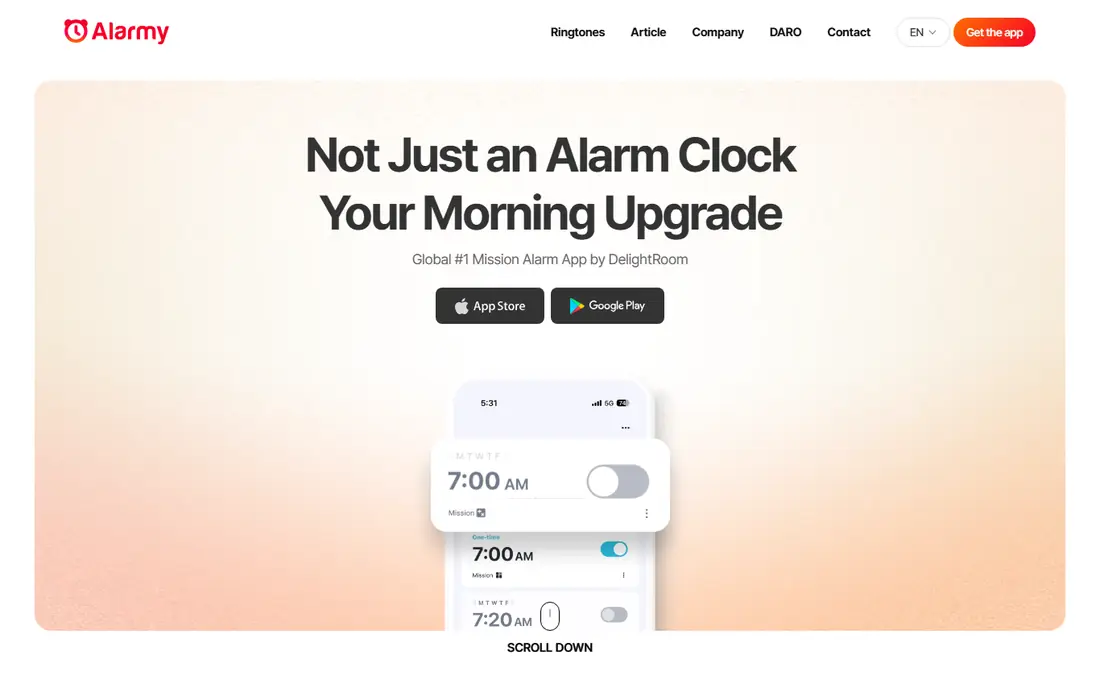
Alarmy is the best known mission alarm, and it earns that place by making dismissal a task rather than a tap. Photo missions can require a picture of your bathroom sink or coffee maker, which forces you out of bed, while math, shake, and barcode missions suit different mornings.
The free tier covers the core idea, but the full mission set and extra features need a subscription, so test the free missions first. Before you commit, check the current plan page and the app store listing, since prices and limits change often.
- Photo, math, shake, and barcode missions
- Loud alarms
- Sleep tracking on some plans
- Many missions and features sit behind a subscription
- Interface can feel busy
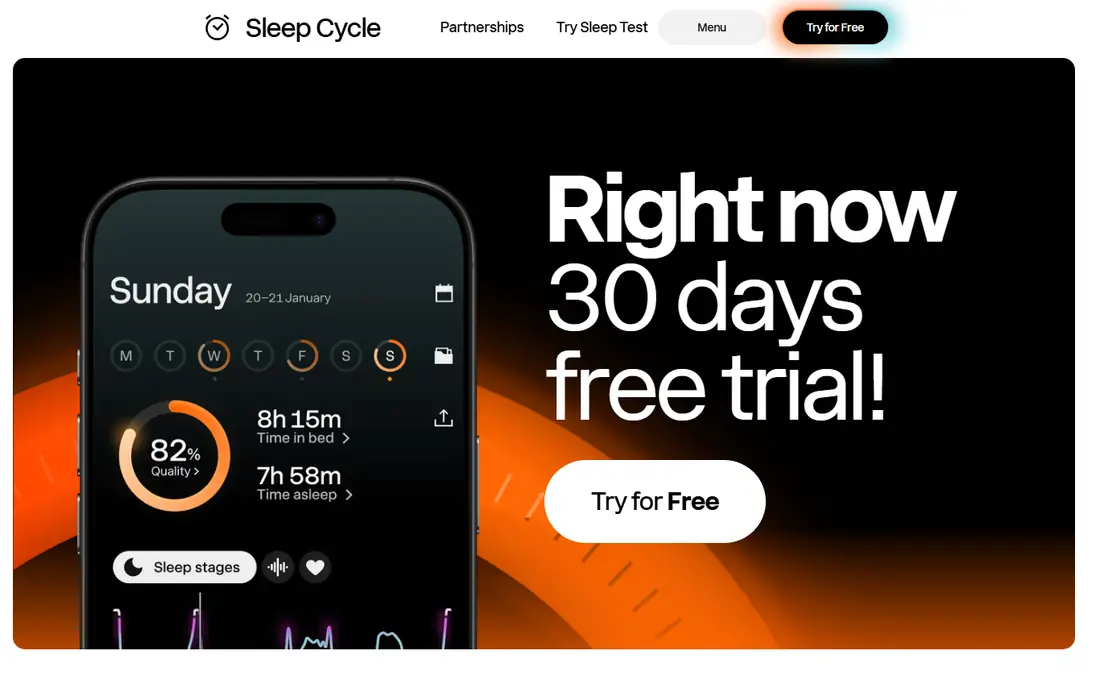
Sleep Cycle suits people who wake groggy rather than people who sleep through every alarm, since it times waking inside a window of lighter sleep. Sleep tracking and trends help you see patterns in bedtime and wake time, which matters as much as the alarm sound itself.
Heavy sleepers should pair it with a mission alarm or a louder sound, since gentle timing alone may not break deep sleep. Try the free option first on one real item, then decide if the paid tier adds enough to justify the cost.
- Wake window aiming for lighter sleep
- Sleep tracking and trends
- Gentle sounds and alarms
- Smart timing suits light sleepers more than the deepest sleepers
- Premium features need a subscription
Apple Clock is the alarm most iPhone owners already have, and its strength is reliability rather than cleverness. System alarms ring through silent and focus modes when set correctly, and sleep schedules keep bedtimes consistent.
If you sleep through it now, no setting inside Apple Clock will fix that on its own, so a mission app is the next step. Read the plan page closely before you pay, and keep an eye on renewal terms and what the free tier leaves out.
- Built in, no extra app needed
- Reliable system alarms
- Bedtime and sleep schedule features
- No missions or heavy sleeper tasks
- Limited sound and snooze control
Google Clock is the default for many Android owners, and it covers the basics well without an extra download. Alarms, timers, and a stopwatch sit in one clean app, and some devices add music or sound options for waking.
Like Apple Clock, it has no mission to force you up, so heavy sleepers should look at Alarmy or a similar task based app. Start small, use it on a real project, and only upgrade once you know which paid feature you actually need.
- Built in on many Android phones
- Reliable alarms
- Timer and stopwatch included
- Spotify and sounds on some devices
- No missions
- Features vary by phone maker and Android version
Wake Boom targets the exact failure heavy sleepers know: silencing an alarm half asleep and waking late. Its relentless mode keeps ringing until the mission is done, and physical missions such as a photo hunt pull you out of bed.
Set it up the night before and test a mission once, since a mission you have not tried can feel confusing at 6am. Compare it with one other pick on this list before you settle, since the right fit depends on your budget and habits.
- Relentless re ringing until the mission ends
- Photo hunt and shake missions
- Volume ramp per alarm
- Missions live on the phone, not the watch
- Strongest features need familiarity with the app
PushClock suits heavy sleepers who want a mission with real effort, from push ups to a photo of a made bed. Mission alarms have no snooze, and the alarm keeps returning until the task is finished, which removes the half asleep bargain.
If workouts are not for you, pick math, memory, or photo missions instead, since the point is friction, not fitness. Check current pricing and platform support before you sign up, because both can change between updates.
- More than 25 missions including push ups, photos, and brain games
- No snooze on mission alarms
- Rings through silent modes
- Workout missions do not suit everyone
- Choose a non workout mission if movement is hard
Roost Alarm replaces snooze with a challenge and escalating audio, so the alarm gets harder to ignore rather than easier. Math, photo, and movement challenges give you a choice of task, and alarms still ring with Do Not Disturb on.
At $11.99 per month it costs more than most alarm apps, so use the free trial to prove it wakes you before paying. Use the free tier for a week on real tasks, then judge it on results rather than on the feature list alone.
- Math, photo, and movement challenges
- Escalating audio
- No snooze
- Works with Do Not Disturb on
- Monthly price is high beside free rivals
- IPhone challenge behaviour differs from Android
Sleep as Android suits Android owners who want sleep tracking, a smart wake window, and missions in one app. It combines gentle timing with tasks that block a half asleep dismissal, which covers both light and heavy sleeper needs.
The settings list is long, so start with one alarm and one mission, then add tracking features once the morning routine works. Look at the plan limits first, then test it with your own files or items before you move anything important over.
- Smart wake window
- Sleep tracking
- CAPTCHA style missions and shake tasks on some plans
- Android only
- Interface has many settings that take time to learn
How we picked these
We compared official app pages, app store listings, and feature descriptions for alarm apps on iPhone and Android. We kept apps that exist now, that offer a real alarm function, and that state their mission or timing features plainly. Where pricing was subscription based or varied by store, we used the published figure or wrote See website rather than guessing.
We also rechecked plan pages for free tiers and paid limits, and we left out tools that no longer publish clear pricing or that failed to fit the topic. That check matters because prices, free limits, and product availability change often, and a list built on old pages would mislead readers who need a working tool today. When two sources disagreed on a price, we used the vendor page and noted the gap rather than picking the lower figure.
How to make any alarm app actually work
Test it locked, on silent, and on Do Not Disturb
Set a test alarm for two minutes ahead, lock the phone, and turn on silent or Do Not Disturb. If the alarm does not ring loudly in that test, fix permissions and battery settings before trusting it for work.
Put the off switch away from the bed
Photo, barcode, and hunt missions work because they move you. Register a spot in another room, such as the bathroom or kitchen, and keep the phone charger away from the bed if you can.
Fix the night before the morning
A mission alarm cannot fix a 3am bedtime. Set a consistent sleep schedule, keep the room dark and cool, and use the alarm as a backstop, not as the whole plan, for better mornings.
Frequently asked questions
What is the best alarm app?
Alarmy is the best all round mission alarm for heavy sleepers, Sleep Cycle suits groggy risers who want smart timing, and Apple Clock or Google Clock suit anyone who wants a simple reliable alarm. The best pick depends on why you miss alarms.
What are the best alarm apps for heavy sleepers?
Alarmy, Wake Boom, PushClock, and Roost Alarm are the strongest for heavy sleepers, because they require a task to dismiss the alarm. Wake Boom and PushClock are the most stubborn about re ringing until the task is done.
What is the best alarm clock app for heavy sleepers on iPhone?
Alarmy and Wake Boom both work on iPhone with mission alarms, and Roost Alarm offers challenge alarms with a free trial. Test the mission locked and on silent before relying on it for an early start.
Do smart alarms wake you better than loud alarms?
Smart alarms can reduce grogginess by timing waking inside lighter sleep, but they suit light sleepers more than deep sleepers. Many heavy sleepers do better with a loud mission alarm, or a smart app paired with a mission task.
Are alarm apps free?
Many are free to start, including Alarmy, Sleep Cycle, Apple Clock, Google Clock, and Wake Boom, with paid plans for extra missions and features. Roost Alarm and PushClock use trials or paid tiers, so check the store listing before you commit.
Sources we checked (8)

Online Jobs is an independent blog about careers, online work, learning new skills and the tools that help people earn. More about us.
Keep reading
All posts
Zoom Alternatives
Zoom alternatives compared for 2026: Google Meet, Microsoft Teams, Webex, Jitsi and more for free calls, large meetings and webinars for teams and classrooms.
Which Software Is Best for Data Entry
Compare the best data entry software for forms, OCR scanning, and spreadsheets, with free plans, pricing, and honest limits for each tool before you commit.
What's the Best App to Read PDFs
Find what's the best app to read PDFs in 2026, from Adobe Acrobat Reader and Foxit to PDF Expert and Xodo, with free options and honest limits for every device.