Best AI Video Editor App in 2026: 10 Apps Compared

How we put this together: we compare official feature and pricing pages, app store listings, privacy policies and public user reviews. Prices change, so check the provider's site before you pay.
Key takeaways
- Descript leads for podcast and talking-head video, Runway leads for generative video, and CapCut leads for mobile short-form editing.
- OpusClip is the most focused tool for turning long videos into short clips, while VEED and Kapwing suit browser-based team editing.
- Adobe Premiere Pro and DaVinci Resolve remain the professional choices, with AI features layered onto full editing timelines.
- AI tools speed up rough cuts, captions, and repurposing, but longer videos still need human review for pacing and story.
Quick comparison
| Name | Who it suits | Starting price | Free option | |
|---|---|---|---|---|
 CapCut | Mobile and short-form creators | See website | Yes | Visit |
 Descript | Podcasts and talking-head video | See website | Yes | Visit |
 Runway | Generative video and visual effects | See website | Yes | Visit |
 Adobe Premiere Pro | Professional long-form editing | $22.99 per month | Free trial | Visit |
 DaVinci Resolve | Professional editing without a subscription | Free | Yes | Visit |
 VEED | Browser-based team editing | See website | Yes | Visit |
 Kapwing | Beginners and students in the browser | $16 per month | Yes | Visit |
 OpusClip | Long videos into short clips | $15 per month | Yes | Visit |
 Filmora | Beginners on desktop | $49.99 per year | Yes | Visit |
 Pictory | Script and article to video | $25 per month | Free trial | Visit |
The best AI video editor apps
AI video editors split into three groups: editors that help you cut faster, tools that generate new footage, and tools that repurpose long videos into clips. We compared official pricing pages, feature lists, and app store listings, and we marked prices as See website where vendors change plans often or price by credits.
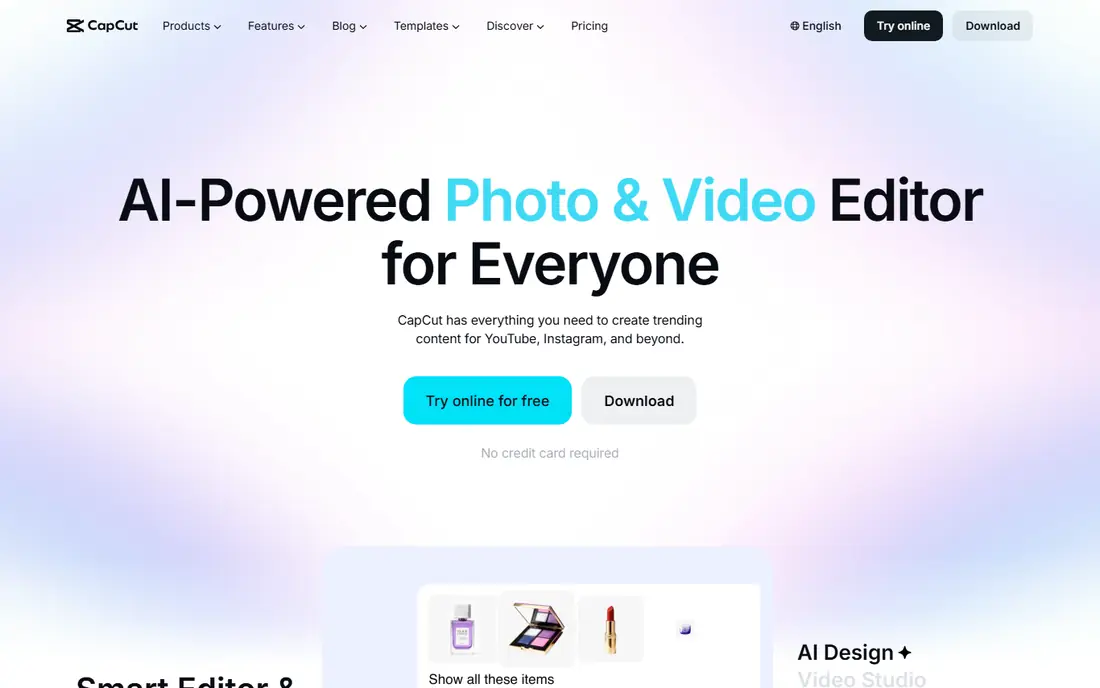
CapCut is the workhorse for creators who shoot and edit on a phone. Auto-captions are accurate enough for social video, background removal and auto-reframe handle vertical formats well, and templates speed up recurring formats such as tutorials and product clips. The free version covers quick social edits, while Pro adds more effects, templates, and export options.
CapCut will not generate footage for you, and its AI tools assist editing rather than replacing creative decisions. Desktop editing is improving but still feels lighter than a professional timeline. For TikTok, Reels, and Shorts, where speed and captions matter most, CapCut is the most practical starting point.
- Strong mobile editor
- Auto-captions and background removal
- Huge template library
- AI features are assistive, not generative
- Pro features need a subscription
- Desktop depth is less than Premiere
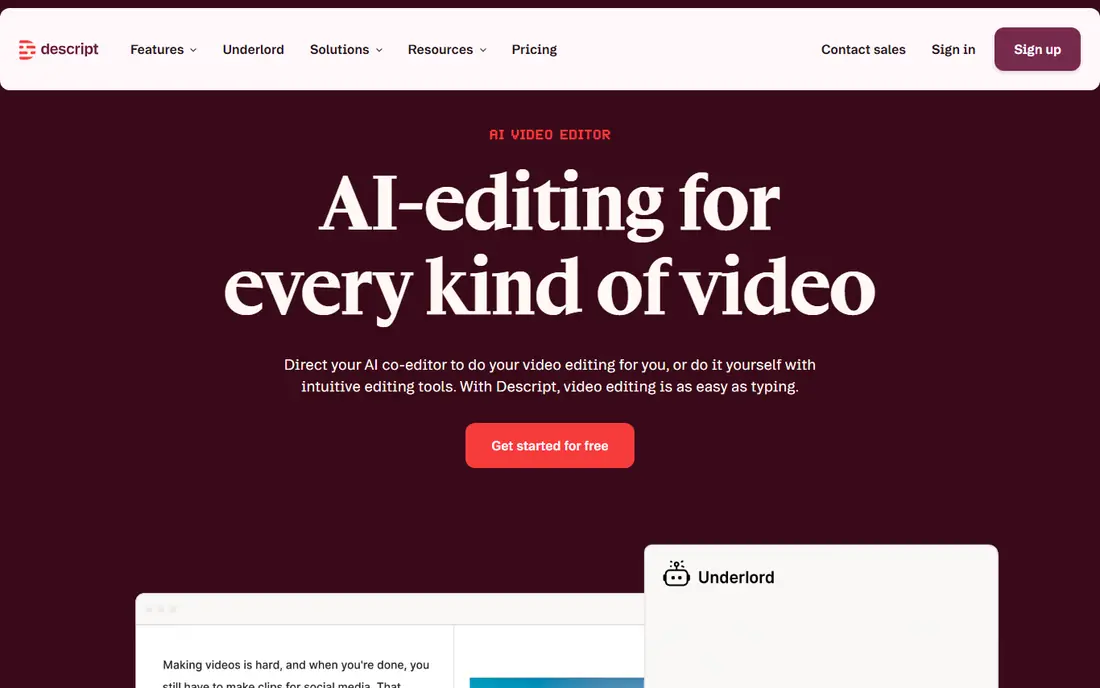
Descript changes how talking-head video is edited: you edit the transcript, and the video follows, deleting a sentence removes it from the footage, and filler words can be removed in bulk. That makes podcast and YouTube talking-head edits far faster than cutting on a timeline, and its Underlord AI assistant helps draft, summarize, and polish. Overdub can generate voice in your own cloned voice for small fixes, with consent controls.
The trade-off is scope. Descript is not the tool for cinematic B-roll, complex color work, or multi-camera drama, where Premiere or Resolve fit better. Paid plans vary by billing period, so check the current Descript pricing page. For creators whose main footage is a person talking to camera, Descript is the clearest time saver on this list.
- Edit video by editing text
- Filler word removal
- Overdub voice features
- Strong for podcasts
- Less suited to cinematic editing
- Higher tiers needed for full team features
Runway leads the generative side of video editing, turning text prompts, images, or existing shots into new footage, effects, and style changes. Its Gen models create B-roll, transitions, and visual ideas that would take hours in traditional effects software, and tools for removing objects or restyling a shot fit creative and commercial work. The free plan gives credits to test the models before paying.
Credit pricing means costs depend on how many generations you run, and generated clips still need human selection, since not every output fits the story. Runway also works best alongside a traditional editor, not instead of one. For creators who need fresh footage or striking effects, it is the most capable generative tool here.
- Leading text-to-video and image-to-video models
- Inpainting and style tools
- Strong for B-roll and effects
- Credit-based pricing
- Generated clips need review
- Not a full traditional editor
Premiere Pro remains the professional standard for long-form video, with a full timeline, color tools, audio mixing, and effects that cover broadcast, documentary, and commercial work. AI features now handle much of the routine work: transcript-based editing, auto-reframe for different aspect ratios, speech enhancement, and Firefly generative tools that extend clips or generate B-roll. Integration with After Effects, Audition, and Photoshop keeps a full production inside Adobe.
The price, $22.99 per month for a single app on an annual plan, and the learning curve are the honest drawbacks, and the app rewards a capable computer. Beginners may find CapCut or Filmora faster for simple videos. For professionals who edit daily and need the deepest toolset, Premiere Pro still sets the bar.
- Full professional timeline
- Transcript editing and auto-reframe
- Firefly generative features
- Subscription cost
- Steep learning curve
- Needs a capable computer
DaVinci Resolve is the best value in professional editing: the free version covers editing, color, effects, and audio at a level many paid editors cannot match, and Studio costs $295 as a one-time purchase rather than a subscription. Color grading is its standout strength, and AI tools such as Magic Mask, voice isolation, and IntelliSearch help with searching and repairing footage, though the fuller AI set sits in Studio.
The interface packs several workspaces into one app, so new users need time to learn where each job lives, and 4K work needs a strong machine. For creators who dislike subscriptions and want professional depth, Resolve is the most sensible long-term buy on this list.
- Free version is remarkably complete
- Studio is a one-time purchase
- Excellent color tools
- AI tools in Studio need the paid license
- Learning curve is steep
- Needs a strong computer
VEED suits marketing teams and creators who edit in a browser and share drafts for review. Auto-subtitles, translations, eye contact correction, and noise removal cover the common AI jobs, and brand kits keep social videos consistent across a team. Because it runs online, it works on any computer without installing software, and collaboration features let teammates comment on a draft.
Free exports carry a watermark, and long, complex projects can feel slower in a browser than on a desktop timeline. Paid plans vary, so check the current VEED pricing page for the export and AI limits you need. For social, training, and marketing videos made by a team, VEED offers a smooth, accessible workflow.
- No install needed
- Auto-subtitles and translations
- Team review and brand tools
- Free exports carry a watermark
- Browser editing suits shorter videos better than long films
Kapwing is a friendly browser editor for beginners, students, and small teams who need a video quickly without learning a professional timeline. AI subtitles, auto-resize for social formats, background removal, and the Kai assistant, which can build a rough cut from chat instructions, cover the most common jobs. Templates and a shared workspace help class projects and small marketing teams.
The free plan includes AI tools but limits exports and adds a watermark, and paid plans start at $16 per month. It is not a replacement for Premiere or Resolve on long, complex projects. For short videos, school work, and social content made in a browser, Kapwing is one of the easiest editors to learn.
- Easy browser editor
- AI subtitles and background removal
- Kai assistant for rough cuts
- Free plan has watermarks and limits
- Less depth than desktop editors
OpusClip is the category leader for repurposing: upload a long podcast, webinar, or interview, and it returns short vertical clips with captions, hooks, and reframing, ready for social feeds. That saves hours for podcasters and educators who publish long content and need a steady stream of shorts. ClipAnything and related tools let you point the AI at a specific topic within a long video.
The honest limit is judgment. AI selects moments with energy and clear speech, not always the smartest or most representative moments, so every clip needs a human review before posting. Paid plans start at $15 per month, with credits and limits that vary by tier. For repurposing, OpusClip is still the most focused tool here, provided you treat its output as a draft.
- Picks highlights and adds captions automatically
- Reframes to vertical
- Virality scoring for clips
- AI picks moments for energy, not always for sense
- Needs human review
- Clip quality varies by source
Filmora, from Wondershare, is a desktop editor built for beginners who want more control than a phone app but less complexity than Premiere. AI tools help with scene analysis, background removal, audio enhancement, and smart cutouts, while templates, transitions, and a music library speed up everyday videos. Annual pricing at $49.99 per year makes it cheaper than a monthly professional subscription.
Free exports carry a watermark, so lasting use needs a paid plan, and advanced color grading and audio mixing are lighter than in Resolve or Premiere. For YouTube creators, educators, and small businesses making regular videos on a desktop, Filmora hits a useful middle ground between simplicity and control.
- Easy desktop editor
- AI media analysis and effects
- Good template and music library
- Free exports carry a watermark
- Advanced color and audio tools are lighter than Resolve
Pictory is built for people who write more than they edit. Paste a script, blog post, or article, pick a style, and Pictory builds a captioned draft with stock visuals and voiceover in minutes, then turns long videos into short clips as well. That speed suits marketers, educators, and small teams that publish often and need a steady flow of video without a full editing workflow.
The trade-off is control. Stock visuals can feel generic, and fine-grained timeline control is thinner than in Premiere, Resolve, or Filmora. Paid plans start at $25 per month on annual billing, with a 14-day trial on paid tiers. If your bottleneck is turning written content into video, Pictory removes it faster than any traditional editor here.
- Turns scripts and articles into video quickly
- Auto-captions and voiceover
- Good for marketers and educators
- Less control over footage than a timeline editor
- Stock visuals can feel generic
- Paid plans start higher than some rivals
How we picked these
We compared official pricing pages, feature lists, and app store listings for AI video editors that are live and maintained in 2026, and we covered editing, generation, and repurposing separately. We favored tools with usable free plans or trials, since AI pricing changes often and credits make headline prices hard to compare. We also weighed whether a tool suits phone creators, podcasters, marketers, or professionals, because those workflows need different strengths.
Choosing an AI video editor by workflow
For phone and social video, start with CapCut. For podcasts and talking heads, start with Descript. For generative footage and effects, start with Runway. For repurposing long videos, start with OpusClip. For script-to-video, start with Pictory. For browser team work, test VEED or Kapwing, and for professional long-form work, choose Premiere Pro for a subscription or DaVinci Resolve for a one-time purchase, with Filmora as a simpler desktop middle ground.
Frequently asked questions
What is the best AI video editor app?
Descript leads for podcasts and talking-head video, Runway leads for generative video, and CapCut leads for mobile short-form editing. Adobe Premiere Pro and DaVinci Resolve lead for professional long-form work. Pick by workflow, not by a single overall winner, since these tools solve different jobs.
What is the best AI software for video editing?
Premiere Pro offers the deepest AI-assisted professional timeline, while Descript offers the most distinctive AI workflow for spoken video. Runway offers the strongest generative models, and DaVinci Resolve offers strong AI tools with a one-time Studio purchase. Match the tool to whether you edit, generate, or repurpose video most.
What is the best free AI video editor app?
CapCut, Kapwing, and OpusClip all offer free plans with AI tools, though exports may carry watermarks or limits. DaVinci Resolve offers a remarkably complete free version for desktop editing, with AI features mainly in Studio. Try a free plan with a real project before you pay, since export limits matter more than feature lists.
Can AI edit a video automatically from start to finish?
Only for short clips. OpusClip and CapCut can turn long recordings into finished shorts, and Kapwing and Descript can build rough cuts from instructions or transcripts. For a longer video with a story, you still need to review pacing, structure, and clip choice yourself, since AI edits for energy and clarity, not for narrative sense.
Which AI video editor is best for YouTube Shorts and TikTok?
CapCut is the best choice if you shoot and edit on your phone, thanks to captions, templates, and vertical tools. If your source is a podcast or webinar you already recorded, OpusClip is better, since it picks moments, reframes them, and adds captions before you touch anything. Review every AI clip before posting.
Is DaVinci Resolve or Premiere better for AI features?
Premiere is ahead on generative AI, with clip extension and generated video and sound effects, while Resolve Studio is stronger on searching and repairing footage with IntelliSearch, Magic Mask, and voice isolation. Premiere costs $22.99 per month, while Resolve Studio costs $295 once. Choose by how you work and how you prefer to pay.
Sources we checked (10)

Online Jobs is an independent blog about careers, online work, learning new skills and the tools that help people earn. More about us.
Keep reading
All posts
Zoom Alternatives
Zoom alternatives compared for 2026: Google Meet, Microsoft Teams, Webex, Jitsi and more for free calls, large meetings and webinars for teams and classrooms.

What Is the Best Free Tool to Rotate a PDF
What is the best free tool to rotate a PDF? We compare eight free rotation tools on per-page control, limits, privacy and saved output quality in detail.

What Is the Best AI Dubbing Tool
We compared the best AI dubbing tools in 2026, from ElevenLabs and HeyGen to Rask AI, Dubverse and Veed, for videos and creators in many languages worldwide.