Best AI Video Editing Software for Beginners in 2026: 8 Tools Compared

How we put this together: we compare official feature and pricing pages, app store listings, privacy policies and public user reviews. Prices change, so check the provider's site before you pay.
Key takeaways
- The best ai video editing software for beginners is the one that removes the boring steps first: captions, silence removal, and reframing for social formats.
- CapCut is the easiest free starting point for short form video, while Descript is the easiest for talking head video edited from a transcript.
- Free tiers are generous on several tools here, so start free, finish a few real videos, and pay only when exports, captions, or AI credits limit you.
- A tool that generates video from a prompt is not the same as an editor for footage you already shot, so pick based on the job you actually have.
Quick comparison
| Name | Who it suits | Starting price | Free option | |
|---|---|---|---|---|
 CapCut | Short form social video | $9.99 per month | Yes | Visit |
 Descript | Talking head and podcast video | $16 per month | Yes | Visit |
 VEED | Browser editing and captions | $12 per month | Yes | Visit |
 Adobe Premiere Pro | Growing into professional editing | $22.99 per month | Free trial | Visit |
 DaVinci Resolve | Free professional power | $295 one time | Yes | Visit |
 Runway | Generative effects and b-roll | $12 per month | Yes | Visit |
 Opus Clip | Turning long video into clips | $9 per month | Yes | Visit |
 Canva Video | Brand consistent social video | $10 per month | Yes | Visit |
The best ai video editing software for beginners
Beginners do not need the most powerful editor, they need the editor that gets a finished video out fastest without a steep learning curve. The eight tools below cover that range: mobile and browser editors for quick social video, a transcript editor for talking head content, and two professional editors for beginners who want room to grow. We compared official pricing, free tiers, and public feature pages, and we note where pricing is based on credits, because credit limits are the most common surprise.
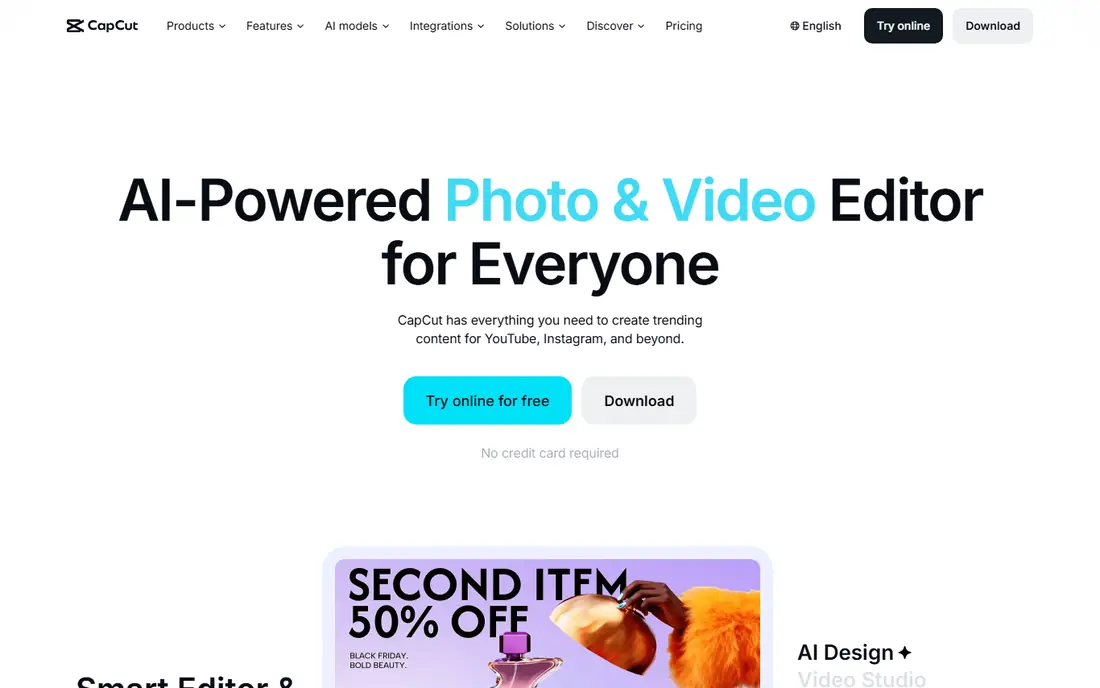
CapCut is the best ai video editing tool for beginners who make short form video for TikTok, Reels, and Shorts, because it pairs a simple timeline with auto captions, background removal, smart reframing, and a large template library. The free tier covers 1080p export for many projects, so a new creator can publish consistently without paying. The mobile app is especially strong, which suits creators who shoot and edit on a phone.
The catch is that the paid tiers have changed over time, with a Standard tier and a Pro tier that add AI credits and storage, so check the current plan before you rely on a specific AI feature. Some effects and exports that were once free may now sit behind a paid tier. For a beginner, that is manageable: start free, learn the timeline, and upgrade only when a paid feature becomes part of your weekly workflow.
- Generous free tier
- Auto captions and templates
- Mobile and desktop apps
- Some exports and AI features need a paid tier
- Credit and plan changes have frustrated users
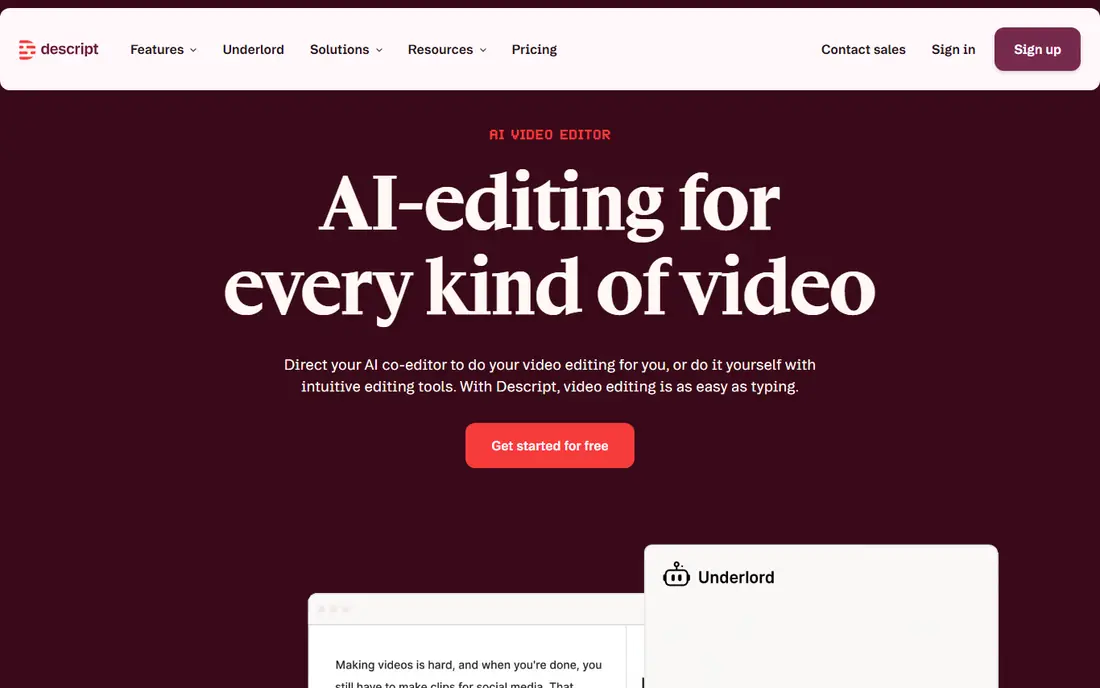
Descript is the easiest editor for a beginner who records talking head video, tutorials, or podcasts, because you edit by editing the transcript: delete a sentence in text, and the video cuts itself. That single idea removes the hardest part of traditional editing for spoken content, and automatic transcription, filler word removal, and studio sound cleanup do much of the remaining work. The free tier gives a small amount of transcription and AI credits to try the workflow.
The honest limit is the credit system. Descript now tracks media minutes and AI credits separately, and heavy users have reported unexpected costs, so read the plan limits before a large project. Descript is also less suited to cinematic, multi camera, or effects heavy work than a traditional timeline. For spoken video, though, no other beginner tool is as fast to learn.
- Edit video by editing text
- Automatic transcription
- Studio quality audio cleanup
- Credit and media minute limits can surprise
- Less suited to cinematic timeline work
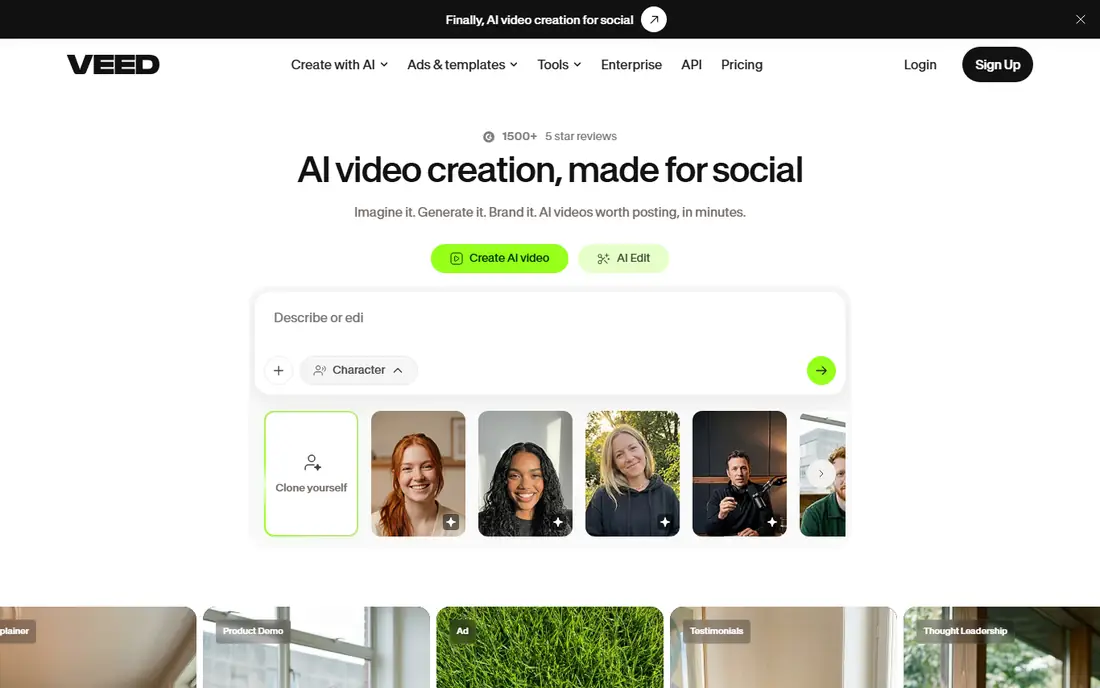
VEED is a browser based editor that suits beginners who do not want to install software, or who work on a Chromebook or a shared computer. Auto subtitles, silence removal, and templates make it fast for social clips, tutorials, and business video, and the browser approach means your project is available from any computer. Teams also like the shared workspace and review features.
The free tier is useful for learning, but exports carry a watermark and have resolution limits, so most serious users will need a paid plan. Browser editing also depends on a stable internet connection and a capable browser, which can slow large projects. For a beginner who wants captions and quick social edits without an install, VEED is a strong and simple choice.
- No install needed
- Auto subtitles in many languages
- Good for teams and social clips
- Free exports carry a watermark
- Browser editing depends on internet speed
Adobe Premiere Pro is the professional editor that many beginners eventually grow into, and its AI features now include text based editing, auto reframe, and generative tools that extend shots or remove objects. That makes it a good long term pick for a creator who plans to edit regularly and wants skills that transfer to client work. The tutorial library is also unmatched, which helps a beginner learn faster than with a niche tool.
The trade off is cost and complexity. At $22.99 per month for a single app, Premiere Pro is the most expensive beginner option here, and the interface can feel overwhelming for a first project. It is also overkill if you only make short social clips. Choose Premiere Pro if you want a professional path and will edit weekly; choose CapCut or VEED if you want fast social output now.
- Industry standard timeline
- Strong AI features including text editing and generative extend
- Huge tutorial library
- Subscription cost
- Steeper learning curve
- Overkill for simple social clips
DaVinci Resolve is the best value professional editor, because its free version is far more complete than most free tiers, including color grading, audio, and AI features such as magic mask and voice isolation. That makes it a strong pick for a beginner who wants professional power without a subscription, and who is willing to spend time learning the interface. The one time Studio upgrade adds more AI and advanced features for users who outgrow the free version.
The catch is learning time and hardware. Resolve is a professional tool, so the interface has more panels and options than CapCut or VEED, and it benefits from a capable computer, especially for 4K work. A beginner who wants a first video today should start elsewhere, but a beginner who wants to learn editing properly and avoid a monthly fee should start with Resolve free version and its tutorials.
- Full featured free version
- Excellent color tools
- AI features such as magic mask and voice isolation
- Steeper learning curve
- Needs a capable computer
- Studio upgrade is a one time cost
Runway is the creative pick for beginners who want to generate b-roll, effects, and short clips from text or images, rather than only editing footage they shot. Its generative models, inpainting, and motion brush tools let a small creator add visuals that would otherwise need stock footage or a shoot. The free tier gives trial credits to test the style and quality before paying.
The limit is that Runway is not a complete beginner editor in the way CapCut is, and credit based pricing means costs depend on how many generations you run. Generated video also needs careful checking, because hands, faces, and motion can contain artifacts. Use Runway as a creative companion to a main editor: generate a clip or an effect there, then assemble the final video in CapCut, VEED, or Premiere Pro.
- Text to video and image to video generation
- Inpainting and motion tools
- Strong creative effects
- Credit based pricing
- Generated clips need checking for artifacts
- Not a full beginner timeline
Opus Clip is the best ai video editing app for beginners who already record long video, such as podcasts, streams, or webinars, and want short clips for social media. It watches the long video, picks highlights, adds animated captions, and reframes for vertical formats, which turns hours of editing into a review task. The free tier gives credits to test the output on your own footage.
The honest catch is that automatic highlights are a starting point, not a finished edit. You should review each clip for context, accuracy, and pacing before posting, because an AI highlight can cut a joke or a point in half. Opus Clip is also less useful if you do not have long form source video. For a podcaster or streamer who needs clips weekly, it saves more time than any general editor on this list.
- Finds highlights in long video automatically
- Adds captions and reframing
- Fast for repurposing
- Clip selection needs human review
- Credit limits apply
- Less useful without long form source video
Canva Video is the easiest pick for a small business or creator who needs brand consistent social video fast, because templates, brand colors, fonts, and logos are built in. A beginner can start from a template, swap text and clips, and export a polished social video without learning a timeline in depth. The free tier is usable for simple projects, and Canva Pro adds more templates, brand tools, and AI features.
The limit is control. Canva Video is not a precise timeline editor, so a creator who wants detailed cuts, audio mixing, or advanced effects will outgrow it quickly. AI features are also simpler than those in Descript, Runway, or Premiere Pro. For a business that needs consistent, good looking social video every week, Canva is the fastest path. For a creator who wants to learn editing craft, pair it with CapCut or Resolve.
- Very easy templates
- Brand kit and consistent design
- Free tier is usable
- Less precise timeline control
- AI video features are simpler than specialist tools
How we picked these
We compared official pricing pages, free tiers, and public feature pages for AI video tools that a beginner can use today on desktop, mobile, or in a browser. We favored tools with a usable free tier or trial, clear AI features for captions, transcription, or generation, and a workflow that does not assume prior editing experience. Where pricing is credit based, we note it, because a monthly price alone does not tell you how many videos that plan covers.
How to pick your first video editor
Start with the video you actually make most. A short form creator should start with CapCut, a talking head creator with Descript, a business user with Canva Video or VEED, and a long form creator who needs clips with Opus Clip. That single choice matters more than a feature list, because the right workflow will get you publishing, while the wrong one will sit unused.
Learn one workflow well
Pick one tool, finish five real videos in it, and only then judge it. Watch the official tutorials for that tool, learn its caption, audio, and export settings, and build a simple template you can reuse. Switching tools every week is the most common beginner mistake, because each switch resets your learning. Once you can finish a video in under an hour, you will know whether you need a paid tier or a different tool.
Check exports before you pay
Before you subscribe, export a test video at the resolution and format you will actually publish, and check captions, audio, and file size. Confirm whether the free tier adds a watermark, limits resolution, or caps AI credits, because those limits decide whether the free plan is enough. Also check how the tool handles music licensing and stock assets, so a published video does not run into a claim later.
Frequently asked questions
Which ai video editing tool is best for beginners?
For most beginners, CapCut is the best ai video editing tool to start with, because it is free, mobile friendly, and covers captions, templates, and social formats in one app. Descript is the better pick for talking head and podcast video, because editing from a transcript is faster than a traditional timeline for spoken content. Try both free and pick the workflow that gets you to a finished video fastest.
What are the best ai video editing apps for beginners on a phone?
CapCut is the strongest phone app for beginners, with auto captions, templates, and social formats built for mobile. Canva Video also works well on a phone for template based social video, while Descript and VEED are better on desktop or in a browser. If you shoot on a phone and publish the same day, start with CapCut and add a desktop tool only when you need it.
What are the best ai video editing tools for beginners who make YouTube videos?
For YouTube, Descript suits talking head and tutorial creators, DaVinci Resolve suits creators who want professional quality without a subscription, and Premiere Pro suits creators who plan to edit as a long term skill. Opus Clip is useful for turning a long YouTube video into short clips for other platforms. Pick based on your format, not on the longest feature list.
Is there a free ai video editing tool for beginners?
Yes. CapCut, Descript, VEED, DaVinci Resolve, Runway, Opus Clip, and Canva Video all have free tiers or trials, although free exports may carry a watermark or a resolution limit on some tools. DaVinci Resolve free version is the most complete free professional option, while CapCut free tier is the easiest free option for social video. Start free, finish real videos, and pay only when a limit blocks your workflow.
Do beginners need to learn a timeline editor?
Not at first. A beginner can publish good video with CapCut templates, Descript transcript editing, or Canva templates without mastering a traditional timeline. Learning a timeline becomes useful when you want precise cuts, layered audio, and custom effects, and at that point DaVinci Resolve or Premiere Pro are the natural next steps. Start with the easiest tool that finishes your video, then grow into a timeline when your videos demand it.
Sources we checked (8)

Online Jobs is an independent blog about careers, online work, learning new skills and the tools that help people earn. More about us.
Keep reading
All posts
iPhone Alternatives
Looking for iPhone alternatives in 2026? Compare 9 Android phones from Samsung, Google, OnePlus, and more, with cameras, battery life, and honest trade-offs.

Who Has the Best Home Internet Service
Find who has the best home internet service for your address, with fiber, cable, 5G, and satellite providers compared on price, speed, and coverage here.

Best Robotics Companies
Compare the best robotics companies in 2026, from humanoids to factory robots, with focus areas, deployments, and honest limits for buyers and pilots.