Best AI Video Editing Software in 2026: 9 Tools Compared

How we put this together: we compare official feature and pricing pages, app store listings, privacy policies and public user reviews. Prices change, so check the provider's site before you pay.
Key takeaways
- Descript is the best pick for editing by transcript, while CapCut is the fastest route to captioned short videos.
- Runway suits creators who generate clips, while Premiere Pro and DaVinci Resolve suit editors who need full timeline control.
- Free plans are useful for testing, but exports, watermarks, credits and monthly minutes decide the real cost.
- Opus Clip is a specialist for turning long videos into shorts, not a replacement for a full editor.
- Check credit limits and export rules before you pay, because AI features are often metered separately from the subscription.
Quick comparison
| Name | Who it suits | Starting price | Free option | |
|---|---|---|---|---|
 Descript Descript | Editing by transcript | See website | Yes | Visit |
 CapCut CapCut | Fast short videos | Free | Yes | Visit |
 Runway Runway | AI-generated clips | See website | Yes | Visit |
 Adobe Premiere Pro Adobe Premiere Pro | Full professional editing | See website | Free trial | Visit |
 DaVinci Resolve DaVinci Resolve | Free professional editing | Free | Yes | Visit |
 Filmora Filmora | Easy editing for beginners | See website | Yes | Visit |
 VEED VEED | Browser-based editing | See website | Yes | Visit |
 Kapwing Kapwing | Quick browser edits | See website | Yes | Visit |
 Opus Clip Opus Clip | Long video to shorts | See website | Yes | Visit |
The best AI video editing tools
We compared official feature pages, pricing pages, app store listings and public reviews, focusing on AI transcription, captions, clip generation, export quality and what free plans actually allow.
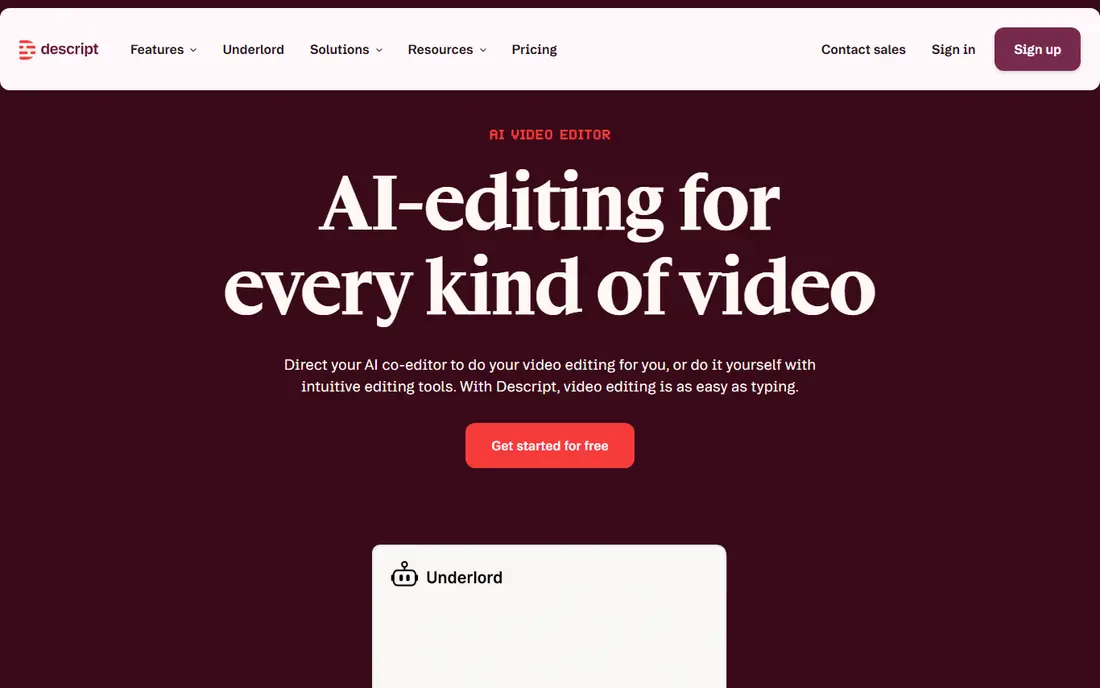
Descript changes the editing job for spoken video. You get a transcript of your recording, delete words or sentences from the text, and the video cuts follow. Automatic transcription, filler-word removal and studio sound tools help clean up audio without a separate audio app. The free plan lets you test the transcript workflow before you pay.
The catch is metering. Paid plans include allowances for transcription minutes and AI features, and heavy users can hit limits that add cost. Descript is also not the best choice for heavy visual effects, motion graphics or multi-camera film work. It is best for creators who edit speech, publish often and want a fast, text-first workflow. If your videos are mainly visual, a timeline editor further down this list will fit better.
- Edit video by editing text, with the video following the transcript
- Automatic transcription and filler-word removal
- Strong tools for podcasts and talking-head videos
- Paid plans meter media minutes and AI use
- Less suited to complex visual effects work
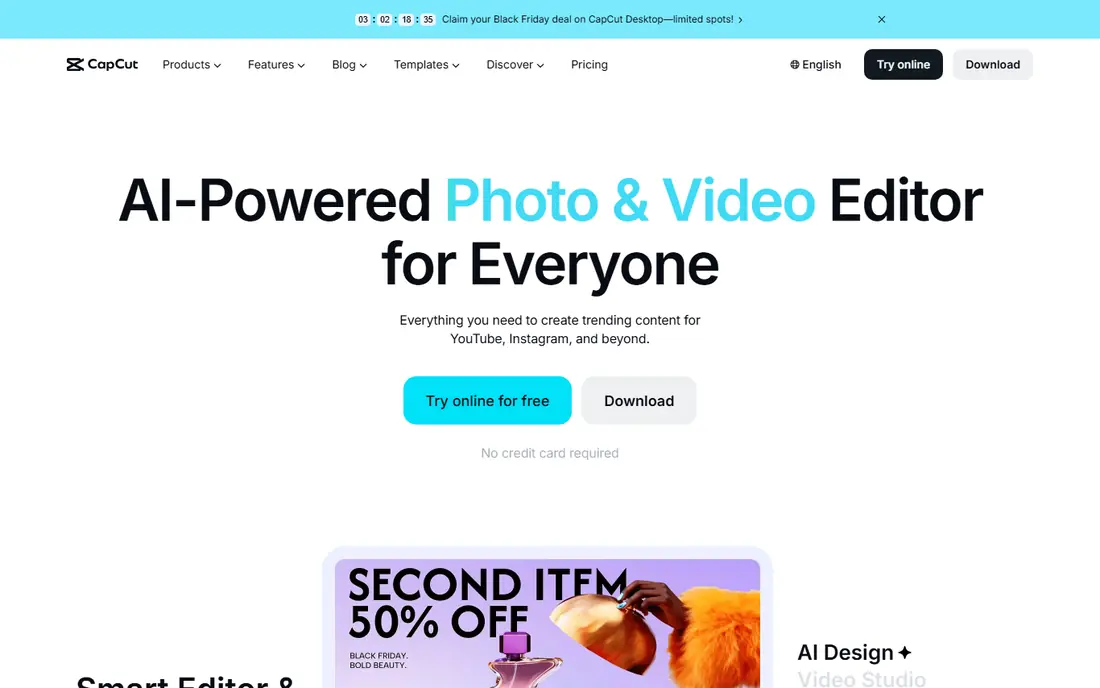
CapCut is the fastest way to turn a raw clip into a finished short. Auto captions, templates, transitions, music and effects are built in, and export sizes match the main social platforms without manual resizing. The free editor is genuinely useful for basic cuts and captions, and the mobile app is strong for creators who film and publish on a phone.
The honest weakness is the paid layer. Pro features, extra AI tools and higher export options need a subscription, and AI generation uses credits that can add up. Creators doing client work should also read the content licence terms for assets and AI output before using them commercially. CapCut is our pick for volume short-form work, provided you check which features are free, which are Pro and how credits work for the videos you actually make.
- Fast templates, auto captions and effects for short video
- Free editor with a large asset library
- Easy export sizes for social platforms
- Pro features and AI credits sit behind a paid plan
- Licence terms need care for client work
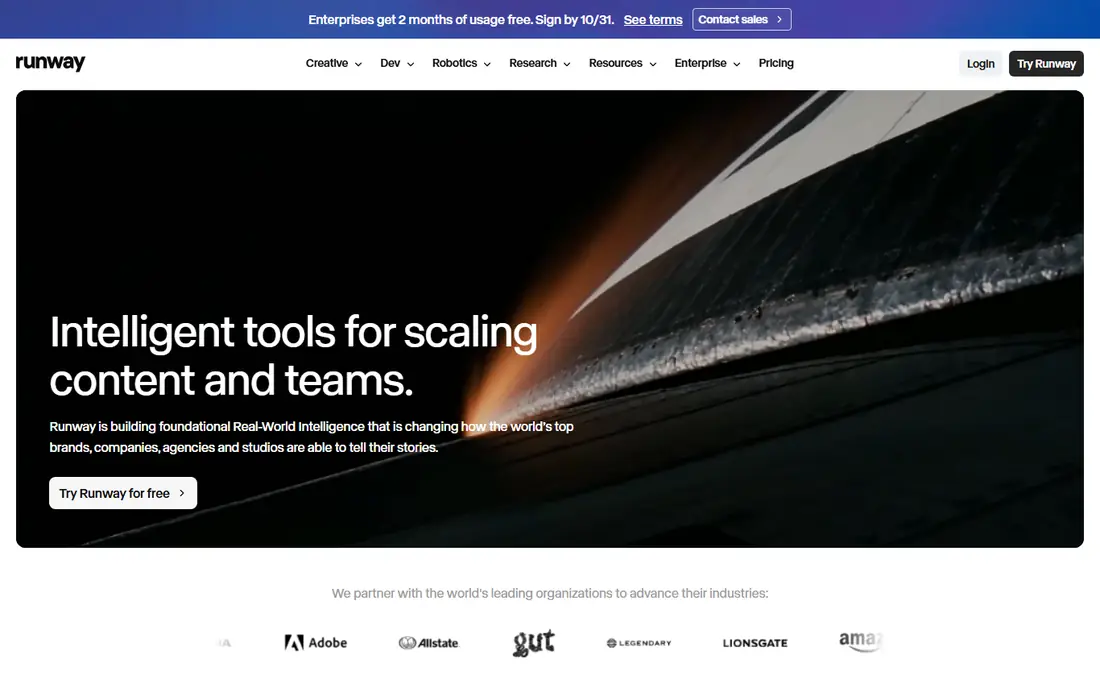
Runway is for creators who want to generate video, not just edit footage they already shot. You can prompt a clip from text or an image, control camera movement, expand a frame, remove or change parts of a shot and restyle footage. The platform also offers several models in one account, so you can compare results without juggling subscriptions.
The cost story needs care. Free credits do not renew monthly in the same way as a subscription allowance, and free exports are watermarked. Paid plans give monthly credits, but repeated generations for one scene can use them quickly, and top-ups add cost. Runway is best for short, planned clips where you know the shot you want. For long, everyday editing, pair it with a timeline editor rather than using it as your only tool.
- Text-to-video and image-to-video generation with camera controls
- Editing tools for inpainting, expansion and restyling
- Wide model choice in one account
- Free credits are one-time and exports carry a watermark
- Credit costs rise fast with longer or repeated clips
Premiere Pro remains the standard choice for editors who need full control. Text-based editing lets you cut by transcript, speech enhancement cleans dialogue, and AI tools help with reframing, colour and audio. Integration with After Effects for motion graphics, Audition for audio and Photoshop for stills makes it a complete post-production system.
The downside is price and complexity. A subscription makes sense for a working editor or a team, but it is a lot for someone who makes a few videos a month. Beginners will need time to learn the timeline, panels and export settings. Premiere Pro is best for creators who already edit often, need professional delivery and want AI features inside a full editor, rather than as a separate app. Casual creators should test the trial and compare it with Filmora or DaVinci Resolve first.
- Full timeline editing with text-based editing, speech enhancement and AI tools
- Deep integration with After Effects, Audition and Photoshop
- Industry-standard export options
- Subscription cost is high for casual creators
- Learning curve is steep for beginners
DaVinci Resolve is the strongest free professional editor on this list. The free version includes a full timeline editor, colour grading, Fairlight audio and Fusion effects, which is far more than most free editors offer. Colour tools are a particular strength, and the app handles high-resolution footage well on a capable computer. For a creator who wants professional control without a monthly subscription, the free version is a serious option.
The catch is learning time. The interface has several pages for editing, colour, audio and effects, and a beginner can feel lost at first. Some advanced AI tools, higher-resolution features and stereoscopic tools sit in the paid Studio version, which is a one-time purchase rather than a subscription. DaVinci Resolve suits a patient learner who wants to grow into professional editing. If you want the simplest possible start, Filmora or CapCut will be faster on day one.
- Free version includes editing, colour, audio and effects
- Professional colour tools
- One-time Studio purchase for advanced features
- Interface can feel dense for beginners
- Some AI and advanced tools need the paid Studio version
Filmora sits between CapCut and a full professional editor. It offers a clear timeline, drag-and-drop effects, AI captions, text-based tools and a large library of titles, transitions and music. The interface is friendly, and tutorials are easy to follow.
The limit is the free export. Free versions watermark exports, so you need a paid plan for clean, publishable videos. Some AI features and premium assets are also paid, so check which tools you actually need before you subscribe. Filmora is best for a beginner or a small creator who wants a desktop editor with AI help and a gentle learning curve. Professional editors who need advanced colour or audio work will outgrow it faster.
- Friendly timeline with AI captions, text-to-video and effects
- Large template and asset library
- Good balance of ease and control
- Free exports carry a watermark
- Some AI features and assets need a paid plan
VEED is a good pick if you want to edit in a browser, on a work computer or a Chromebook, without installing a heavy app. Upload a clip, add auto subtitles, translate captions, trim silence and export for social platforms, all from a web page. The free plan is enough to test subtitles and basic edits.
The weakness is dependence on the internet and on plan limits. Large files upload slowly on a weak connection, and free exports are limited in quality and features. VEED is not a replacement for Premiere Pro or DaVinci Resolve for long, complex films. It is best for short, spoken videos, social clips and team edits where speed and browser access matter more than deep timeline control. Check subtitle accuracy too, since auto captions always need a quick review.
- Edit in the browser without installing software
- Strong auto subtitles, translation and AI tools
- Easy sharing and collaboration
- Needs a good internet connection
- Free plan limits export quality and removes some features
Kapwing is similar to VEED, with a focus on quick social edits. It offers AI captions, smart background removal, automatic resizing for different platforms and tools to repurpose one video into several formats. The browser workspace is simple to learn, and team features help small groups share drafts and comments.
Free exports are watermarked and limited, so publishable work usually needs a paid plan. Browser editing also means large or long projects can feel slower than desktop editing, and you need a stable connection. Kapwing suits short, social-first work and quick team edits. For long YouTube videos or professional colour work, a desktop editor from higher up this list will be a better home for the project.
- Browser editor with AI captions, background removal and repurposing tools
- Simple sharing and team workspaces
- Good for memes and social clips
- Free exports carry a watermark and have limits
- Heavy projects feel slower in a browser
Opus Clip does one job well: it watches a long video, finds strong moments and cuts them into vertical shorts with captions. Speaker detection and auto reframing keep the speaker in frame, and a score hints at which clips may perform best. For podcasters, streamers and YouTubers with a back catalogue, that can save hours of manual clipping each week. The free plan lets you test clip quality on your own material before you pay.
The catch is that AI picks are not always right. Some clips miss context, cut a sentence short or pick a weak moment, so every short needs a human review before publishing. Opus Clip is also not a full editor: you will still need CapCut, Filmora or another editor for titles, branding and final polish. Use it as a clipping assistant beside a main editor, not as a replacement. For creators who publish shorts every week, it is a useful time saver.
- Turns long videos into short clips with captions and a virality score
- Speaker detection and reframing for vertical video
- Saves hours of manual clipping
- Clip quality varies and needs human review
- Not a full editor for original projects
How we picked these
We compared official feature pages, pricing pages, app store listings and public reviews. We looked for AI features that save real editing time, such as transcription, captions, clip generation and short-form repurposing, and for editors that work for different skill levels, from beginners to professionals. We did not claim hands-on testing that did not happen, and we did not invent prices, credits or ratings. Where a price or credit limit was not clear on the vendor site, we marked it as See website.
How to choose an AI video editor
Start with the video you make most often. If you edit speech, Descript will save the most time. If you post shorts daily, CapCut will be fastest. If you generate clips for ads or films, Runway will matter most. If you edit long YouTube videos or client work, Premiere Pro or DaVinci Resolve will give you the control you need. A tool that is brilliant for one format can be a poor fit for another, so match the tool to the format first.
Check credits, minutes and exports before you pay
AI pricing is rarely just the monthly fee. Check transcription minutes, generation credits, export resolution, watermarks and whether unused credits roll over. Run a test project on the free plan or trial, export it at the quality you need and count how many credits or minutes it used. That test tells you more than a feature list. Also check licence terms for AI output and stock assets if you use videos for clients or ads.
Keep a human pass in the workflow
AI captions, cuts and clips still make mistakes. Names, numbers and technical terms need checking, and auto clips need a review for context and tone. Build a short final check into your routine: watch the video once, read the captions, check the first three seconds and confirm the export settings. That pass takes minutes and prevents the small errors that make an AI-assisted video look careless.
Frequently asked questions
Which AI video editing app is the best right now?
There is no single best app for every creator. Descript is best for transcript editing, CapCut is best for fast shorts, Runway is best for generated clips, and Premiere Pro is best for full professional work. The best app right now is the one that matches the videos you make most often and fits your budget for credits and exports.
What are the best AI video editing apps for beginners?
CapCut and Filmora are the easiest starting points, because they combine templates, auto captions and a clear timeline. VEED and Kapwing are good browser options if you do not want to install software. DaVinci Resolve is free and powerful, but it takes longer to learn. Start with a free plan, make three real videos and only then decide whether a paid plan is worth it.
What is the best free video editing software?
DaVinci Resolve is the strongest free professional editor, with editing, colour and audio tools at no cost. CapCut also offers a useful free editor for shorts, and VEED and Kapwing offer free browser editing with limits. Free plans usually limit export quality or add a watermark, so check export rules before you publish. For clean, high-quality exports without paying, DaVinci Resolve is the clearest pick.
What is the best AI video editing app for short videos?
CapCut is the best all-round app for shorts, because it combines captions, templates and social export sizes in one place. Opus Clip is the best specialist for turning long videos into shorts, and VEED and Kapwing are good browser options for quick captioned clips. If you make shorts from podcasts or streams every week, Opus Clip plus CapCut is a strong pairing.
Do AI video editors replace human editors?
No, they speed up parts of the job, such as transcription, captions, rough cuts and clipping, but they do not replace judgement about story, pacing and tone. Human review still matters for accuracy, context and brand fit. The best workflow in 2026 is a mix: let AI do the repetitive first pass, then let a human editor refine the cut, check captions and approve the final export.
What should I check about AI credits before subscribing?
Check how many credits or minutes each plan includes, what each action costs, whether unused credits roll over and whether top-ups are available. Test the tool on a real project and count the credits used for one finished video. Also check export limits, watermarks and licence terms for commercial use. A low monthly fee can become expensive if credits run out halfway through a project.
Sources we checked (9)

Online Jobs is an independent blog about careers, online work, learning new skills and the tools that help people earn. More about us.
Keep reading
All posts
Best Writing Software
Looking for the best writing software in 2026? We compared 9 writing apps for books, articles and screenplays on price, features and fit. All verified.

Best Weather Apps
Searching for the best weather app? We compared eight top weather apps for accurate forecasts, radar, severe alerts, and daily planning near you today.
Best Video Editing Software
We compared the best video editing software for beginners and pros, checking official pricing, free plans and honest limits before ranking all nine editors.