Best AI Video Editing Platforms for Quick Edits in 2026: 9 Products Compared

How we put this together: we compare official feature and pricing pages, app store listings, privacy policies and public user reviews. Prices change, so check the provider's site before you pay.
Key takeaways
- Descript is the fastest pick for talking head and podcast edits, because you edit by editing the transcript.
- Opus Clip is the fastest pick for turning a long video into short clips, with auto reframing and captions.
- CapCut remains the best free starting point for phone first short form edits, with a large template and effects library.
- Kapwing and VEED suit browser based team edits, with no install and easy sharing for review.
- Quick edit tools save time on rough cuts and captions, but a human still needs to check pacing, cuts, and claims.
Quick comparison
| Name | Who it suits | Starting price | Free option | |
|---|---|---|---|---|
 Descript | talking head and podcast edits | $16 per month | Yes | Visit |
 CapCut | phone first short form edits | Free | Yes | Visit |
 Opus Clip | long video into shorts | $15 per month | Yes | Visit |
 Kapwing | browser based team edits | $16 per month | Yes | Visit |
 VEED | browser subtitles and team edits | See website | Yes | Visit |
 Filmora | desktop timeline with AI help | See website | Free trial | Visit |
 Submagic | animated captions for shorts | See website | Yes | Visit |
 Gling | auto rough cuts for YouTubers | $10 per month | Yes | Visit |
 Runway | AI effects and generated inserts | $12 per month | Yes | Visit |
The best AI video editing platforms for quick edits
Quick edits mean a finished short video in minutes, not a full production day. We compared platforms that are live in October 2026 and can auto cut silences, add captions, reframe for vertical video, or turn a long recording into clips with little manual timeline work. The order follows the job: talking head edits, short form phone edits, long to short repurposing, and team browser edits.
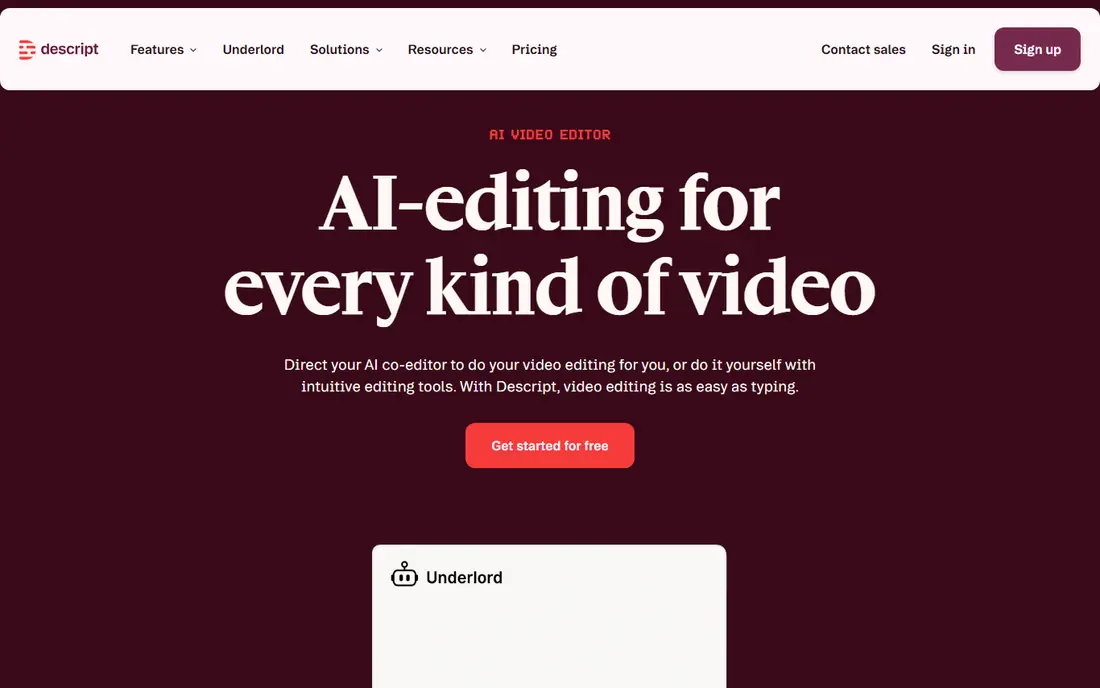
Descript changes editing into word processing. It transcribes your footage, and you cut video by deleting words, removing filler sounds, and fixing a line by typing a correction. For podcasters and talking head creators, that method is faster to learn than a traditional timeline, and it forgives mistakes that would take many timeline clicks to fix.
The limit is scope. Descript is not the best tool for complex effects, multicam shoots, or heavy motion graphics. Free media hours are also limited, so check the Hobbyist plan at $16 per month and the Creator plan for higher limits. If most of your videos are you talking to camera, Descript is the first tool to trial.
- Text based editing from a transcript
- Filler removal and studio sound cleanup
- Overdub style voice fixes for small errors
- Heavy effects and multicam work are weaker
- Free plan limits media hours
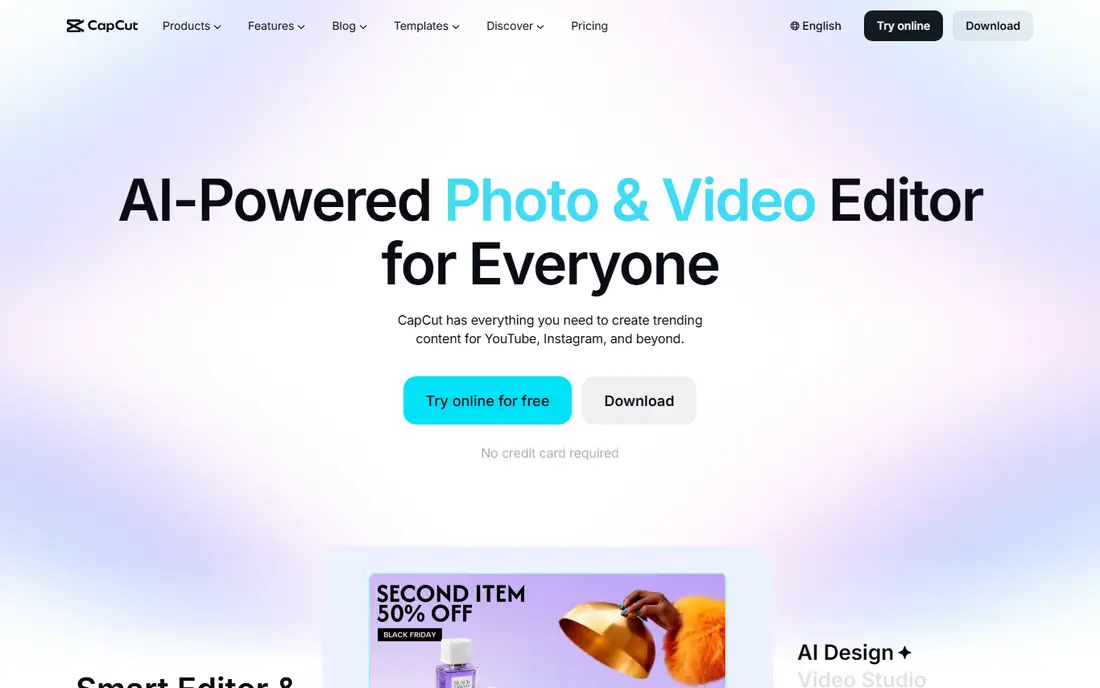
CapCut is the phone first workhorse for short form video. You can shoot on a phone, add auto captions, apply a template, remove a background, and export for TikTok, Reels, or Shorts without opening a desktop editor. The free tier covers a large share of daily short form work, which is why so many creators start here.
Paid plans add 4K export and the full AI toolkit, so check the current Standard and Pro tiers before assuming a feature is free. Region rules have also affected availability at times, so confirm CapCut is available in your app store before building a workflow around it. For quick social edits, few tools match its speed on a phone.
- Generous free tier for social clips
- Auto captions, background removal, and templates
- Phone and desktop versions
- Advanced AI tools and 4K export need paid plans
- Availability can vary by region and app store rules
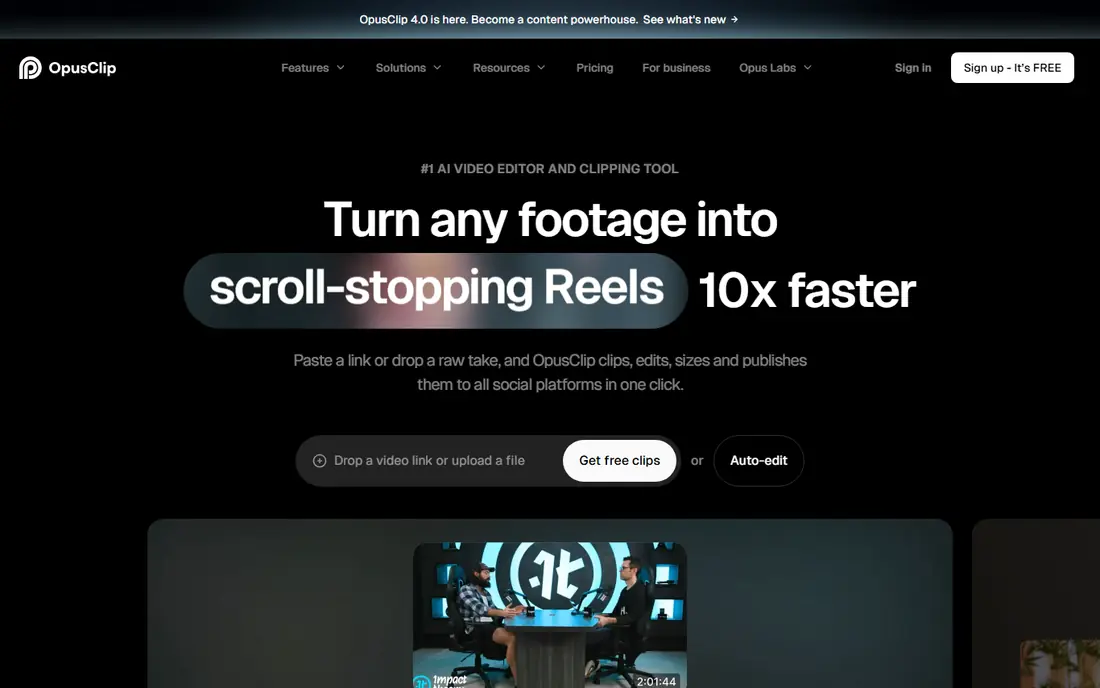
Opus Clip solves one job very well: turning a long podcast, webinar, or stream into short clips worth posting. Upload a long video or link, and it finds clip worthy moments, reframes the speaker for vertical video, adds captions, and ranks clips so you know what to post first. That workflow can clear a backlog of long videos in an afternoon.
It is not a full editor, so creators who need detailed timeline control will pair it with Descript or CapCut. The free plan gives limited processing minutes with watermarks, while Starter at $15 per month removes watermarks and adds more minutes. If you already record long videos, Opus Clip is the fastest route to a steady stream of shorts.
- Auto clips from long videos with virality style scores
- Auto reframing to vertical
- Captions and scheduling in one place
- It repurposes well but is not a full timeline editor
- Caption styling is less flexible than Submagic for some creators
Kapwing suits teams that need to edit in a browser and share a draft for comments without sending large files. You can upload footage, use AI tools for captions and rough cuts, and send a link for review. That shared workflow helps marketing teams, teachers, and small agencies that work across devices.
Large files and complex timelines are the limit. A desktop editor will handle a heavy project more smoothly, and Kapwing free exports carry limits. At $16 per month for a paid plan, Kapwing is a fair pick for teams that value browser access and review more than raw desktop power.
- No install, works in a browser
- AI rough cuts and caption tools
- Easy sharing and comments for team review
- Browser editing can feel slower on very large files
- Advanced features need a paid plan
VEED is a browser editor known for subtitles and localisation. Teams can add accurate auto subtitles, translate captions, dub clips, and keep brand colours and fonts in a shared kit. That makes VEED a strong pick for companies that publish the same video in several languages or for several markets.
Desktop editors still win for complex edits, effects, and colour work. VEED free exports have limits, and paid tiers vary, so check the current pricing page for the subtitle and export limits you need. For quick browser edits with strong subtitle support, VEED is hard to beat.
- Fast auto subtitles in many languages
- Brand kits and team workspaces
- Dubbing and translation tools
- Pricing varies by plan and needs a check
- Less suited to complex desktop timeline work
Filmora gives beginners a real desktop timeline without the steep learning curve of a professional editor. AI tools help with silence detection, auto captions, and media analysis, while the timeline still gives full control over cuts, titles, and music. That mix suits creators who have outgrown phone editing but do not want a professional suite yet.
The trade off is that Filmora does not auto edit a long video into shorts as well as Opus Clip, and it does not edit by transcript as well as Descript. Use Filmora when you want a desktop timeline with AI help, and pair it with Opus Clip if repurposing long videos is a core job.
- Real timeline with AI tools on top
- Large effects, titles, and music library
- Good for beginners moving beyond phone edits
- Subscription or yearly pricing needs a check
- AI tools are helpers, not full auto editing
Submagic focuses on the final look of a short clip. Its animated captions, word by word highlighting, and auto B-roll make a plain talking head clip look ready for social feeds. Creators who already have a cut clip often run it through Submagic for captions and polish, rather than editing from scratch in Submagic.
That narrow focus is also the limit. You still need a tool for cutting and arranging footage, and Submagic credits and plans need a check before heavy use. If your clips are cut but look flat, Submagic is a useful last step. If you need a full edit, start with Descript, CapCut, or Kapwing.
- Polished animated captions that suit short form
- Auto B-roll and hook tools
- Fast turnaround for finished clips
- It is a polish tool, not a full editor
- Pricing varies by plan and credits
Gling is a rough cut machine for YouTubers. Upload raw talking head footage, and it removes silences, filler, and bad takes, then exports a clean timeline to Premiere Pro or DaVinci Resolve. That saves the most boring part of editing, which is scrubbing through hours of raw footage to find usable takes.
Gling does not finish the video. Titles, B-roll, music, and colour still need work in your main editor, so budget time for that stage. At $10 per month for a paid plan, Gling is a good buy for YouTubers with a regular upload schedule who already finish in a professional editor.
- Removes silences and bad takes automatically
- Exports to Premiere Pro or Resolve for finishing
- Fast for talking head YouTube videos
- It makes a rough cut, not a finished video
- Final polish still needs a timeline editor
Runway fits creators who need AI generated inserts, effects, and creative shots that they cannot film. You can generate B-roll, extend a shot, or create a visual that fills a gap in a story, all from a browser workspace. That creative range sets Runway apart from caption and clipping tools.
For simple quick edits, Runway is overkill. A talking head cut is faster in Descript, and a short clip is faster in CapCut. Use Runway when a video needs a generated insert or a visual effect, and check credits and export limits on the $12 per month entry plan before a large project.
- Generative video and image tools for inserts
- Effects and editing in the browser
- Useful for B-roll and creative shots
- Generated clips need review for quality and accuracy
- Not the best tool for simple quick cuts
How we picked these
We started with platforms that are live in October 2026 and can finish a quick edit with AI help, not just a traditional timeline with no AI features. Each platform had to offer auto captions, auto cuts, transcript editing, long to short clipping, or generative inserts, and export a finished video for social or web use. We checked vendor pricing pages for entry prices and free tiers, and we used See website where pricing varied by plan, credits, or billing period.
We ranked by quick edit job, not by total features alone. A professional editor with many features can be slower for a 60 second short than a focused clipping tool. We left out tools that only generate video from text with no editing workflow, tools that only upscale footage, and tools we could not verify as live products.
How to get a quick edit done well
Speed helps only if the finished clip still reads clearly. Use this guide to keep quick edits fast without losing quality.
Start with a clean recording
Record in a quiet room, with good light and a clear mic, and speak in short sentences. AI captions and transcript edits work far better on clean audio than on noisy, mumbled speech. A few minutes of setup saves far more time in editing than any AI tool can recover later.
Cut for one idea per clip
A short clip should make one point, with a clear start and end. Opus Clip scores help, but you should still watch each clip and cut any rambling middle section. A 45 second clip with one clear idea beats a 90 second clip that tries to cover three topics.
Check captions by reading them
Auto captions are fast, but they still mishear names, numbers, and technical terms. Read the caption file before export, and fix any error that changes meaning. Viewers often watch with sound off, so a caption error becomes the message for many people.
Keep a simple brand kit
Use the same fonts, colours, and caption style across clips, so your feed looks consistent even when you edit fast. Kapwing and VEED both support brand kits, and CapCut templates can serve the same purpose on a phone. Consistency also saves time, since you stop redesigning each clip.
Frequently asked questions
What is the best AI video editor for quick edits?
Descript is the best pick for talking head and podcast quick edits, because transcript editing is fast. CapCut is the best free phone pick for short form, and Opus Clip is the best pick for turning long videos into shorts. Choose by your source material, not by a single best label.
Is there a free AI video editor for quick edits?
Yes. CapCut, Kapwing, VEED, Opus Clip, Descript, and Runway all offer free plans or free tiers with limits on exports, minutes, or watermarks. A free plan is enough to test a workflow and publish occasional clips, while regular publishing usually needs a paid plan for higher limits and watermark removal.
Which AI video editor is best for YouTube Shorts and TikTok?
CapCut is the best phone first pick for Shorts and TikTok, with templates and auto captions built for vertical video. Opus Clip is better when the source is a long podcast or webinar, since it finds and reframes clips for you. Many creators use both: Opus Clip to find clips, CapCut to polish them.
Can AI edit a video fully on its own?
For short clips, largely yes, with a human check at the end. Opus Clip and Gling can produce a rough or finished short from a long recording, but pacing, factual claims, and brand fit still need a human review. For longer videos with a story, AI builds a strong first cut, and a person still shapes the final edit.
Do I need a desktop editor if I use these tools?
Not always. Phone and browser tools cover most short form work, and many creators publish without a desktop editor. A desktop editor such as Filmora or DaVinci Resolve helps when you need complex timelines, colour work, or multicam edits. Start with a quick edit tool, and add a desktop editor only when a project demands it.
How much does Descript cost?
Descript offers a free plan with limited media hours, then paid plans starting at $16 per month on annual billing for Hobbyist, with Creator at a higher price for more hours and 4K export. Check the current Descript pricing page, since media hour limits and plan prices have changed during 2026.
Sources we checked (9)

Online Jobs is an independent blog about careers, online work, learning new skills and the tools that help people earn. More about us.
Keep reading
All posts
ZoomInfo Alternatives
The best ZoomInfo alternatives in 2026, compared on price, free plans, data coverage, and which tool fits small teams or large sales teams best in detail.
Zoom Alternatives
Zoom alternatives compared for 2026: Google Meet, Microsoft Teams, Webex, Jitsi and more for free calls, large meetings and webinars for teams and classrooms.
Workday Alternatives
We compared the best workday alternatives for HR, payroll, and global hiring, from BambooHR and Gusto to Rippling, Deel, and HiBob for growing teams in 2026.