Best AI Tools to Turn Photo into Video in 2026: 9 Tools Compared

How we put this together: we compare official feature and pricing pages, app store listings, privacy policies and public user reviews. Prices change, so check the provider's site before you pay.
Key takeaways
- Kling AI is the best value photo to video tool for most creators, with a free tier and a low-cost paid plan.
- Runway leads for high-end quality and editing, while Google Veo leads for clips with natural-sounding audio.
- Hailuo AI is a strong budget paid option, and Pika is a good testing tool with no watermark on some tiers.
- Photo to video tools work best with a clear prompt, a high-quality starting photo, and realistic expectations about hands, faces, and motion.
Quick comparison
| Name | Who it suits | Starting price | Free option | |
|---|---|---|---|---|
 Runway | High-end quality and editing | $12 per month | Yes | Visit |
 Kling AI | Best value photo to video | $8.80 per month | Yes | Visit |
 Hailuo AI | Budget paid generation | $10.50 per month | Yes | Visit |
 Pika | Testing and fun effects | $8 per month | Yes | Visit |
 Luma Dream Machine | Cinematic motion | See website | Yes | Visit |
 Google Veo | Clips with audio | $19.99 per month | Yes | Visit |
 Adobe Firefly | Client-safe commercial work | $9.99 per month | Yes | Visit |
 PixVerse | Daily free social clips | $8 per month | Yes | Visit |
 Vidu | Reference-based multi-shot clips | $8 per month | Yes | Visit |
The best AI tools to turn photo into video
We compared official pricing pages and recent image to video guides, focusing on true image to video support, clip length, resolution, free credits, watermark rules, and commercial terms. Only animate photos you own or have clear rights to use, and do not create misleading videos of real people without consent. Generated video can still look wrong on hands, faces, and fast motion, so review every clip before publishing.
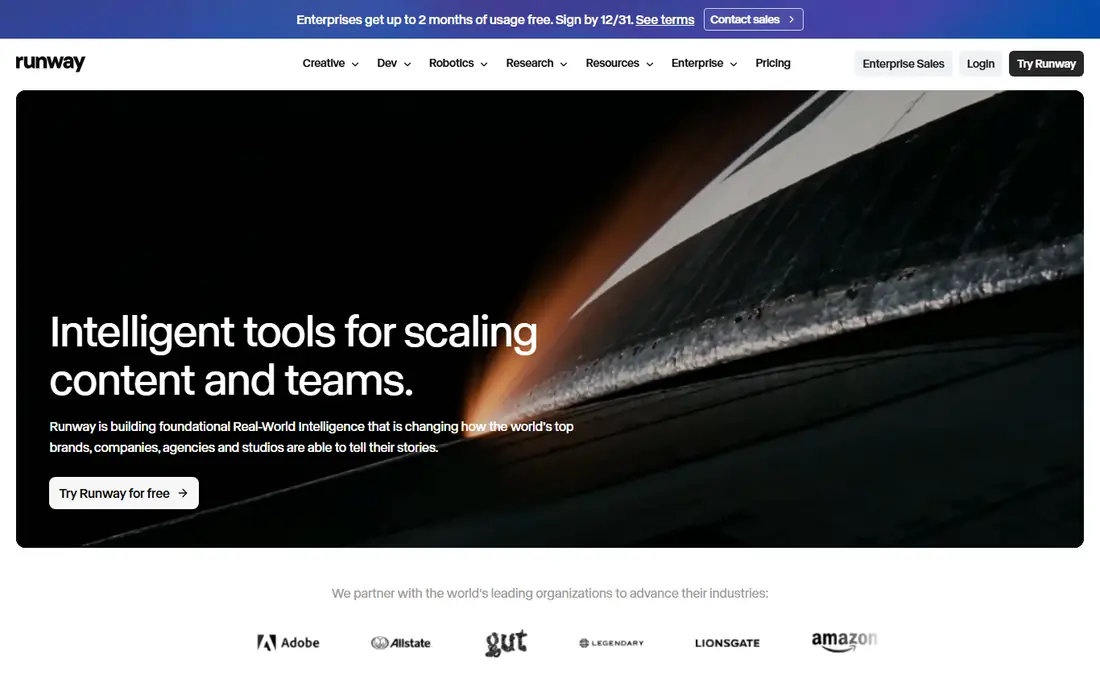
Runway is our pick for creators who want the best-looking photo to video result and a full editing workflow around it. Upload a photo, describe the motion, and Runway generates a short clip that can then be edited, extended, and finished in the same platform. That integration matters when a single clip is part of a larger video, advert, or social post.
The cost is the barrier. The Standard plan is $12 per month billed yearly, or $15 monthly, and the free plan offers 125 one-time credits rather than a monthly refill. Free output also carries a watermark, which is removed on paid plans. If you generate often and care about finish quality, Runway justifies the price. If you only test ideas, start with a free rival first.
- Strong image to video quality
- Editing and finishing tools in one platform
- Upscaling options
- Free plan gives one-time credits with no monthly refill
- Paid plans cost more than budget rivals
- Watermark on free output
Kling AI is the best value pick here because it balances quality, free access, and a low paid starting price. Recent guides list Standard at $8.80 per month after a $6.99 first month, with 660 credits per month, and a free Basic tier for testing. Image to video supports longer, keyframed clips on higher plans, which helps when a photo needs a camera move rather than a simple pan.
The catch is tiering. The newest models and longest clips are not all on the cheapest plan, so check which model your job needs before subscribing. Credit use also varies by resolution and length, so a few high-resolution clips can use a monthly allowance faster than expected. For most social, marketing, and creative uses, Kling is the first paid tool to try.
- Strong image to video quality for the price
- Multi-shot and keyframe options on higher plans
- Free tier for testing
- Higher quality models sit on higher plans
- Credit costs vary by model and length
- Queue times can rise at peak hours
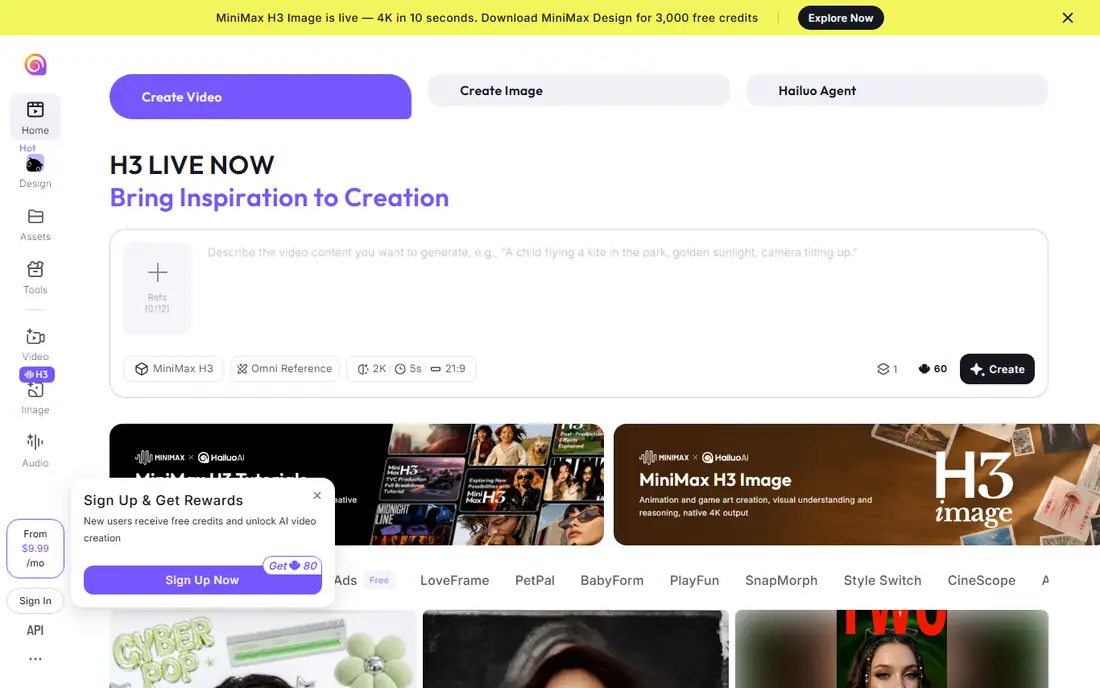
Hailuo AI, from MiniMax, is a strong budget paid option for creators who generate many short clips. Recent guides list Standard at $10.50 per month on discount, against a $14.99 list price, with 1,000 credits per month. It handles stylised motion, camera moves, and multi-reference shots well, which suits social content and product clips.
Free generation is watermarked, so paid access is needed for clean exports. Prompt quality also matters more here than with some rivals: a vague prompt gives vague motion, while a specific prompt about camera, subject, and action gives a steadier result. If budget is your main constraint, Hailuo is a credible alternative to Kling.
- Low-cost paid plan
- Fast, physics-heavy and stylised motion
- Multi-reference support
- Free output carries a watermark
- Quality varies by prompt
- List price is higher than the discounted price shown in some guides
Pika is a good testing tool because its free plan lets you try image to video without a monthly credit refill, using packs instead, and recent guides note no watermark on any tier. The Starter plan is $8 per month billed yearly, with 900 credits per month, which is enough for regular social clips. Effects and playful motion suit short-form content well.
The limit is realism and licensing. For cinematic realism, Runway and Kling usually produce steadier results, and Pika's commercial licence sits on Creator plans rather than Starter. Use Pika to test ideas, effects, and prompts cheaply, then move to a higher-end tool when a clip needs to look polished for a client or advert.
- Free packs for testing
- No watermark on any tier in recent guides
- Fun effects and easy prompts
- Free plan uses packs rather than monthly credits
- Commercial licence needs a Creator plan or higher
- Clip quality trails Runway and Kling for realism
Luma Dream Machine suits creators who want smooth, cinematic camera moves from a still photo, such as a slow push-in, orbit, or reveal. It produces fast drafts that work well for storyboards, mood films, and social clips, and it fits post-production workflows where a generated clip is one element among many.
Pricing is less simple than Kling or Hailuo, with credit costs rising for higher resolution and longer clips, so we list See website rather than a single figure. Recent guides list Plus from around $30 per month, but check the current pricing page for your use. If cinematic motion is your priority and you can manage credits carefully, Luma is worth testing.
- Cinematic camera motion
- Fast drafts
- Good for post-production and HDR workflows
- Pricing and credit costs vary by plan
- 1080p generation uses more credits
- Free tier is limited
Google Veo, available through the Gemini app and Google Flow, is the best photo to video tool when sound matters. Veo generates video with matching audio, such as ambient sound and dialogue cues, which saves a separate sound design step. That makes it strong for short social clips, adverts, and story scenes where audio sells the motion.
Access is the trade-off. Free access inside the Gemini app is capped, and fuller Flow access comes with Google AI Pro at $19.99 per month, with 1,000 Flow credits per month in recent guides. Clips are short, around eight seconds, though they can be chained for longer sequences. If you already use Google AI Pro, Veo is a natural addition.
- Native audio with video
- Strong realism
- Access through Gemini app and Google Flow
- Full access needs Google AI Pro at $19.99 per month
- Free access is limited
- Clip length is short without chaining
Adobe Firefly is the safest pick for client and brand work where licensing and content safety matter. Adobe positions Firefly as trained on licensed and public domain content, which reduces legal risk compared with tools that are less clear about training data. Integration with Photoshop, Premiere Pro, and Express also helps when a generated clip needs finishing in Adobe tools.
The limits are clip length and realism. Firefly video clips are short, and for pure cinematic quality, Runway and Kling often lead. The Standard plan is $9.99 per month, with free daily generations for testing. Choose Firefly when a client, agency, or brand needs a clear commercial story, not just a striking clip.
- Commercially safer training approach for client work
- Integrates with Adobe apps
- Free daily generations
- Clips are short, around five seconds
- Video quality trails Runway for cinematic realism
- Credits shared across Firefly tools
PixVerse suits social creators who generate short clips daily and want a predictable free allowance. Recent guides list 30 free credits per day, with Standard at $8 per month billed yearly, and Pro at $24 per month for higher resolution and volume. The workflow is simple: upload a photo, write a prompt, and generate a short clip for TikTok, Reels, or Shorts.
The Standard cap is the catch, since some output is limited to 720p, which may not suit client work. Quality also varies by model, so test the same photo and prompt across models before settling on one. For daily social testing, PixVerse is a low-cost, low-friction option.
- Daily free credits
- Good for short-form social video
- Simple prompt workflow
- Standard plan caps some output at 720p
- Quality varies by model
- Paid Pro needed for higher resolution
Vidu is useful when a photo to video job needs consistency across shots, such as the same character, product, or scene in several clips. It supports multiple reference uploads, with recent guides listing 10 per month on the free plan, and Standard at $8 per month billed yearly. That reference control helps when a single photo is not enough to define the look.
As a newer tool, Vidu has less community guidance and fewer tutorials than Runway or Kling, and credit rules vary by model. Test it with a small project first, and check whether your reference photos stay consistent across generations. For multi-shot social or product stories, Vidu is a strong budget alternative.
- Multiple reference uploads
- Good for consistent characters and scenes
- Low-cost paid step-up
- Free plan limits reference uploads
- Newer tool with a smaller community than Runway or Kling
- Credit rules vary by model
How we picked these
We compared official pricing pages and recent image to video guides, and we required true image to video support rather than text to video only. We weighted quality, free access, watermark rules, clip length, and commercial terms, and we included budget, high-end, and client-safe options. Where pricing varies by model, resolution, or discount, we used the most widely listed figure and noted that you should check the vendor page before subscribing.
Getting better results from a photo
Start with a strong photo
Use a sharp, well-lit photo with a clear subject and simple background. Blurry, crowded, or low-resolution photos give the model less to work with, and motion artifacts show up faster. If the photo is a portrait, check that eyes, hands, and edges are clear, since those areas fail first in generated motion.
Write a specific motion prompt
Say what moves, how the camera moves, and what stays still. For example, name the subject, the action, the camera move, and the mood, rather than writing only "make it move". Keep motion simple for the first generation, then add complexity once the basic clip looks stable. Generate two or three variants and pick the best, rather than accepting the first result.
Check rights and honesty
Only animate photos you own or have permission to use, and do not create videos that mislead viewers about real people or real events. For client work, keep a note of the tool, prompt, and licence terms for each clip. A short, honest clip with clear motion beats a long clip with distorted faces or hands.
Frequently asked questions
What are the best AI tools to turn photo into video?
Runway leads for high-end quality, Kling AI leads for value, Hailuo AI leads for budget paid generation, and Google Veo leads for clips with audio. Pika, Luma, Adobe Firefly, PixVerse, and Vidu all suit different jobs, from testing to client-safe work. The best AI app to turn photos into videos depends on quality, price, and whether you need commercial use.
What are the best free AI tools to turn photo into video?
Kling AI, Hailuo AI, Pika, PixVerse, and Vidu all offer free tiers or daily credits, and Runway offers one-time free credits. Free output often carries a watermark or a resolution limit, so paid plans are needed for clean, high-resolution exports. Test the same photo across two free tools before paying, since quality varies by photo and prompt.
How long can AI photo to video clips be?
Most tools generate clips of five to ten seconds per generation, with some models reaching 15 seconds or longer on higher plans. Longer videos are usually made by chaining several clips together in an editor. Check the model and plan you choose, since length, resolution, and credit cost vary together.
Can I use AI photo to video for commercial work?
Yes, but only on plans that include a commercial licence, and only with photos you own or have rights to use. Adobe Firefly is positioned for client-safe work, while Pika requires a Creator plan or higher for a licence, and other tools vary by tier. Read the licence terms for your plan before using a clip in an advert or client project.
Why do AI videos distort faces and hands?
Image to video models predict motion from a still image, and faces, hands, and fast movement are the hardest parts to predict consistently. Simple camera moves, clear photos, and short clips reduce distortion, while complex action increases it. Review every clip frame by frame for client work, and regenerate with a simpler prompt if distortion appears.
Do I need video editing skills to use these tools?
No, the basic workflow is upload a photo, write a prompt, and download a clip, which most beginners can learn in an afternoon. Editing skills help when you chain clips, add music, captions, or text, and when you need a polished final video. Start with single clips in a free tool, then add an editor such as CapCut or Descript for finished videos.
Sources we checked (9)

Online Jobs is an independent blog about careers, online work, learning new skills and the tools that help people earn. More about us.
Keep reading
All posts
Zoom Alternatives
Zoom alternatives compared for 2026: Google Meet, Microsoft Teams, Webex, Jitsi and more for free calls, large meetings and webinars for teams and classrooms.
Which Software Is Best for PDF Page Removal
Which software is best for PDF page removal? We compare free and paid tools for deleting pages quickly, safely, and without harming your file in this guide.

Which Software Is Best for Data Entry
Compare the best data entry software for forms, OCR scanning, and spreadsheets, with free plans, pricing, and honest limits for each tool before you commit.