Best AI Tools to Generate Video from Image in 2026: 8 Tools Compared

How we put this together: we compare official feature and pricing pages, app store listings, privacy policies and public user reviews. Prices change, so check the provider's site before you pay.
Key takeaways
- Runway is our pick for a full workflow, with image to video generation plus editing tools, though its free credits do not refill monthly.
- Kling offers strong value for image to video, with a free tier and a Standard plan listed from $8.80 per month after a first month offer.
- Hailuo and Pika suit fast drafts and stylised clips, with free access and low cost paid steps, but clip lengths and licences vary by plan.
- Clip length, resolution, audio and commercial rights differ by tool and plan, so check those four items before you pay for a subscription.
- AI video can misrepresent people and places, so do not use generated clips to deceive viewers, and label AI generated content where your platform or client requires it.
Quick comparison
| Name | Who it suits | Starting price | Free option | |
|---|---|---|---|---|
 Runway | Full generation plus editing | $12 per month | Yes | Visit |
 Kling AI | Value image to video | $8.80 per month | Yes | Visit |
 Hailuo AI | Fast stylised clips | $10.50 per month | Yes | Visit |
 Pika | Creative drafts | $8 per month | Yes | Visit |
 Luma Dream Machine | Fast drafts and edits | $30 per month | Yes | Visit |
 Adobe Firefly | Client-safe Adobe workflow | $9.99 per month | Yes | Visit |
 PixVerse | Daily free credits | $8 per month | Yes | Visit |
 Google Flow | Cinematic clips with audio | $19.99 per month | Yes | Visit |
The best AI tools to generate video from image
Image to video tools animate a still image: upload a photo or an illustration, add a prompt for motion, camera movement or style, and the tool generates a short clip. The tools below all support image to video in 2026, but they differ on clip length, motion quality, audio, credits and commercial rights. Prices change often with promotions, so check the vendor pricing page on the day you buy.
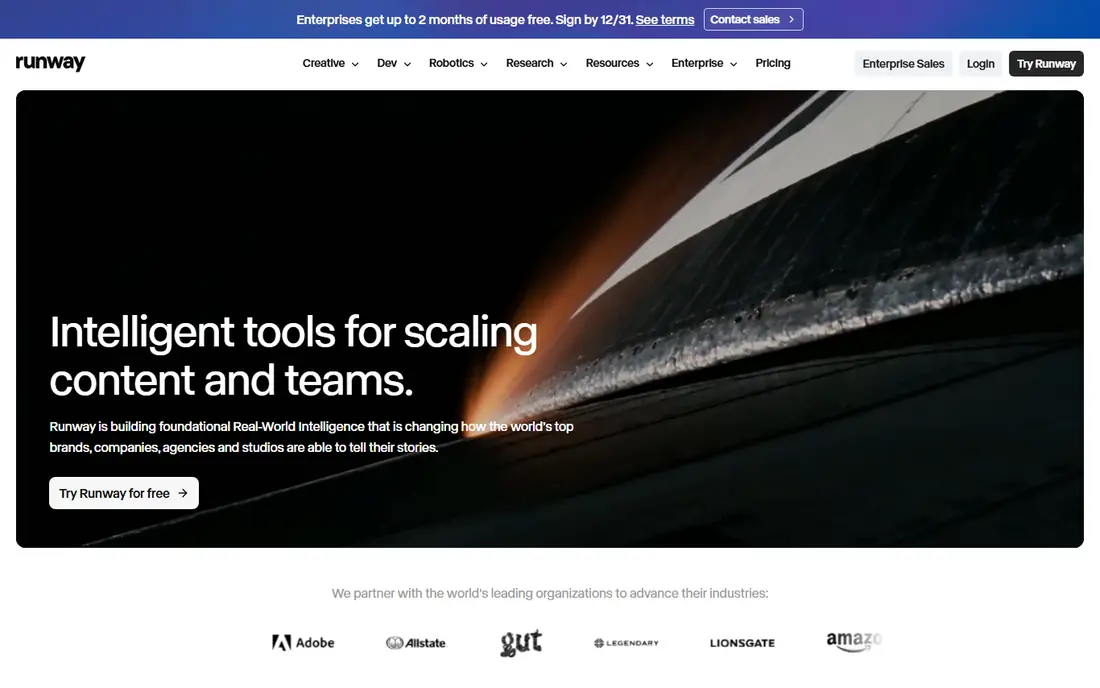
Runway is the most complete tool on this list, because it pairs generation with editing. You can animate an image, then refine the result with tools for inpainting, background removal and motion control, rather than exporting to a separate editor for every fix. Recent comparisons list the Standard plan at $12 per month billed yearly, or $15 per month billed monthly, with Gen-4.5 available on Standard and higher tiers.
The free plan is limited to 125 one-time credits, with no monthly refill, so free testing runs out quickly if you generate many clips. Runway is also often cited as a safer choice for client work, since it states that its models are trained on licensed content, though you should still check the current licence terms for your plan. Runway fits creators who want one workflow from image to finished clip, and who will use paid credits regularly.
- Gen-4 generation plus editing tools such as inpainting and background removal
- Strong motion quality
- Clear paid tiers
- Free plan offers 125 one-time credits with no monthly refill
- Higher quality models need a paid plan
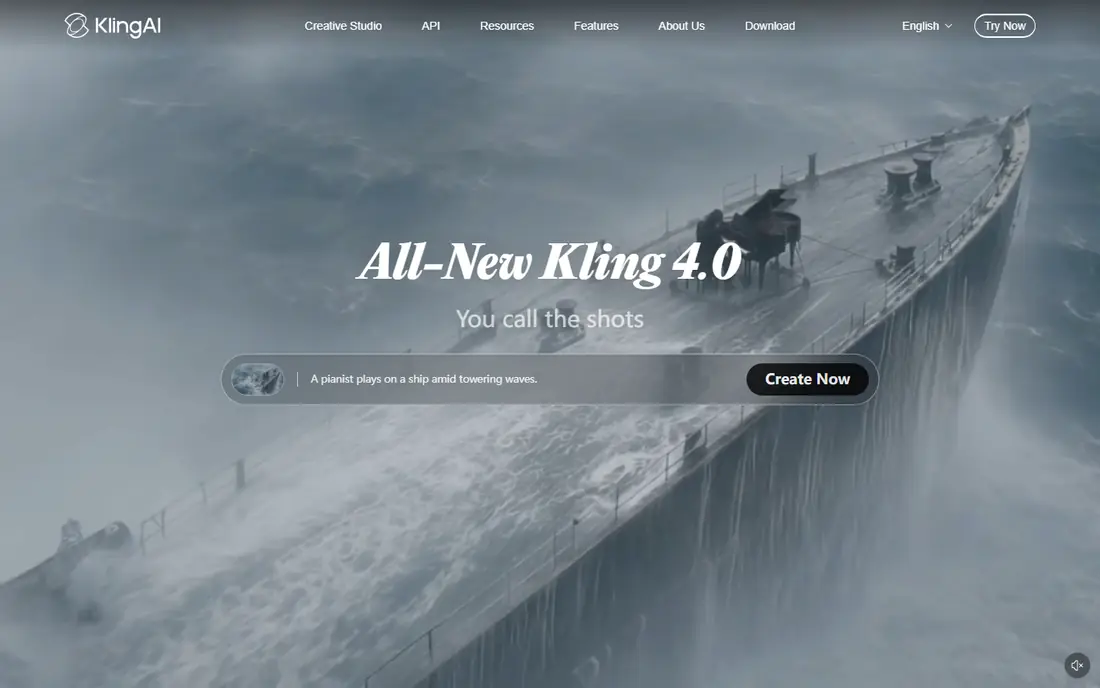
Kling AI offers strong value for image to video, with reference control that helps keep a subject consistent across clips and keyframe options for longer, more controlled motion. Recent comparisons list the Standard plan at $8.80 per month after a $6.99 first month offer, with 660 credits per month, and a free tier with daily Element AI uses. That combination makes Kling a practical daily tool for social clips, product shots and short scenes.
The limits to note are licence and model access. Recent comparisons state that the free tier is licensed for non-commercial use only, so commercial work needs a paid plan, and the newest Kling models sit on higher tiers. Kling fits creators who want good motion quality at a low monthly price, provided they check the licence for their plan before publishing client work.
- Strong motion and reference control
- Free tier with daily uses
- Low Standard price after a first month offer
- Free tier is licensed for non-commercial use in recent comparisons
- Higher models need higher plans
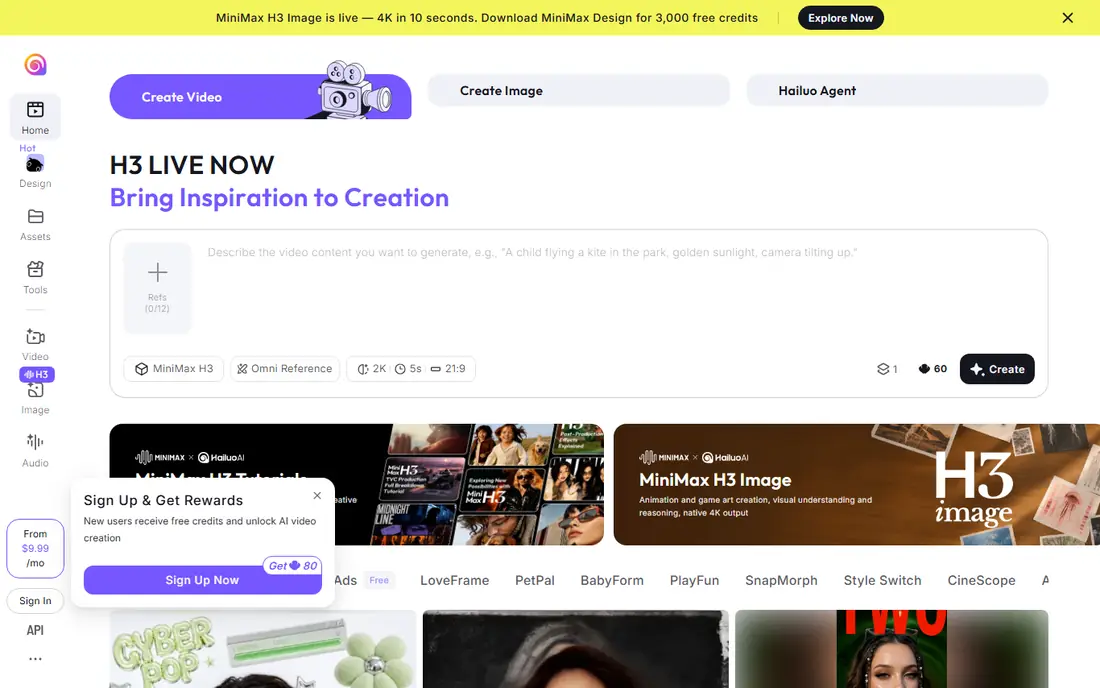
Hailuo AI, from MiniMax, is known for fast, physics heavy and stylised clips, with multi-reference support that lets you guide a scene with more than one image. Recent comparisons list the Standard plan at $10.50 per month on offer, down from $14.99, with 1,000 credits per month, and clips of around 6 seconds with audio on some models. That speed and price make Hailuo useful for testing many ideas quickly.
Free generations carry a watermark in recent comparisons, and higher resolutions, such as 2K output, cost more credits than standard output. Hailuo also has less transparent training data information than Runway, so client work with strict provenance requirements may need extra checks. Hailuo fits creators who want fast, expressive clips and who will pay to remove the watermark for published work.
- Fast generation
- Multi-reference shots
- Audio on some models
- Low cost Standard plan on offer
- Free output carries a watermark in recent comparisons
- Higher resolutions cost more credits
Pika is a creative image to video tool with effects, style controls and access to newer models on paid plans. Recent comparisons list the Starter plan at $8 per month billed yearly, with 900 credits per month, and note that Pika outputs carry no watermark on any tier, which is unusual among free tools. That makes Pika useful for drafts that you want to share without a watermark, even before you pay.
The free plan is thinner than it looks, since it offers packs only with no monthly credits in recent comparisons, so sustained free use is limited. A full commercial licence also needs a higher plan, listed as Creator in some comparisons, so check licence terms before client use. Pika fits creators who want playful, creative clips and a low cost Starter plan for regular drafts.
- No watermark on any tier in recent comparisons
- Creative effects and model access
- Low Starter price
- Free plan offers packs only, with no monthly credits
- Full commercial licence needs a higher plan
Luma Dream Machine is known for fast drafts and for modifying existing video, not just generating from an image. You can animate an image, extend a clip, or change elements in a video, which suits a post-production workflow where a generated clip is a starting point rather than a finished product. Recent comparisons list the Plus plan at $30 per month, with 1080p output costing 400 credits per 5 seconds on that plan.
That price is higher than Kling, Pika or Hailuo, so Luma is harder to justify for casual use alone. The value appears for creators who need fast iteration and video modification in one tool, and who work in a pipeline where HDR or higher quality output matters. For a single image to video clip with no edits, a cheaper tool will usually give a similar result for less.
- Fast generation
- Video modification tools
- HDR output options for post-production
- Paid Plus plan is listed at $30 per month, above many rivals
- 1080p output costs more credits
Adobe Firefly suits creators already working in Adobe apps, since generated video can flow into Premiere Pro and other Adobe tools. Firefly Standard is listed at $9.99 per month in recent comparisons, with a Pro plan at $19.99 per month, and free daily generations for testing. Adobe states that Firefly is trained on licensed content, which makes it a strong choice for client work where provenance and licence clarity matter.
Clip length is a limit, with many Firefly video generations around 5 seconds, so longer scenes need multiple clips and editing. Firefly is also a broad creative tool, not a video only tool, so a creator who only needs image to video may find a cheaper specialist tool more direct. Firefly fits Adobe users and client facing creators who value licence clarity over the longest clip.
- Adobe workflow integration
- Commercially safe training claims
- Free daily generations
- Clips are around 5 seconds on many plans
- Video is one part of a larger Firefly plan
PixVerse offers a practical free route, with 30 credits per day in recent comparisons and a Standard plan at $8 per month billed yearly as $96. Multi-shot options help build a short sequence from several images, which suits social video and product clips. The low cost per clip at base settings makes PixVerse useful for testing many prompts without spending much.
The Standard plan caps output at 720p in recent comparisons, so higher resolution work needs a higher plan, and the tool is best for short social clips rather than long cinematic scenes. PixVerse fits creators who want daily free testing and a cheap paid step, especially for short form video where 720p is acceptable for a draft or a social post.
- Daily free credits
- Multi-shot video options
- Low Standard price billed yearly
- Standard plan is capped at 720p in recent comparisons
- Social style output suits short clips best
Google Flow is the tool for cinematic image to video with sound, using Google Veo models that generate dialogue, ambience and sound effects alongside the picture. Flow offers reference image controls, clip extensions, editing tools and upscaling, which makes it useful for narrative scenes and product shots that need audio built in. Recent comparisons list Google AI Pro at $19.99 per month, adding 1,000 Flow credits per month, with a free tier offering 50 credits per day in some listings.
Free access is limited and can be unavailable during peak hours, and higher quality generations cost more credits than a single day free balance covers. Flow fits creators who already use Google AI tools, or who need native audio without a separate sound workflow. For silent short clips, a cheaper tool such as Kling or PixVerse will usually cost less.
- Veo models with native audio
- Reference image controls
- Extensions and editing in Flow
- Paid access sits inside Google AI Pro at $19.99 per month
- Free access is limited and can be unavailable at peak times
How we picked these
We shortlisted tools that support image to video generation in October 2026, offer a free tier or trial, and publish a paid price. We compared motion quality in published comparisons, clip length, resolution, audio, credit costs, commercial licence clarity and workflow features such as editing and reference control. We gave weight to tools that are actually available to buy now, rather than discontinued or invite only models.
We did not generate a standard test set on each tool, since output quality varies by prompt, image and model version, and a single test would not prove a general ranking. Prices were checked against recent comparison research and vendor pricing pages, and where a price varies by promotion or region, we list the most commonly cited figure and advise checking the vendor page. Always check the current licence for your plan, since free and paid licences differ sharply.
How to get better results from an image
Start with a clear, high quality image. A sharp subject, clean background and good lighting give the model more to work with than a blurry or cluttered photo, and the result will usually hold the subject better. Avoid images with many faces, small text or complex hands, since those details are where AI video most often breaks down.
Write a motion prompt, not a description
Describe what should move and how the camera should move, rather than describing the image again. For example, state the subject action, the camera move and the mood in one or two sentences, and keep the prompt short enough for the model to follow. If the result drifts, change one element at a time, such as camera speed or subject action, rather than rewriting the whole prompt.
Plan for short clips and editing
Most image to video clips run 4 to 8 seconds, so plan a sequence of short clips rather than one long scene. Generate several versions of each shot, pick the best, and edit them together in a video editor. That workflow gives more control than asking one tool for a long, perfect clip, and it lets you fix a bad shot without regenerating the whole scene.
Check rights, likeness and disclosure
Do not animate a photo of a real person without permission, and do not use generated video to imply that a real event happened when it did not. Check the licence for your plan before commercial use, since free tiers often limit commercial rights or add a watermark. Label AI generated clips where a platform, client or regulator requires disclosure, and keep the original image and prompt for your records.
Frequently asked questions
What is the best AI tool to generate video from an image for free?
Kling AI and PixVerse offer the most usable free image to video access in recent comparisons, with daily credits or uses, while Runway offers 125 one-time credits. Pika offers no watermark, but its free plan is limited to packs with no monthly credits, so Kling or PixVerse suit regular free testing better.
What is the best AI tool to generate videos from images for commercial use?
Runway and Adobe Firefly are strong for commercial use, thanks to clearer training and licence claims, but you must still check the licence for your specific paid plan. Kling and Pika also allow commercial use on paid plans, while their free tiers often limit commercial rights, so do not publish client work from a free tier without checking.
How long are AI image to video clips?
Most clips run 4 to 8 seconds, depending on tool and plan, with Veo clips at 4, 6 or 8 seconds, Firefly clips around 5 seconds, and Hailuo clips around 6 seconds with audio on some models. Longer scenes are usually built by generating several clips and editing them together, or by using extension features where the tool offers them.
Can AI video tools add sound to an image?
Some can. Google Flow with Veo models generates native audio, including dialogue, ambience and sound effects, and Hailuo offers audio on some models. Runway, Kling and Pika focus mainly on picture generation, so sound usually needs a separate audio tool or editor for those tools.
Do I need a paid plan to remove watermarks?
In many cases, yes. Hailuo free output carries a watermark in recent comparisons, and Runway free output also carries a watermark, with removal on paid plans. Pika is an exception, with no watermark on any tier in recent comparisons, though its free plan is still limited in credits.
What image works best for image to video?
A sharp, well lit image with a clear subject and a simple background works best, since the model can track the subject and add motion without confusion. Avoid blurry photos, crowded scenes, small text and complex hands, and test with a short clip before you spend many credits on a full sequence.
Sources we checked (8)

Online Jobs is an independent blog about careers, online work, learning new skills and the tools that help people earn. More about us.
Keep reading
All posts
Sora Alternatives
Compare the best sora alternatives now that Sora is discontinued, from Google Veo to Runway and Kling, with strengths and limits for video makers today.
OpenClaw Alternatives
Looking for openclaw alternatives? We compare 9 self-hosted and hosted AI agent tools, from Open WebUI and LibreChat to Manus, on setup, control, and price.

Best Text to Video AI Tools
Compare the best text to video AI tools in 2026 for cinematic clips, avatar videos, and script-to-video workflows, with pricing and free plans explained.