Best AI Presentation Tools No Coding in 2026: 8 Tools Compared

How we put this together: we compare official feature and pricing pages, app store listings, privacy policies and public user reviews. Prices change, so check the provider's site before you pay.
Key takeaways
- Gamma is the fastest route from a short prompt to a finished deck, while Canva gives more control over templates and brand assets.
- Plus AI and SlidesAI suit teams that must deliver in PowerPoint or Google Slides, not in a web-only format.
- Beautiful.ai helps non-designers because its layouts adjust when you add or remove content.
- Free plans are useful for a single deck, but export, branding, and AI credit limits often push regular users to a paid plan.
- Pick by final format first: link, PowerPoint file, or Google Slides file, because that choice rules out several tools at once.
Quick comparison
| Name | Who it suits | Starting price | Free option | |
|---|---|---|---|---|
 Gamma | Fast decks from a prompt | $10 per month | Yes | Visit |
 Canva | Templates and brand control | $15 per month | Yes | Visit |
 Beautiful.ai | Automatic layout fixes | $12 per month | No | Visit |
 Plus AI | PowerPoint and Google Slides | $10 per month | Free trial | Visit |
 SlidesAI | Quick Google Slides decks | $10 per month | Yes | Visit |
 Pitch | Team decks and analytics | See website | Yes | Visit |
 Prezi | Non-linear, zooming talks | $20 per month | Free trial | Visit |
 Visme | Charts and infographics | $29 per month | Yes | Visit |
The best AI presentation tools no coding
These tools need no code, no design training, and no manual slide layout work to produce a usable first draft. You type a prompt or paste an outline, pick a theme, and edit the result in a browser.
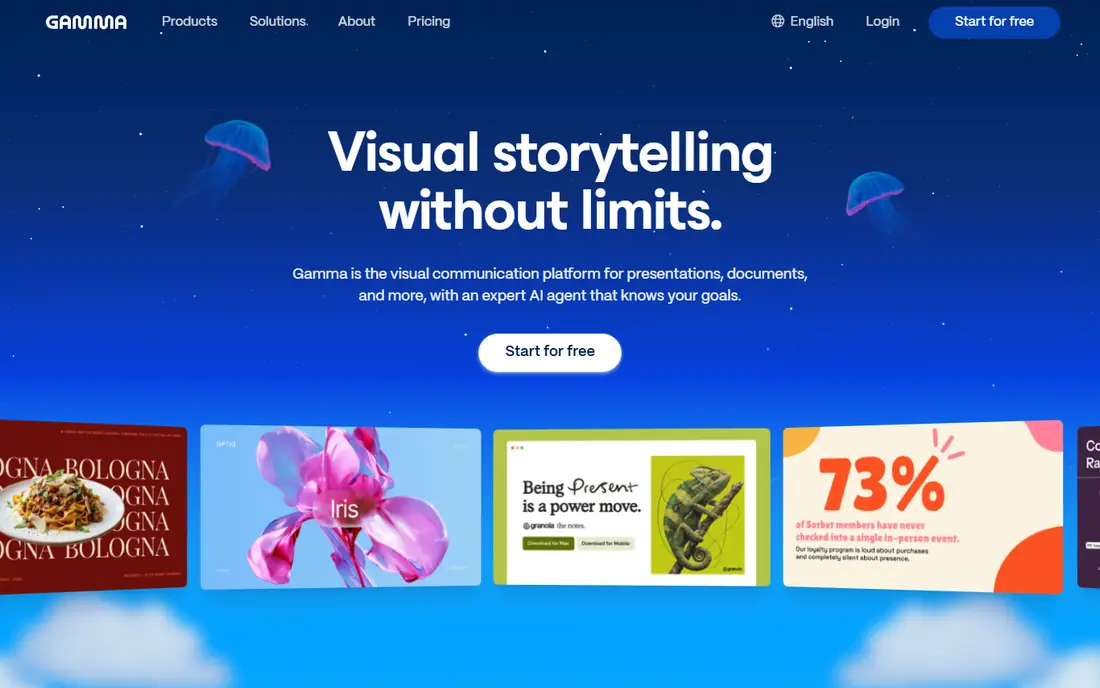
Gamma is our pick when speed matters most. You can paste an outline or a paragraph and get a structured deck with headings, supporting points, and images in minutes, then change the theme for the whole deck at once. Sharing by link also makes it easy to send a deck to a client or class without worrying about file versions. The catch is control. If you need exact slide sizes, precise text placement, or a complex PowerPoint master, Gamma can feel limiting. It is best for internal updates, pitches, lessons, and early drafts that you will polish elsewhere if needed. For a first deck on a tight deadline, it is hard to beat.
- Very fast first drafts
- Web sharing by link
- Cards work as decks, docs, or pages
- Less fine control than a design tool
- Export options depend on plan
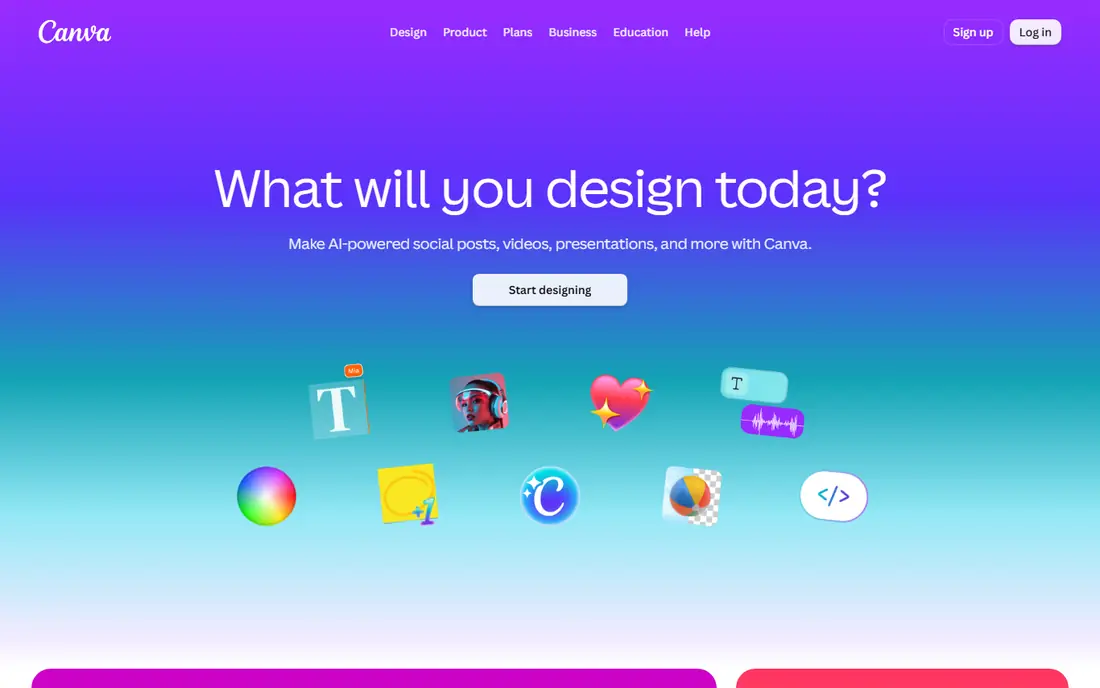
Canva suits people who want a deck that looks on brand without hiring a designer. Its Magic Design tools can turn a prompt into a set of slides, and the template library covers pitches, lessons, reports, and social posts. Brand kits let you reuse colors, fonts, and logos, which keeps a series of decks consistent. The trade-off is time. Canva gives you more choices than Gamma, so a deck can take longer to finish if you keep swapping templates. The free plan is useful for trying the workflow, but brand controls and some AI features sit on Pro. Choose Canva when you will make many visual documents, not just one deck.
- Huge template library
- Brand kits on paid plans
- Easy image and chart tools
- AI drafts still need editing
- Pro price rises for teams
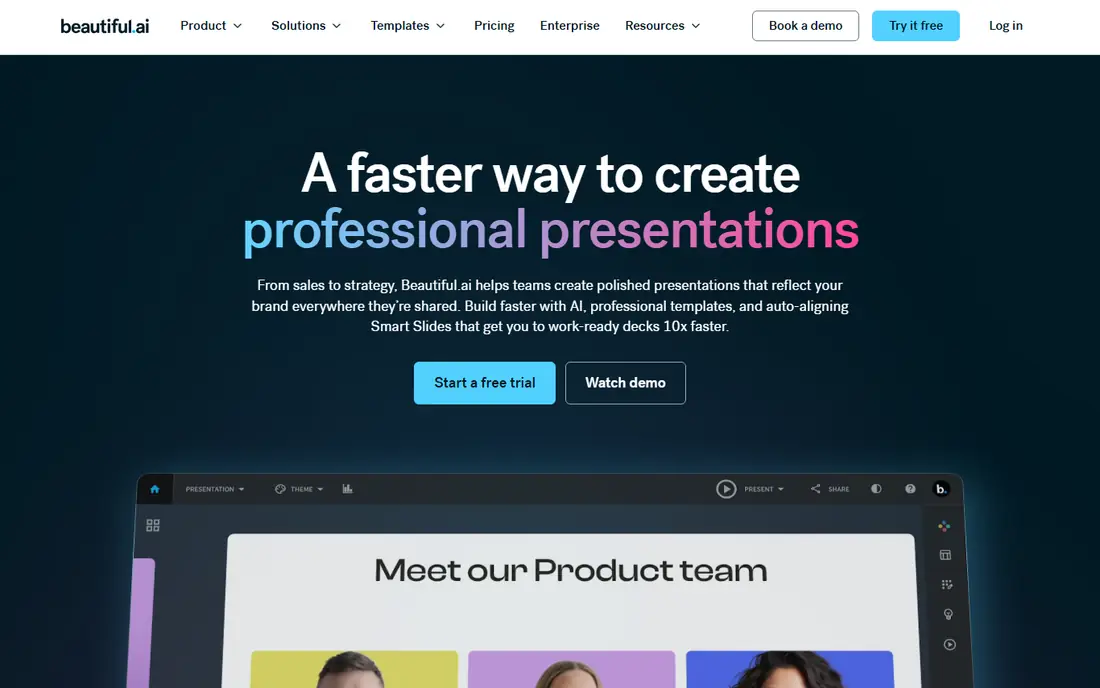
Beautiful.ai is built for people who break layouts by accident. When you add a bullet, a chart, or an image, its smart templates reflow the slide so text does not overflow and spacing stays even. That single feature saves a lot of fiddling for non-designers, and the result usually looks tidy without extra work. The limit is freedom. You cannot drag every element anywhere, and that constraint is deliberate. If you want a highly custom, art-led deck, a more open design tool will suit you better. If you want a professional deck that stays neat as you edit, Beautiful.ai is a strong choice.
- Smart templates adjust layouts
- Clean, consistent look
- Team sharing tools
- No free plan
- Fewer free-form design options
Plus AI is the right pick when your deck must end up as a PowerPoint or Google Slides file. It generates native, editable slides inside the tool you already use, so you can keep your existing templates, fonts, and sharing habits. That matters in workplaces where a web link is not an accepted final deliverable. The catch is the same as with every AI deck tool: facts, numbers, and claims need checking before you present. Plus AI gives you a strong draft and a familiar file, but it does not replace your own review. Choose it when compatibility with PowerPoint or Slides is a hard requirement.
- Works inside PowerPoint and Google Slides
- Native editable slides
- Good for existing workflows
- Output still needs fact checking
- Trial is short for heavy users
SlidesAI keeps the job narrow, and that is its strength. Paste text or a topic, pick a theme, and get a Google Slides deck you can edit straight away. For teachers, students, and teams that live in Google Workspace, that direct route avoids export problems and keeps collaboration simple. The limit is scope. SlidesAI is not a full design platform, and it will not replace Canva for marketing assets or Beautiful.ai for polished layouts. It is a focused tool for quick, clean Slides decks, and it does that job well. If you do not use Google Slides, look at Gamma or Plus AI instead.
- Simple Google Slides workflow
- Fast text-to-deck generation
- Low entry price
- Limited design depth
- Best only for Google Slides users
Pitch suits teams that build sales and investor decks together. Multiple people can edit at once, comment on slides, and track how a shared deck performs after it is sent. Templates give a solid starting point, and the interface feels closer to a modern product tool than to a traditional slide app. The downside is that a solo user may not need analytics or team permissions, and paid pricing needs checking on the Pitch site. For a small team that shares decks often and wants to know which slides get attention, Pitch is worth testing. For a one-off class deck, a simpler tool will be faster.
- Real-time team editing
- Deck analytics
- Good template starting points
- Paid pricing is less clear at a glance
- Overkill for solo users
Prezi is different from the other tools here because it is not a linear slide stack. You build a canvas and zoom between topics, which can make a talk feel more like a guided tour than a slide-by-slide read. For keynote talks, lessons that revisit a map or diagram, and pitches with a clear story arc, that style can hold attention well. The trade-off is effort. The canvas model takes time to learn, and it can distract if you force a simple update into a zooming format. Use Prezi when the story benefits from moving between big picture and detail. Use a linear tool when the audience just needs clear, sequential information.
- Zooming canvas for storytelling
- Distinct look
- Good for talks that jump between topics
- Higher starting price
- Learning curve for the canvas model
Visme is the pick when your deck is really a data story. Charts, diagrams, infographics, and interactive elements are its core strength, and it handles reports and presentations in the same workspace. If your slides need to explain numbers clearly, Visme gives you more chart control than a general deck generator. The price and complexity are the catches. At $29 per month, it costs more than the other tools here, and the extra options can slow down a simple deck. Choose Visme for data-heavy reports, annual reviews, and marketing decks where visuals carry the message. For a short internal deck, Gamma or SlidesAI will be quicker.
- Strong charts and data visuals
- Infographic templates
- Brand tools
- Highest starting price here
- More complex than a simple deck tool
How we picked these
We looked for tools that generate a deck from text without code, that are still available in October 2026, and that offer a usable free plan or trial. We checked official feature pages, pricing pages, and app listings for starting price, free tier, export format, and collaboration features, and we favored tools with a clear product page over tools that only appear in roundups. Where prices varied, we listed See website. We did not claim hands-on testing, and we excluded tools that required coding or that had no clear presentation product.
How to get a good deck without design skills
Start with a short outline, not a long prompt. Write one line per slide, with the main point first, and let the tool expand it, because a vague prompt produces vague slides. Check every fact, date, and number before you present, and cut slides that repeat the same point. A ten-slide deck that makes three points clearly beats a thirty-slide deck that wanders. Next, fix the format early. Decide if the final file must be PowerPoint, Google Slides, PDF, or a web link, and pick a tool that exports that format on your plan. Then apply one theme, one font pairing, and a small color set across the whole deck, and resist swapping templates halfway through. Finally, rehearse with the deck on screen, because a slide that looks fine in the editor can be hard to read from the back of a room.
Frequently asked questions
What is the best ai presentation tools no coding option for beginners?
Gamma is the simplest start because it turns a short prompt into a full deck quickly, and its free plan lets you test the workflow. Canva is better if you want templates and brand control, while SlidesAI is best if you already use Google Slides. Try the free plan of each before paying.
Can I use these tools without any design experience?
Yes. All eight tools in this list are built for people without design training, with templates, themes, and automatic layout help. You still need to write a clear outline and check the content, but you do not need to learn layout rules, color theory, or code to get a clean result.
Do AI presentation tools export to PowerPoint?
Some do, but not all plans include it. Plus AI works directly in PowerPoint and Google Slides, Gamma exports to PowerPoint and PDF on paid plans, and Canva exports to PowerPoint as well. Check the export option on your chosen plan before you start, especially if your workplace requires a PowerPoint file.
Are free plans enough for regular use?
Free plans work for occasional decks, but they limit AI credits, exports, branding, and slide counts. If you make decks weekly, a paid plan usually pays for itself in time saved. If you make one deck a term or a quarter, a free plan may be enough.
How do I avoid errors in AI-generated slides?
Write your own outline with verified facts, then review every slide for invented numbers, wrong dates, and off-topic images. Remove any claim you cannot source, and keep your own notes separate from the slide text. AI tools draft well, but they do not verify your subject for you.
Which tool is best for team presentations?
Pitch is built for team editing and analytics, Canva and Beautiful.ai also support team workspaces and brand control, and Plus AI suits teams that must stay in PowerPoint or Slides. Pick the tool that matches your final file format and how many people will edit at once.
Sources we checked (8)

Online Jobs is an independent blog about careers, online work, learning new skills and the tools that help people earn. More about us.
Keep reading
All posts
Zoom Alternatives
Zoom alternatives compared for 2026: Google Meet, Microsoft Teams, Webex, Jitsi and more for free calls, large meetings and webinars for teams and classrooms.
What Is the Best Free Tool to Rotate a PDF
What is the best free tool to rotate a PDF? We compare eight free rotation tools on per-page control, limits, privacy and saved output quality in detail.

What Is the Best AI Dubbing Tool
We compared the best AI dubbing tools in 2026, from ElevenLabs and HeyGen to Rask AI, Dubverse and Veed, for videos and creators in many languages worldwide.