Best AI Photo Editing Tools in 2026: 8 Tools Compared


Photographers and libraries · Starting price: $9.99 per month
How we put this together: we compare official feature and pricing pages, app store listings, privacy policies and public user reviews. Prices change, so check the provider's site before you pay.
Key takeaways
- Adobe Lightroom remains our pick for photographers who want AI masking and denoising inside a full photo library.
- Luminar Neo suits editors who want named AI tools for sky, skin and object removal without a monthly subscription.
- Canva and Picsart suit fast social edits, while Topaz Photo AI suits fixing noisy or soft older photos.
- The best AI tool depends on your starting point, so match the editor to portraits, batch work or phone edits before you pay.
Quick comparison
| Name | Who it suits | Starting price | Free option | |
|---|---|---|---|---|
| Adobe Lightroom | Photographers and libraries | $9.99 per month | Free trial | Visit |
 Luminar Neo Luminar Neo | Named AI tools, no subscription | See website | Free trial | Visit |
 Adobe Photoshop Adobe Photoshop | Deep retouching and compositing | See website | Free trial | Visit |
 Canva Canva | Fast social and marketing edits | Free | Yes | Visit |
 Picsart Picsart | Phone edits and stickers | Free | Yes | Visit |
 Topaz Photo AI Topaz Photo AI | Denoise and sharpening | See website | Free trial | Visit |
 Fotor Fotor | Quick online edits | Free | Yes | Visit |
 Pixlr Pixlr | Free browser editing | Free | Yes | Visit |
The best AI photo editing tools
AI photo editing tools now handle tasks that once took many manual steps, from removing objects to cleaning noise and replacing skies. We compared official feature pages, pricing pages and app store listings, and we kept only tools that work today on desktop, web or phones. The eight options below cover pro libraries, one-time licences and free phone editors.
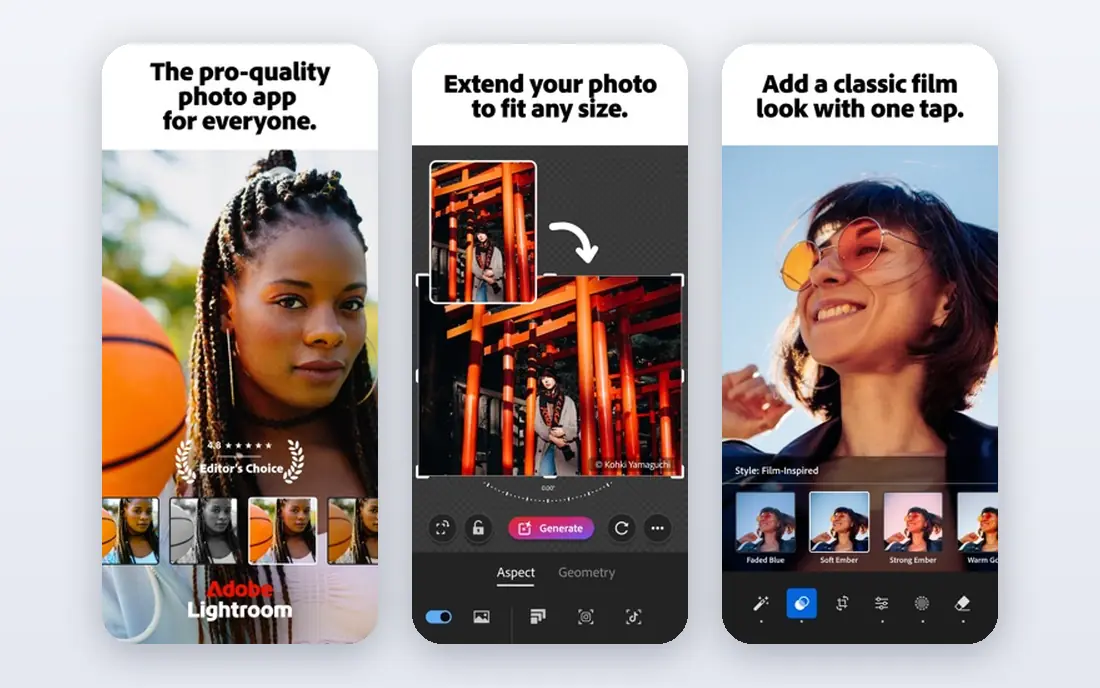
Lightroom suits photographers who edit many photos and need to keep them organised. AI tools can mask a subject, sky or background with a click, clean noise in low-light shots and apply consistent presets across a whole shoot. The library view helps you find, rate and compare photos, which matters when a wedding or trip leaves hundreds of files to sort.
The cost is the main catch. At $9.99 per month for the photography plan, Lightroom is a running expense, and new users may need time to learn the masking and catalog tools. If you edit weekly and value organisation, that cost is easier to justify. If you edit only a few photos a month, a free or one-time tool may fit better.
- AI masking and denoising
- Strong library organisation
- Presets and cloud sync
- Monthly cost adds up
- Learning time for new users
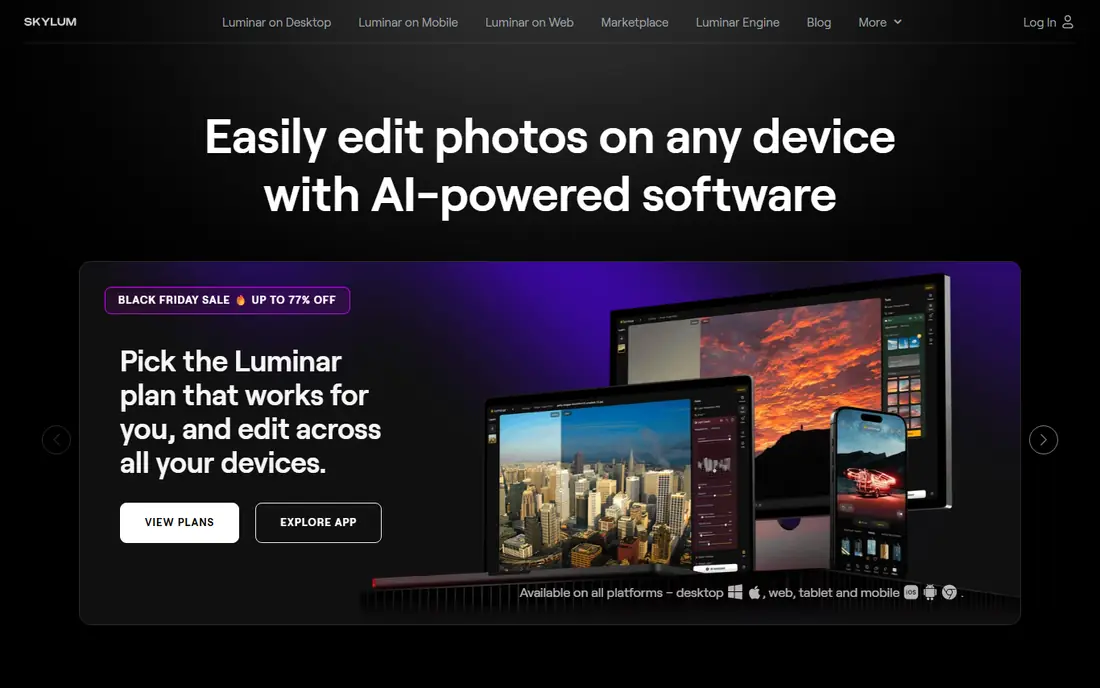
Luminar Neo takes a tool-by-tool approach to AI editing. SkyAI can replace a dull sky, SkinAI and FaceAI can adjust portraits, and GenErase can remove unwanted objects from a scene. Each tool has a clear job, so you can pick the fix you need instead of running a single automatic pass over the whole photo.
Library organisation is weaker than Lightroom, so photographers with very large collections may still need a catalog tool beside it. Luminar Neo also works as a plugin for Lightroom Classic and Photoshop, which lets you add its AI tools to a workflow you already use. For editors who want fast AI fixes without a monthly bill, the licence model is a real draw.
- Sky, skin and object tools by name
- Works as a plugin
- One-time licence option
- Library tools are weaker than Lightroom
- Generative features may need renewal
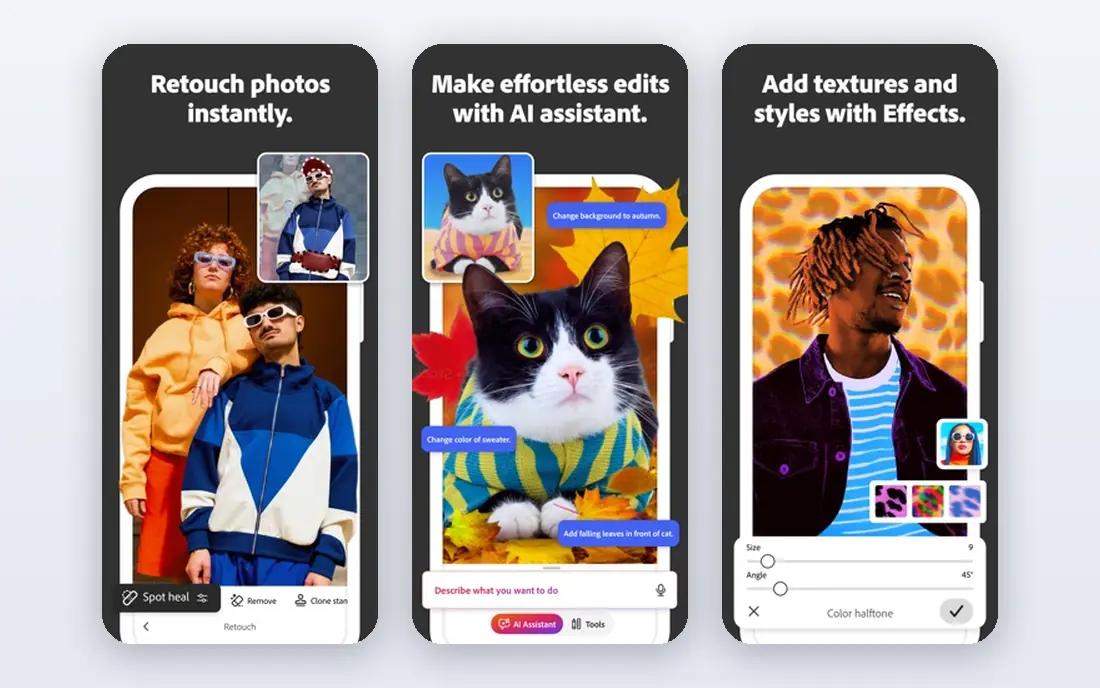
Photoshop remains the deepest editor in this list. Generative fill can extend a frame or replace part of a scene, the remove tool can clear distractions, and layers and masks give precise control over every change. That depth suits designers, retouchers and photographers who build composite images or need pixel-level fixes.
Casual users may find Photoshop heavy. The interface holds many panels and options, and the subscription cost is hard to justify for simple phone edits. If your work needs compositing, detailed retouching or print-ready files, Photoshop earns its place. If you only need quick fixes, Lightroom or Canva will feel faster.
- Generative fill and remove tools
- Layers and masks
- Huge plugin and tutorial base
- Steep learning curve
- Price is high for casual edits
Canva suits small business owners, creators and students who need a good-looking image fast. You can start from a template, remove a background, adjust light and colour, and add text for social posts, flyers or slides without learning a pro editor. The browser app means you can edit on almost any computer, and team plans help colleagues share brand assets.
Precision is the limit. Canva will not match Lightroom or Photoshop for detailed retouching, raw files or print colour work. Some AI tools also sit behind a paid plan, so check which features are free before you build a workflow around them. For everyday marketing images, Canva is fast, friendly and hard to beat.
- Easy templates and background remover
- Works in a browser
- Good for teams
- Less precise than desktop photo editors
- Some AI tools need a paid plan
Picsart is built for phone-first editing. It offers filters, AI effects, stickers, text and background tools in one app, so you can shoot, edit and post without moving to a computer. That speed suits social creators who publish daily and want a playful look, and the app also works on the web for larger screens.
The free version includes ads and prompts to upgrade, and many of the best AI tools need a paid plan. If you edit on a phone and want creative effects quickly, Picsart delivers. If you need precise colour work or large print files, a desktop editor will serve you better.
- Strong phone tools
- Stickers, filters and AI effects
- Easy sharing
- Many features need a paid plan
- Ads and prompts in the free version
Topaz Photo AI focuses on fixing image quality. It can reduce noise from high ISO shots, sharpen soft details and upscale older or cropped photos for larger use. Batch processing helps photographers who return from a shoot with many files that need the same cleanup, and it works beside Lightroom or Photoshop rather than replacing them.
It is not a full editor. You will still need another app for colour, cropping and local adjustments, so Topaz Photo AI is best seen as a specialist tool. If you often rescue noisy, soft or low-resolution photos, it can save images that other editors cannot. If your photos are already clean, you may not need it.
- Strong denoise, sharpen and upscale tools
- Batch processing
- Works beside other editors
- Single-purpose focus
- Price is high for occasional use
Fotor suits people who want to edit in a browser without installing software. The AI enhancer can improve light and detail with one click, background tools can isolate a subject, and templates help you size images for social platforms. That mix works well for shop owners, bloggers and students who need clean product or post images quickly.
Control is limited beside Lightroom or Photoshop, and the best AI features sit behind a paid plan. Fotor is also less suited to raw photo workflows or large libraries. For quick online edits on a shared or school computer, it is a practical choice.
- Easy browser editing
- AI enhancer and background tools
- Templates for social posts
- Less control than desktop editors
- Some AI features need a paid plan
Pixlr gives free browser editing with more depth than many free tools. The advanced editor supports layers, which helps with compositing and text work, while the simpler editor covers quick fixes, filters and AI tools. Because it runs in a browser, you can edit on a library computer or a Chromebook without a download.
The interface can feel busy at first, and AI features differ between free and paid plans, so check the plan page before you rely on a specific tool. For readers who want a free editor with layers and AI help, Pixlr is a strong starting point, and it pairs well with a phone editor for social posts.
- Free browser tools
- Layers in the advanced editor
- No install needed
- Interface can feel busy
- AI tools vary by plan
How we picked these
We compared official feature pages, pricing pages and app store listings, and we checked whether AI tools were named and specific, rather than vague claims. We kept only tools that work today on desktop, web or phones in the US, and we wrote See website where a vendor price was not confirmed at the time of writing. We based strengths on published features, not on invented test results.
How to choose an AI photo editor
Start with the photos you edit most. Portrait photographers should test skin, face and background tools on a real portrait. Product sellers should test background removal and batch exports. Social creators should test phone speed and template sizes. A tool that shines for one job may feel slow for another, so a short trial on your own photos tells you more than a feature list.
Next, check file handling. If you shoot raw files, confirm the editor supports your camera format and keeps edits non-destructive. If you need print files, check export size, colour options and file formats. If you edit on a phone, check whether the app keeps full resolution or compresses images on export.
AI edits and honesty
AI tools make it easy to change a scene, so use them with care for news, listings and client work. Keep original files, note major changes when a client or buyer relies on accuracy, and avoid removing details that change what a product or property looks like. For creative work, AI edits are a normal part of the process, but for factual images, accuracy matters more than a perfect look.
Frequently asked questions
Which AI tool is best for photo editing?
Lightroom is the best all-round pick for photographers, Luminar Neo is a strong pick for named AI tools without a subscription, and Canva is the best pick for fast social edits. The right answer depends on whether you edit raw libraries, portraits, products or phone photos most often.
Which AI photo editing software is the best for beginners?
Canva and Fotor are the easiest starting points, because they run in a browser and offer templates and one-click AI tools. Picsart is also friendly on phones. Beginners who want to learn pro editing can start with Lightroom, but should expect more learning time.
What are the best AI photo editing apps for phones?
Picsart is the strongest phone-first option in this list, with filters, stickers and AI effects built for mobile. Canva also works well on phones for social posts, and Lightroom mobile covers more serious phone photography with presets and masking. Test export quality before you rely on a phone app for print.
What is the best AI photo editor app for portraits?
Luminar Neo suits portraits because SkinAI and FaceAI target skin and face adjustments directly. Lightroom also handles portraits well with AI masking for subjects, skin and backgrounds. For quick phone portraits, Picsart offers fast retouching and effects, though with less precise control.
What is the best AI app for photo editing on a budget?
Pixlr and Fotor offer useful free browser editing, and Canva has a strong free plan for social images. Luminar Neo can also save money over time if you prefer a one-time licence to a monthly plan. Start free, and pay only when a specific AI tool saves you real time each week.
What are the best AI tools for photo editing for professionals?
Lightroom and Photoshop remain the professional core, with Topaz Photo AI as a specialist for denoise and sharpening. Luminar Neo can add fast AI tools to that workflow as a plugin. Professionals should check raw support, batch tools, export options and library handling before choosing.
Sources we checked (7)

Online Jobs is an independent blog about careers, online work, learning new skills and the tools that help people earn. More about us.
Keep reading
All posts
Best Writing Software
Looking for the best writing software in 2026? We compared 9 writing apps for books, articles and screenplays on price, features and fit. All verified.

Best Weather Apps
Searching for the best weather app? We compared eight top weather apps for accurate forecasts, radar, severe alerts, and daily planning near you today.
Best Video Editing Software
We compared the best video editing software for beginners and pros, checking official pricing, free plans and honest limits before ranking all nine editors.