Best AI Image Editing Tools in 2026: 9 Tools Compared


Professional editing and control · Starting price: $22.99 per month
How we put this together: we compare official feature and pricing pages, app store listings, privacy policies and public user reviews. Prices change, so check the provider's site before you pay.
Key takeaways
- Adobe Photoshop remains the best choice for full control, with generative fill and expand, layers and precise retouching.
- Canva suits fast social and design work, where photos are edited inside a layout rather than as a standalone project.
- Luminar Neo and Topaz Photo AI suit photographers who want fast enhancement or repair without learning a full editor.
- PhotoRoom is the strongest pick for product photos, with fast background removal and batch workflows for catalogues.
- Free tiers are useful for single fixes, but paid plans or credits usually decide how many high-resolution exports you get.
Quick comparison
| Name | Who it suits | Starting price | Free option | |
|---|---|---|---|---|
| Adobe Photoshop | Professional editing and control | $22.99 per month | Free trial | Visit |
 Canva Canva | Editing inside designs | Free | Yes | Visit |
 Luminar Neo Luminar Neo | Fast photo enhancement | See website | Free trial | Visit |
 Topaz Photo AI Topaz Photo AI | Sharpen, denoise and upscale | $199 per year | Free trial | Visit |
 PhotoRoom PhotoRoom | Product photos | Free | Yes | Visit |
 Pixlr Pixlr | Low-cost browser editing | Free | Yes | Visit |
 Picsart Picsart | Mobile editing and effects | Free | Yes | Visit |
 Fotor Fotor | Quick browser edits | Free | Yes | Visit |
 Adobe Lightroom Adobe Lightroom | Photographer workflow | $9.99 per month | Free trial | Visit |
The best ai image editing tools
AI image editing tools now handle the boring jobs well: removing backgrounds, erasing objects, extending a frame, sharpening a soft photo and fixing light. The best tool depends on whether you need full control, fast batches, or a quick fix on your phone. We compared official feature pages, pricing pages, app store listings and public reviews to match each tool to a real workflow.
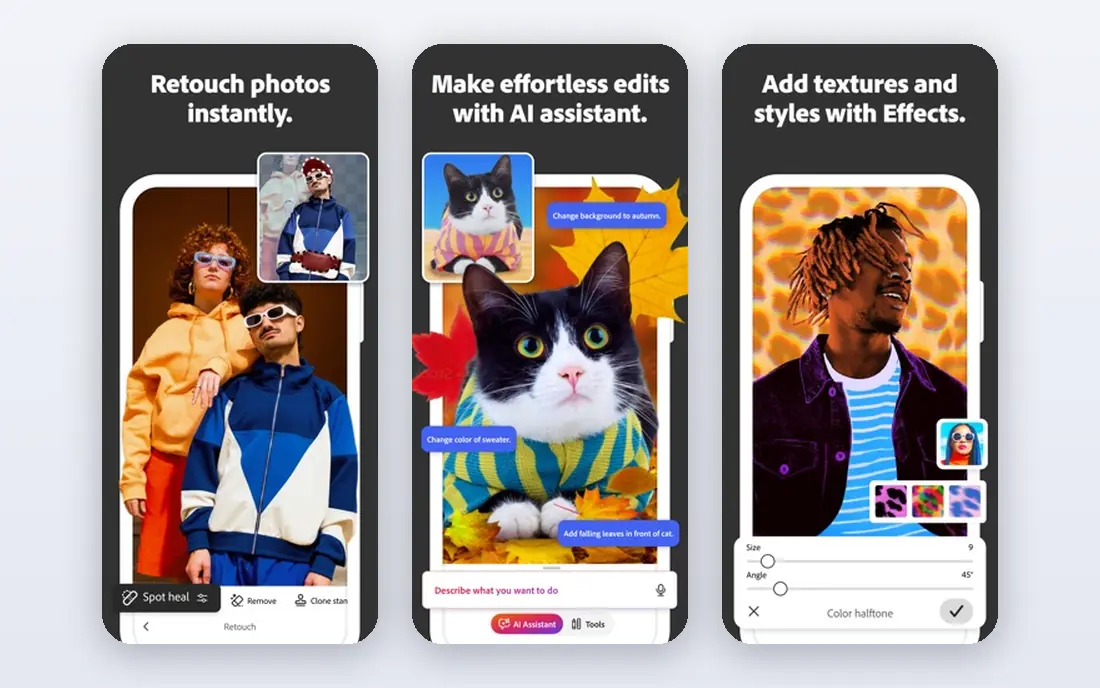
Photoshop is still the editor professionals reach for when an edit must be exact. Generative Fill can replace an object, extend a background or fill a gap with content that matches light and perspective, and you can refine the result with layers, masks and brushes. That control matters for client work, where a one-click result that looks almost right is not good enough. Photoshop also handles colour, retouching and compositing in one place.
The cost and learning curve are the drawbacks. A monthly subscription is hard to justify for occasional use, and the interface takes time to learn. For casual users, a simpler tool will be faster. For photographers, designers and retouchers who edit every week, Photoshop gives the most room to fix AI output by hand.
- Generative Fill and Generative Expand for inpainting and outpainting
- Full layers, masks and retouching
- Strong plugin and workflow support
- Steep learning curve for beginners
- Subscription cost is high if you only need occasional edits
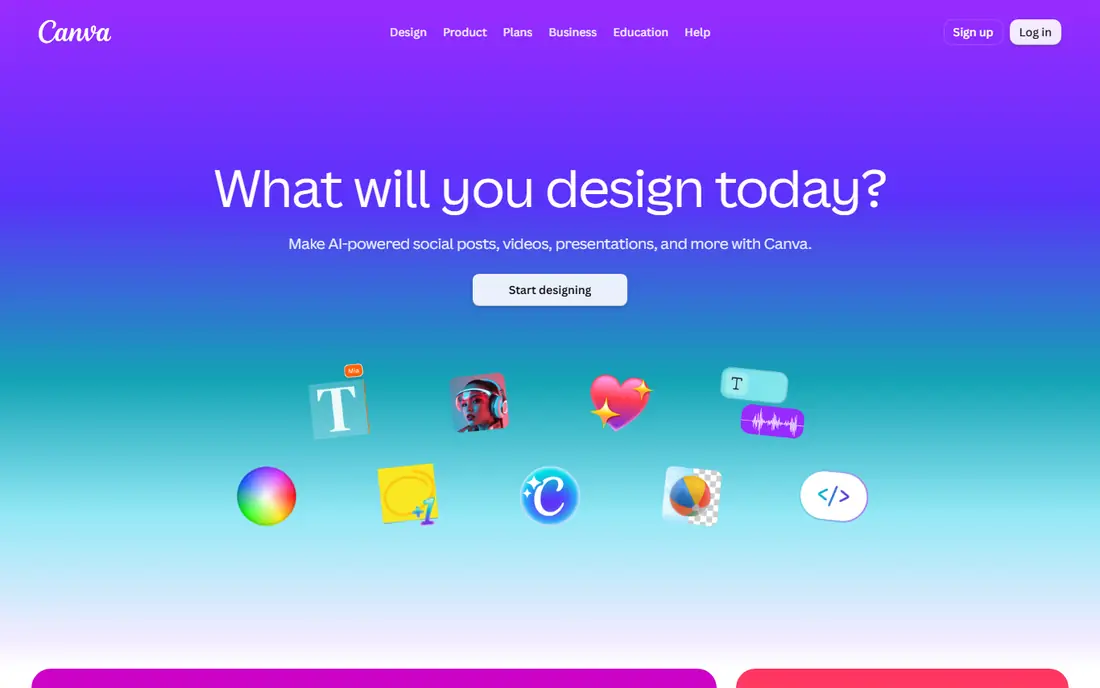
Canva is the best AI photo app for people who edit photos as part of a design, not as a standalone job. You can remove a background, erase an object, adjust light and drop the result straight into a social post, presentation or advert. Templates and brand tools speed up repeat work, and the learning curve is far lower than Photoshop. For small businesses and social teams, that speed is the main benefit.
Precision is the limit. Canva is not built for pixel-level retouching, complex masks or print-grade colour work, and some AI features are limited on the free plan. If your job is to make a good social image fast, Canva wins. If your job is to retouch a portrait for print, use a dedicated photo editor beside it.
- Magic Eraser, background remover and AI edits inside designs
- Huge template library
- Easy sharing and team work
- Less precise than Photoshop for detailed retouching
- Best AI features need a paid Pro plan

Luminar Neo suits photographers who want a strong result without spending an evening on one image. Its AI tools can enhance light, colour and detail, replace a dull sky, relight a portrait and clean up distractions in a few clicks. Batch processing helps when a shoot returns hundreds of similar images, and the interface is far friendlier than a full professional editor.
The risk is overdoing it. Default settings can give skin a smooth, artificial look or make an outdoor scene look too vivid, so you still need to check each result and pull sliders back. Luminar Neo also lacks the deep compositing and layer control of Photoshop. For fast, good-looking enhancements, it is a strong middle choice.
- One-click AI enhancements for portraits and outdoor scenes
- Sky replacement and relighting tools
- Batch processing for many photos
- Less manual control than Photoshop
- Some effects can look overdone if sliders are left at defaults
Topaz Photo AI is the tool photographers use when a photo is technically flawed. High ISO noise, motion blur, soft focus and low resolution are its core jobs, and its models often recover detail that a simple sharpen filter cannot. It works standalone or as a Lightroom plugin, so it fits into a normal photographer workflow without replacing your main editor.
It is not a general editor. Topaz Photo AI does not replace Photoshop for compositing, background work or design, and processing large batches can be slow on older hardware. Portrait results also need care, because strong denoise and sharpen settings can smooth skin too much. For repair and upscaling, it is the specialist pick in this list.
- Strong sharpen, denoise and upscale models for flawed photos
- Works standalone or as a plugin
- Useful for old or low-resolution images
- Processing can be slow on older machines
- Default settings can make skin look plastic on portraits
PhotoRoom is built for sellers who need clean product photos at scale. You can remove a background, replace it with a studio-style backdrop, tidy a product shot and export many images in a consistent style. That repeatability matters for marketplaces and online stores, where a catalogue with mixed backgrounds looks unprofessional. Templates for common marketplaces save time on sizing and layout.
The free tier is useful for testing, but watermarked or limited exports can be a problem for a live store. Paid plans remove those limits and add batch and higher-resolution options. PhotoRoom is not a portrait retoucher or a full design tool, but for product images, it is faster than doing the same job by hand in Photoshop.
- Fast AI background removal and replacement
- Batch workflows for product catalogues
- Templates for marketplace and social images
- Free exports are watermarked in some sources
- Best features need a paid plan for high-volume sellers
Pixlr is a good browser editor for quick jobs. It opens in a tab, offers layers, AI generative fill, object removal and basic retouching, and it does not need a powerful computer or a large install. For students, small businesses and casual users, that low friction is a real benefit, and the paid plan is cheap compared with professional editors.
Depth is the trade-off. Pixlr will not match Photoshop for complex compositing, colour management or large print files, and free use has limits. It is best for single edits, social images and learning basic editing without a subscription. If you edit every day for clients, a desktop editor will save time in the long run.
- Browser-based editing with no install
- AI generative fill and object removal
- Low-cost paid plan for regular use
- Less depth than desktop editors
- Free tier has limits and ads in some versions
Picsart is a mobile-first editor with a wide range of AI tools. You can remove backgrounds, change styles, add effects, retouch portraits and build social content from your phone, without moving files to a desktop. That makes it popular with creators who shoot and post on the same device, and the catalogue of models gives more creative options than a single-purpose app.
The breadth is also a weakness. On complex edits, such as detailed object removal or realistic generative fill, Picsart can fall behind Photoshop or Topaz in fine detail. Free models are limited, and paid plans open the stronger tools. Picsart fits casual and social editing best, rather than professional retouching.
- Large catalogue of AI tools, filters and effects on mobile
- Easy social sharing
- Good for creative and casual edits
- Results can vary on complex edits
- Best models and exports need a paid plan
Fotor suits users who want a quick, browser-based fix without learning a complex editor. Its AI tools cover one-click enhancement, background removal, object removal and portrait retouching, and the interface is clear for beginners. For a small business owner who needs a better product photo or a cleaner social image, Fotor can do the job in minutes.
The limits are similar to other browser editors. Free use may include watermarks, and detailed control is less than Photoshop or Lightroom. Fotor is best as a fast, low-cost tool for everyday images, not as a replacement for a professional workflow. Check export terms on the free tier before using images for a live store or client project.
- Browser-based AI tools for enhancement, background removal and retouching
- Simple interface for beginners
- Low-cost Pro plan
- Free exports may carry a watermark
- Less control than desktop editors for detailed work
Lightroom is the photographer workflow tool in this list. It organises thousands of photos, applies AI masks to subjects, skies and backgrounds, and lets you edit in a non-destructive way, so the original file stays safe. Presets and batch edits help when a whole shoot needs the same look, and mobile sync means you can start an edit on a phone and finish it on a desktop.
Lightroom is not Photoshop. It does not offer the same compositing, generative fill depth or layer control, so complex retouching still needs Photoshop. For photographers who shoot regularly, the Photography plan that includes both Lightroom and Photoshop is often the best value, because the two tools cover workflow and detailed editing together.
- AI masking and editing across a whole catalogue
- Non-destructive edits and presets
- Syncs across desktop and mobile
- Less compositing power than Photoshop
- Subscription needed for full desktop features
How we picked these
We compared official feature pages, pricing pages, app store listings and public reviews, and we checked that each tool offers real AI image editing in October 2026. We favoured tools with a clear job, from professional control to product batches to quick mobile fixes, and we noted where free tiers limit exports or resolution. We also weighed learning curve, because a powerful tool you avoid using is worse than a simpler tool you use every week.
We did not claim hands-on testing for every tool. Where pricing varies by plan, region or billing period, we used See website or the most recent published figure, so you can confirm the current price before subscribing. Always check AI output at full size before publishing, because artefacts around hands, faces and fine detail remain common across AI editors.
How to choose the right AI image editor
Start with the job, not the feature list. Product sellers need background removal and batches, photographers need enhancement and repair, designers need control and layers, and social creators need speed on mobile. A tool that is excellent for one job can be a poor fit for another, even if its homepage lists the same AI features.
Check exports, credits and resolution
Free tiers often limit resolution, add watermarks or use credits per edit. Check how many high-resolution exports you get, whether credits reset monthly, and whether batch exports count per image. For a store or client project, a tool with clear paid exports is usually cheaper in time than a free tool that forces rework.
Keep a human check on every AI edit
AI edits can look good at small size and fail at full size, especially on faces, hands, text and fine patterns. Zoom in before publishing, check skin texture, edges and shadows, and keep the original file. For client work, that check is part of the job, not an optional extra, and it is where a tool with manual controls earns its price.
Frequently asked questions
What is the best AI photo app?
The best AI photo app depends on your job. Photoshop is best for professional control, Canva is best for editing inside designs, and Picsart is best for mobile creative edits. For product photos, PhotoRoom is the strongest pick in this list. Try the free tier or trial of your shortlist, and judge results at full size on your own photos.
What is the best AI image editing software for beginners?
Canva and Fotor are the easiest starts for beginners, because they run in a browser, use clear tools and need little training. Luminar Neo is a good next step for photographers who want stronger enhancement without learning Photoshop. Start with a simple tool, learn what a good edit looks like, then move to a deeper editor if you need more control.
What is the best AI tool for photo editing on mobile?
Picsart is the strongest mobile pick in this list for creative edits, while Google Photos and Lightroom mobile suit quick fixes and photographer workflows. Mobile AI tools are good for social images, but detailed retouching is still easier on a desktop with a larger screen. Check export resolution on mobile, because some apps downscale free exports.
Is there a good free AI image editor?
Pixlr, Fotor, Canva and PhotoRoom all offer free tiers that handle basic AI edits, background removal and enhancement. Free tiers often limit resolution, add watermarks or limit monthly edits, so they suit occasional use better than daily work. For regular high-resolution exports, a low-cost paid plan usually pays for itself in time saved.
Can AI image editing replace Photoshop?
For simple jobs such as background removal, object removal and enhancement, AI tools can replace much of the manual work. For complex compositing, precise retouching, print colour work and client revisions, Photoshop still gives more control. Most professionals now use AI tools inside Photoshop or beside it, rather than as a full replacement.
What should I check before publishing an AI-edited photo?
Check faces, hands, text, edges and shadows at full size, and compare the edit with the original for unwanted changes. AI tools can invent detail, smooth skin too much or alter small objects in ways that are hard to spot at thumbnail size. Keep the original file, and for commercial use, check the tool licence terms for AI-generated content.
Sources we checked (9)

Online Jobs is an independent blog about careers, online work, learning new skills and the tools that help people earn. More about us.
Keep reading
All posts
Zoom Alternatives
Zoom alternatives compared for 2026: Google Meet, Microsoft Teams, Webex, Jitsi and more for free calls, large meetings and webinars for teams and classrooms.
PowerPoint Alternatives
Compare the best PowerPoint alternatives, from free Google Slides and Canva to Prezi and Gamma, with prices, collaboration and export options covered.
Gmail Alternatives
Gmail alternatives compared for 2026: Proton Mail, Outlook, Tuta, Fastmail, Zoho Mail and more for privacy, business and cross-platform use for US readers.