Best AI Generative Expand Tools in 2026: 9 Tools Compared


Professional control · Starting price: $22.99 per month
How we put this together: we compare official feature and pricing pages, app store listings, privacy policies and public user reviews. Prices change, so check the provider's site before you pay.
Key takeaways
- Photoshop Generative Expand leads for professional control, while Canva Magic Expand leads for marketers who design in Canva already.
- Clipdrop Uncrop and Pixlr suit quick, browser-based expansion without a full editor.
- Faces and hands near new edges are the hardest test, so check those areas closely before you publish an expanded image.
- Credit limits matter more than the monthly price, since expansion, generation, and editing often share one pool.
Quick comparison
| Name | Who it suits | Starting price | Free option | |
|---|---|---|---|---|
| Adobe Photoshop | Professional control | $22.99 per month | Free trial | Visit |
 Canva | Marketers designing in Canva | $15 per month | Yes | Visit |
 Fotor | Quick browser expansion | $8.99 per month | Yes | Visit |
 Picsart | Mobile and social expansion | See website | Yes | Visit |
 Clipdrop | Quick uncrop in the browser | $15 per month | Yes | Visit |
 Pixlr | Browser editing plus expand | $2.49 per month | Yes | Visit |
 Adobe Firefly | Web-based generative expansion | $9.99 per month | Yes | Visit |
 Getimg.ai | Prompt-guided outpainting | $8 per month | Yes | Visit |
 BeFunky | Beginners and social reformats | See website | Yes | Visit |
The best ai generative expand tools
Generative expand tools, also called outpainting or uncrop tools, extend an image beyond its original edges by generating new content that matches the scene. We compared official pricing pages, expansion controls, output quality claims, and credit limits.
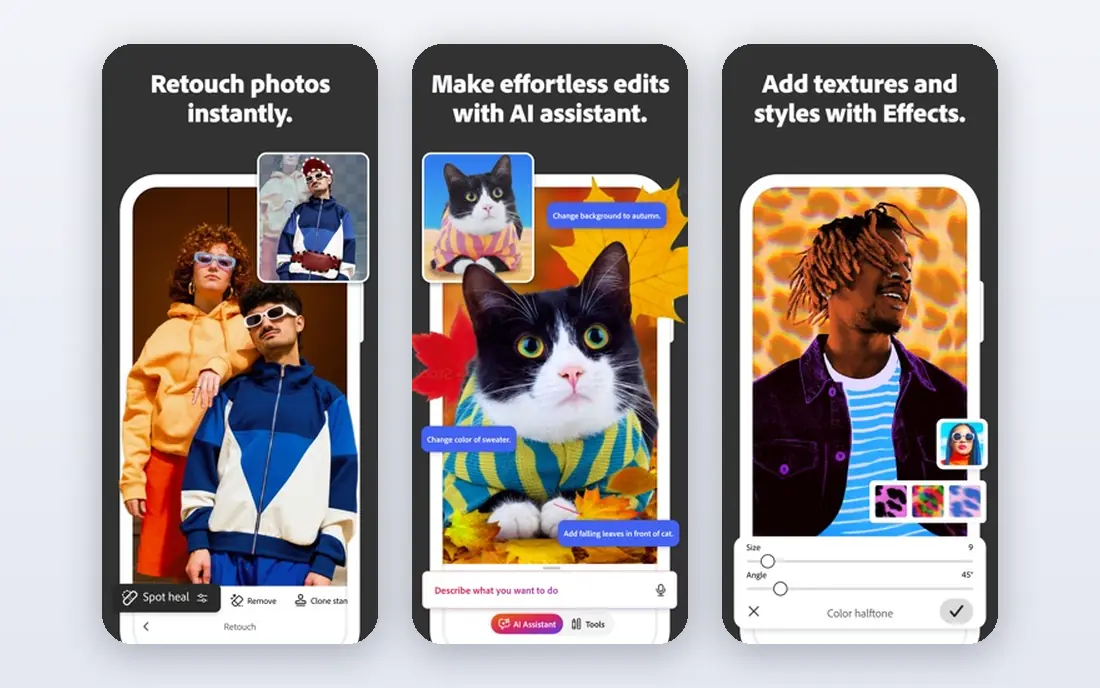
Photoshop remains the reference tool for generative expansion, because expansion sits inside a full editor rather than a one-step web tool. You can select an area, expand the canvas, describe what should appear, and then refine the result with layers, masks, and retouching. The single-app plan starts at $22.99 per month on annual billing, with a 7-day trial.
Generative credits are the limit to watch. The standard plan includes a monthly credit allowance, and frequent generation can use it up, so heavy users may need a higher plan. For professional work where control matters, Photoshop still earns its price.
- Generative Expand with layers and selections
- Prompt control
- Full editing after expansion
- Subscription cost
- Learning curve for casual users
- Generative credits limit frequent use
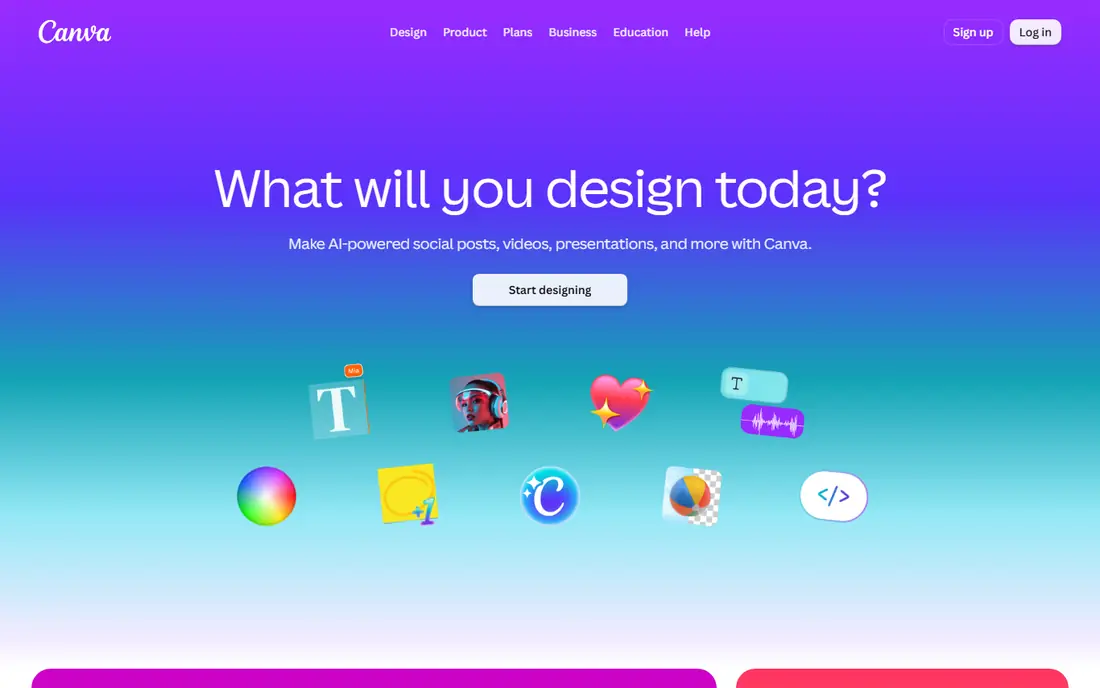
Canva Magic Expand suits anyone who already builds banners, posters, and social posts in Canva. You choose a new size, Canva generates matching surroundings, and the expanded photo stays inside the same design file, ready for text, logos, and templates. Pro starts at about $15 per month, with a free tier for the wider editor.
Control is thinner than in Photoshop. You get variations to choose from, but you cannot paint a precise selection or guide the new area in the same detail. For marketing assets where speed and layout matter most, that trade is usually fine.
- Magic Expand inside the editor
- Multiple variations per image
- Text and templates in the same file
- Magic Expand needs Pro
- Less fine control than Photoshop
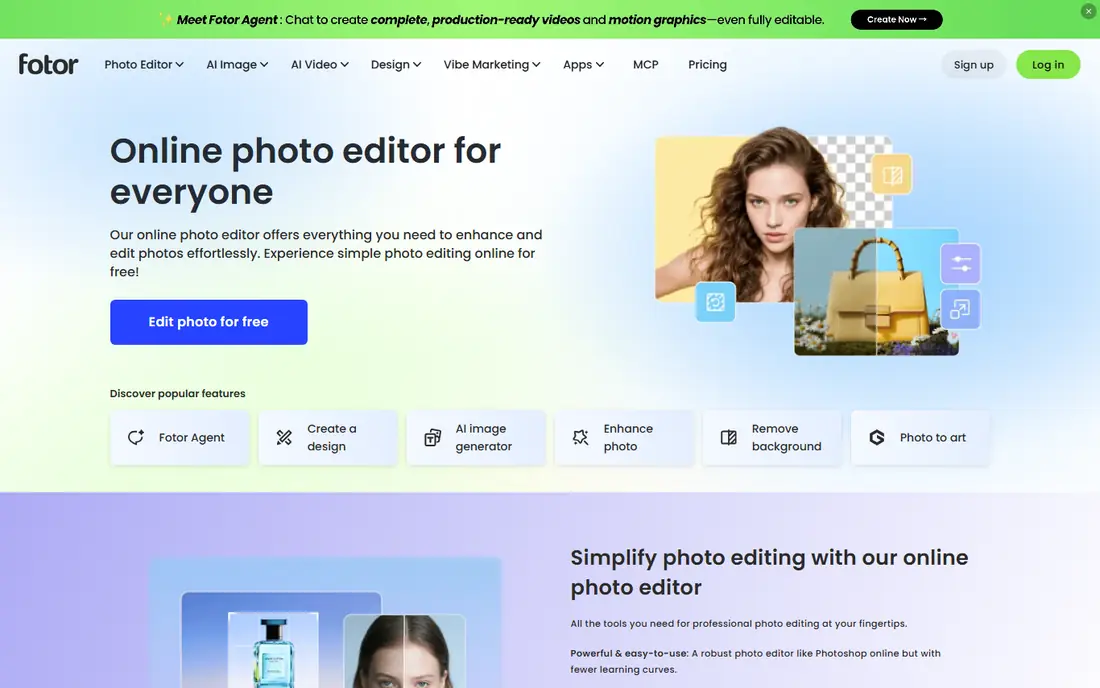
Fotor is a good pick when you need one image expanded quickly without opening a large editor. Upload, expand, and download takes only a few steps, and the wider editor covers cropping, filters, and batch work. Paid plans start at about $8.99 per month, with a free tier for basic use.
It trades fine control for speed, so complex scenes with people or detailed architecture may need a second pass elsewhere. For social posts, listings, and simple backgrounds, Fotor delivers a usable result fast.
- Fast browser workflow
- Simple expansion steps
- Batch and editing tools nearby
- Free exports have limits
- Less control over fine detail
Picsart suits creators who edit mainly on a phone and want expansion inside a social editing app. Its AI expand tool extends an image for new formats, and the same app adds text, stickers, and effects for posting. A free tier covers basic use, with paid plans for full AI features and exports.
Because Picsart covers so much, expansion does not get the same depth as Photoshop or a dedicated outpainting tool. It is best for social content where a good-enough expansion, finished in minutes, beats a perfect one that takes an hour.
- Mobile-first workflow
- AI expand alongside stickers, text, and effects
- Large template library
- Pricing varies by plan and platform
- Expansion is one feature in a broad app
Clipdrop Uncrop is one of the simplest ways to extend an image. You upload a photo, pick a target aspect ratio, and the tool generates new content around the original frame. It works in the browser, and it sits alongside cleanup, background removal, and upscaling tools in the wider Clipdrop suite. Pro starts at $15 per month in published comparisons, with a free tier for limited use.
It shines on scenery and open backgrounds, where the new area blends easily. Tight portraits and detailed faces near the new edges can look soft, so check those areas closely. For quick social reframes, it is hard to beat on speed.
- Focused Uncrop tool
- Simple ratio choices
- Browser based with no install
- Free tier has limits
- Faces near new edges can soften
Pixlr combines generative expand with a layered browser editor, which makes it a strong budget pick for creators who want more than a one-click tool. Its Plus plan starts at $2.49 per month, with higher tiers raising the monthly AI credit allowance. Generative fill sits alongside expand, so you can fix a small area after extending the canvas.
Credit allowances are the main limit. Each generation consumes credits, and the entry tier covers only modest use. For occasional expansion and editing, Pixlr offers remarkable value. For daily generation, check a higher tier before you commit.
- Generative expand inside a full browser editor
- Low Plus starting price
- Layers and AI fill nearby
- AI credits limit heavy use
- Higher tiers needed for larger allowances
Adobe Firefly offers web-based generative image tools, including expansion features, for users who want Adobe generation without opening Photoshop. It suits designers who need quick generative assets and want content trained with a focus on licensed material for commercial use. Standard pricing starts at around $9.99 per month, with a free tier offering limited monthly credits.
It does not replace Photoshop for detailed retouching, since the web app is narrower in scope. If you already use Adobe tools and want fast web generation with a clear commercial-use story, Firefly is a useful companion to Photoshop.
- Web-based generative tools
- Commercially safe content approach
- Integration with Adobe apps
- Credit-based pricing
- Less editing depth than full Photoshop
Getimg.ai suits creators who want to guide what appears beyond the original frame. Its Resize tool includes an outpainting mode that keeps original pixels unchanged while painting the new canvas, and prompts let you steer mood, background, and style. Paid plans start at $8 per month in published comparisons, with a free tier offering daily credits.
The interface is broader than a simple uncrop tool, since Getimg.ai also covers generation, variations, and upscaling. That breadth takes a little learning, but it pays off for batch work and for ad creative where the new area must follow a specific direction.
- Prompt-guided outpainting
- Batch expansion
- Original pixels stay unchanged in outpainting mode
- Interface takes learning
- More suited to creators than casual users
BeFunky AI Image Extender suits beginners and social creators who need to fix an awkward crop or reformat an image for a new platform. The workflow is simple: upload, extend the borders, and download a new aspect ratio with generated background content. A free tier covers basic use, with paid plans for full features.
It does not offer the selection control or prompt depth of Photoshop or Getimg.ai, so detailed scenes may need another tool. For quick reformats and everyday social images, BeFunky keeps the process short and approachable.
- Simple AI Image Extender
- Easy social reformats
- Friendly editor for beginners
- Less control than pro tools
- Pricing varies by plan
How we picked these
We compared official pricing pages and feature pages for tools that actively offer generative expand, outpainting, or uncrop in October 2026. We favored tools where expansion is a named feature, not just a canvas resize that stretches the image. We did not claim hands-on testing, and where pricing varied by billing period or credits, we wrote See website or the most clearly published starting rate.
Choosing the right expand tool
Start with the final format. A wide banner, a vertical story, and a print poster need different amounts of new content, and a tool that handles a small extension well may struggle with a large one.
Expand in stages for large changes
For a big change in aspect ratio, expand in two smaller steps and check the result between them. Errors in perspective, shadows, and repeated patterns show up less when the model only has to invent a modest border at a time.
Check edges, hands, and text
Look closely at the new border for warped hands, doubled objects, and garbled text. Those flaws are easy to miss at thumbnail size and obvious at full size. If a face sits near the new edge, crop or reposition the source before expanding, or choose a tool with selection control.
Confirm commercial use and credits
If you will sell or advertise with the image, confirm commercial rights on your plan. Also check how expansion shares credits with other AI features, since a plan that looks generous can run out fast when generation, fill, and expansion draw from one pool.
Frequently asked questions
What is the best ai generative expand tool?
Photoshop leads for professional control, while Canva leads for marketers who design in Canva. Clipdrop and Pixlr suit quick browser expansion, and Getimg.ai suits creators who want prompt-guided outpainting.
What is the top ai generative expand software for beginners?
BeFunky and Fotor are the easiest starting points, since both keep expansion to a few steps. Canva is also beginner friendly if you already design social posts there, since Magic Expand stays inside the same editor.
Is generative expand the same as outpainting?
Yes, the terms describe the same job. Generative expand is Adobe's name for it, outpainting is the general term, and uncrop is Clipdrop's name. All three generate new image content beyond the original edges.
Can generative expand fix a badly cropped photo?
It can often rescue a tight crop by adding background or body area around the subject. It works best on simple backgrounds and scenery, and less well when a face, hand, or key object was cut off at the original edge.
Do expanded images look real at large sizes?
Small and medium expansions often look convincing, especially for backgrounds. Large expansions, fine detail, and people near the new edges reveal artifacts more easily, so inspect the full-resolution result before printing or publishing.
Sources we checked (8)

Online Jobs is an independent blog about careers, online work, learning new skills and the tools that help people earn. More about us.
Keep reading
All posts
Zoom Alternatives
Zoom alternatives compared for 2026: Google Meet, Microsoft Teams, Webex, Jitsi and more for free calls, large meetings and webinars for teams and classrooms.
Which Software Is Best for Data Entry
Compare the best data entry software for forms, OCR scanning, and spreadsheets, with free plans, pricing, and honest limits for each tool before you commit.
What's the Best App to Read PDFs
Find what's the best app to read PDFs in 2026, from Adobe Acrobat Reader and Foxit to PDF Expert and Xodo, with free options and honest limits for every device.