8 Best AI Design Tools for Graphics, Layouts, and Brand Assets

How we put this together: we compare official feature and pricing pages, app store listings, privacy policies and public user reviews. Prices change, so check the provider's site before you pay.
Key takeaways
- Canva is the easiest starting point for non-designers who need social graphics, presentations, and brand assets fast.
- Adobe Firefly suits professionals who want commercially usable image generation inside Adobe apps.
- Figma with AI features fits product teams that design interfaces and hand work to developers.
- Uizard and Visme help non-designers turn prompts and data into screens and presentations.
- Free plans vary a lot, so check how many AI generations each plan allows before you commit.
Quick comparison
| Name | Who it suits | Starting price | Free option | |
|---|---|---|---|---|
 Canva Canva | Everyday graphics and social content | Free | Yes | Visit |
 Adobe Firefly Adobe Firefly | Commercial image generation for professionals | Free | Yes | Visit |
 Figma Figma | Product and interface design for teams | Free | Yes | Visit |
 Uizard Uizard | Prompt-to-screen prototyping | Free | Yes | Visit |
 Visme Visme | Presentations and data visuals | Free | Yes | Visit |
 Kittl Kittl | Merch, packaging, and print designs | Free | Yes | Visit |
 Designs.ai Designs.ai | Logos and brand assets for small businesses | $29 per month | Free trial | Visit |
 Recraft Recraft | Brand-style image and vector generation | Free | Yes | Visit |
The best AI design tools
AI design tools now cover very different jobs, from a social post in five minutes to a full interface prototype. The picks below are grouped by the job they do best, so you can match the tool to your work rather than chasing the longest feature list.
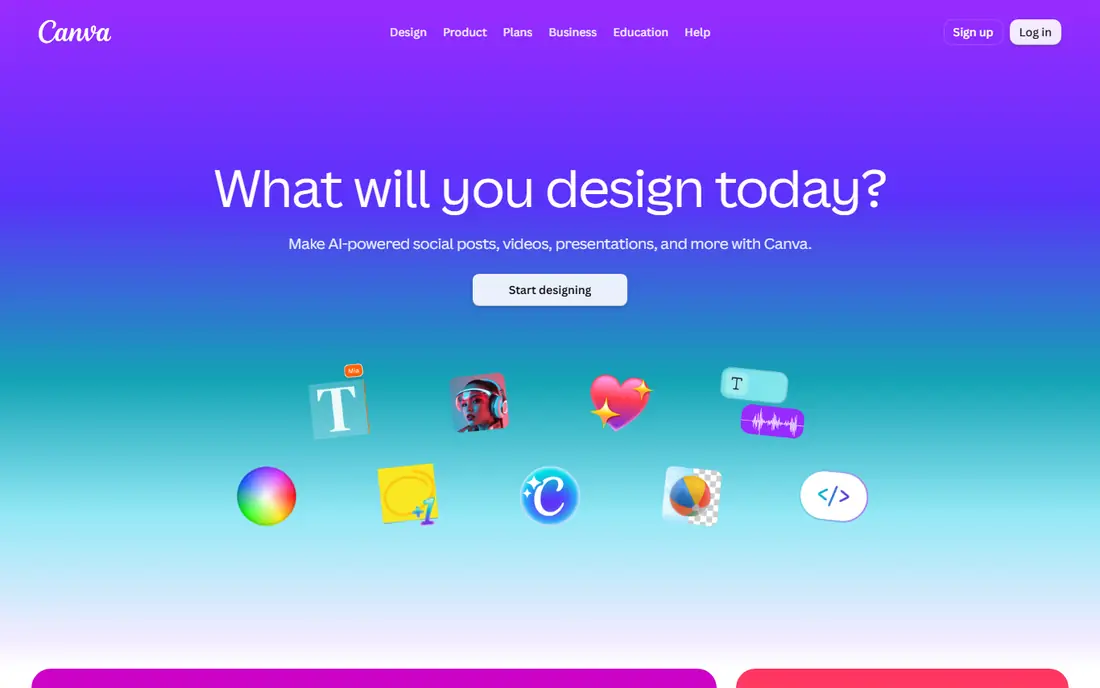
Canva remains the default for people who need good-looking graphics without design training. You type a prompt or upload an image, and Magic Design offers full layouts to edit, while Magic Edit and background removal handle quick photo fixes. Templates cover social posts, presentations, posters, and documents, and Magic Resize adapts one design to many sizes. The free plan is genuinely useful for occasional work, though AI uses are limited and some assets are paid-only. Pro adds the full AI set, a brand kit, and more storage. The catch is taste: AI layouts get you most of the way, but fonts, spacing, and image choice still need a careful eye before you publish. For teams that produce a steady stream of everyday content, Canva saves the most time per pound.
- Huge template library
- Magic Design, Magic Edit, and background remover
- Easy resizing for many formats
- AI output still needs a human edit for polished work
- Advanced brand controls sit on paid plans
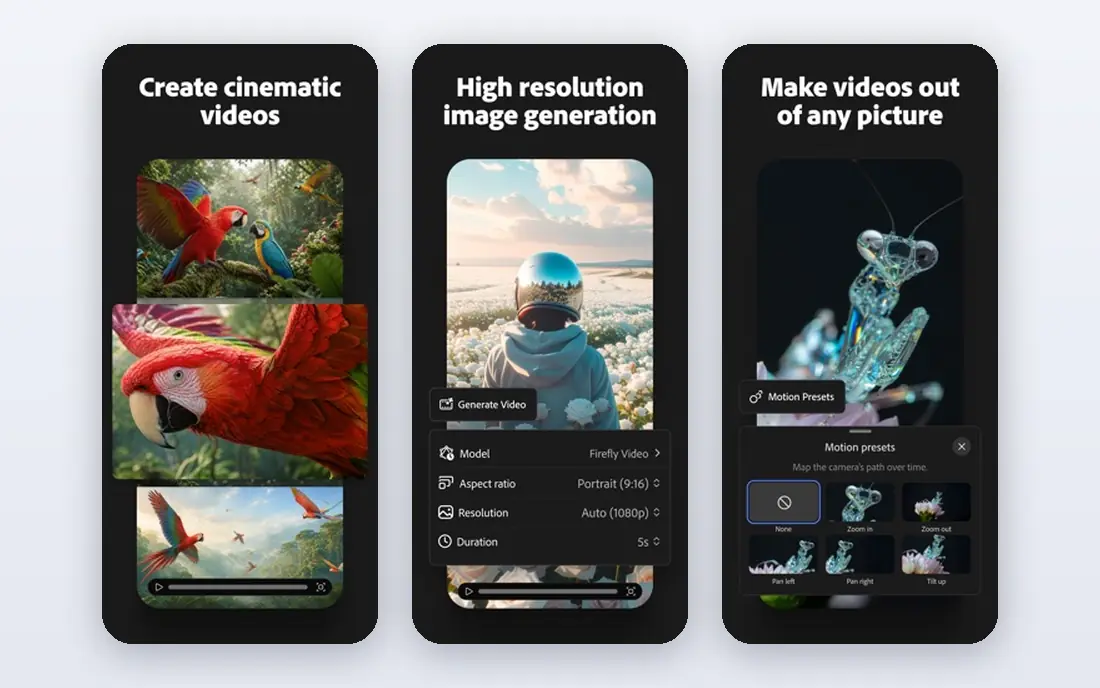
Adobe Firefly is the image generator for people who already work in Photoshop, Illustrator, or Express. You can generate an image from text, extend a photo with generative fill, and restyle elements without leaving the app where the final design lives. Adobe positions Firefly training data around licensed Adobe Stock content and public domain material, which matters for commercial work where rights need to be clear. The free tier gives a limited number of generative credits, and paid plans add more. That credit model is the main limit: heavy image work can burn through credits faster than expected, so check the monthly allowance on your plan. For professional designers and marketers who publish client work, Firefly is the safer, more integrated choice than a standalone generator.
- Text-to-image and generative fill inside Adobe apps
- Trained on licensed and public domain content
- Style controls for consistent results
- Full value needs an Adobe plan
- Credit limits shape how much you can generate each month
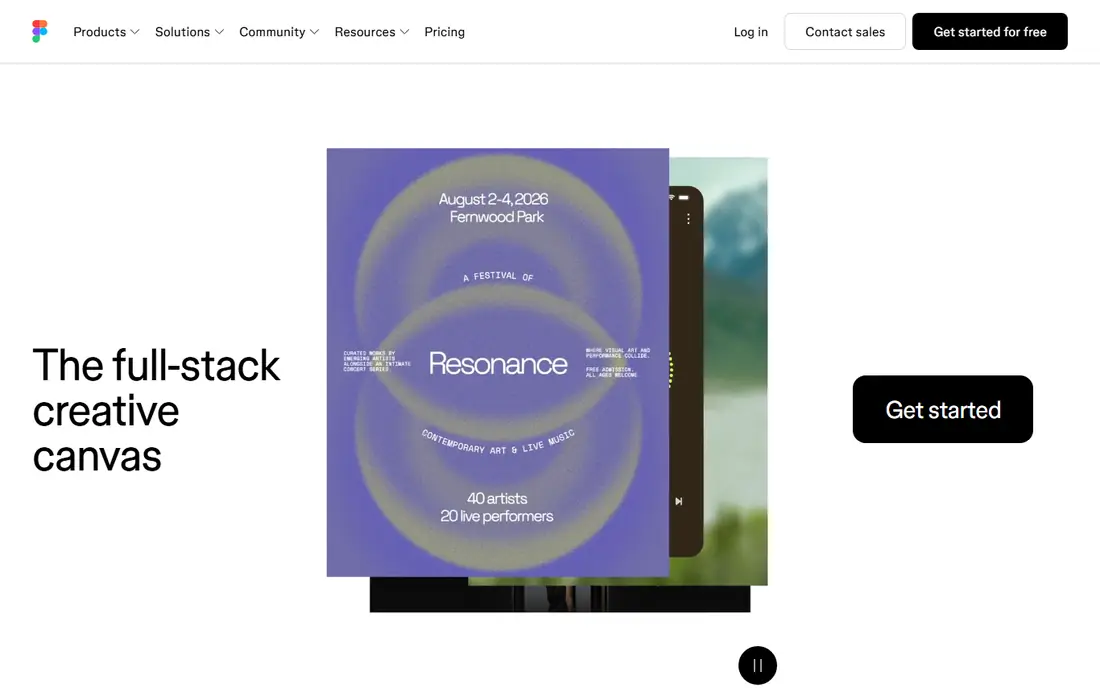
Figma is where product teams design screens, build prototypes, and hand work to developers. Several people can edit the same file at once, components keep a design system consistent, and developer handoff tools show spacing, colours, and code details. AI features on paid plans help draft interfaces, rename layers, and generate first-pass content, which speeds up early work. The free plan covers small projects and is enough to learn the tool or design a simple site. Larger teams will need a paid plan for unlimited projects and full AI access. Figma is not the best pick for a one-off social graphic, since Canva is faster for that job. For apps and websites built by a team, it is still the standard other tools are measured against.
- Live collaboration on the same file
- Strong components and design systems
- AI features on paid plans for drafting and renaming
- AI features need a paid plan
- Interface design depth can overwhelm casual users
Uizard is built for the earliest stage of product design, when an idea needs to become a screen you can discuss. Its Autodesigner turns a text prompt into wireframes and mockups, and you can also start from a sketch or a screenshot. Product managers and founders can test a flow before a designer spends days on it. The screens it produces are editable, which matters: you can move elements, change copy, and reshape a layout rather than accepting a flat image. Paid plans add exports and more projects. The limit is fidelity. Uizard screens look like solid drafts, and a finished product interface will still need work in Figma or a similar tool. Use it to move fast at the start, not as a replacement for detailed design.
- Turns prompts, sketches, and screenshots into editable screens
- Fast for early prototypes
- Exports to code and design formats on paid plans
- Output is a starting point, not a finished product
- High-fidelity polish needs another tool
Visme suits people whose design work is mostly presentations, reports, and infographics rather than social posts. Its AI design wizard suggests layouts, and AI charting turns data into charts that fit the deck. Templates for slides, reports, and social graphics give non-designers a structured start, and the editor is friendlier than a blank slide deck. The free plan lets you try the core tools, while Pro adds more templates, brand controls, and download formats. Visme will not replace Figma for app design, and it is not as quick as Canva for daily social content. For a team that presents data to clients or leaders each week, it fills a gap the other tools leave open.
- Presentation and infographic templates
- AI charting and design suggestions
- Good for reports and decks
- Less suited to interface design
- Paid plans needed for full brand and download options
Kittl is aimed at designers and sellers who make t-shirts, posters, labels, and packaging. Its AI image generator, design restyle tools, and background remover sit next to mockups that show how a design looks on a product. That combination suits print-on-demand sellers and small brands that need product art, not just social graphics. The free plan covers basic work, with paid plans adding higher-quality exports and more AI use. Kittl is less general than Canva, so a team that needs documents and presentations as well will still need another tool. For merch and print, though, the focused templates and mockups save time that a general editor would not.
- AI image generation and background removal
- Mockups for merch and packaging
- Vintage and print-ready styles
- Narrower focus than Canva
- Vector and print exports need paid plans
Designs.ai bundles several brand tools into one subscription: a logo generator, a design maker, a video maker, and voice-over tools. A new business can produce a logo, a set of social templates, and a short video without hiring a designer for each piece. The brand kit suggestions help keep colours and fonts consistent across those assets. The trade-off is quality control. Generated logos and videos are usable starting points, but they can look generic, and a business that wants a distinctive brand will still benefit from a designer review. There is a free trial rather than a free plan, so factor the monthly cost into a launch budget. For speed and breadth on a first brand kit, Designs.ai is a practical choice.
- Logo maker, video maker, and voice-over in one account
- Brand kit suggestions
- Fast asset creation for new businesses
- No permanent free plan
- Output quality varies and needs checking before use
Recraft stands out by generating both raster images and vectors, which matters when a logo or icon must scale without losing sharpness. You can lock a brand style so new images stay consistent, and the tool covers illustrations, product visuals, and marketing art. That style control is the reason brand teams pick it over a general image generator. The free tier is enough to test style controls and output quality, with paid plans adding more generations. Recraft has a smaller template library than Canva and a smaller community than Midjourney, so finding ready-made inspiration takes more effort. If your main need is consistent, scalable brand imagery rather than one-off social posts, Recraft deserves a place on your shortlist.
- Vector and raster output
- Brand style controls
- Useful for icons, illustrations, and product art
- Smaller community and template library than Canva
- Some features need paid plans
How we picked these
We compared tools by the design job they do, not only by whether they include AI. We checked each vendor's own feature pages and pricing pages, app store listings, and public reviews for template depth, AI generation limits, export formats, and brand controls. Tools that only generated images with no editing or export path were left out, since a design tool must carry work toward a finished asset. Prices shown are starting points from published plans, and credit or generation limits can change what a plan costs in practice.
How to choose the right AI design tool
Start from the output, not the AI label
List the assets you produce each week: social posts, decks, logos, screens, or print art. Pick the tool built for that output first, then check its AI features, since a strong AI generator in the wrong category still leaves you doing manual work.
Check generation limits and credits
Free plans often cap AI uses per month. If you generate images daily, a paid plan with a clear credit allowance will cost less in frustration than a free plan that stops mid-project.
Test exports before you commit
Confirm that the tool exports the formats you need, whether that is PNG, SVG, PDF, or code for screens. A design you cannot export cleanly is a dead end, however good it looks in the editor.
Keep a human pass in the workflow
AI drafts speed up the first version, but spelling, spacing, colour contrast, and brand fit still need a human check. Build that review step into your process, especially for client or public work.
Frequently asked questions
What is the best AI design tool for beginners?
Canva is the best starting point for beginners, thanks to templates, a simple editor, and AI tools that handle layout, background removal, and resizing. Start on the free plan and move to Pro only when you hit AI limits or need brand controls.
What is the best AI app for design on a small budget?
Canva, Figma, Uizard, Visme, Kittl, and Recraft all offer free plans, so you can cover most design jobs without paying at first. Compare the free limits on AI generations and exports, since those limits decide which free plan lasts longest for your workload.
Which AI design software is best for logos and brand assets?
Designs.ai and Recraft both focus on brand assets, with logo generation and style controls. Recraft suits teams that need vector output and consistent styles, while Designs.ai suits new businesses that also need video and voice-over assets.
Is Adobe Firefly better than Canva AI for professional work?
Firefly fits professional work inside Adobe apps, with generative fill and commercially positioned training data. Canva AI fits faster everyday content for non-designers. Many teams use both: Firefly for hero images and Canva for daily social and deck graphics.
Can AI design tools replace a designer?
No, not for finished, distinctive work. These tools speed up drafts, layouts, and variations, but a designer still adds judgment on hierarchy, typography, brand fit, and detail. Use AI tools to cut production time, and keep a designer involved for work that represents your brand.
What is the best AI tool for UI design?
Figma is the strongest choice for finished interface design with team collaboration and developer handoff. Uizard is the fastest choice for early prototypes from a prompt or sketch, and many teams use Uizard for drafts and Figma for the final product.
Sources we checked (8)

Online Jobs is an independent blog about careers, online work, learning new skills and the tools that help people earn. More about us.
Keep reading
All posts
Best Free CAD Software
Looking for the best free CAD software? We compare 8 free tools for 2D drafting, 3D modeling, beginners, engineers, printing, exports, and file formats.
8 Best Tools for UI Design for Teams, Freelancers, and Beginners
Looking for the best tools for UI design? We compare 8 UI design tools on price, collaboration, prototyping, and handoff to help you pick for every team.

Zoom Alternatives
Zoom alternatives compared for 2026: Google Meet, Microsoft Teams, Webex, Jitsi and more for free calls, large meetings and webinars for teams and classrooms.