Best 3D Printing Software in 2026: 8 Tools Compared

How we put this together: we compare official feature and pricing pages, app store listings, privacy policies and public user reviews. Prices change, so check the provider's site before you pay.
Key takeaways
- Most slicers are free, so match the slicer to your printer brand first and worry about advanced features later.
- UltiMaker Cura suits the widest range of printers, while Bambu Studio suits Bambu Lab owners best.
- Tinkercad is the best first design tool, while Fusion 360 is the best free route into professional CAD.
- Blender suits organic shapes and sculpting, but it is not the right tool for parts that must fit precisely.
Quick comparison
| Name | Who it suits | Starting price | Free option | |
|---|---|---|---|---|
 UltiMaker Cura UltiMaker Cura | Widest printer support | Free | Yes | Visit |
 PrusaSlicer PrusaSlicer | Prusa owners and reliability | Free | Yes | Visit |
 Bambu Studio Bambu Studio | Bambu Lab printers | Free | Yes | Visit |
 OrcaSlicer OrcaSlicer | Advanced calibration | Free | Yes | Visit |
 Tinkercad Tinkercad | First time designers | Free | Yes | Visit |
 Fusion 360 Fusion 360 | Professional CAD free | Free | Yes | Visit |
 Blender Blender | Sculpting and organic models | Free | Yes | Visit |
 Simplify3D Simplify3D | Advanced slicing control | See website | No | Visit |
The best 3d printing software
3D printing software splits into slicers, which turn models into printer instructions, and design tools, which create the models. We compared both kinds, and favoured tools that are still maintained and genuinely free or fairly priced.
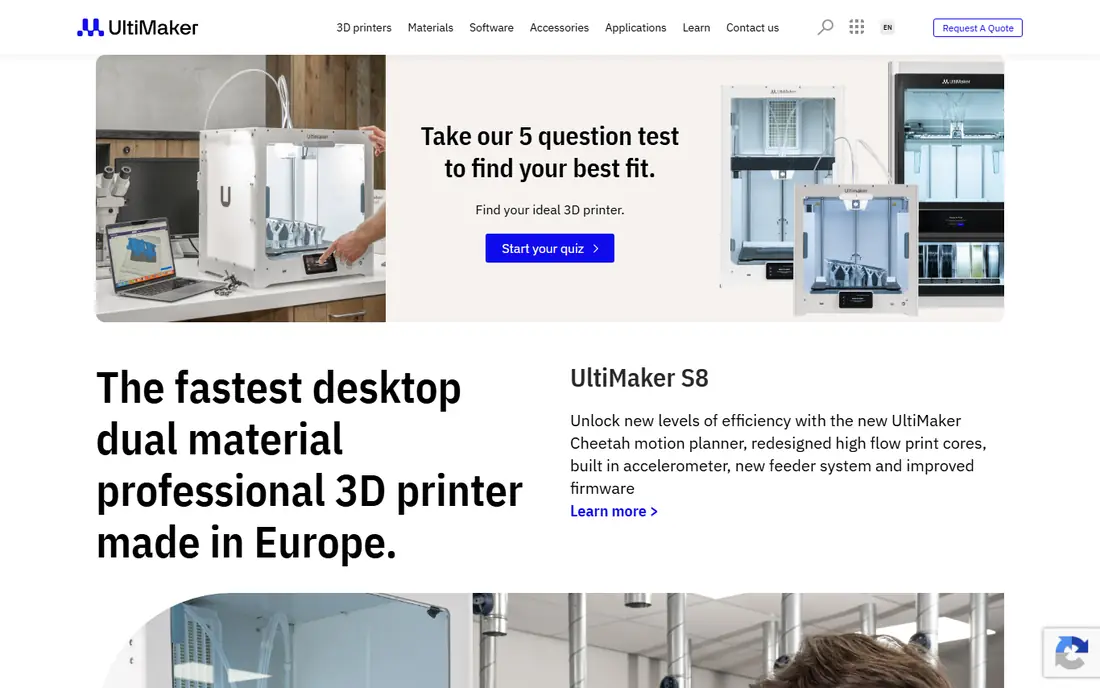
UltiMaker Cura is the default slicer for most of the hobby, and for good reason. It supports over 400 printer models, offers a simple Recommended mode for first prints and a deep Custom mode for tuning layer height, infill, speed and supports, and its plugin library adds features from calibration tools to special print modes.
The catch is defaults. On an UltiMaker printer they are excellent, while on other brands you may need to tune temperatures and retraction yourself. That is normal for slicing, and the huge community means someone has usually published a working profile for your printer. For a first slicer that grows with you, Cura is the safest pick.
- Supports hundreds of printer models
- Recommended mode for beginners and Custom mode for experts
- Large plugin library
- Defaults need tuning for non UltiMaker printers
- Interface can feel crowded in Custom mode
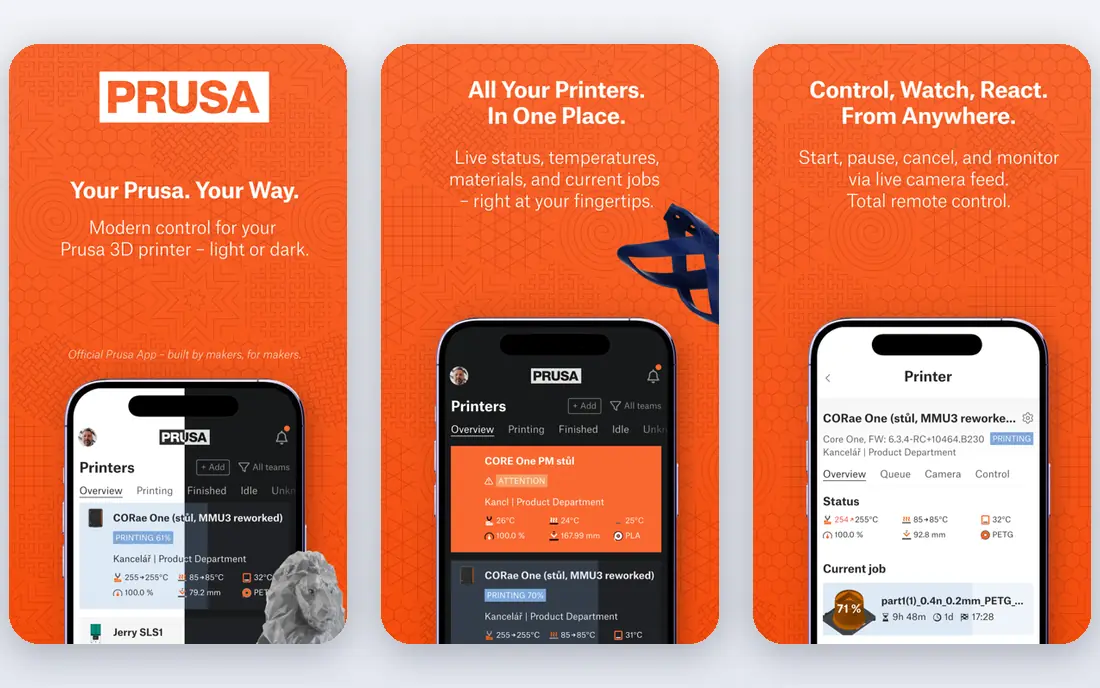
PrusaSlicer, from Prusa Research, is known for reliability and clean supports. Its organic supports peel away more easily than blocky supports on many models, and its profiles for Prusa machines are tuned to a high standard. It also works well with most other FDM printers, so it is not locked to one brand.
The interface is more functional than beautiful, and the profile library is smaller than Cura's. Prusa owners should start here without hesitation. Owners of other printers should try it if Cura's supports frustrate them, since support quality alone can save hours of cleanup.
- Excellent support generation
- Reliable profiles for Prusa machines
- Works with most FDM printers
- Interface is plainer than Bambu Studio
- Fewer built in printer profiles than Cura
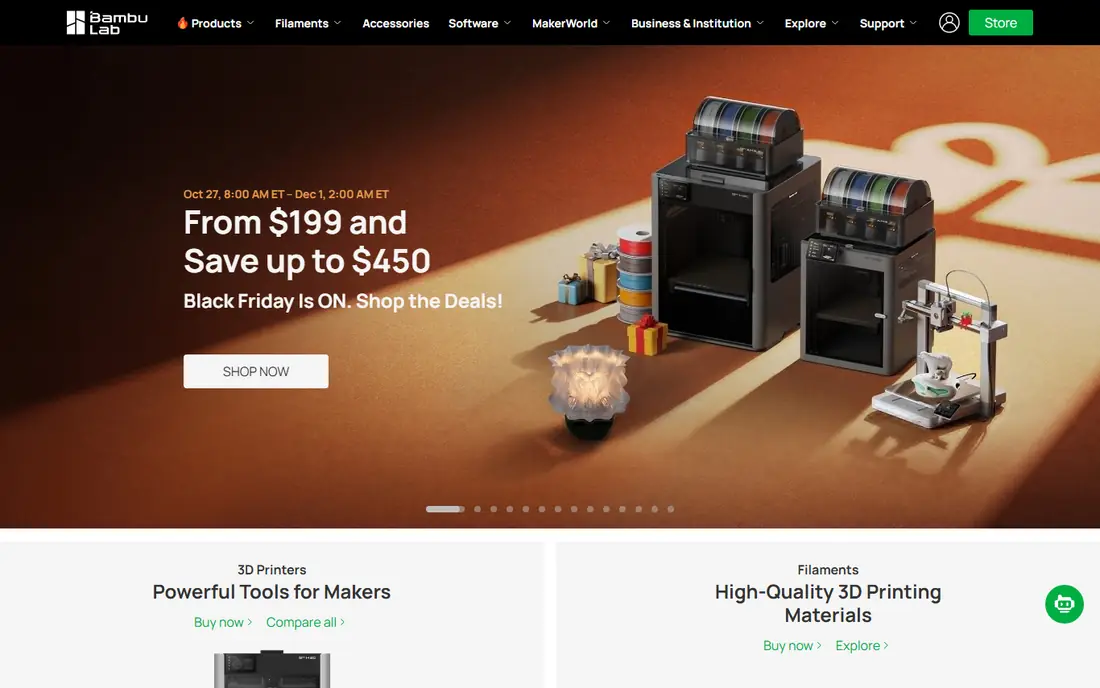
Bambu Studio is the official slicer for Bambu Lab printers, and it shows in how little setup it needs. Profiles arrive pre tuned, network printing just works, and multi colour printing through the AMS system is built in rather than bolted on. New Bambu owners can slice and print on day one without hunting for settings.
Outside the Bambu range, its appeal drops, since many of its best features assume Bambu hardware. If you own a Bambu printer, use this and do not look back. If you do not, OrcaSlicer below gives you a similar experience with broader printer support.
- Pre tuned profiles for Bambu machines
- Network printing and multi colour support
- Clean modern interface
- Best value only for Bambu owners
- Some features tied to Bambu hardware
OrcaSlicer started as a community fork of Bambu Studio and grew into a slicer in its own right. It keeps the clean Bambu style interface, adds broader printer support, and includes built in calibration tests for temperature, flow, retraction and pressure advance. For tuners who want precise control, it is the best free slicer here.
The trade off is support. As a community project, help comes from forums and documentation rather than a vendor help desk, and the extra options can overwhelm a first time user. Start with your printer maker's slicer, then move to OrcaSlicer when you want to tune prints properly.
- Built in calibration tools
- Broader printer support than Bambu Studio
- Frequent community updates
- Community project, so support is forum based
- Extra options can overwhelm beginners
Tinkercad, from Autodesk, is the best first design tool for 3D printing. It runs in the browser, uses drag and drop shapes that you combine and cut, and exports files ready for any slicer. Kids, teachers and first time makers can design a phone stand or a replacement hook in an evening.
The limit is precision. Tinkercad has no real parametric editing, so parts that must fit exactly, like a bracket with tight tolerances, are better built in Fusion 360 or FreeCAD. As a learning tool and a quick design tool, though, nothing beats it for speed and simplicity.
- Runs in the browser with no install
- Drag and drop shapes anyone can learn
- Exports ready for slicing
- Limited for precise engineering parts
- No parametric editing for complex designs
Fusion 360 is professional grade CAD with a free personal use licence, and it is the best free route into serious design. Parametric modelling lets you change a dimension and watch the whole part update, which matters for functional prints that must fit. Sculpting tools handle organic shapes too, and the tutorial library is enormous.
The free licence has limits: commercial use is restricted, active documents are capped, and it needs an internet connection for licence checks. Commercial users must pay for a subscription, priced on Autodesk's site. For hobbyists and learners who want real engineering skills, Fusion 360 is the tool to invest time in.
- Professional parametric CAD
- Free personal use licence
- Huge tutorial library
- Free licence limits commercial use and active documents
- Needs internet for licence checks
Blender is a full 3D creation suite that happens to be excellent for printable organic models. Sculpting, mesh editing and fixing scanned or generated meshes are all strong, and it exports STL files that any slicer can read. It costs nothing, and its community produces endless tutorials.
The learning curve is steep, and Blender is not a CAD tool: dimensions, tolerances and parametric edits are awkward compared with Fusion 360. Use Blender for figurines, artistic pieces and mesh repair, and use CAD for brackets, mounts and parts that must fit. Used that way, it is one of the most powerful free tools in this list.
- Completely free and open source
- Powerful sculpting and mesh editing
- Huge community
- Steep learning curve
- Not built for dimensional engineering
- Print preparation needs care
Simplify3D was once the premium slicer, and it still offers fine control that some advanced users love. Multiple processes in one print let you vary settings by height, support control is detailed, and print previews are clear. For users with specific multi process needs, it remains a capable tool.
The problem is price and pace. Every other slicer here is free, and community slicers have caught up or passed Simplify3D on features and printer support. We list pricing as See website, since it has changed over time. Try the free slicers first, and buy Simplify3D only if a specific feature you need is missing elsewhere.
- Very fine control over processes and supports
- Multi process prints in one model
- Long track record
- Paid while rivals are free
- Development pace has lagged community slicers
How we picked these
We compared official feature pages, pricing pages, privacy policies and public reviews for 3D printing software available in October 2026. We split the list between slicers and design tools, checked printer compatibility and export formats, and favoured tools that are actively maintained. Tools were dropped when development had stopped, when they only worked with one discontinued printer, or when pricing and features could not be verified.
How to build a free 3D printing toolchain
Pick a slicer for your printer first
Use your printer maker's slicer when one exists, Cura for the widest compatibility, or OrcaSlicer for calibration. All are free, so the decision costs nothing to reverse.
Pick a design tool for your model type
Tinkercad for first designs, Fusion 360 for functional parts, Blender for organic shapes. Learning one design tool well beats dabbling in three.
Check the model before slicing
Look for non manifold edges, flipped normals and thin walls in your design tool or slicer preview. Most failed prints start as model errors, not slicer errors, and a two minute check saves hours.
Frequently asked questions
What is the best 3D printing software?
UltiMaker Cura is the best all round slicer, Bambu Studio is best for Bambu owners, and Fusion 360 is the best free design tool for functional parts. The right combination depends on your printer and what you print.
What is the best software for 3D printing for beginners?
Tinkercad for design and Cura or your printer maker's slicer for slicing. Both are free, both have large tutorial libraries, and neither assumes prior experience.
What is the best free 3D printing software?
Cura, PrusaSlicer, Bambu Studio, OrcaSlicer, Tinkercad and Blender are all free. Together they cover slicing, design and sculpting without spending anything.
What is the best 3D modelling software for 3D printing?
Fusion 360 for precise functional parts, Blender for organic and artistic models, and Tinkercad for simple first designs. FreeCAD is another free CAD option worth trying for engineering work.
Do I need both a slicer and a design tool?
Yes, unless you only print models downloaded from libraries. Design tools create the model, and slicers turn it into layer by layer instructions your printer can follow.
What file format should I export for printing?
STL is the most widely supported format, while 3MF preserves more information such as units and colours. Most slicers accept both, so check your slicer's import list if a file fails.
Sources we checked (8)

Online Jobs is an independent blog about careers, online work, learning new skills and the tools that help people earn. More about us.
Keep reading
All posts
Best White Label SEO Companies
We compare the best white label SEO companies and tools in 2026 for agencies, from fulfilment services to branded reporting platforms, margins and prices.

Best Webinar Software
We compared the best webinar software for 2026 on price, attendee limits, automation and ease of use, to help you host better live sessions with confidence.
Best Web Scraping Tools
Compare the best web scraping tools in 2026, from no-code Octoparse and Browse AI to Apify, Firecrawl, Bright Data, Zyte, ScraperAPI and free Scrapy, with prices.